How to Backup Rogers Emails to Hard Drive?
Christopher Plummer | January 1st, 2026 | Data Backup
Many users want to backup Rogers emails to hard drive/computer/P,C etc. As it may contain important information, and if these emails are lost due to any issues, then restoring them can become difficult.
Since Rogers Mail does not provide a direct option to download emails locally, users find it difficult to get a reliable one. In this guide, we will explain how to backup Rogers emails to a computer using both manual and professional methods, so you can choose the option that best suits your needs.
How to Backup Rogers Email to Hard Drive Manually?
Follow the steps to download Rogers emails to your system using Outlook manually:
- Launch the Outlook application on your system.
- Go to File tab and click on Add Account.
- Enter Rogers email account login details and complete the set up process.
- After configuration, navigate to File >> Open & Export >> Import/Export.
- Choose Export to a File and click Next.
- Select Outlook Data File (.pst) and press Next.
- Next, choose Rogers mailbox folders to backup.
- Browse the destination location and click Finish button.
Done! This is how you can save Rogers emails to computer/pc/hard drive.
Note: This method takes a lot of time if the mailbox is large. And, Outlook must be installed on your system to complete the backup process.
How to Download Emails from Rogers Mail to Computer Automatically?
Download and install the Advik Email Backup Wizard on your Windows and Mac machines. With this utility, you can backup Rogers emails to PC/Hard Drive/Flash Drive, or any other storage device. The software will let you save Rogers emails in 20+ different email and document file formats. It can download all emails from Rogers Mail account at once. Apart from this, it also provides advanced email filter options to export selected emails.
Additionally, you will get the same folder hierarchy as it was in your Rogers email account. It also preserves all the email attributes of emails carefully while downloading them to pc.
Click below to download the software and try it for free.


Steps to Backup Rogers Emails in Multiple Formats
Step 1. Run the Rogers Mail Backup Software on your PC.
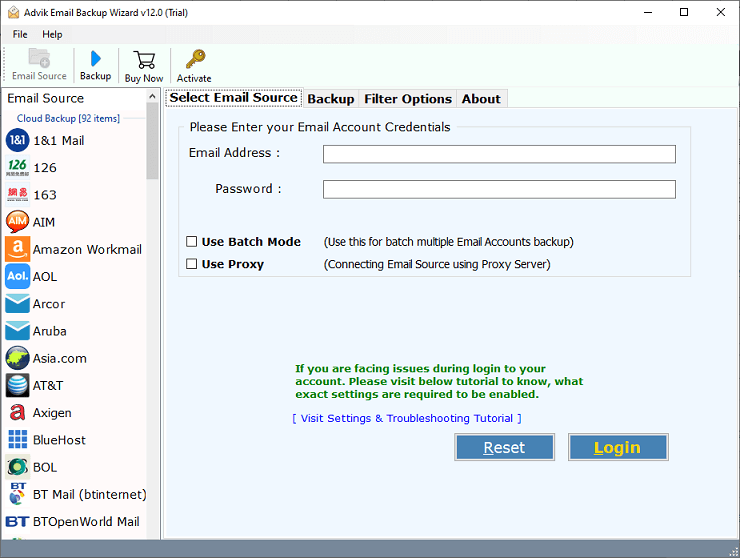
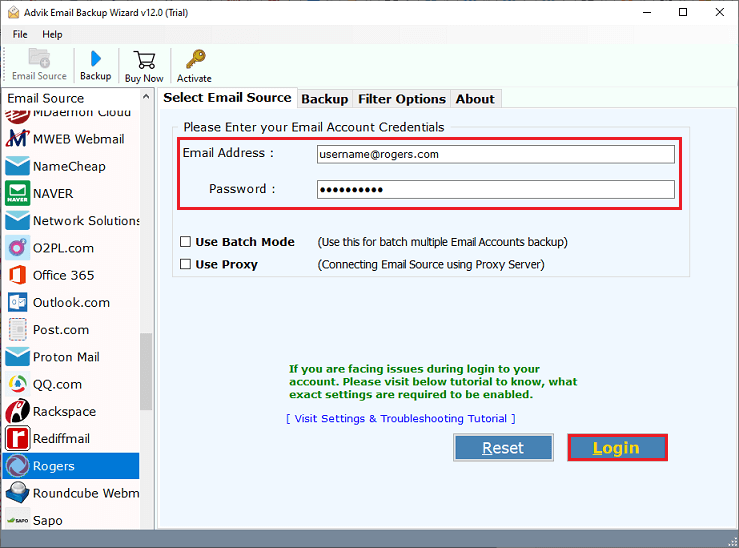
Step 2. Choose Rogers from the email source and login with your credentials.
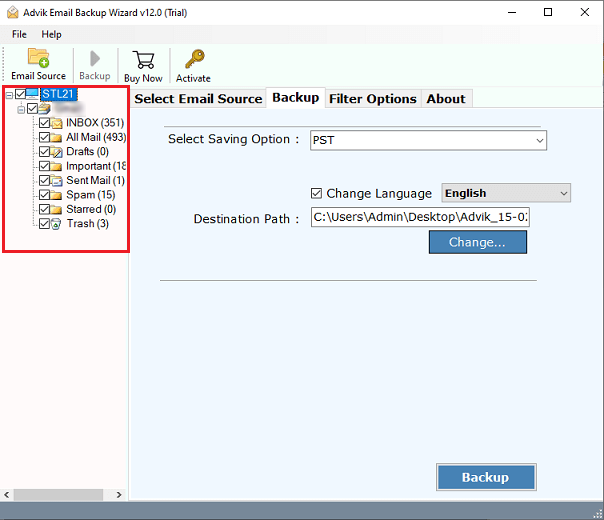
Step 3. Select the required mailbox folders that you wish to download.
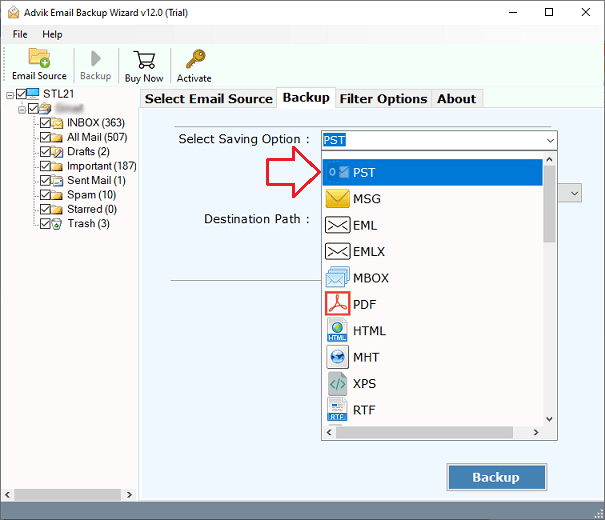
Step 4. Select any desired saving option from the list.
Step 5. Choose the target location and click on the Backup button.
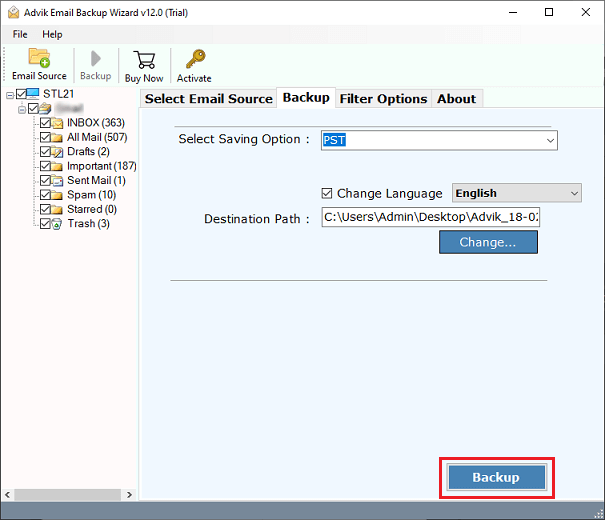
Sit back and relax!! The software will start exporting all emails from Rogers to local drive.
Now, you will be redirected to the specified location you have chosen. Access your emails in your preferred file format.
Why Choose Advik Rogers Mail Backup Software
- A direct way to Backup Rogers Emails: The program offers a direct backup option for downloading crucial emails from Rogers account to PC. Simply enter the login information and select the file format and backup.
- Selective Backup: The tool lets you decide which email folders in your Rogers account you want to save. This has sophisticated email filter features that can be used to export selective emails from Rogers email account.
- Transfer Rogers Emails to Another Webmail: Users can also migrate Rogers emails to Office 365, Outlook.com, Yahoo, Office 365, Rediffmail, G Suite, IMAP, Windows Live Mail, Lotus Notes, Thunderbird, etc.
- Maintain Hierarchical Structure: During the backup process, the program keeps the email folders’ hierarchical structure. Additionally, it will keep email attachments and their components.
- Easy Graphical UI: This application has a straightforward and user-friendly interface platform. Therefore, anyone may quickly grasp how to backup Rogers emails in 4 easy steps.
- Windows Compatibility: All versions of the Windows operating system are compatible with this software. This application is simple to install on Windows 10, 8.1, 8, and other operating systems.
Final Words
As you have understood now that how important backing up Rogers emails to your local system, such as Hard drive is. So, you just have to read this blog completely to understand the complete procedure. While the manual method can work for small mailboxes, it requires technical steps that are suitable for large and frequent backup needs. For a more convenient option, you can go with a third-party tool like Advik to ease your work in a few steps.
Frequently Asked Questions
Q1. Can I export all my emails from Rogers mailbox at once?
Ans. Yes, the Advik Software lets you download multiple Rogers emails in a single attempt.
Q2. Will the folder hierarchy remain intact during the process?
Ans. Yes, the Advik Software maintains the original structure of Rogers mailbox folders even after the process.
Q3. Is it possible to take Rogers email backup in bulk?
Ans. Yes, the software can take backup of multiple Rogers Mail accounts at once with batch mode feature.
Q4. Is there a free version of this software to try?
Ans. Yes, the Rogers Mail Backup Tool offers a free demo version. It allows you to download 25 emails from each folder to test the tool before purchasing.
