How to Backup Shaw Webmail to Computer?
Christopher Plummer | January 1st, 2026 | Data Backup
If you have never backed up your Shaw email account, you may be wondering where to start. And, you probably need to answer the following questions;
“How do i backup my Shaw mailbox?”
“Can I back up my Shaw emails automatically?”
“Should I back up my Yahoo mail to the computer or another email account?”
Don’t worry, we will address all these questions in this article. You will learn how you can create a secure backup of your Shaw email account and make it easy for you.
How to Download Shaw Emails to Hard Drive Manually?
Follow the steps to save Shaw Webmail emails to your system using the Outlook email client.
1. Launch the Outlook application and go to File >> Add Account.
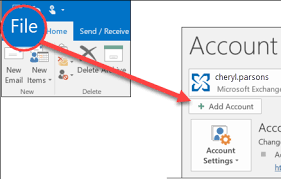
2. Add your Shaw Mail account in Outlook.
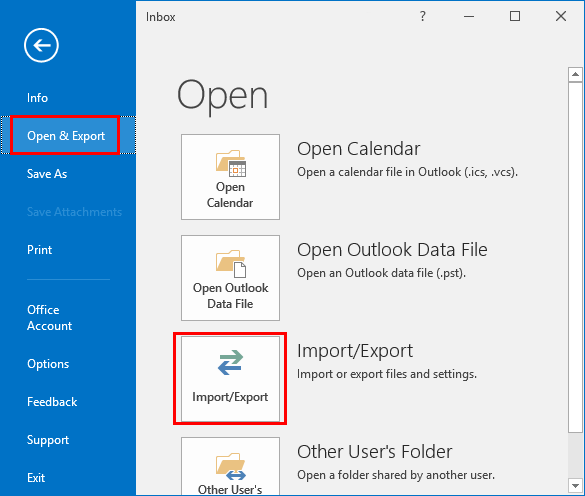
3. After configuration, click on File >> Open & Export >> Import/Export.
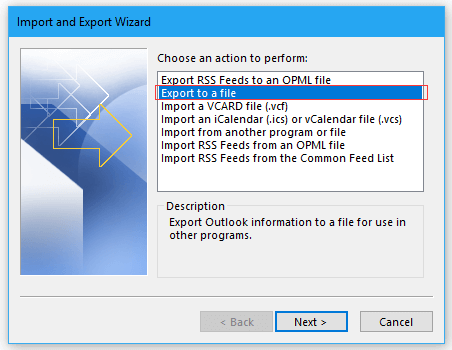
4. Choose Export to a File and click Next.
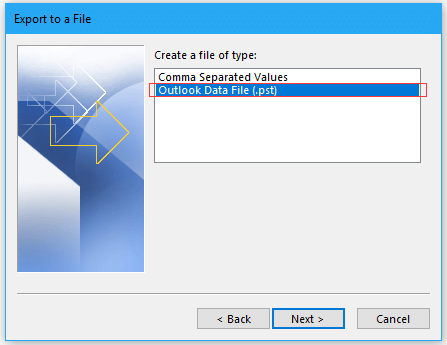
5. Select Outlook Data File (.pst) and press Next.
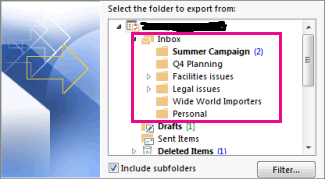
6. Choose recently added Shaw Mail folders and tap Next.
7. Click on Browse to choose the destination path and click on the Finish button.
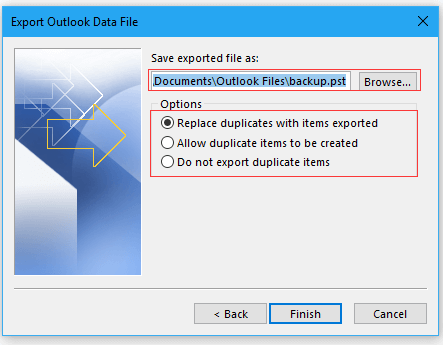
Done! That’s how you can manually export Shaw Mail to the system.
Why Should Not Rely on Manual Solution?
- Lengthy and time-consuming process.
- Outlook must be installed.
- No filter options to save selected emails.
How to Export All Emails from Shaw to Computer Automatically?
Try the Advik Email Backup Wizard to backup Shaw email to PC/Computer/Hard Drive. The software can directly download emails from Shaw Mail to your system without any configuration. It can save the entire mailbox in one go. Apart from this, you can also choose email folders for backup. The tool preserves all email attributes such as attachments, hyperlinks, signature, etc, during the Shaw email backup process. Also, it maintains the original structure of Shaw mailbox folders even after the process.
You can even download the FREE Trial version of this tool here and test its efficiency and effectiveness.


Steps to Backup Shaw Email to PC
Step 1. Download and install the tool on your Mac/Windows PC.
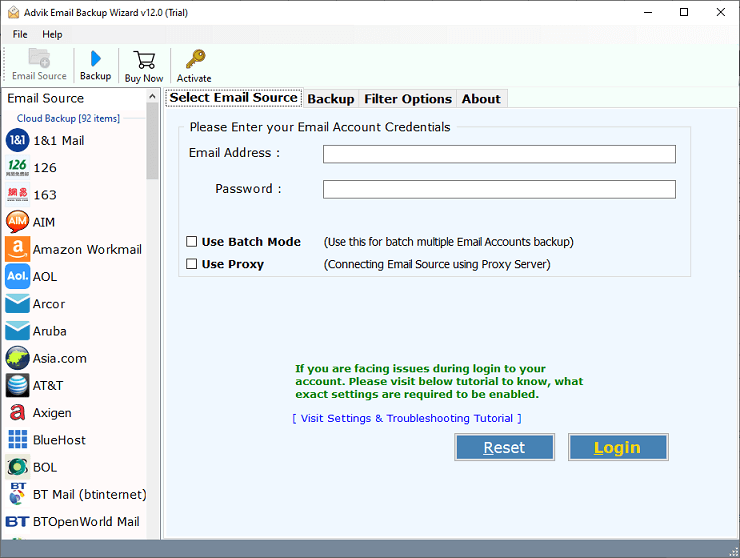
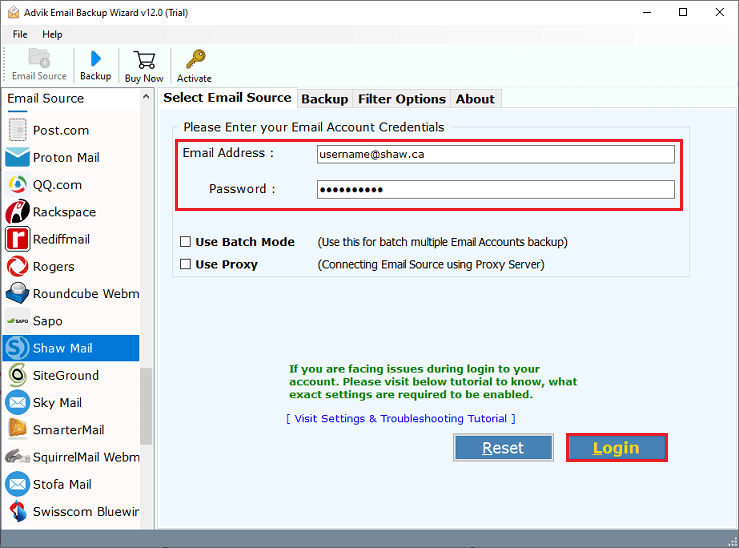
Step 2. Choose the email source as a “Shaw Mail” option.
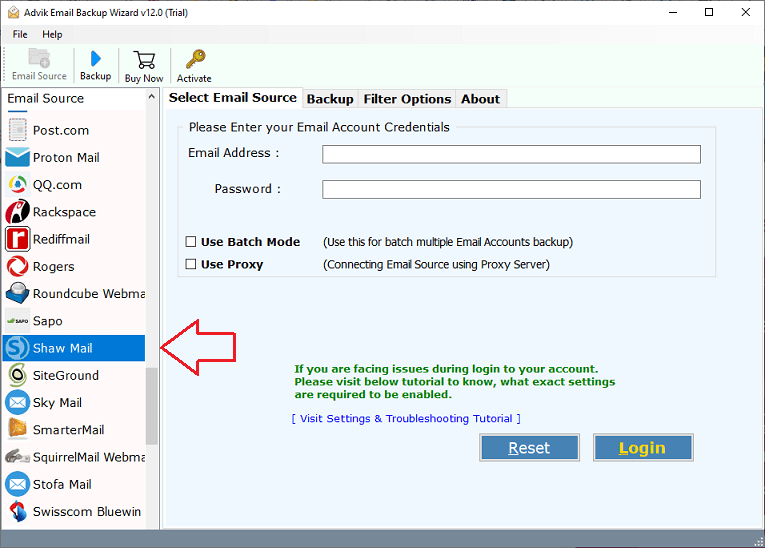
Step 3. Enter Shaw Mail email address, Password, and press the “Login” button to sign in.
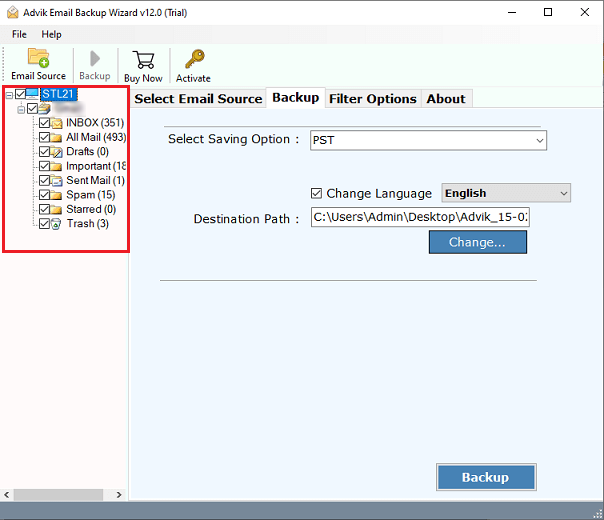
Step 4. Thereafter, mark the checkbox of the required folders of your email account.
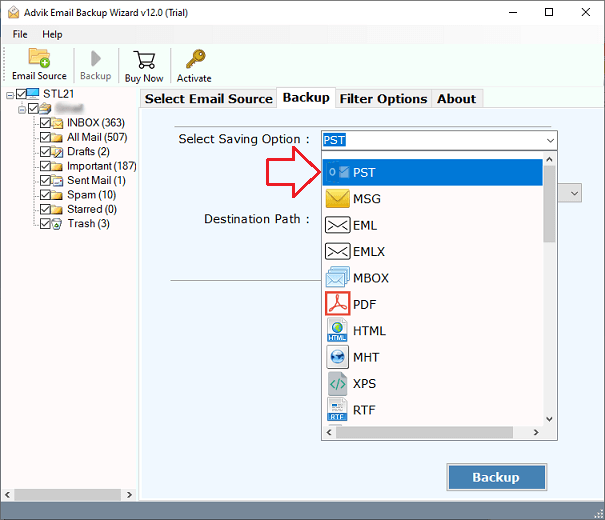
Step 5. Now, choose a file format to save Shaw emails.
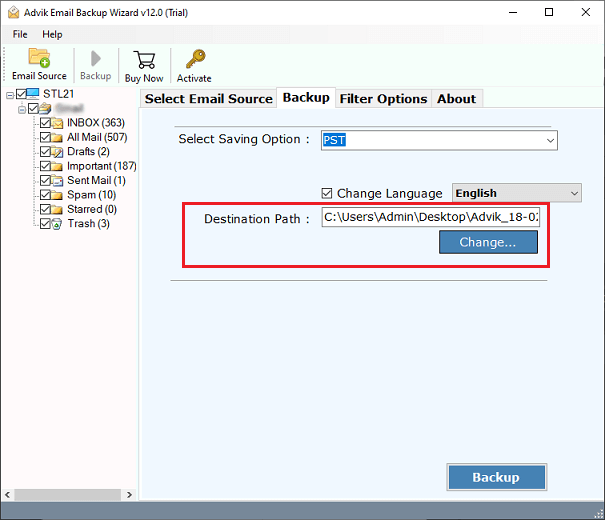
Step 6. Browse target location to save downloaded emails.
Step 7. Click on the “Backup” button to begin the process.
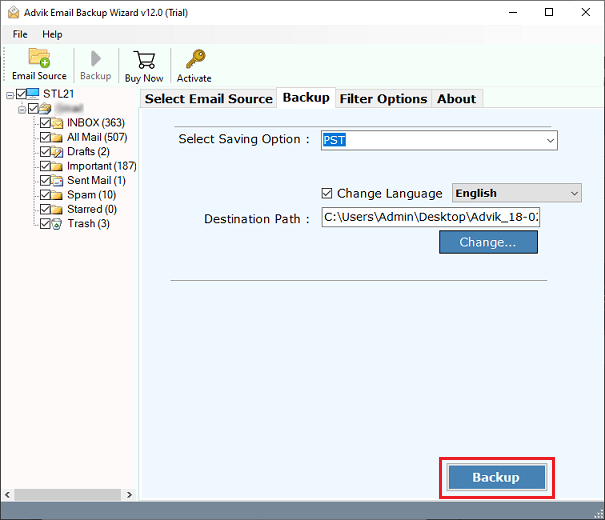
Now, you will see a progress bar that will highlight the time duration left for the backup to be completed. In a few seconds, you will get your results.
Watch How to Save Shaw Emails to Computer
Highlighted Features of Advik Email Backup Wizard
- Transfer emails from Shaw Mail to another Webmail: Now, you can also transfer emails from Shaw Mail to the various email servers directly. It will allow you to transfer Shaw emails to Office 365, Exchange Server, G Suite, Gmail, Yahoo, Rediffmail, Outlook.com, etc.
- Save Shaw Mail in Multiple Formats: The software will save Shaw emails to formats such as PST, MSG, EML, PDF, DOC, RTF, HTML, etc.
- Download Shaw Emails in Bulk: The software can backup Shaw emails to hard drive in bulk. You do not need to repeat the steps again and again to export all mailbox folders.
- Advanced Email filters: The software provides various advanced settings options that can be used for the selective Shaw Webmail backup process.
- Retain Data Integrity and Folder Structure: The software keeps an exact copy of the email structure in your system. It also preserves the email formatting, including attachments, addresses, subjects, images, hyperlinks, etc., during and after the backup process.
- Wide Compatibility: This utility is compatible with all the latest and previous versions of both Mac and Windows machines. So that you can use it on any of your preferred systems.
Final Words
In this post, we have discussed how to backup Shaw email to Computer. Here, we have explained both manual and automated solutions to save Shaw Webmail emails. Both methods are 100% workable. You can choose any method that is most suitable for you. However, the manual method comes with some limitations. Therefore, you can choose a professional solution to download Shaw Emails without facing any issues.
FAQs – Shaw Email Backup
Q 1. How do I export emails from Shaw to PC in bulk?
Ans. With AdvikSoftware, you can save all Shaw emails in a single attempt.
Q 2. Is it possible to backup Shaw email along with attachments?
Ans. Both above suggested methods can save Shaw emails along with attachments.
Q 3. Does the tool maintain the folder strcture while backing up?
Ans. Yes, the software retains the original structure of Shaw mailbox folders during the process.
