How to Fix “Can’t Upload PDF to ChatGPT – Unknown Error”
Jackson Strong | January 2nd, 2026 | Data Conversion
Complete guide to fix “can’t upload PDF to ChatGPT – unknown error”. Covers all the causes and step-by-step guide to upload PDF files into ChatGPT without facing any issues. So, let’s move ahead.
Real User Query
This is not a single-user issue; in fact, there are many people like you who are facing the same kind of situation.
Below, we are sharing a recent user query we found on the community platform of ChatGPT while we were exploring solutions to solve your query. This discussion clearly highlights this problem.
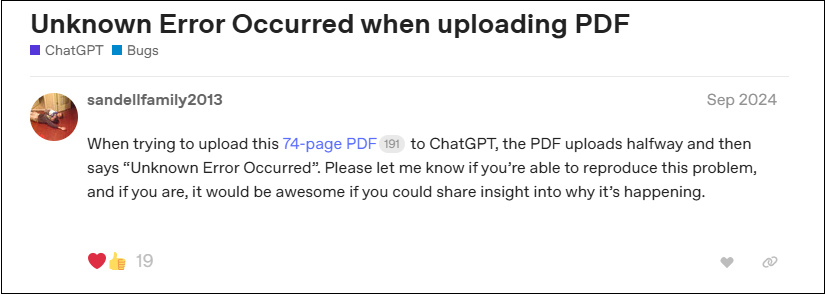
This example shows that even normal looking PDF files can also show an unknown error. So, let’s understand the real causes behind, and after we will discuss the methods one by one to deal with these issues.
Why Can’t I Upload PDF Files to ChatGPT? Know Reasons Here
This error can be caused by minor or major technical glitches. Problems with your PDF file due to limitations or other issues could also be the cause. Most importantly, however, it’s crucial to understand these causes before choosing a suitable solution.
The most common causes are explained below:
- File size limit: The free version of ChatGPT has a limit on the size of PDF files you can upload. You can only upload PDF files up to 10 MB.
- Corrupted or locked PDF file: If your PDF file is corrupted or locked with a secure password, ChatGPT may not be able to access its contents, resulting in the upload being aborted.
- Browser settings issues: Since your browser is the medium through which you access and use ChatGPT, problems such as cached data, outdated plugins, or faulty browser versions can interrupt the process.
- Temporary technical issues: In addition to these issues, server-side disruptions may occur. Restoring normal operation may take some time.
- Unstructured PDF files: Please note that PDFs are not uniformly structured. ChatGPT may therefore have difficulty reading all PDFs using the same method.
Now, you must have understood the most probable causes due to which you were unable to upload PDF file into ChatGPT. These are important to know so that you can take an appropriate step as per your concerned issue.
Let’s move on to understand all the available ways to fix can’t upload PDF to ChatGPT error.
Can You Upload PDF to ChatGPT Free?
Yes, you can upload PDF files to ChatGPT for free, but there are some limitations. The free version only allows you to upload PDF files with a maximum size of 10 MB. You can also upload a maximum of three PDF files per day. We understand that this is a limited number, especially considering the importance of data analysis using PDF files with ChatGPT these days, and these restrictions should be taken into account. Therefore, uploading PDFs to ChatGPT for free is easy, as long as you adhere to these limitations.
How to Fix “Can’t Upload PDF to ChatGPT – Unknown Error
In this section, we have conducted thorough research and present proven methods for resolving issues when uploading PDF files to ChatGPT. We recommend that you go through each method individually and then identify the cause and solution that best suits your situation.
1. Ensure PDF File Size Limit
As we have discussed earlier, the free version of ChatGPT comes with a limit on PDF file size you can upload. So, first check the size of PDF file you are using, and if it’s too big or large, then try to compress it and then use it here.
Large PDF files often consist of high-resolution images, scanned images, and various embedded media.
2. Try Different Browser
Sometimes, using an outdated browser can block uploads. So, try to clear browser cache and cookies, update your browser, switch to a different browser like Chrome, Safari, Edge, Firefox, and many more.
3. Check Added Extensions
When you add any third-party extensions or plugins to your browser, it might interfere with file uploads. If there are unusual or ultile extensions added, then it may stop ChatGPT from uploading PDF files easily.
Try to:
- Disable all the extensions.
- Then refresh the page.
- And upload the PDF again.
4. Delete ChatGPT Conversation History
Using ChatGPT for a long time takes up complete space of your storage account. And it stops ChatGPT from uploading newer files. It’s better to clear the unwanted data from ChatGPT profile to improve its performance without any errors.
Follow the steps below to do so;
- First, log in to your ChatGPT and go to settings.
- Now, in the settings option, tap to clear history.
- At last, click on Confirm deletion to remove it.
Done, you have freed a large amount of space from your ChatGPT account. Now, try to re-upload PDF file to see if it was the cause of this error or not. And try to clear chat history regularly to avoid any kind of issues in the future.
5. Remove Password Protection
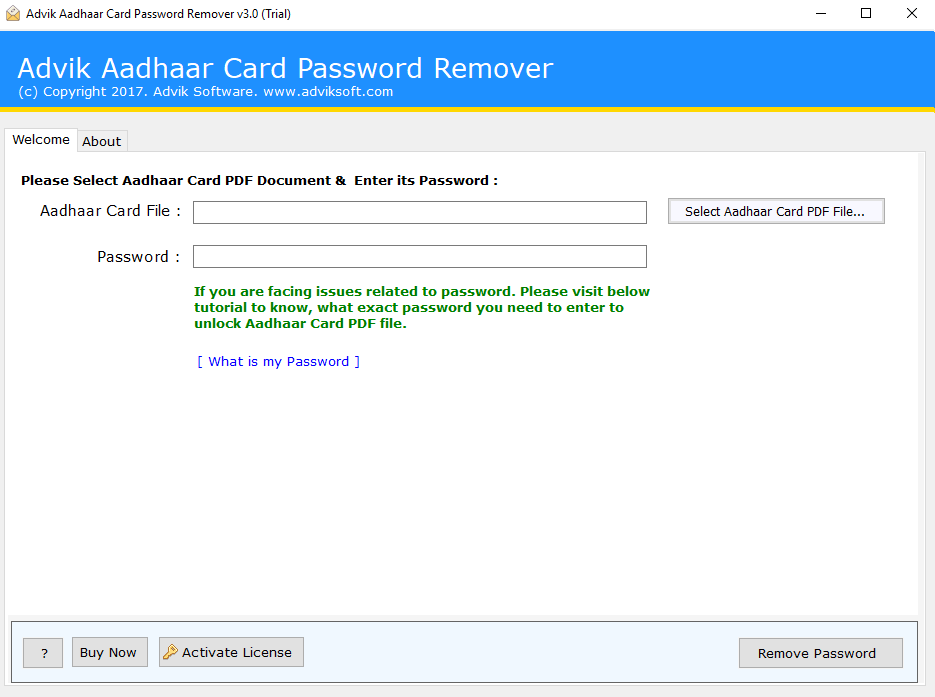
So, try to recover password from PDF file manually, or if you have forgotten it, then try this professional software, i.e., Advik Aadhar Card Password Remover, to easily remove all the restrictions from your PDF file.
Click on the download button and try it for FREE!

Steps to Remove Password Protection from a PDF
Step 1. Open the tool & add the password-protected PDF file.
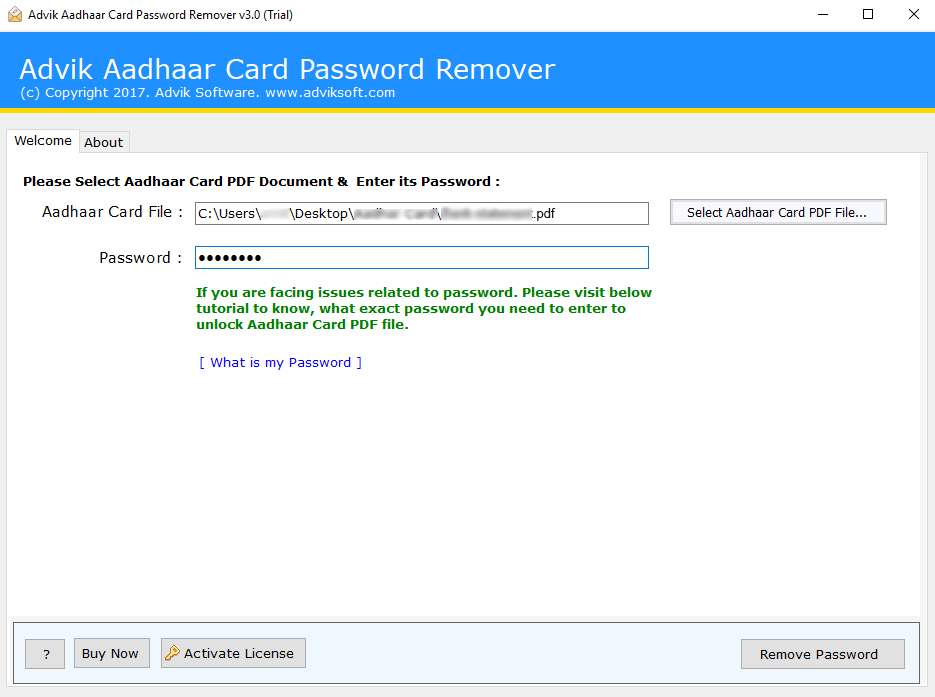
Step 2. Enter the correct PDF password.
Step 3. Click the remove option & start the process.
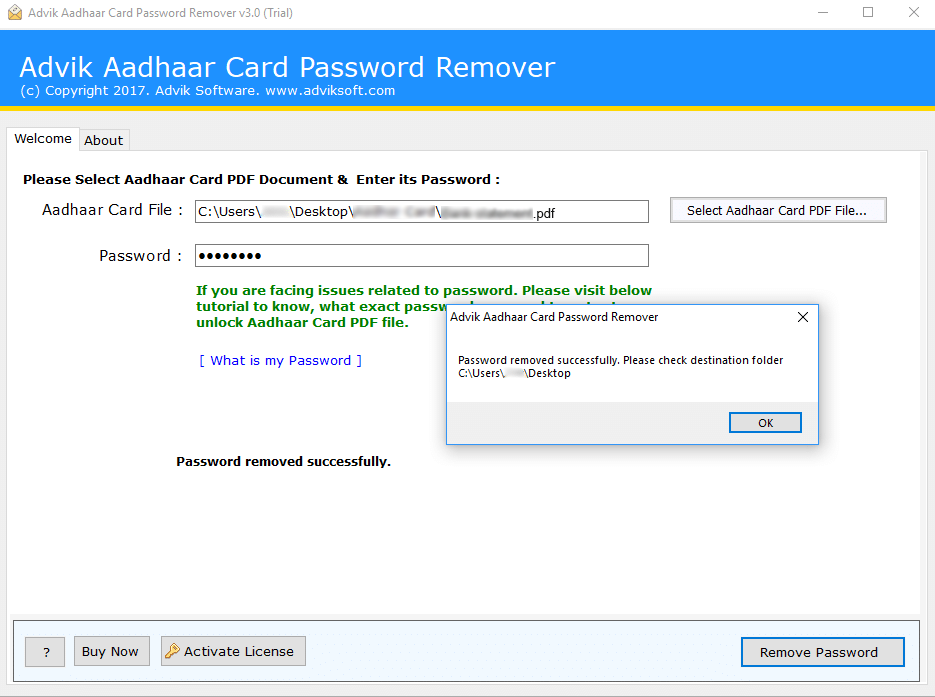
Once done, upload the unlocked PDF to ChatGPT.
Final Words
We have now presented you with all the available and practical solutions for the problem of “unable to upload PDF to ChatGPT.” We understand how frustrating such errors can be, especially when you’re in a hurry. However, these problems can only be resolved with patience. First, try to understand the root cause of the problem and then apply the appropriate solution. Once the cause is clear, the correct solution will be all the more effective.
