How to Combine Calendars in Outlook?
Jenny Lowrence | March 10th, 2026 | Outlook
Do you want to combine calendars in Outlook but do not know where to start? You’re not alone! Many users want to merge multiple Outlook calendars into one. In this article, we’ll explain the top four best methods for combining Outlook calendars. Let’s get started!
Microsoft Outlook is a widely used application for managing emails, calendar scheduling, contact storage, task management, and much more. The calendar feature in Outlook is useful for setting up meetings, appointments, and even reminders. Many users maintain separate calendars for work, personal events, and team schedules. However, managing multiple calendars in MS Outlook can be difficult. When these calendars are viewed separately, it becomes difficult to track meetings and appointments in one place.
Combining calendars in Outlook is a simple way to organize everything in a single view and allows users to see all events together. In this guide, we will explain how to merge calendars in Outlook using manual and professional solutions.
Why Combine Calendars in Outlook?
Here are some benefits of merging Outlook calendars:
- View all appointments in one place
- Improve productivity and time management
- Avoid scheduling conflicts
- Simplify meeting planning
- Manage work and personal schedules in one place
How to Merge Multiple Outlook Calendars into One?
There are several ways to combine calendars in Outlook. Here, we’ll discuss four different methods to overlay calendars in Outlook. All methods are workable. Try them and choose any one that is most suitable for you.
Method 1. Combine Outlook Calendars via Overlay Feature
- Open Outlook on our system.
- Click on the Calendar icon from the bottom navigation panel.
- In the left sidebar, you will see a list of available calendars.
- Check the boxes next to the calendars that you want to combine.
- Click on the View tab from the top ribbon.
- Next, select Overlay mode.
- Now, the calendar will show in a layered format.
Method 2. Merge Calendars in Outlook via Copy & Paste Method
- Open the source calendar in Outlook.
- Press Ctrl + A to select all events of source calendar.
- Now, press Ctrl + C to copy the events.
- Next, open the destination calendar.
- Press Ctrl + V to paste the calendar events.
Method 3. Combine Multiple Outlook Calendars into One via Export and Import
You can manually export the calendar and then import it into another.
Step 1. Export Outlook Calendar
- Open Outlook and go to File tab.
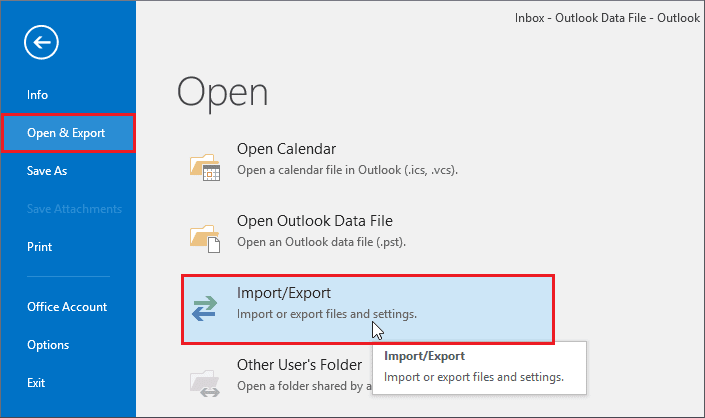
- Click on Open & Export >> Import/Export.
- Choose Export to a File and click Next.
- Select Outlook Data File (.pst) and press Next.
- Now, choose the calendar that you want to combine.
- Browse the target location and click Finish.
Step 2. Import Calendar
- Go to the File tab in Outlook.
- Navigate to Open & Export >> Import/Export.
- Choose Import from another program or file and click Next.
- Select Outlook Data File (.pst) and press Next.
- Click on browse and choose the above exported file.
- Choose the Calendar folder in which you want to import the events and click Finish.
If you have multiple calendars, then manual methods are time-consuming and high-risk of data loss during the merging. However, if you want a simple and quick solution, then you can use a professional solution.
Method 4. Combine Calendars in Outlook Professionally
Try the Advik Outlook PST Converter on your system. The software allows you to merge multiple Outlook calendars into one. With this tool, you can combine all Outlook calendar events into one at once. This is a secure solution that keeps the original formatting intact during the process. It supports all the latest and older versions of MS Outlook.
Click on the below link and download it for FREE.


Steps to Combine Outlook Calendars
1. Run the tool and choose your Outlook profile.
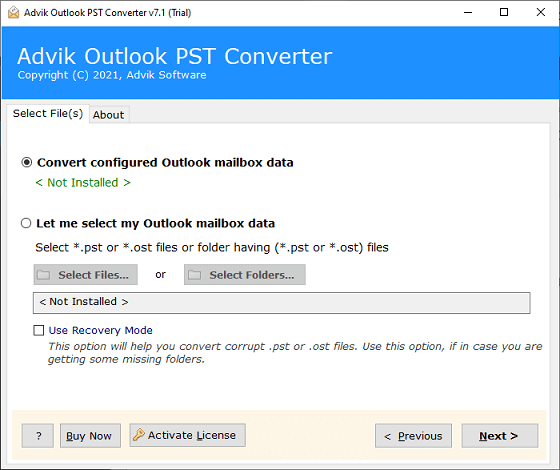
2. Select the Calendars folders and click Next.

3. Next, choose PST as a saving option.
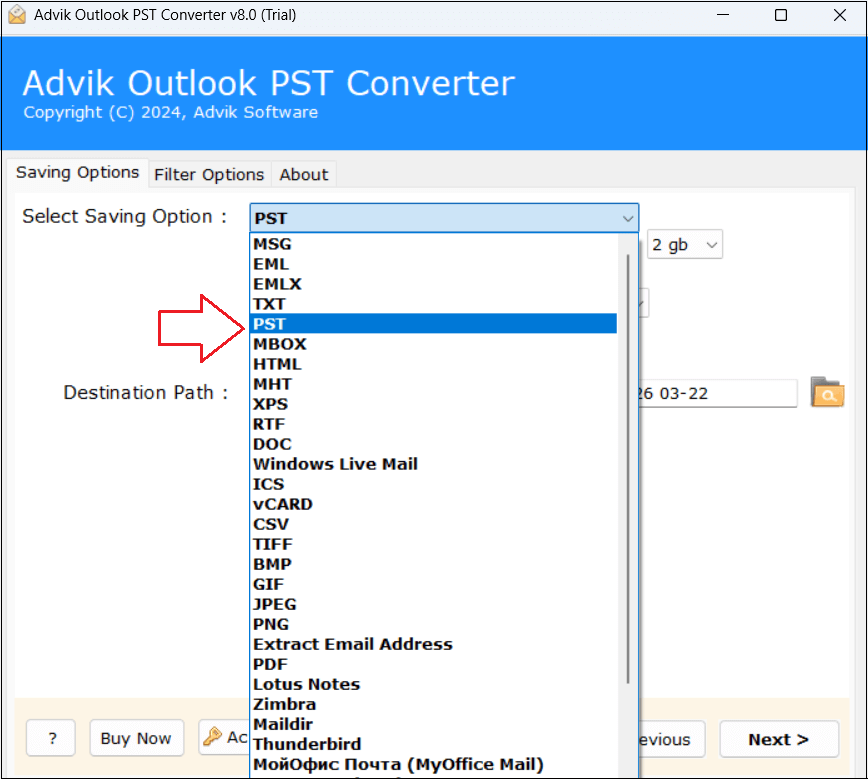
4. Browse target location and click Next to begin the exporting process.
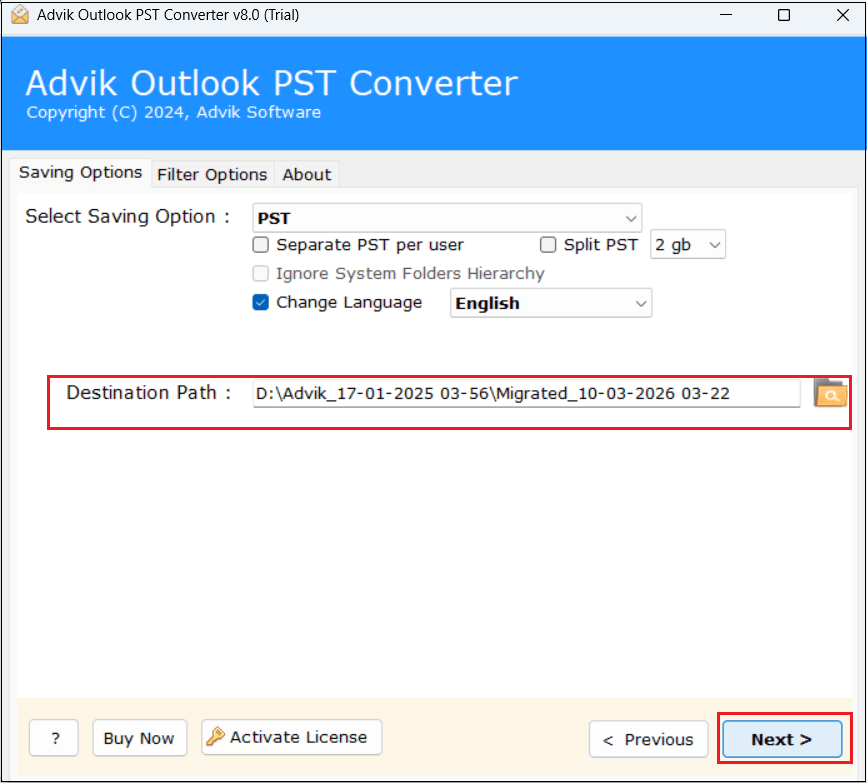
5. After that, open Outlook and import the exported .pst file into the calendar folder via import/export feature.
The process is complete! That’s how you can easily combine calendars in Outlook.
Apart from the above function, the tool has various advanced features that make the process simple. Some of them are;
- The software can merge multiple Outlook calendars in a single attempt.
- The tool can export Outlook Calendar to PDF and many other formats.
- It preserves all calendar details such as appointments, meeting notes, etc, as well
- Also, it allows you to filter the calendar entries based on date range, category, etc.
Conclusion
Merging calendars in Outlook is a smart way to keep the schedule organized and easy to manage. In this post, we have discussed how to combine calendars in Outlook. Here, we have mentioned 4 different ways. You can choose any method that is most suitable for you as per your needs.
