How to Download Mailchimp Emails as PDF? Step-by-Step Guide
Need to download Mailchimp email as a PDF so you can keep a record, share it, print it or access it offline? You can do this manually; just open the sent campaign within the web version of Mailchimp and print it to PDF with your browser’s Print command, Save as PDF option. If the campaign has been sent, it’s easy: Go to Campaigns >> All campaigns, click the campaign options, and select View Email. This opens the web/archived version of the campaign. Save that to PDF using your browser’s print function.
But this manual method is meant to save a single campaign. Mailchimp doesn’t have a native feature to export bulk PDFs to save multiple campaigns at once. The PDF can also be slightly different from the original campaign as it is generated from the browser.
In this guide, you will learn how to manually download or save a Mailchimp campaign as a PDF, the limitations of the manual approach and which option is suitable which match with your needs and requirements.
Table of Content
- Benefits of Downloading Mailchimp Email Campaign as PDFs
- Method 1: Download a Mailchimp Campaign as a PDF Manually
- Limitations of the Manual Method
- Method 2: Can You Export Mailchimp Campaigns to PDF in Bulk?
- Steps to Convert Mailchimp Email to PDF File
- Watch Video Tutorial: How to Download Mailchimp Email as PDF
- Which Method Should You Choose?
- Conclusion
Why Should I Save Mailchimp Email as PDF Files?
You might want to download or save Mailchimp email as PDF if you need a shareable version of your email campaign for easy sharing instead of just the online version.
- Keep permanent campaign records: To save a permanent copy of your important newsletters, announcements, promotions or other campaigns for future reference.
- Generate client reports: Exporting important reports in PDF such as campaign with clients, managers or stakeholders for marketing reports or project documentation creates easy presentation.
- Access Email campaigns offline: Generally, people store campaigns locally, so you can review their content without using any active Mailchimp session or internet connection.
- Print campaign content: A PDF is an easy way to have a physical copy of a newsletter or campaign for meetings, presentations and internal records.
- For marketing portfolio: To keep some campaigns as examples of previous email designs, promotional work or marketing projects.
Method 1: Download a Mailchimp Campaign as a PDF Manually
If you want to save only one or a few sent Mailchimp campaigns to PDF files, you can use the built-in campaign view of Mailchimp and the Print functionality of your web browser. This method requires no third-party software.
Step 1. Log into your Mailchimp account and select the account that has the campaign you want to save as a PDF.
Note: You must have access to the Mailchimp account from which the campaign was sent or created. A Mailchimp account is not your typical email inbox like Gmail or any other email account.
Step 2. Now, here you will see your Mailchimp dashboard. Next, go to Campaigns and then click All campaigns.
Step 3. You will see your available campaigns. Choose the sent campaign you want to save as a PDF.
Step 4. Look for the campaign you want to download and open its options or a menu.
Step 5. For a sent campaign, look for View Email instead of Preview option used when working with a campaign draft.
Step 6. Click View Email to view the sent campaign in its web/archived version.
Step 7. The campaign will open as a webpage in your browser. This is the browser version you will use to create the PDF.
Step 8. Use your browser’s Print command when you open the web version of the campaign.
Windows: Ctrl + P & Mac: Cmd + P
Step 9. Or you can go to the menu in your browser and choose Print.
Step 10. In the Print dialog box, choose the save option for PDF in your browser or Operating System.
Step 11. Such as that, choose Save as PDF as destination or printer.
Step 12. Check preview to make sure the campaign content is displaying correctly.
Step 13. Select the folder you want to save the file in, give a suitable file name and click Save.
Your Mailchimp campaign is now saved as a PDF file that you can view, share, archive or print later.
Important Notes:
- This method is used to save Mailchimp campaign email as a PDF only in web version.
- It only supports one campaign at a time.
- No option to bulk export PDF files.
- Formatting can not be preserved as it may vary from the original HTML campaign.
Method 2: Can You Export Mailchimp Campaigns to PDF in Bulk?
Mailchimp does not provide a native bulk PDF export option for campaigns. The built in method is designed to save individual campaign emails through their web browser only.
However, if the emails that you want to save as PDF are stoed in the supported email mailbox instead of Mailchimp campaign archive, then Advik Email Backup Wizard can help you to export mailbox messages to PDF. It supports 200+ email providers and IMAP/POP3 connections and also download email messages while maintain folder selection as well. Also, you can apply filters for selective export and use multiple export formats. However, this mailbox workflow is not the same as exporting Mailchimp campaigns directly.
Download the free version of the software and know how it works;


Steps to Convert Mailchimp Email to PDF File
Step 1. Launch the software after downloading and installing it; choose your email provider.
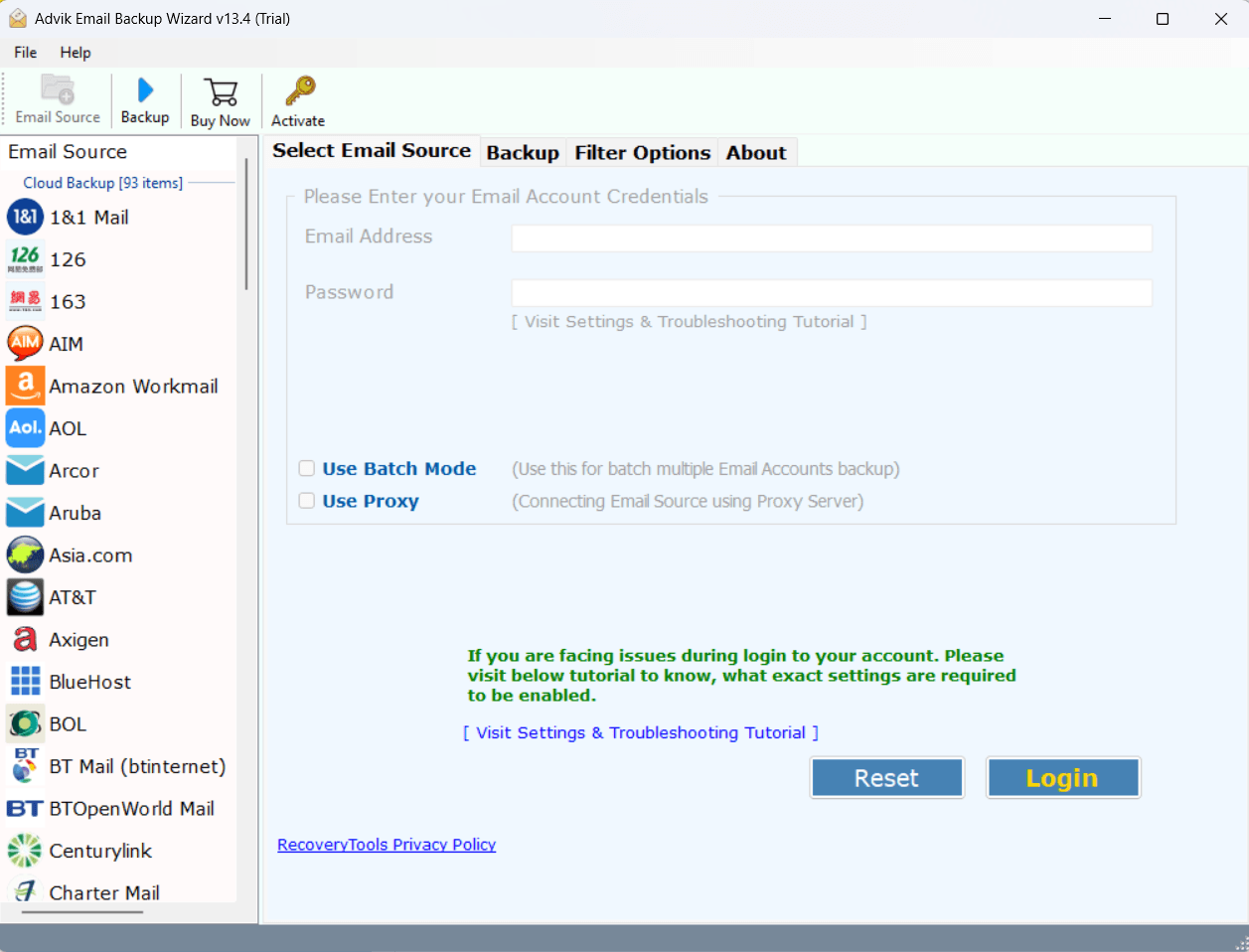
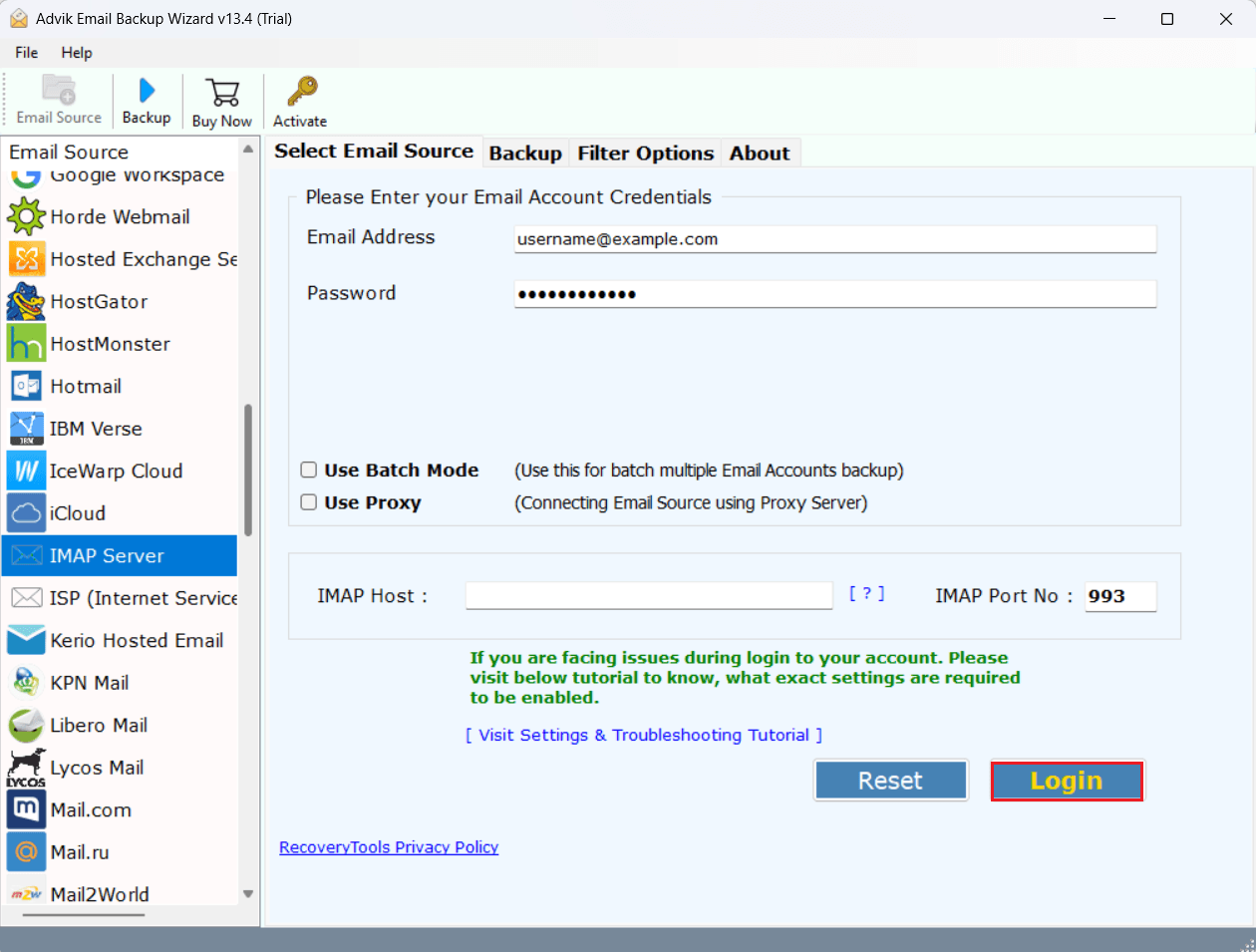
Step 2. Sign in using the authentication method supported by your provider.
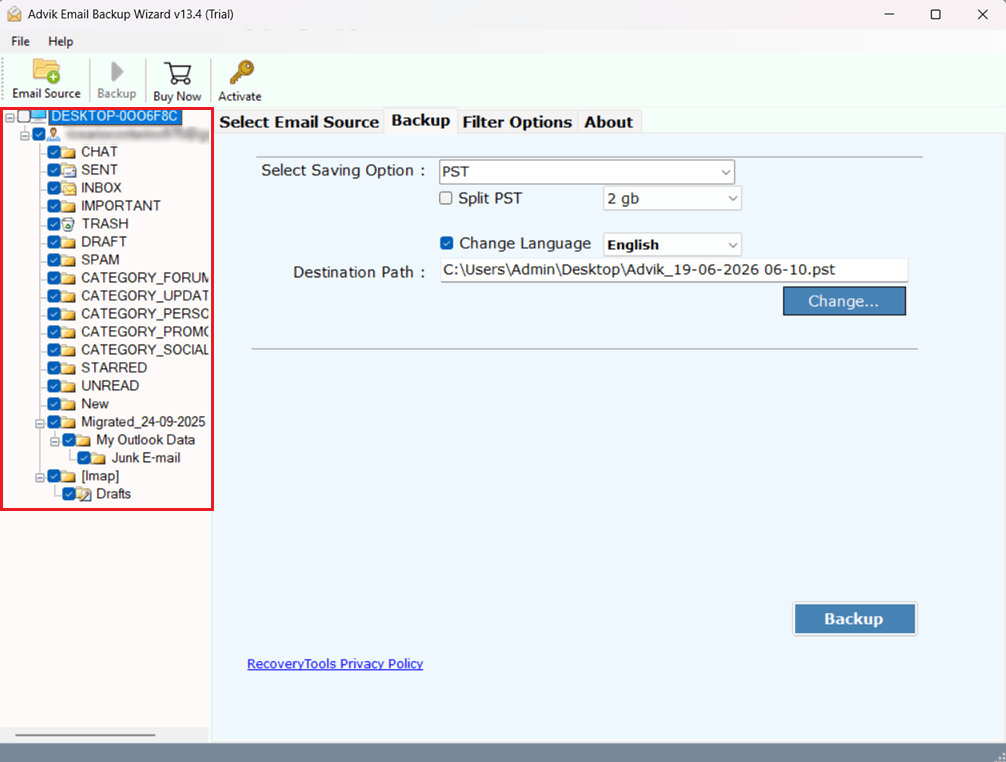
Step 3. Choose the folders that contain the emails you want to export.
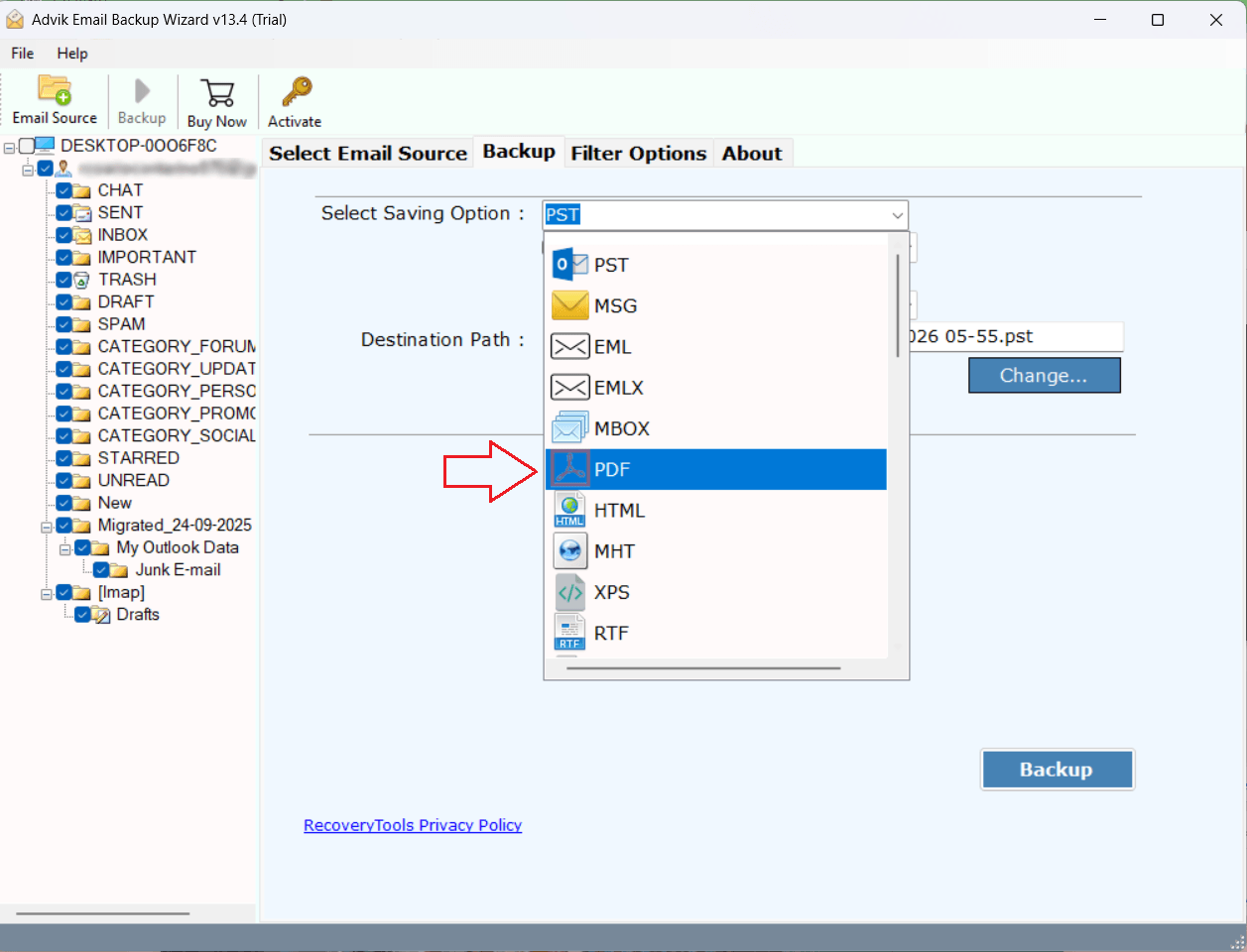
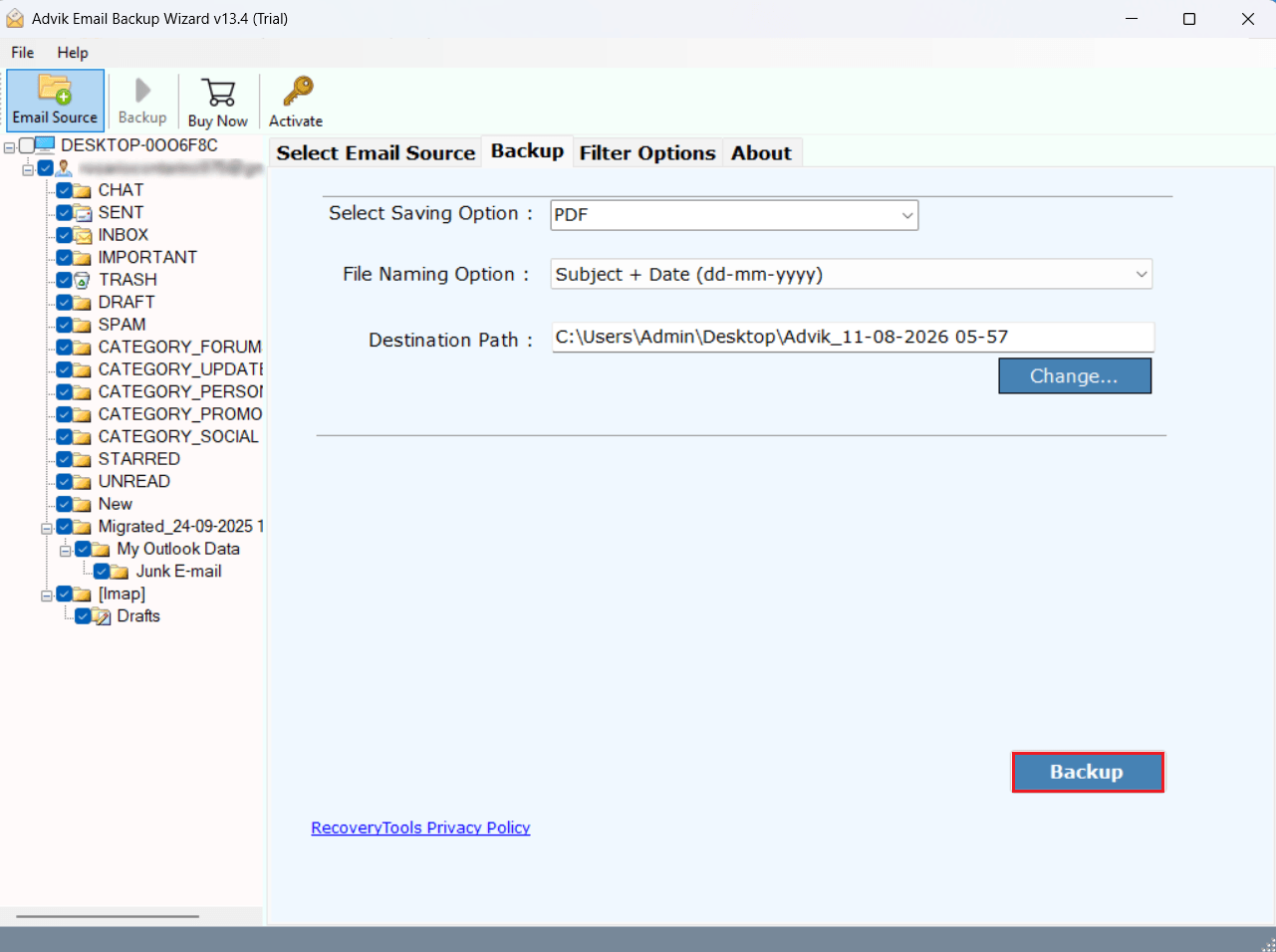
Step 4. Choose PDF from the available output formats.
Step 5. If you don’t want to export the entire mailbox, use the available filters.
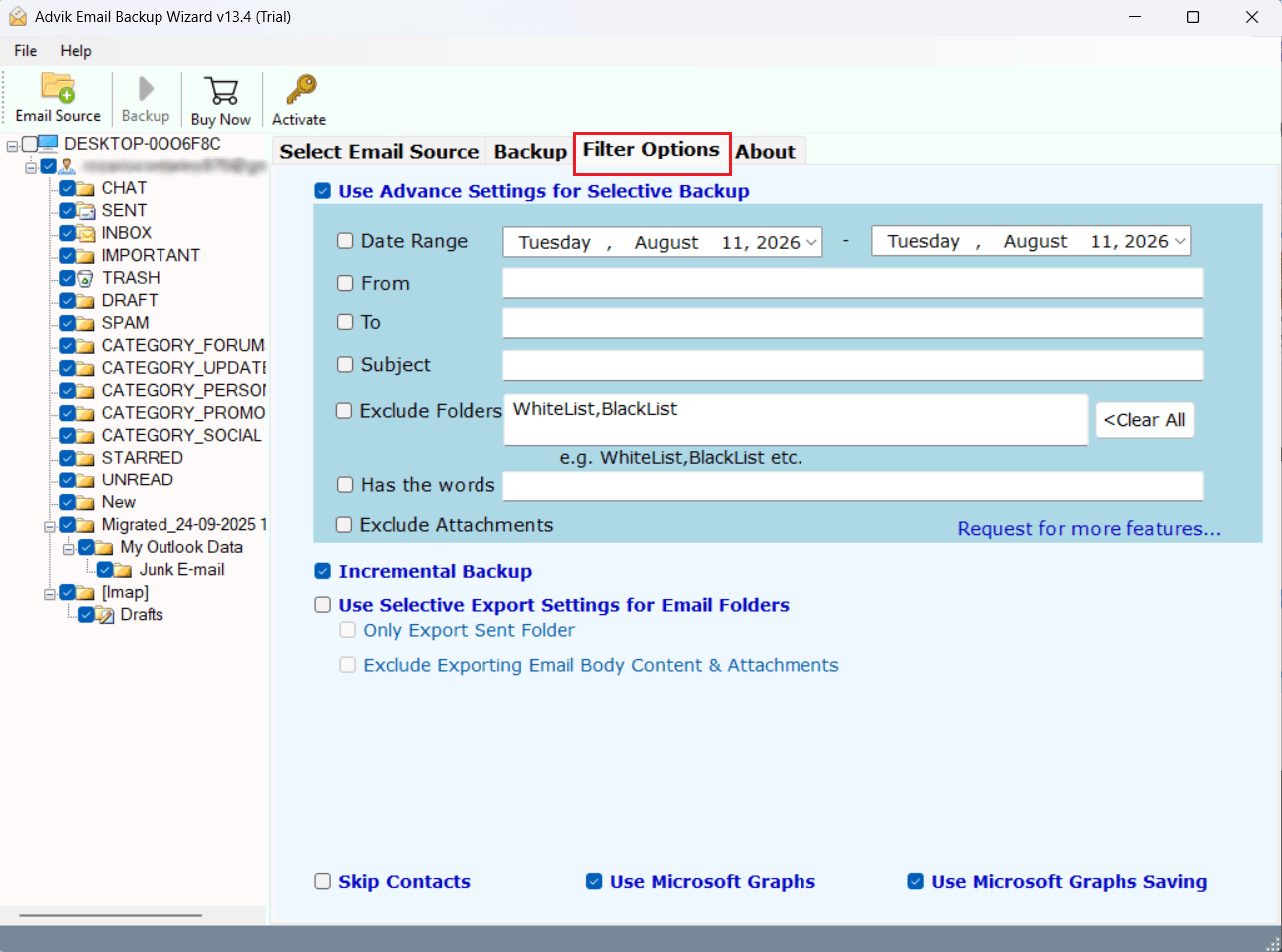
Step 6. Start the backup process and select a suitable destination for the output.
After completion, the software will generate a log report that will contain complete information and status of the process.
Watch Video Tutorial: How to Download Mailchimp Email as PDF
Which Method Should You Choose?
Select the Manual Mailchimp save as PDF option if you want to do it the manual way, here’s how:
- Just need one or a few campaigns.
- Don’t want to install software.
- Need a PDF copy fast.
- Want to save the campaign directly from its browser based campaign page.
Select an email backup tool if:
- The emails you need are in a supported mailbox.
- Have a lot of mailbox messages to process.
- Require filters for date, sender, recipient or subject.
- Need extra output formats other than PDF.
- Need to backup multiple supported email accounts.
Read these conditions, analyze your needs and choose the method accordingly.
Conclusion
Thus, after reading this article, we can say that the simplest method to save a Mailchimp email campaign as a PDF is to open its browser version and use the Print >> Save as PDF option. As, this method is free, simple and works well if you only need to save individual email campaigns.
The main limitation is that it doesn’t support bulk exports. If you have lots of email campaigns, it can take you a while to go through each email campaign one by one and save it. There is no documented native process within Mailchimp to export multiple campaigns in bulk as PDF.
If you have your emails that supports IMAP then you can use a third-party solution such as Advik Email Backup Wizard. It provides a different workflow to export mailbox messages to PDF with many export options.
The right way then depends on what you really want to export or convert. So, choose a method as per your need that you want to export a Mailchimp campaign itself, from Mailchimp, or email messages stored in a regular mailbox then choose a method accordingly.