How to Convert MBOX to MSG File Format?
Numerous users have a desire to convert MBOX to MSG files for their personal needs. Such as when they move from email clients like Thunderbird or Apple Mail to Microsoft Outlook. This usually happens because Outlook does not support MBOX files while MSG is its native format. In these cases users simply need MSG files to share individual emails to keep records or manage data in a more organized way.
If you are trying to export MBOX emails to MSG you might have already noticed that there is no direct option available. This can make the process confusing especially for beginners.
In this guide, we will explain simple and practical methods to complete this task. You will learn both a manual approach and a reliable way to solve your query easily. The aim is to help you choose the right method based on your needs no matter for what reason you are looking a solution for it.
Understanding MBOX and MSG Files
It is important to clearly understand how both file formats work before your start the conversion process. This helps you know why it is needed and what changes occur after converting.
MBOX File Format
- It is a file format that stores multiple emails in a single file.
- It is commonly used by email clients like Thunderbird, Apple Mail, Eudora etc.
- All emails are saved together in one file with attachments
- It is useful for bulk email storage and backup
However, individual emails cannot be accessed separately without using a supported email client
MSG File Format
- It is a file format that stores one email per file.
- It is developed and used by Microsoft Outlook.
- Each MSG file contains complete email details such as subject, sender, receiver, date and time, attachments etc.
- You can easily open .msg files in Outlook by just a double-click.
- It is ideal to save and share individual emails.
- MSG files are Widely used by professionals for documentation, legal and reporting purposes
Major Difference
MBOX = Multiple emails in one file
MSG = One email in one file
This is the main reason why users want to convert MBOX to MSG file format. It becomes important when working with Outlook or when they need to access individual emails.
Why Convert MBOX to MSG Format?
There are several workable reasons why users choose to convert MBOX to MSG format. It requires mostly when you use Microsoft Outlook or handle emails professionally. Below are the most common scenarios explained in detail:
- To Open MBOX Emails in Outlook: As Microsoft Outlook does not support MBOX files directly so, if you try to open MBOX file in Outlook, it simply won’t work. By converting MBOX to MSG, each your email becomes compatible with Outlook and you can easily open it without any extra efforts.
- Save Individual Emails Separately: MBOX files store all emails in one single file which makes it difficult to access or share specific emails. MSG file format saves a single email per file so that you can open a single email anytime.
- For Legal Purposes: In legal, compliance or investigation scenarios, emails often need to be submitted as individual records. MSG files are chosen first because they keep complete email properties such as headers, metadata, attachments in their original format. Also they are very easy to verify and present as evidence.
- To Share Emails Easily: Sharing a full MBOX file is not always recommended especially when you only need to send a few emails. MSG files make this simple because you can send a single email file as an attachment.
- Manage Emails in a Organized Way: Managing emails in MBOX format can be difficult since everything is stored in one file. After converting to MSG you can organize emails in folders based on project, date etc.
Now that you understand why MBOX to MSG conversion is important, the next step is to choose a right method. There are mainly two ways to do this; a manual approach and a professional solution. Each method has its own use and selections of the method totally depends on how many emails you want to convert and how much time you can spend.
So, read each method one by one and choose wisely.
How to Export MBOX Emails into MSG Files Using Manual Method?
If you are looking for a free solution then you can try the manual method. But it includes multiple steps and requires both Thunderbird and Outlook email client to complete this conversion process.
Follow the below steps carefully;
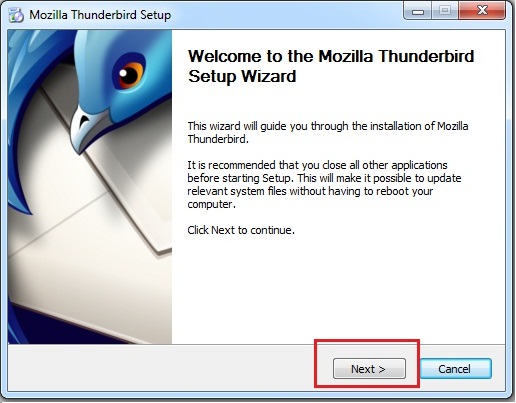
- Firstly download and install Mozilla Thunderbird on your computer.
- Now you need to add MBOX file into Thunderbird.
- For this, Open Thunderbird & install the ImportExportTools NG add-on.

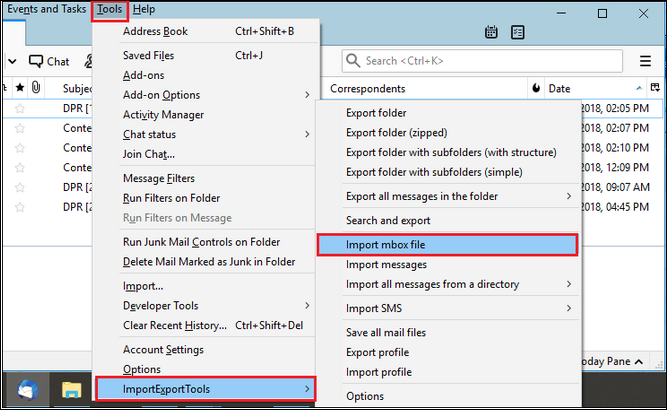
- Next, go to Local Folders >> ImportExportToolsNG >> Import MBOX file.
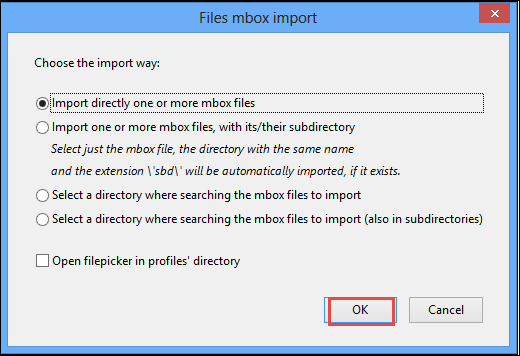
- Choose your MBOX file from your system and click OK.
- After that Open Microsoft Outlook application on the same system.
- Add your email account using IMAP configuration.
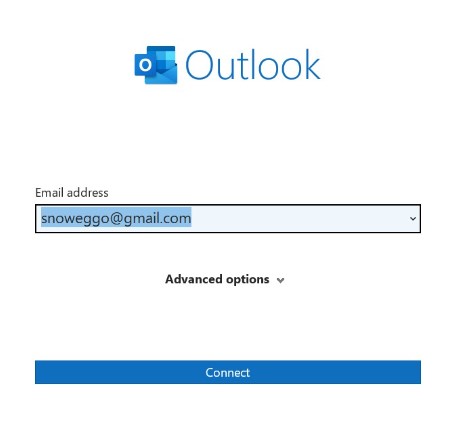
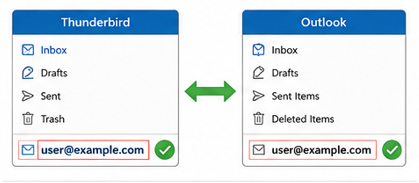
- Make sure that the same account is added in both Thunderbird and Outlook app.
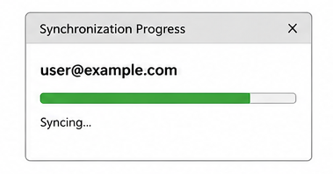
- Wait for a while and let both the apps to complete data synchronization.
- Open Thunderbird and Outlook side by side.
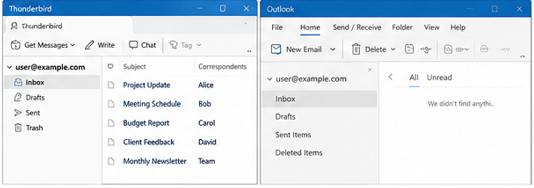
- Select emails from Thunderbird.
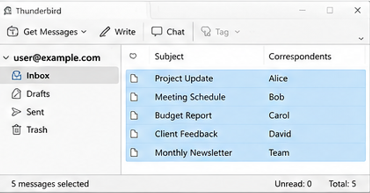
- Drag and drop them into the Outlook mailbox folder.
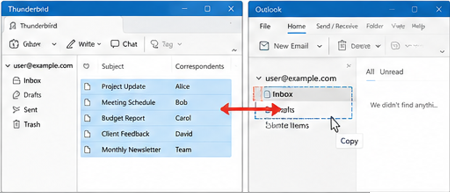
- Wait until all emails are synced properly.
- Again, open the Microsoft Outlook application.
- Select the email you want to save as .msg file.
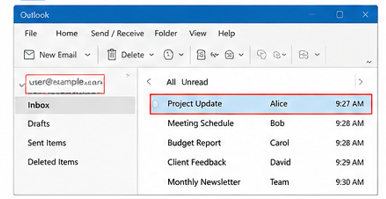
- Drag and drop the single email outside the application.
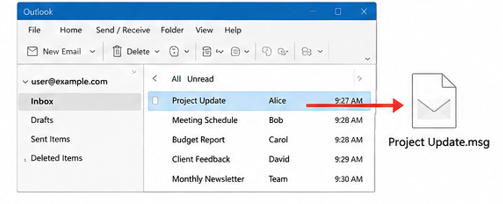
- Each email will now be saved as an individual MSG file.
Important Note: This method is suitable only for small or limited emails & large mailboxes may take more time and effort. To do this, you can go with the solution explained below.
How to Convert MBOX to MSG Files Using a Professional Tool?
If you are dealing with multiple MBOX files or a large mailbox then using a professional tool is suggested to complete the whole process in easy steps. Unlike the manual method, this approach provides self explanatory guide to understand the software in a better way.
With this method, you can directly load your MBOX files into the tool and convert them into MSG format in a more structured way. Tools like Advik MBOX Converter are commonly used for such tasks as they support direct conversion without needing additional setups.
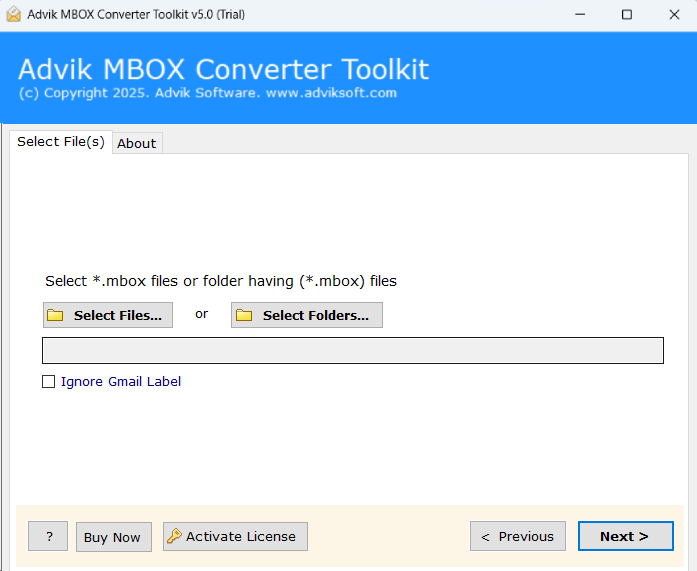
It provides options to add data in two ways: either you can select individual files or load an entire folder. It helps users to manage both small and large data without any issues.
In addition, the conversion process is guided below with clear steps so even beginners can follow it without confusion. It’s easy to install and use, just click on the free download button and follow the instructions properly.


Steps to Change MBOX Files into MSG Format
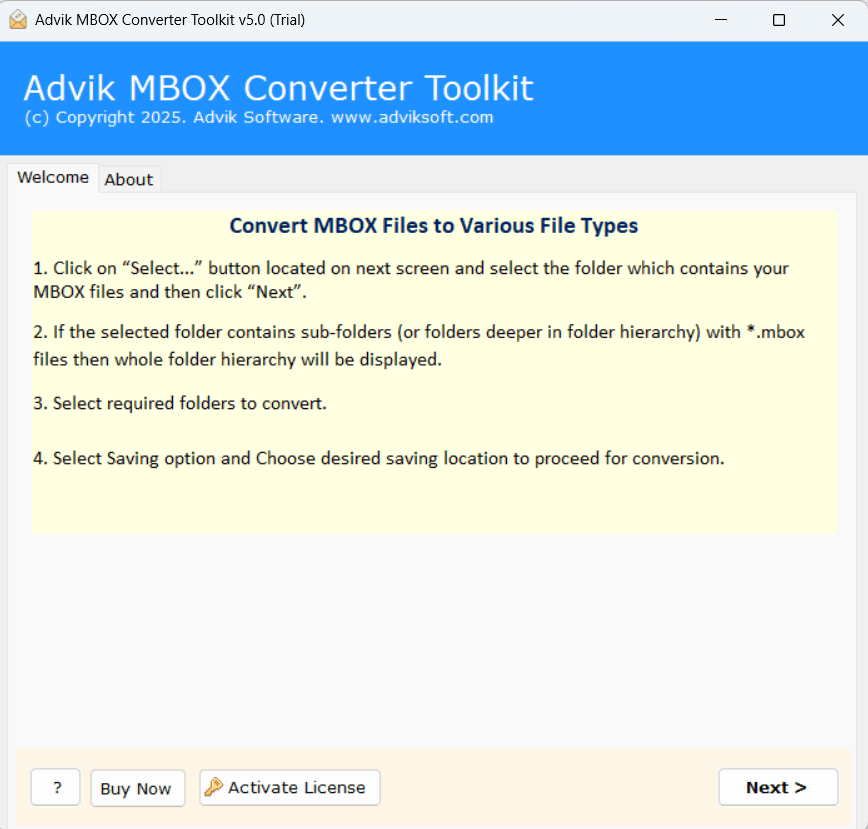
Step 1. Install and open the suggested tool on your windows PC. Read the instructions shown on the screen.
Step 2. Click on the Select Files or Select Folders options to upload MBOX file.
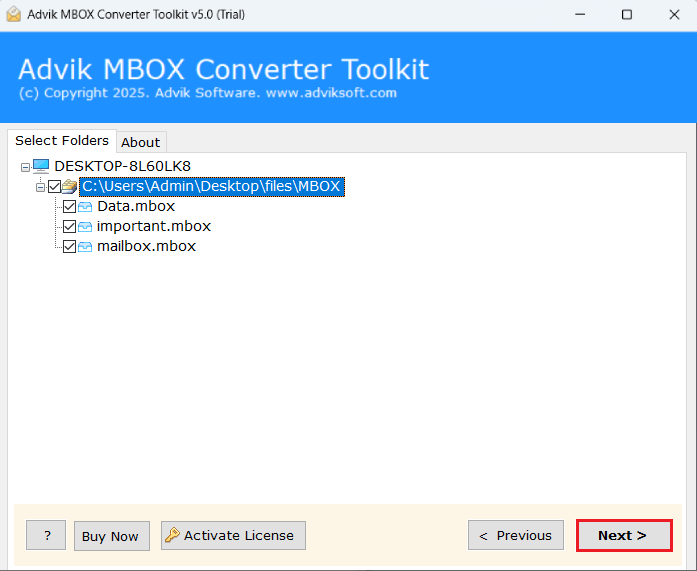
Step 3. The software will display all folders and emails and select the required ones to convert.
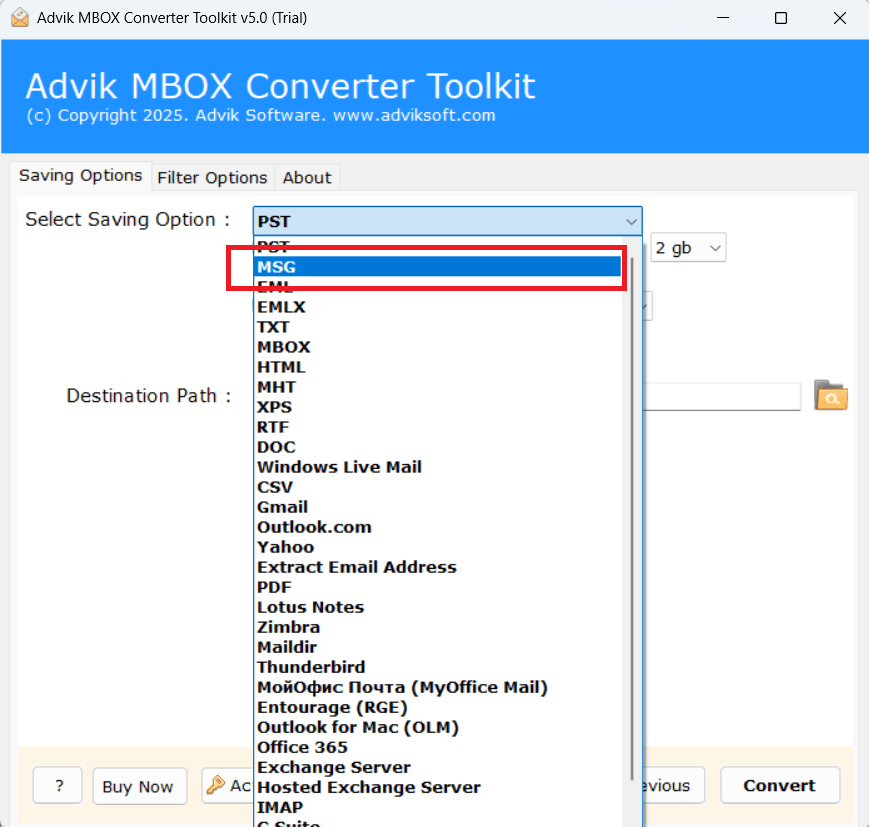
Step 4. Choose MSG as saving option from the list.
Step 5. Select a destination path where you want to save the converted files.
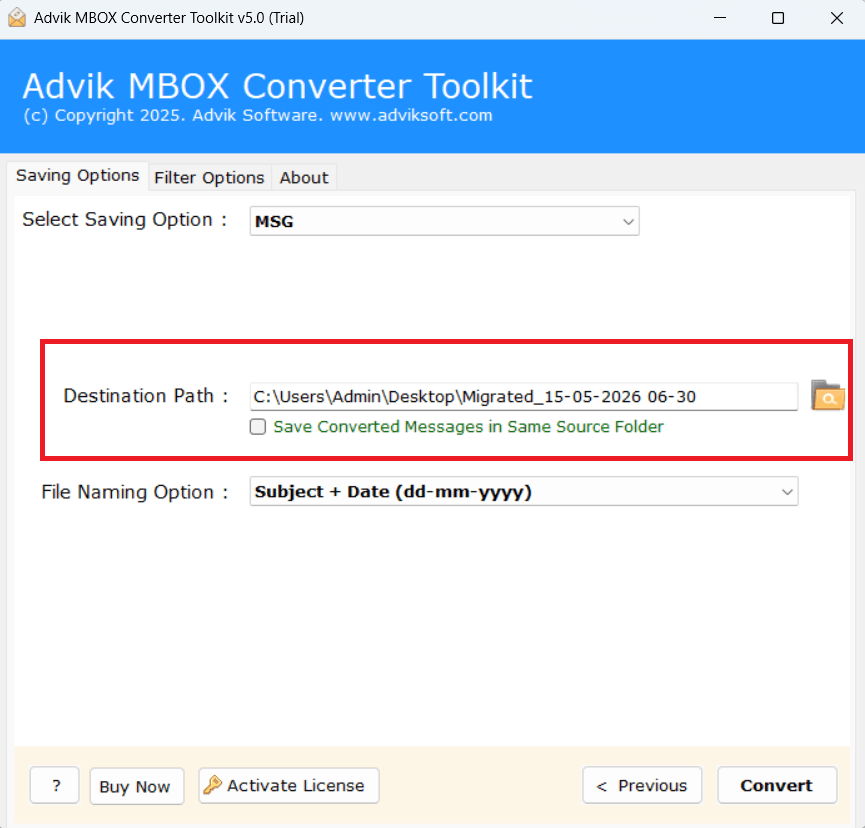
Step 6. The last step is to click on the Next button to start.
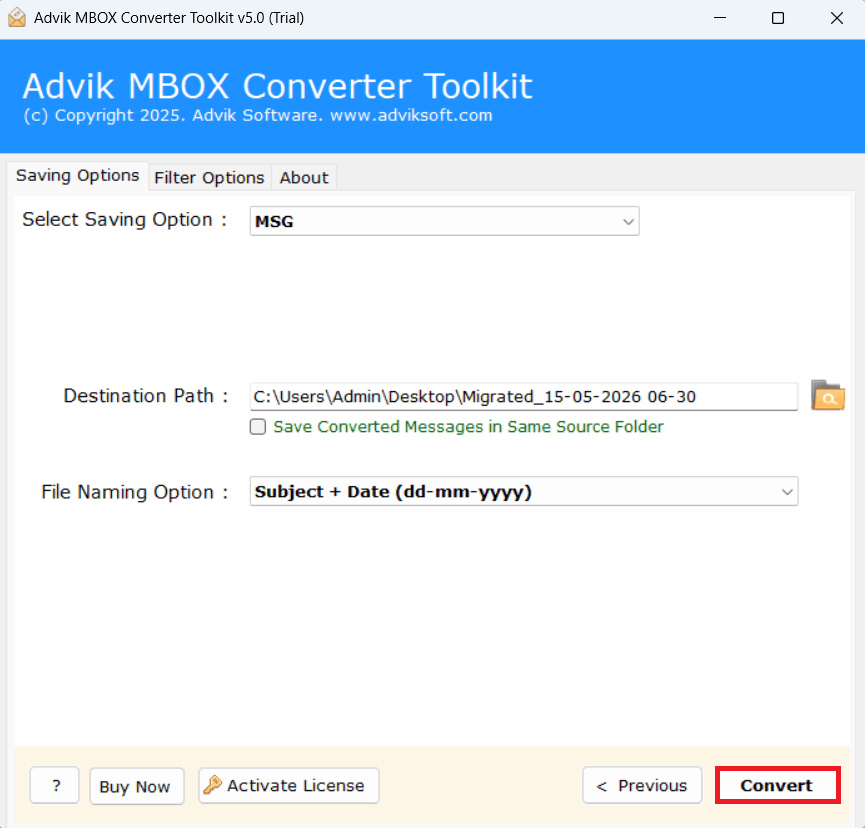
The software will begin converting MBOX files into MSG format.
Once the process is completed, you will receive a confirmation message.
Go to the selected destination folder to check all your converted emails in MSG format.
Why Use a Professional Solution Instead of the Manual Method?
The manual method works but it is not always workable. A professional solution is chosen because it is made to handle email conversion in a more easy way. Below are the key features explained, read them one by one;
Simple and User-Friendly Interface: The software comes with a simple and easy-to-use interface that does not require any technical knowledge. Even first time users can understand the steps without any confusion.
Bulk Email Conversion Support: The tool allows users to convert multiple MBOX files at same time instead of single email conversion. This feature is highly useful for businesses or users who want to convert large number of emails.
Preserves Original Folder Structure: The software maintains the original hierarchy of emails during conversion. All folders such as the inbox, sent items, drafts and custom folders remain in original format in resultant MSG files. This helps users easily find and manage their emails after conversion without any confusion.
Supports Multiple MBOX Email Clients: The software is compatible with MBOX files exported from various email clients such as Thunderbird, Apple Mail and others. This wide compatibility shows that users do not face any file restriction issues and can easily convert emails no matter what their source of application is.
Email Preview option: Before starting the conversion, the tool allows users to preview all emails inside your MBOX file. This feature helps users verify the content of your emails and select only the required ones for conversion.
Selective Email Conversion: You don’t need to convert the entire mailbox. The tool provides an option to select specific emails or folders for conversion. This feature is useful when you need to export only important or required emails.
Conclusion
So now you understand that converting MBOX to MSG files is not as difficult as it may seem at first. We have tried to explain the complete process in a simple and step-by-step way to make it easy for you.
To conclude, the choice of method depends on your personal needs. Both manual and professional methods are useful in their own way. You should first understand your requirement that whether you have a small number of emails or a large mailbox. Then choose the method that suits you best.