How to Backup COX Emails to Computer Hard Drive?
You are new to Cox Mail and wondering how to back up its emails? Does the platform allow for manual backup? Are those options free? Here’s the truth. You will get a manual option to backup Cox emails, but only for single emails. This guide breaks down the complete Cox email backup process and gives you tips on how to choose a reliable option.
How to Backup Cox Emails to Computer? (Free Option)
Step 1. Log in to your Cox mail account.
Step 2. Click on the settings option in the right corner.
Step 3. Choose See All Settings >> Download personal data.
Step 4. Now, select the items you want to include in your backup file.
Step 5. Lastly. Click the “Request a download” option.
Step 6. A zip file will be downloaded to your system.
Step 7. Extract the data from that zip file, and you will get .eml files as the resultant backup file.
How to Download Emails from COX Mail to Computer Instantly?
The best way to export all emails from COX Mai is by using the Advik Email Backup Wizard. It is designed with an easy-to-use interface that can be effortlessly used by any user to backup Cox Mail emails to 30+ file formats. With this tool, you can rest assured about the folder hierarchy of COX emails as it is maintained even after the conversion. Also, it allows you to take backup of multiple COX email accounts in a single attempt.
Moreover, this Cox Mail Backup tool allows you to batch export Cox emails along with attachments to your PC. So, use this effortless solution to save emails from Cox Mail to Computer without losing any data.
Give a FREE try to this Cox Mail Backup Tool and check out its working steps along with amazing features.


Steps to Backup Cox Emails in 30+ File Formats
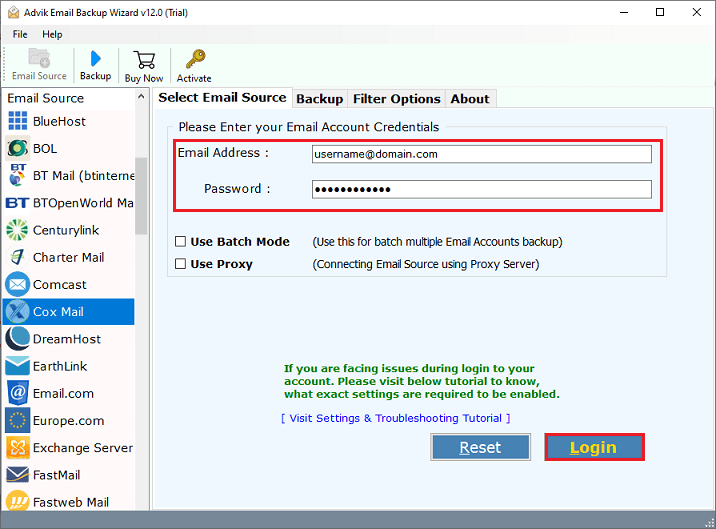
- Run the software, choose Cox Mail & log in.
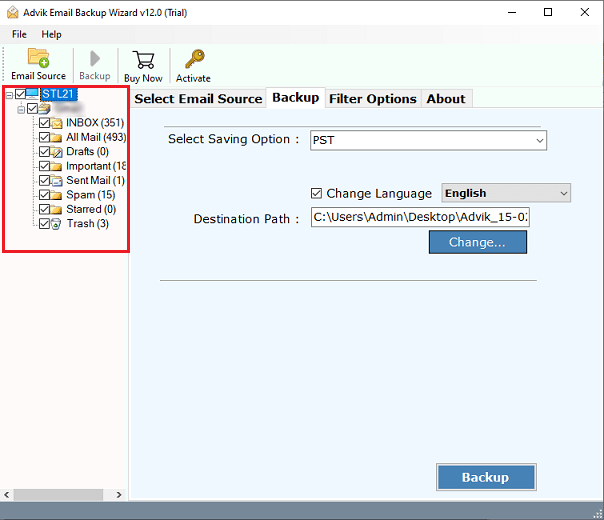
- Select the required mailbox folders to download.
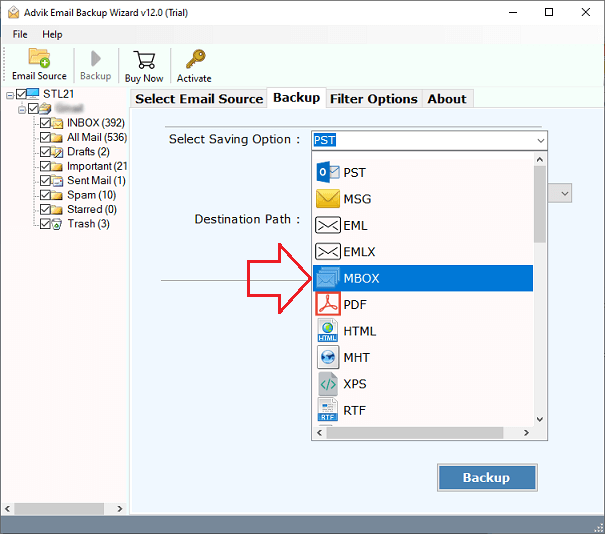
- Choose any file format from the 30+ choices.
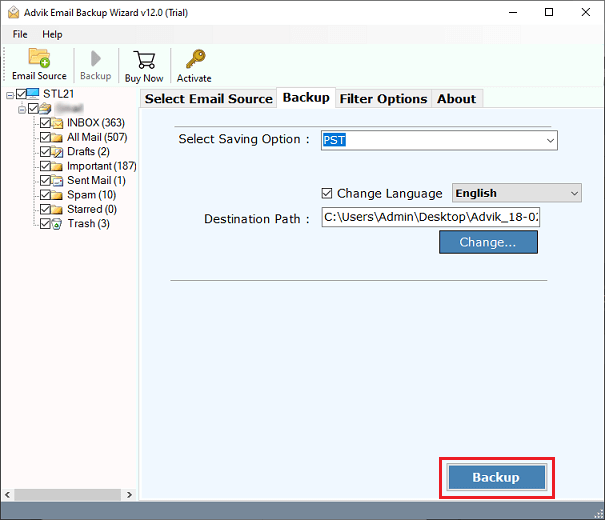
- Browse the destination path & press the Backup button.
Done!! This is how you can easily take COX mail backup within a few simple steps.
Now, we will look into some other features that will assist you in completing this process.
Benefits & Advantages of Using Cox Mail Backup Tool
- Easy to Download: It is a well-designed application with a dependable user interface. All types of users can use this program to download all emails from Cox with attachments.
- An effective way to save Cox emails: The user can save Cox emails in a variety of file formats with this well-known tool. Such as you can export COX emails to PST, MSG, EML, CSV, and other formats.
- Safe & Secure Way: The Cox Mail Backup Tool is a trustworthy application. It moves emails from Inbox, Sent, Draft, Spam, Trash, and other folders to numerous email formats without any loss.
- Simple to download Cox Mail Emails: The users have a variety of alternatives for backing up emails from Cox Mail. The tool is an intuitive platform that meets the needs of the users.
- One-Stop Cox Mail Export Solution: The tool enables users to move emails from Cox Mail to different email applications. Users can export Cox emails to Thunderbird, Zimbra, Outlook, Windows Live Mail, Lotus Notes, and more.
- Easy-to-use Interface: Even those who are computer novices can use this software to download Cox Mail bulk emails. The application Email Download Manager is simple to use.
Final Words
So, we are done with providing the best solution to take backup COX emails using a reliable method. This utility will surely help you to download emails from Cox Mail into various file formats. Also, the Cox Mail Backup tool allows users to download selective email folders without any extra effort. Moreover, to check its efficiency, you can download it’s FREE trial version and explore all the advanced features at no cost.
Frequently Asked Questions (FAQs)
Q1. How do I backup my Cox WebMail?
Ans. Steps to backup COX Mail emails using software;
- Run the software & login using your COX Mail credentials.
- Choose the email folders you want to backup.
- Select the desired file format for backup.
- Click on the ‘Backup’ button.
Wait for the process to complete.
Q2. Can I backup COX Mail emails manually?
Ans. No, there isn’t any manual solution to backup COX emails other than using automated software. This blog has explained an easy and direct way to create COX mail backup. Check out the above sections for more info.
Q3. What formats can I backup my COX emails in?
Ans. You can download emails from COX Mail in various formats like PST, EML, PDF, etc., depending on your needs.
Q4. Is there a free tool for backing up COX Mail emails?
Ans. Some tools offer free trials, such as Advik software. The demo version will let you download the first 25 emails from each folder to computer. However, to export all emails from COX Mail, you have to purchase the software.