How to Backup Axigen Email to Computer? [100% Working]
Christopher Plummer | January 2nd, 2026 | Data Backup
Whenever you think about storing your Axigen emails locally, backing up is the most appropriate option. It is a popular mail server used by businesses to manage professional email communication. In this blog, we will explain how to backup Axigen emails to an external hard drive using both an email client and a third-party tool. This will help you free up server space & access them offline whenever needed.
How to Backup Axigen Email to Computer?
We are going to provide a manual solution to accomplish this task. Be careful while implementing this method, as configuring Outlook with the Axigen mail server is a bit lengthy.
1. Install and Run the Outlook Application on your system.
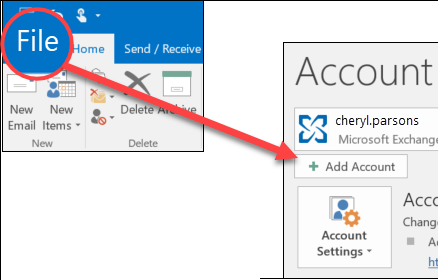
2. Go to the File tab in the menu and choose Add Account to configure the Axiegn account.
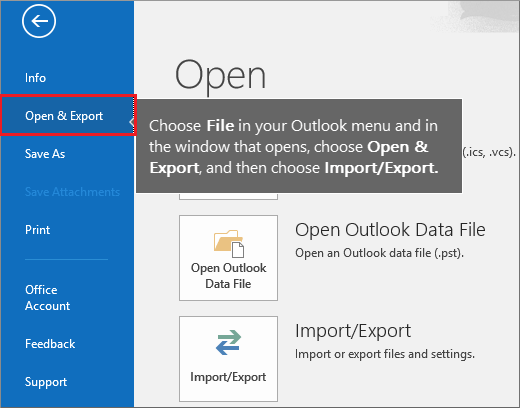
3. After adding Axigen account with Outlook click Open & Export>>Import/Export option.
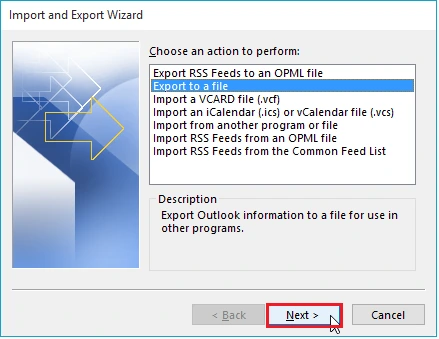
4. Press the Next button after selecting “Export to a file”.
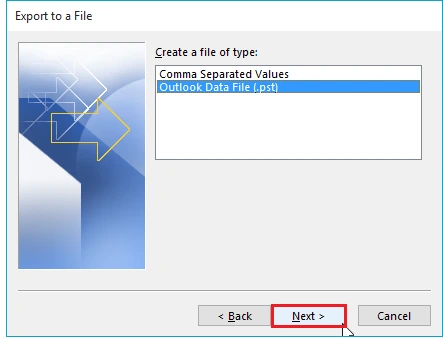
5. Select “Outlook Data File(.pst)” and then the Next button.
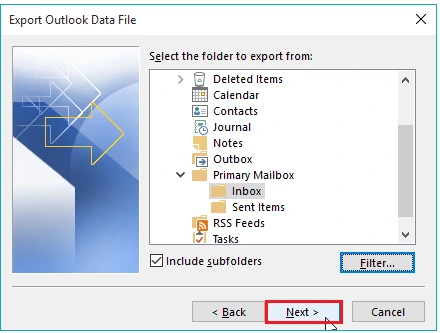
6. To proceed, select the Axigen account that you want to export in PST format and click Next.
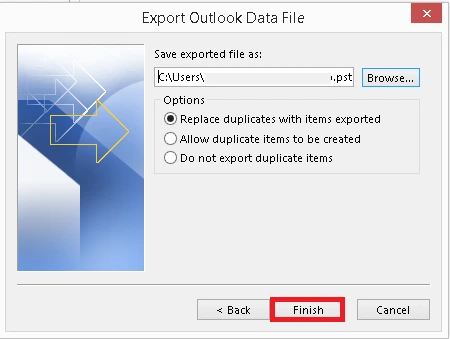
6. Click Finish after providing the preferred location for the output file.
Done! In this way, you can manually save Axigen emails to your system.
Important Points:
- This is a lengthy and time-consuming process to download Axigen backup.
- Outlook installation is required.
- No email filter option to download only selected emails.
Is there any Alternative Approach to Backup Axigen Emails Securely?
Yes, you can take help of Advik Email Backup Wizard to download Axigen emails to computer safely. It’s an easy-to-use tool and doesn’t require any technical skills. It works as an independent application and only needs your Axigen account credentials.
The software allows you to backup the entire Axigen mailbox at once means that you can export multiple emails in a single attempt. Also, here you will get multiple file formats to store your Axigen emails locally.
Download this FREE demo edition, which helps you to test this tool at no cost.


Steps to Backup Axigen Emails to PC/Computer/Hard Drive
Step 1. Install and run the suggested tool on your computer.
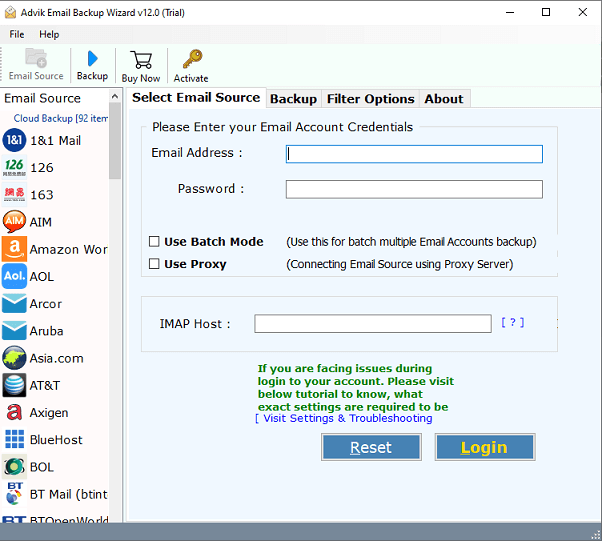
Step 2. Choose Axigen as an email source and sign in with your Axigen login credentials.
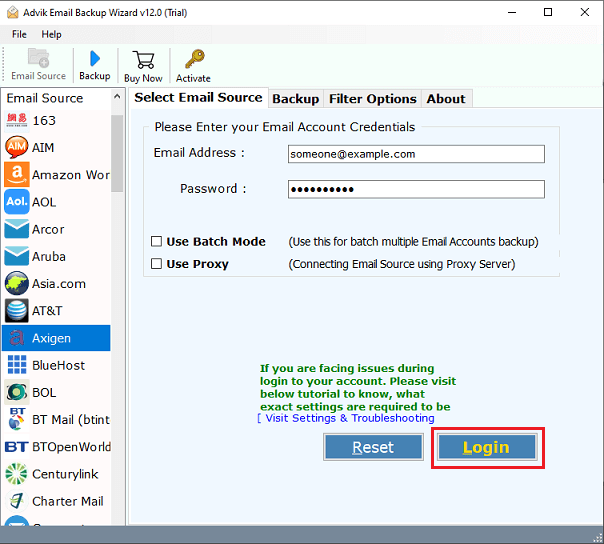
Step 3. Now, choose the required email folders from the left side.
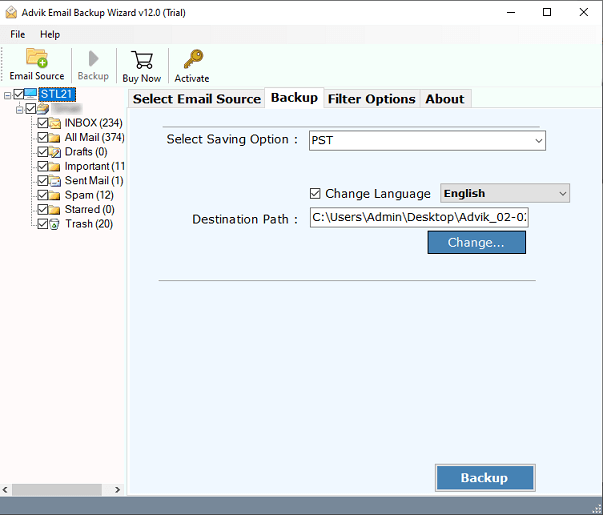
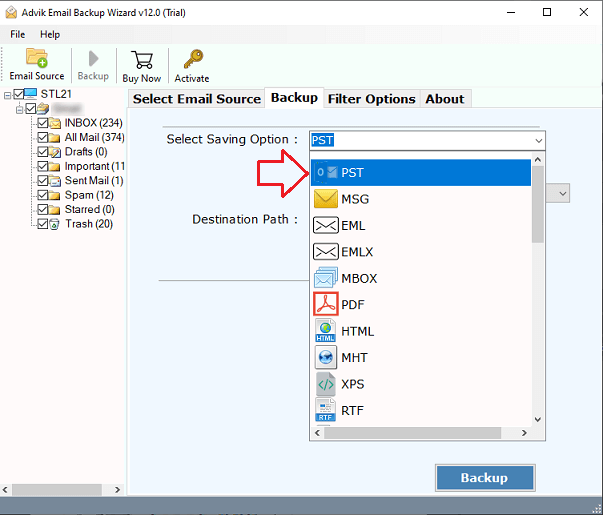
Step 4. Then, select your desired file format from the multiple saving options.
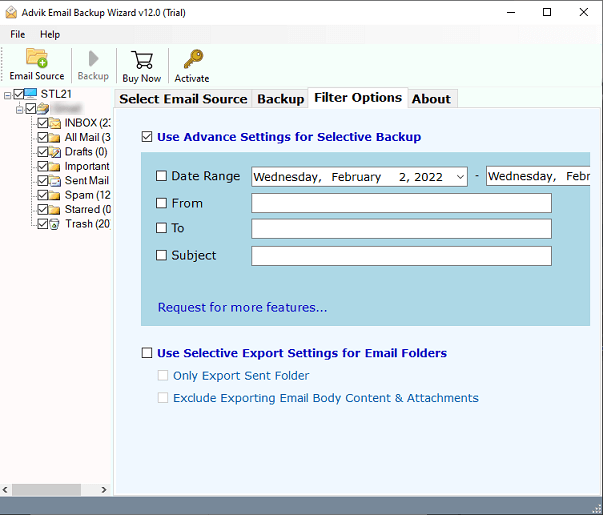
Step 5. You can also use the “Advanced settings” option to filter your emails.
Step 6. Now, choose destination path and click on the Backup option to start the process.
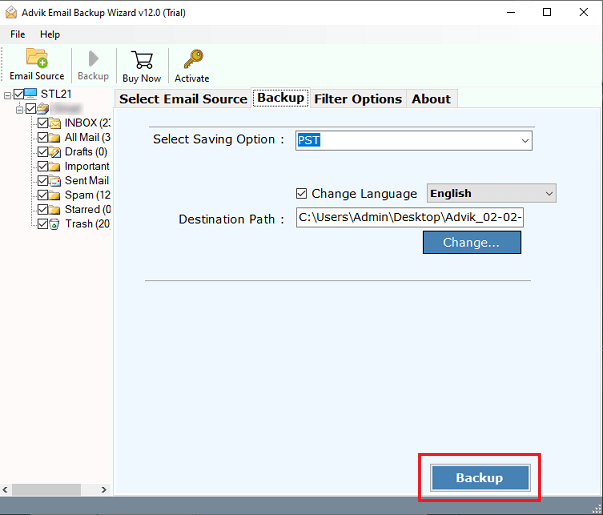
Finished!! This software will display the backup status in real time. After that, you’ll receive a notification before receiving a log report that shows the complete Axigen Mail backup process details.
Why Choose an Automated Tool Instead of a Manual Solution?
There are several advantages of using this tool. Some of them are;
- Directly download Axigen emails without any configuration.
- Batch mode to backup multiple Axigen Mail accounts in one go.
- 30+ saving options to export Axigen emails to PST, PDF, MBOX, etc.
- Preserves all email attributes such as attachments, sender/receiver info, etc.
- Maintains folder hierarchy as well during the Axigen backup process.
- Advanced email filter options to save emails based on date range, to, from, subject, etc.
- Supports both Mac and Windows operating systems.
- A free demo version to check the working procedure.
- 24/7 customer support to assist with user queries.
Final Words
This blog has covered a detailed guide on how to backup Axigen emails through some tried and tested ways. By going through the mentioned methods, you can easily perform Axigen email backup process. But, it doesn’t ensure data integrity and provides limited control over backup process. To overcome this situation, we have also offered an alternate method to backup as per your need and convenience.
