How to Backup Dreamhost Emails to Computer?
Christopher Plummer | January 6th, 2026 | Data Backup
Summary: This blog provides an easy solution to backup Dreamhost emails to computer. If you want a secure and complete backup of your DreaHost emails, then this blog will guide you with complete step-by-step instructions. Here, we are presenting two easy ways through which you can choose, as per your needs and requirements.
DreaHost is a domain registrar company for provides web hosting, like WordPress hosting services. However, it also provides email services along with hosting to manage personal and professional emails through a webmail account.
How to Backup DreamHost Emails to Computer? (Free Option)
Follow the below given steps below to manually export emails from Dreamhost to your system using Outlook.
- Launch Outlook on your system.
- Go to File tab and select Add Account.
- Enter Dreamhost account login credentials and configure it using IMAP settings.
- After that, click on File >> Open & Export >> Import/Export.
- Choose Export to a File and click Next.
- Select Outlook Data File (.pst) and press Next.
- Choose Dreamhost mailbox folders and hit Next.
- Browse target location and click Finish button.
The process is complete! However, this is a lengthy and complicated process. And, it does not offer an option to export only selected emails.
How to Download Emails from Dreamhost Automatically?
Advik Email Backup Tool is a powerful tool to take Dreamhost email backup in just a few simple clicks. With this tool, you can save all selected Dreamhost mailbox folders. The software will save Dreamhost emails along with attachments. In addition, it also maintains the folder structure even after the process. Thus, no data loss will take place.
Download this free version of the utility to check its working procedure without any cost.


Steps to Backup Dreamhost Emails in 30+ Saving Options
1. Install and run the Dreamhost Email Backup Tool on your system.
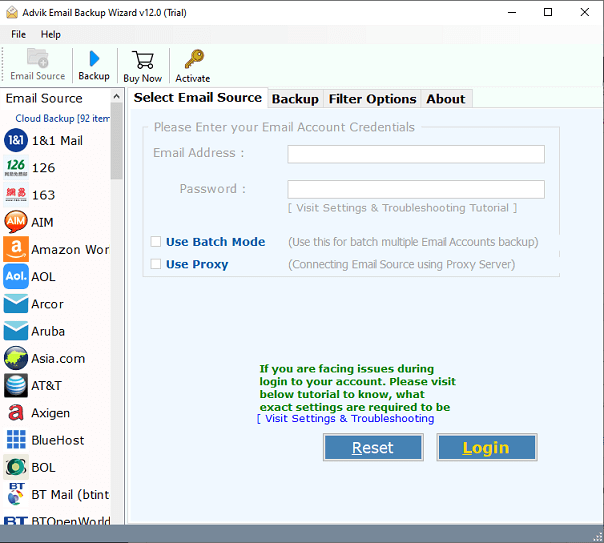
2. Select Dreamhost from the Email Source List.
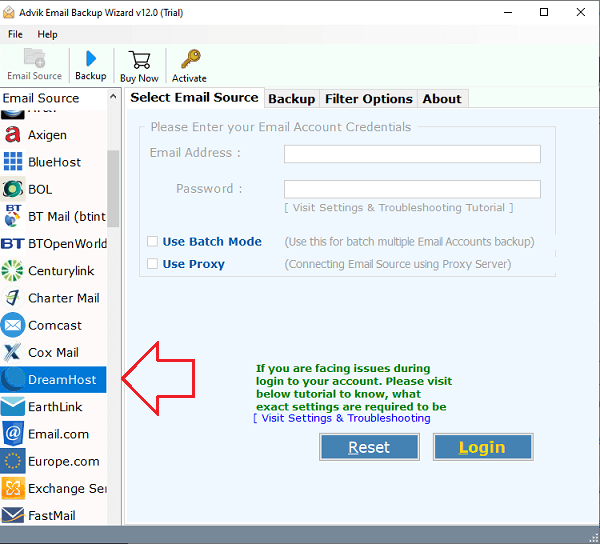
3. Now, enter and your Dreamhost login credentials and press Login to sign in.
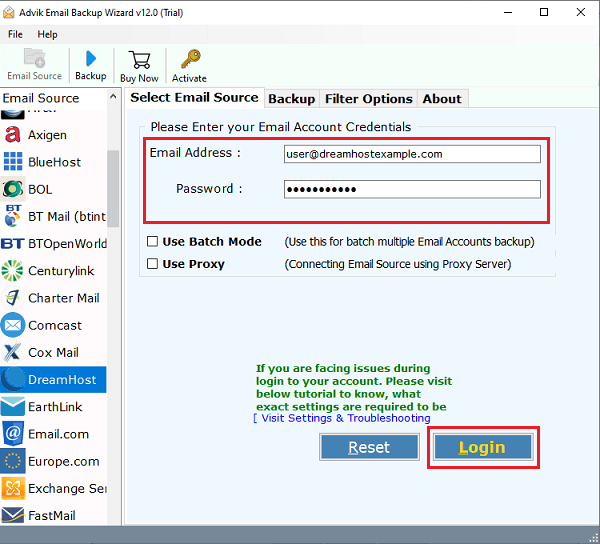
4. Choose the required mailbox folders.
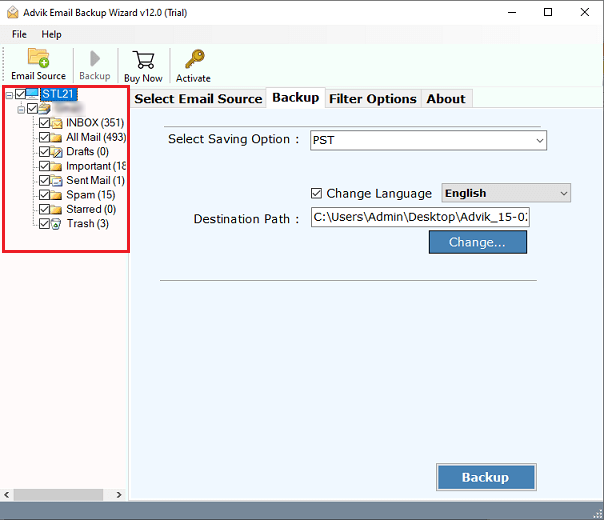
5. Now, select a saving option from given list.
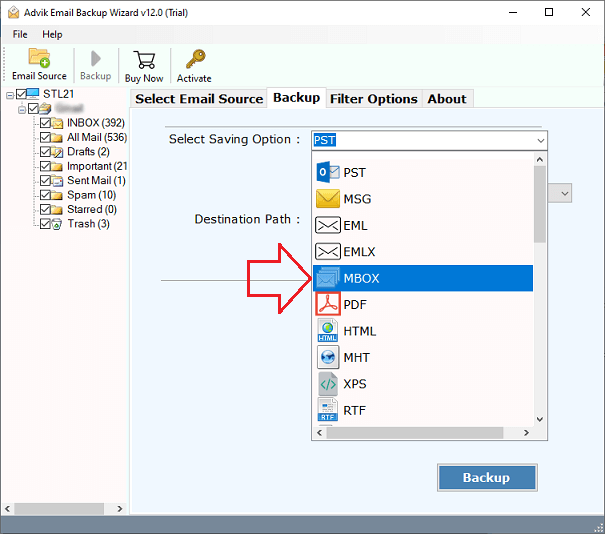
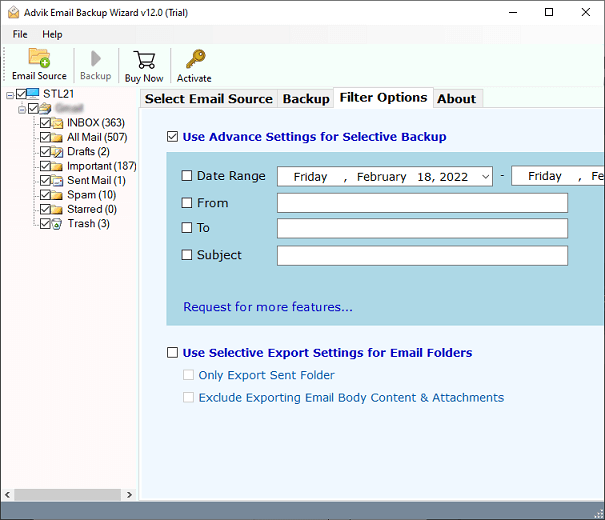
6. Click on Filter Options for selective email backup. (Optiona)
7. Browse target llocation and click Backup button.
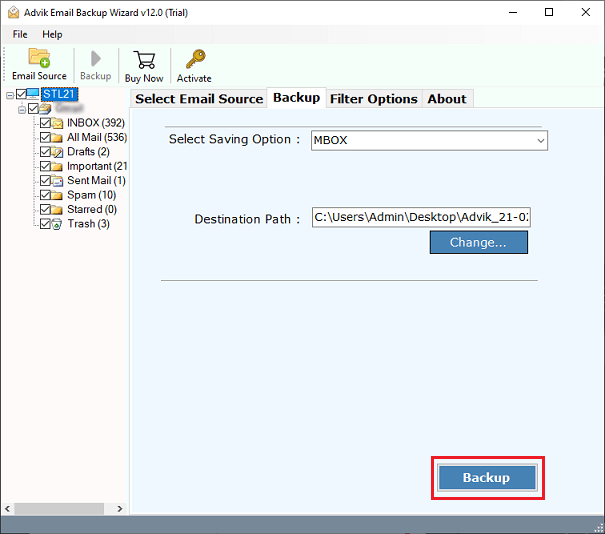
The software will complete the backup process in a few seconds.
Reasons to Choose Dreamhost Email Backup Tool
- The software can directly download Dreamhost emails to your system without any configuration.
- The tool offers 30+ saving options to backup Dreamhost emails into multiple formats.
- Using this utility, you can export emails from multiple Dreamhost accounts at once.
- It preserves all email attributes and folder hierarchy during the Dreamhost backup process.
- The application offers advanced email filter options to save emails based on date range, to, from, etc.
- This is designed in such a way that any novice user can easily use it without any technical knowledge.
- It is compatible with both Mac and Windows operating systems.
Final Thoughts
So far, we have discussed how you can take Dreamhost email backup to computer. Both methods are 100% workable, and you can choose the one that best suits your needs. However, the manual method has some limitations. So, experts recommend using the automated solution to backup Dreamhost emails without any issues.
