How to Export cPanel Email to PST File? – Complete Guide
Christopher Plummer | February 28th, 2026 | Data Backup
Many users want to export cPanel email to PST file to easily access them in Outlook. However, this process can be a bit tricky if they are not familiar with the right steps. That’s why we have created this article to step-by-step guide you through the process to convert cPanel emails to PST file format. Here, we’ll explain both manual and automated methods.
Reasons to Export cPanel to PST file
Users want to backup their data in a safe and secure platform like Outlook for a variety of reasons, including data backup and offline access:
- You may notice that your website hosted with cPanel is inaccessible sometimes, and there is no update on their Status page regarding server troubles. Then exporting your cPanel emails to a safe and secure place would be a perfect choice at that time.
- PST files have the benefit of being easily portable; they can be moved from one Outlook client to another without requiring any IT expertise.
- The .pst files cut down the amount of time admins have to spend assisting end-users whose inboxes have surpassed their maximum capacity.
- End-users benefit from the additional storage space for their emails with the use of Outlook (.pst). They can also view the information in their email inbox while they are not connected to the internet.
Method 1. How to Convert cPanel Emails to PST Manually?
You can manually export cPanel email to .pst using Outlook. Follow the steps below to do it:
Step 1. Add cPanel Account to MS Outlook
1. Open Outlook in your system and go to the “File”.

2. Now, Click on the ”Add Account”.
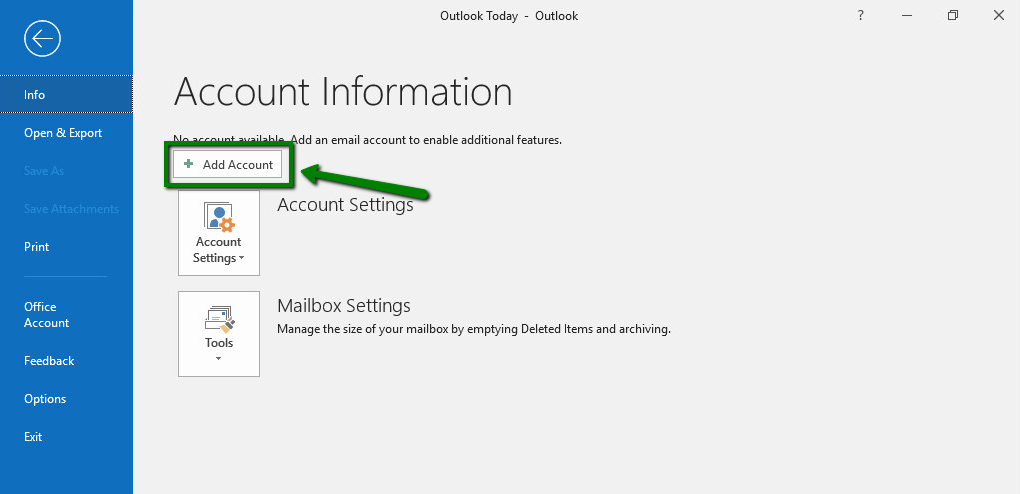
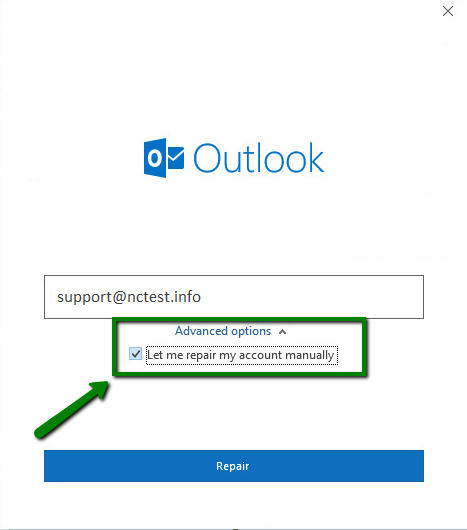
4. Enter your full email address of cPanel and click on let me set up my account manually.
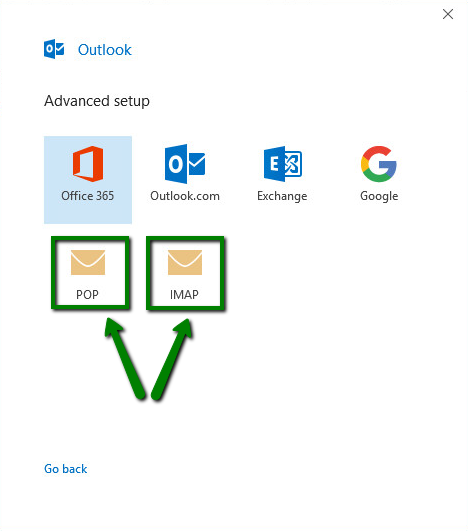
5. Select IMAP from the various options.
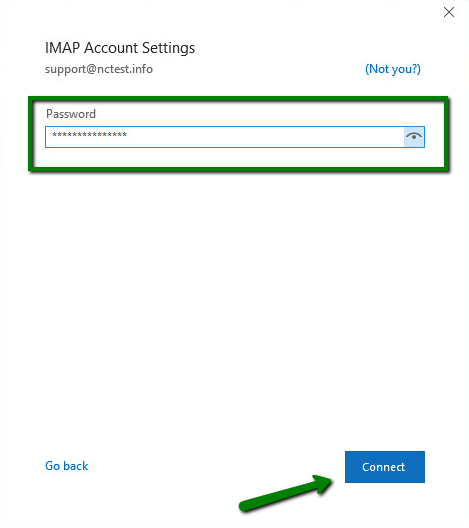
6. Enter your password you are using for this email address and click “Connect”.
7. Now enter the following details:
Incoming mail server: mail.domain.com (or) hostname
Incoming mail port: 993
Encryption method: SSL/TLS
Require logon using Secure Password Authentication (SPA): should be unchecked
Outgoing mail server: mail.domain.com (or) hostname
Outgoing mail port: 465
Encryption method: SSL/TLS
Require logon using Secure Password Authentication (SPA): should be unchecked
Click “Next” when you fill in all the details.
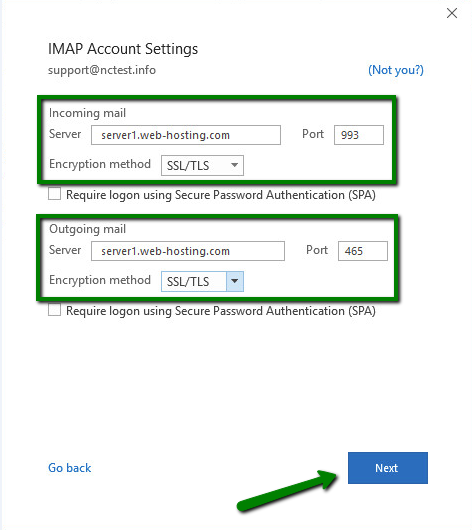
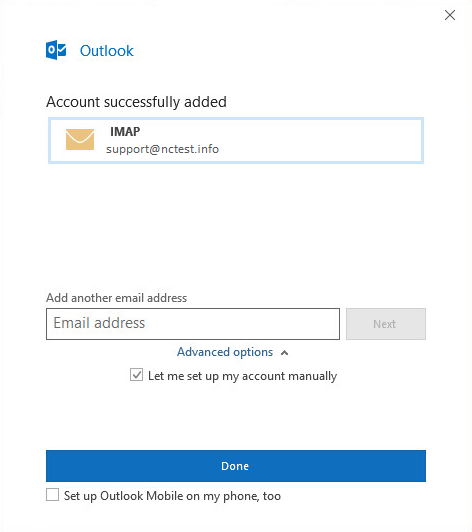
8. Now, Outlook will check all entered details. Once done, you will receive confirmation of “Account successfully added”, then click Done.
Step 2. Create PST file from cPanel
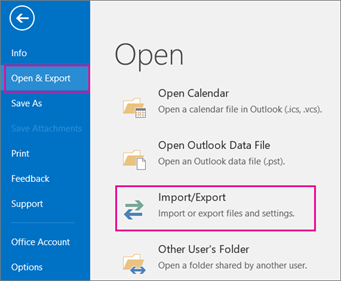
1. Go to File>>Open & Export>> Import & Export.
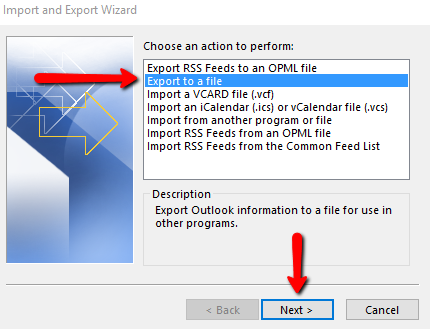
2. Choose “Export to a file” and click “Next”.
3. Now, choose Outlook Data File (.pst) and tap “Next”.
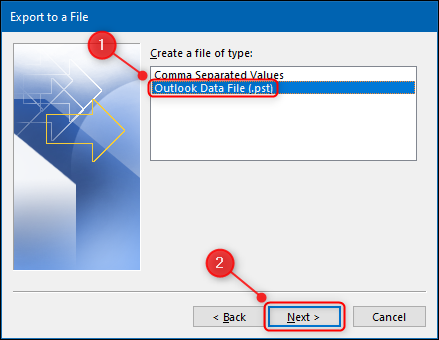
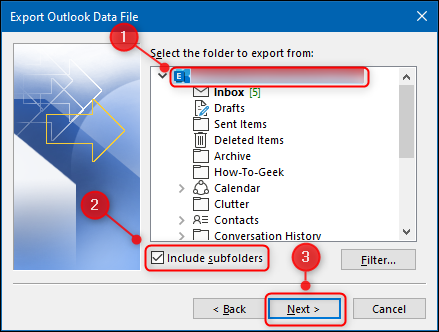
3. Select the folders to export from to choose the folders that you want to take backup and click “Next”.
4. Browse the location to save your exported files in your desired location and click 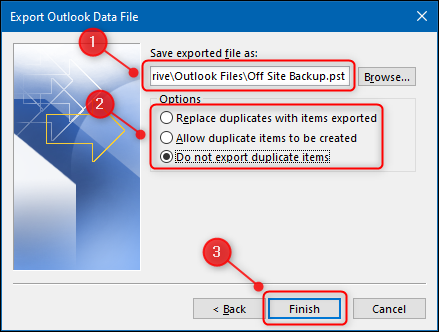 .
.
5. Now, you can see the newly exported cPanel email data file in .pst format.
Drawbacks of the manual method
- It will consume a lot of your manual efforts.
- Outlook installation is mandatory.
- Just one mailbox can be backed up at a time.
- Risk of syncing errors during configuration.
- It is not suitable for non-technical users as it involves multiple technical steps.
Method 2. How to Export Emails from cPanel to PST File? – Instant Solution
To overcome all the limitations of the manual solution, you can use a professional tool. Advik Email Backup Wizard is a quick way to convert cPanel email to Outlook PST file. This tool is designed in such a way that it can export emails from multiple cPanel accounts to PST at once. It preserves all email attributes and folder structure during the cPanel to PST conversion. The user-friendly interface makes it easy to use for both technical and non-technical users.
Try it for free to export cPanel mailbox to PST file.


Steps to Export cPanel to PST
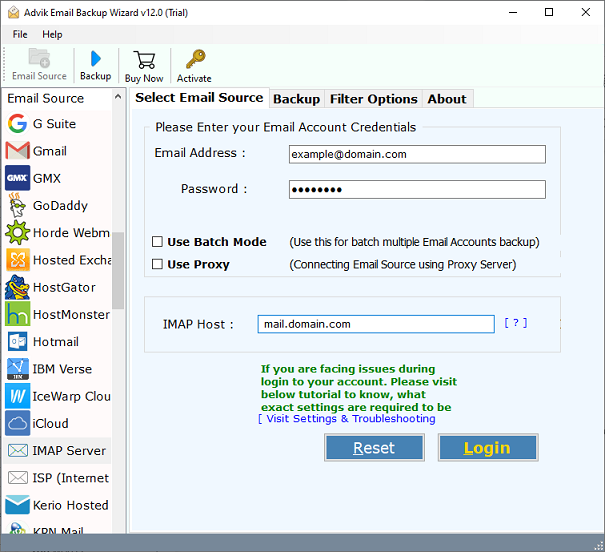
1. Run the tool and select the email source as “IMAP”.
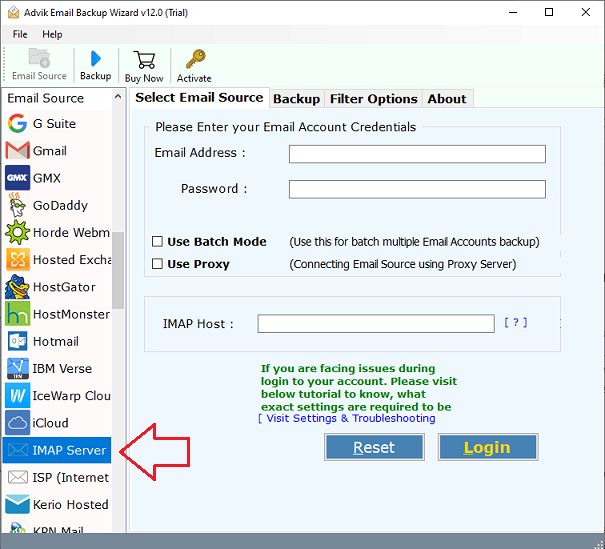
2. Now enter your cPanel email credentials and click login.
3. Choose the mailbox folders to export.
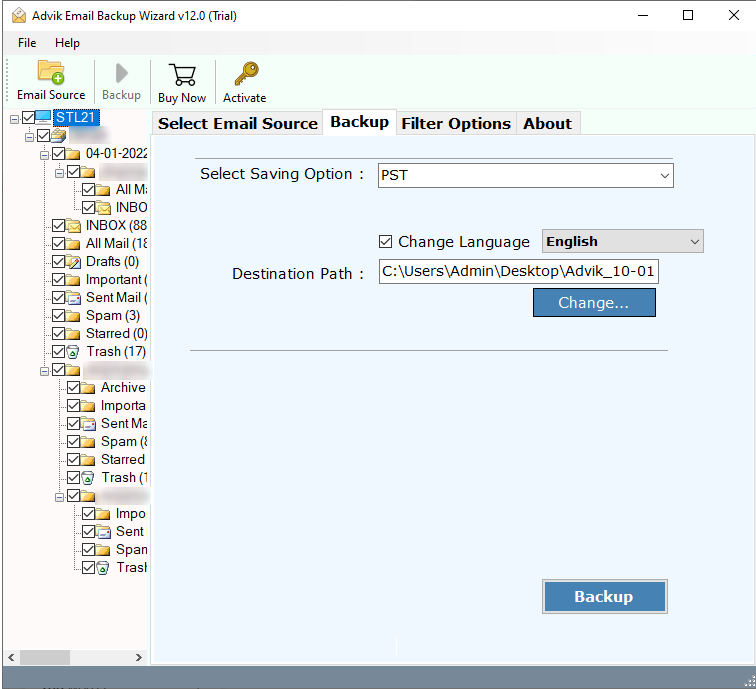
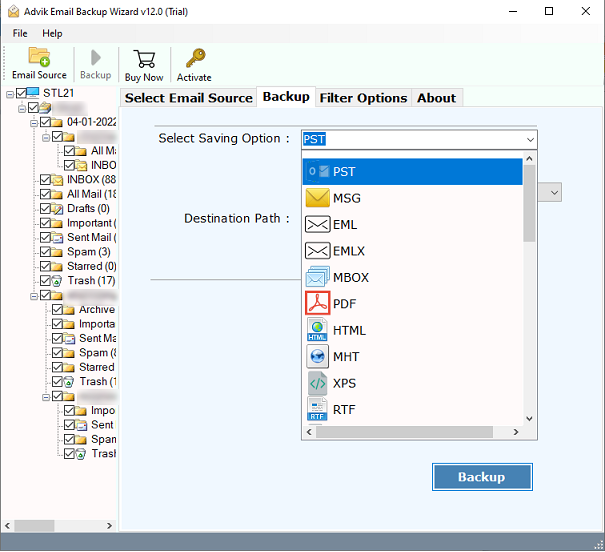
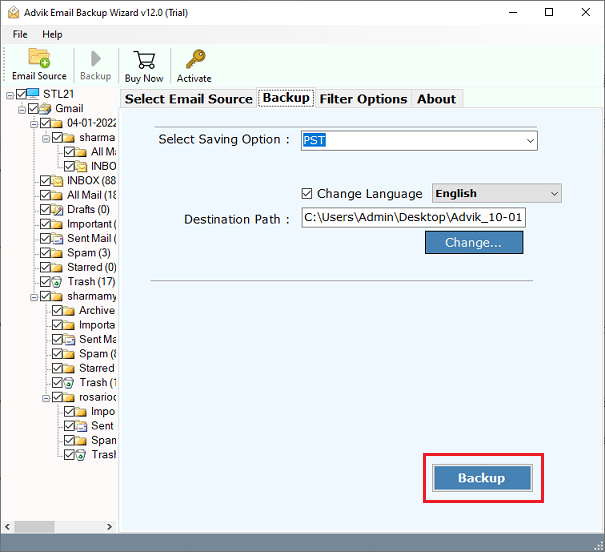
4. Choose “PST” as “Select Saving Option”.
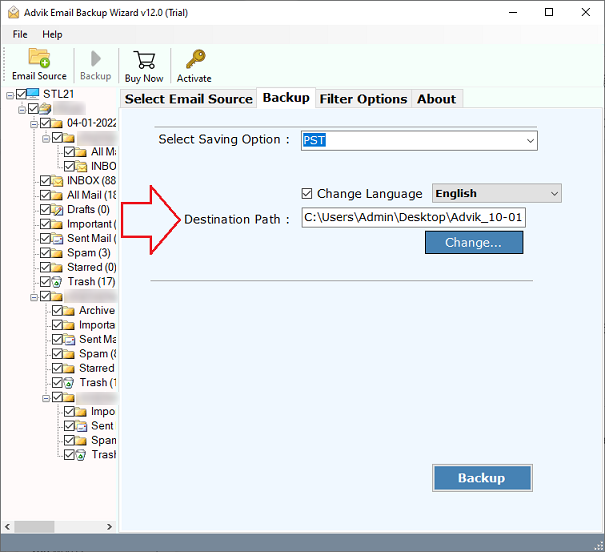
5. Choose your desired location to locate your files.
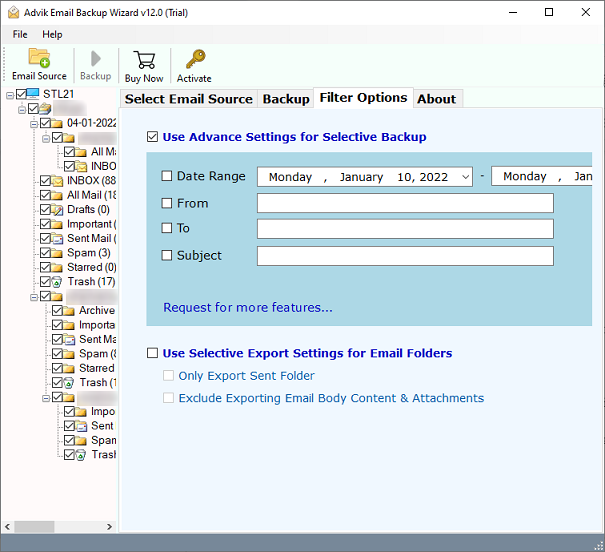
6. You can also apply filters to export selected emails. (Optional)
7. Lastly, tap on the Backup button to begin the process.
Watch How to Export cPanel Email to PST
Prominent Features of This Automated Tool
- A batch mode option to export cPanel email accounts to PST in bulk.
- Allows you to choose all or selected folders for conversion.
- Advanced filters to convert only selected emails.
- Retains the original structure of mailbox folders.
- Also, export cPanel to MBOX, EML, HTML, etc.
- 24/7 customer support, and Mac & Windows support.
- A free trial to check its working procedure.
Conclusion
In this blog, we have done our best to provide simple and easy methods to export cPanel email to PST file. However, manual methods have their own limitations that can also cause problems when exporting. Users can use a quick way tool like Advik Email Backup Wizard, which is explained above, to easily export cPanel to PST file. Try this free tool to utilize its premium benefits, then be confident to buy it. It’s convenient to use and has a very simple user interface.
Frequently Asked Questions
Q1. Is it possible to export cPanel mailbox to PST without size restrictions?
Ans. Yes, the software can export cPanel to PST without any limitation on the amount of data.
Q2. Does this tool allow me to export cPanel emails from any particular date?
Ans. Yes, the tool has various filter options, including date range.
