How to Export cPanel Emails to MSG Files?
Jenny Lowrence | February 3rd, 2026 | Data Backup
Summary: This write-up will guide you on how to export cPanel to MSG files. If you are also looking for a solution to the same query, then keep continuing. Here, we’ll provide both manual and automated solutions to convert cPanel emails to MSG files.
cPanel is a web hosting control panel that lets users manage their websites and domains. It provides users with a graphical interface to manage their email accounts. However, many users want to export cPanel emails to MSG files. By exporting cPanel to MSG, users can access and open emails in Outlook, show the evidence in the courtroom, and save important emails as individual files. In this post, we will show you two different ways to save cPanel emails as MSG format.
Let’s get started!
How to Export cPanel to MSG Files Manually?
cPanel doesn’t offer the option to save emails as .msg format. However, using Outlook, you can convert cPanel email to MSG.
Follow these steps;
- Launch the Outlook application on your system.
- Go to File >> Add Account.
- Enter the cPanel email address and click Connect.
- Choose IMAP as Account Type.
- Enter cPanel IMAP settings details and complete the configuration process.
- Once added, Outlook will sync your cPanel emails.
- Now, select the cPanel email that you want to export.
- Drag & drop it to your system.
The email will be saved in .msg format. Repeat the steps to export other emails.
How to Convert cPanel Emails to MSG Files Securely?
If you want simple, direct, and bulk conversion, then try the Advik Email Backup Tool on your system. The software can export cPanel emails to MSG in bulk. Also, it offers advanced email filter options to save selected emails. This is 100% safe and authentic program that preserves all email attributes and structure during the conversion.
Download the FREE demo version and analyze its working procedure.


Steps to Export cPanel Emails to MSG Files
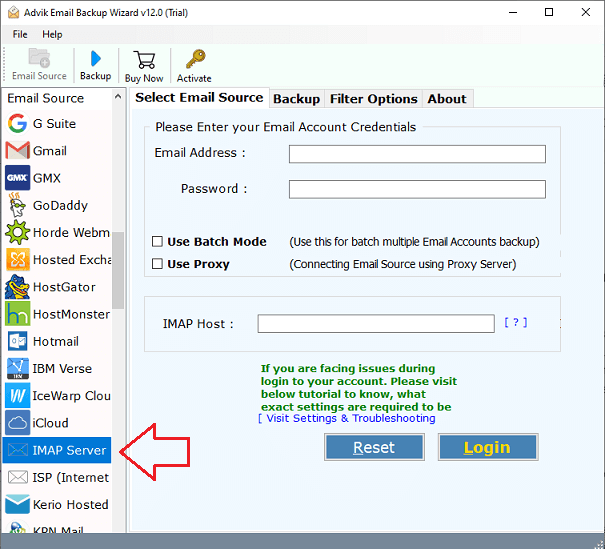
1. Run the tool and choose IMAP Server as email source.
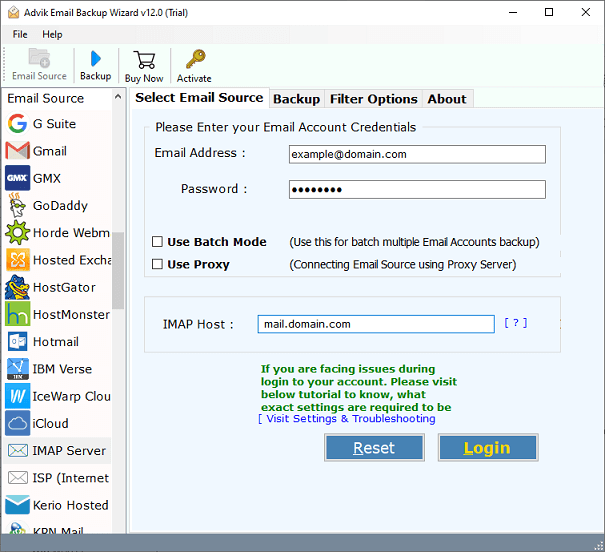
2. Enter your cPanel email account login details and click Login.
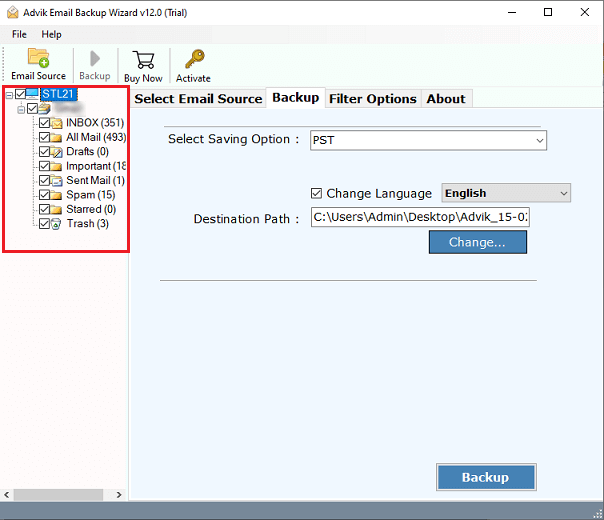
3. Choose the mailbox folders and subfolders to export.
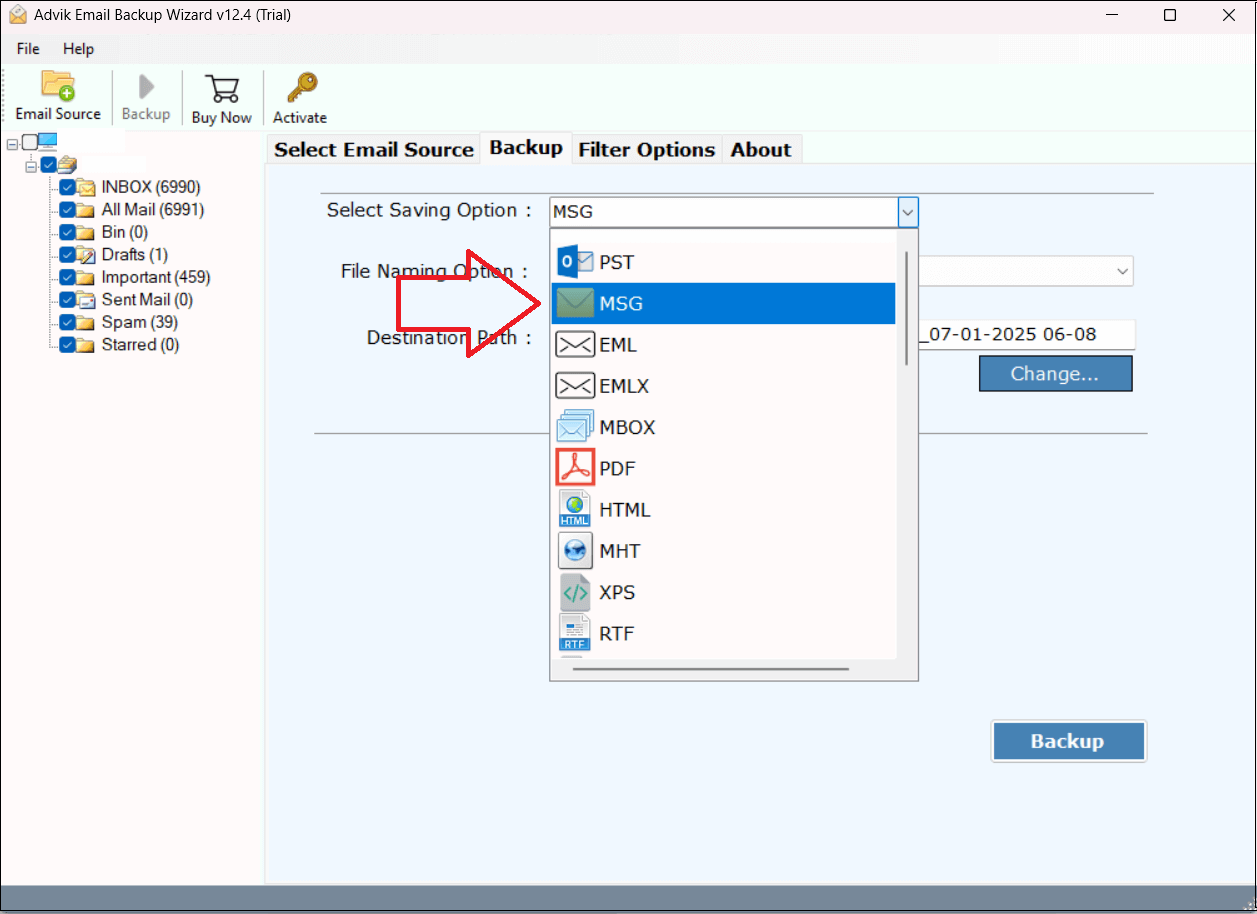
4. Next, select MSG as a saving option.
5. Choose the destination path and click the Backup button.
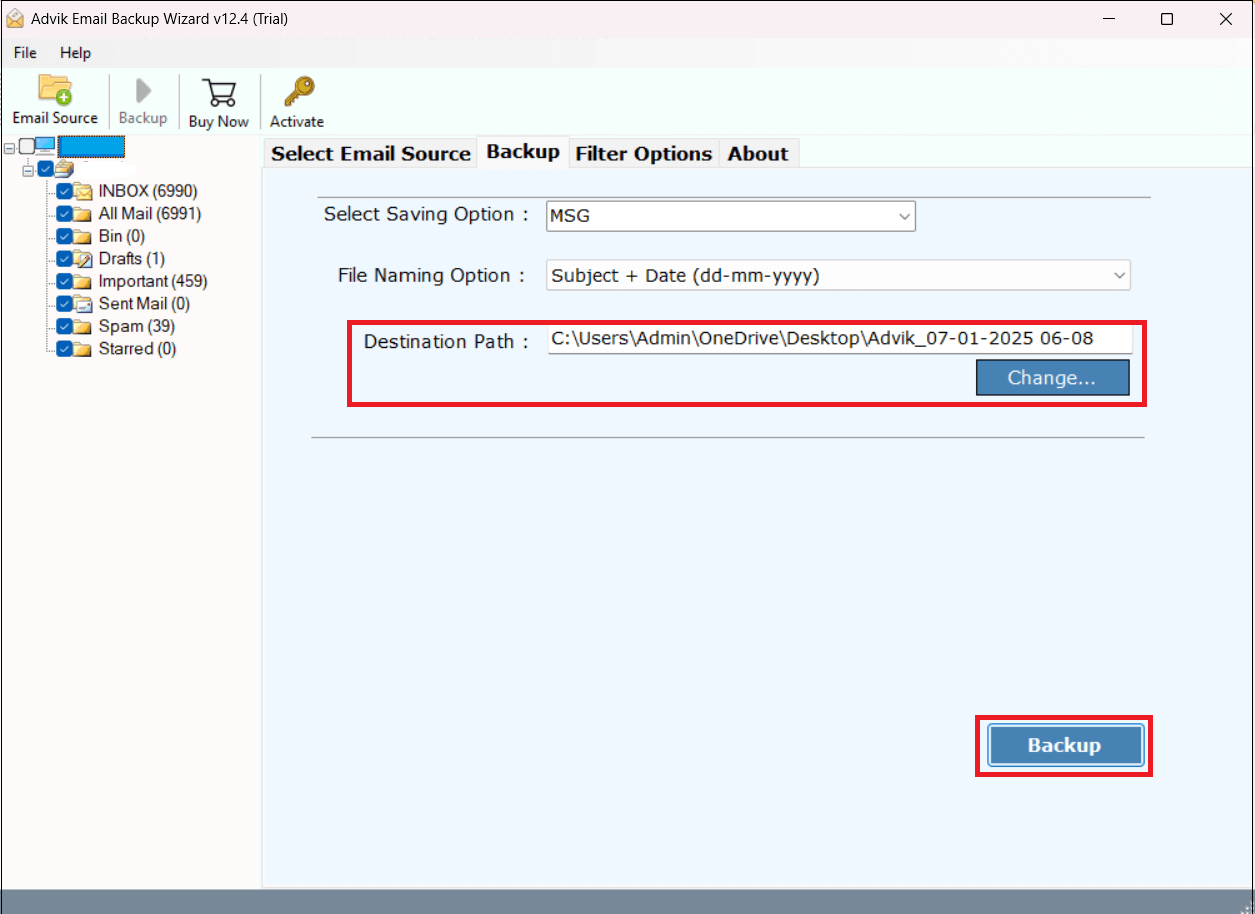
The software will start exporting cPanel emails into MSG format. Once the process is complete, you will get a pop-up message with a complete log report.
Why Choose Automated Tool Over Manual Solution?
There are several reasons to choose the cPanel to MSG conversion tool. Some of them are;
- StandAlone Utility: The software can directly export cPanel to MSG without any external help.
- Easy-to-Use: This utility is designed with advanced algorithms and a simplified user graphical interface.
- Bulk Conversion: With this tool, you can export all emails from cPanel to MSG in a single attempt.
- Selective Exporting: It provides various advanced filter options to save emails based on date range, to, etc.
- Multiple Saving Options: The tool offers 30+ saving options to export cPanel to PST, MBOX, EML, etc.
- Preserves Email Properties: It retains all email attributes and folder structure during the process.
- Wide Compatibility: The software supports all the latest and old versions of both Mac and Windows OS.
Conclusion
Exporting emails from cPanel to MSG is a simple task if you choose the right solution. In this post, we have discussed two different ways to export cPanel emails to MSG files. You can manually save cPanel email as MSG, but this is suitable if you have a limited number of emails. For bulk conversion, choosing the automated tool is a smart way. You can download the free trial version to check its working procedure without any cost.
