How to Export cPanel Emails to PDF Files?
Jenny Lowrence | February 4th, 2026 | Data Backup
Emails contain crucial information relevant to our business and personal purposes that users require to store in a more accessible format. That’s why many users want to export cPanel emails to PDF files. A PDF is a universal file format that can be accessed from any device without depending on any specific platform. In this article, we will discuss both manual and automated solutions for converting cPanel emails to PDF format.
Reasons to Export cPanel to PDF
Here are some reasons why users convert cPanel emails to PDF:
- Exporting cPanel email to PDF enables you to access data without an internet connection.
- The PDF format allows users to protect their data file with a password.
- You can easily share your documents, legal notes, and important information through PDF.
- PDF file can be easily opened on any device.
How to Convert cPanel Email to PDF for Free?
You can manually save cPanel email as PDF via Outlook.
Follow these steps:
- Launch Outlook and go to File >> Add Account.
- Enter the cPanel account details to configure in Outlook.
- After configuration, your cPanel email folders are visible in Outlook.
- Now, open the cPanel email that you want to export.
- Click on File and choose Print.
- Select Microsoft Print to PDF from the printer drop-down menu.
- Enter the file name and choose a location to save it, and then click the Save button.
Done! This is how you can save cPanel email as PDF, but with this approach, you can export a single email at a time.
How to Export Emails from cPanel to PDF in Bulk?
Download and install the Advik Email Backup Wizard on your system. The software can export cPanel emails to PDF in a few simple clicks. With this utility, you can save multiple emails in a single attempt. Additionally, it also offers advanced email filter options for selective email conversion. It preserves all email properties, such as sender/receiver info, attachments, etc., during the process. Also, it keeps the mailbox folder hierarchy as well while exporting.
Click on the below link to try it for FREE.


Steps to Export cPanel Emails to PDF
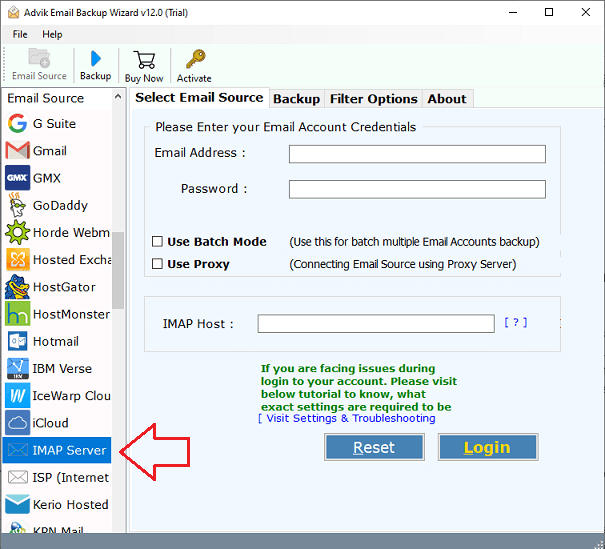
1. Run the tool and choose IMAP Server as email source.
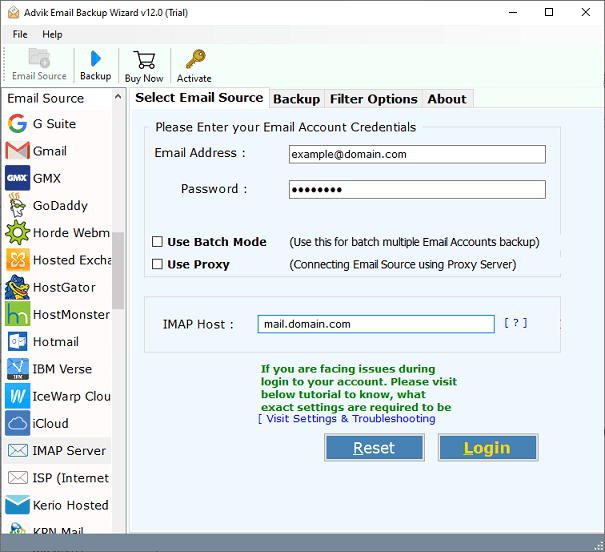
2. Enter your cPanel account login details and click Login.
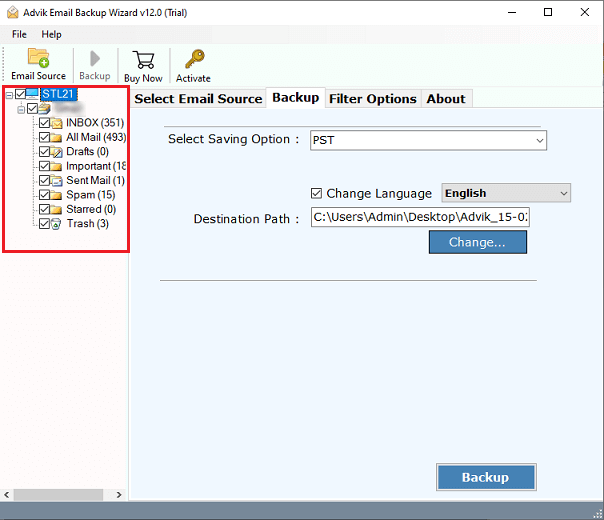
3. Choose the required mailbox folders to export.
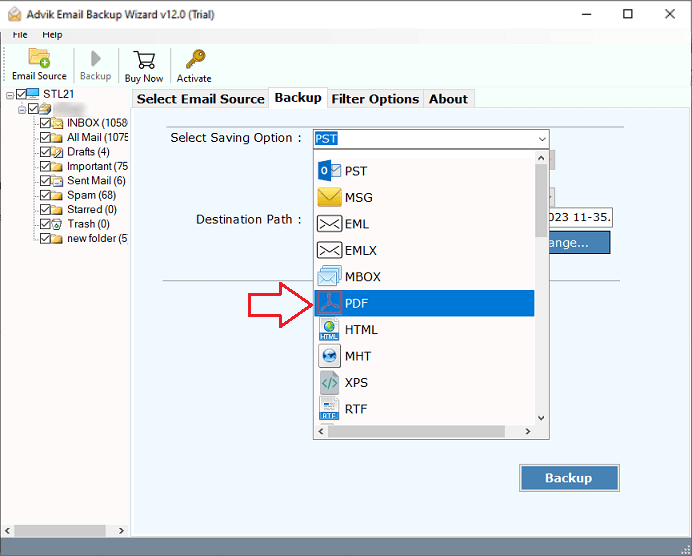
4. Select PDF as a saving option.
5. Browse target location and click Backup button.
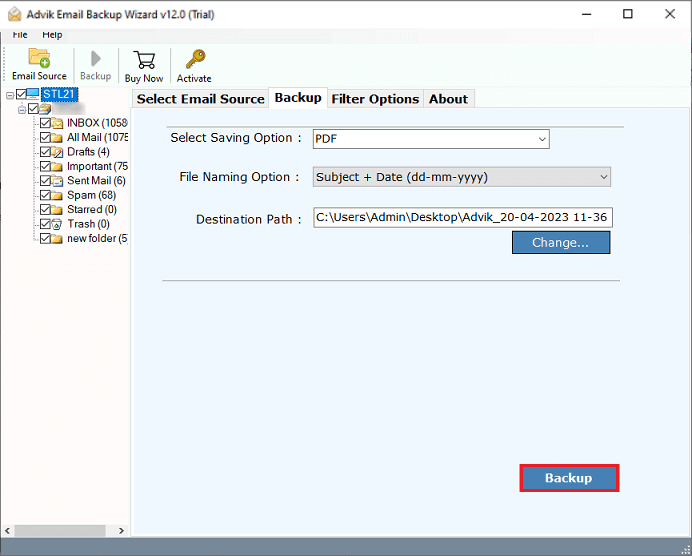
The software will start downloading cPanel emails to PDF format. Once the process is complete, it will automatically redirect to the destination folder.
Prominent Features of the cPanel to PDF Converter Tool
- Standalone utility, no need to install any other application.
- Export all emails from cPanel to PDF in a single attempt.
- Advanced filter options to convert only selected emails.
- Preserves email attributes and folder structure while exporting.
- Also, export cPanel to PST, MBOX, EML, HTML, and many more.
- Simple graphical user interface for both technical and non-technical users.
Final Words
In this article, we have explained two methods to export cPanel to PDF, you can use any of them. If you need to convert specific cPanel emails, then you can go with the manual approach. However, if you have bulk emails for exporting, then choosing the automated tool is the right way.
