How to Export cPanel Emails to RTF?
Jenny Lowrence | February 9th, 2026 | Data Backup
This write-up suggests the best solution to export cPanel emails to RTF files. If you are a cPanel user and want to change your mailbox data into rich text format to make it compatible with several word processing programs, then follow this step-by-step guide. Learn the simple and effective methods to convert cPanel to RTF format.
RTF stands for Rich Text Format, which is a type of document developed by Microsoft. RTFs are small-sized documents that contain text styles and images within a single file. It can be easily opened and read by using any word processor.
How to Export cPanel Emails to RTF Manually?
While there isn’t a direct way to convert cPanel email to RTF manually, you can do so with the help of Word processor. Follow the below given steps to export emails from cPanel to RTF file;
- Log in to your cPanel email account.
- Open the email that you want to convert and copy its content.
- Now, open any word processor and paste the email content.
- Go to File menu and click on Save As option.
- Enter the file name and select .rtf as file type.
- Click Save button.
Done! Repeat the steps to export other emails.
Limitations of Manual Method
- Save only one email at a time.
- Formatting may not be preserved.
- Not suitable if you have a large number of emails.
How to Convert cPanel Emails to RTF Automatically?
For bulk conversion, try the Advik Email Backup Wizard on your system. With this tool, you can export cPanel emails to RTF in bulk. Also, it allows you to choose specific emails or folders for converting. The tool has a batch mode option that enables you to export emails from multiple cPanel email accounts to RTF at once. This is a safe and secure solution that keeps the folder structure and email attributes while exporting.
Download the FREE demo version and analyze its working procedure.


Steps to Export cPanel to RTF
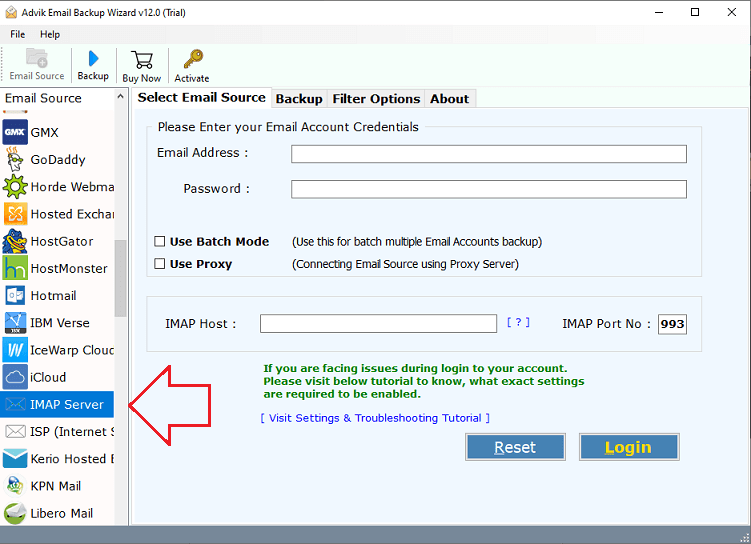
1. Run the tool and choose IMAP Server as email source.
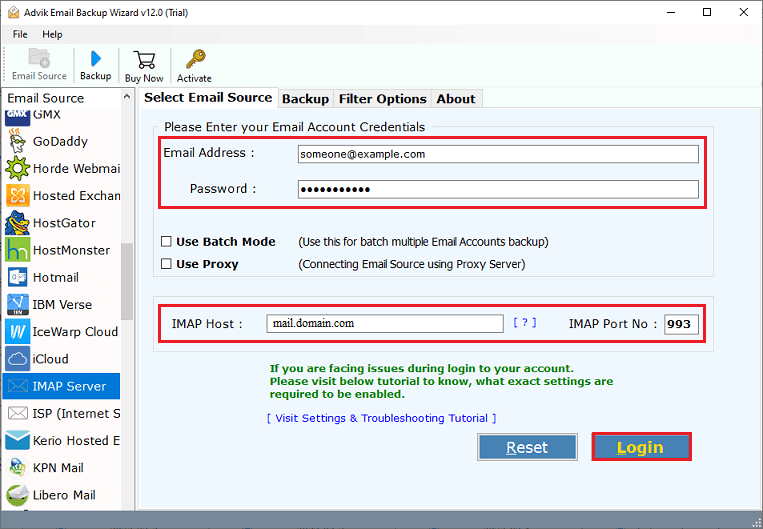
2. Enter your cPanel account credentials and press Login.
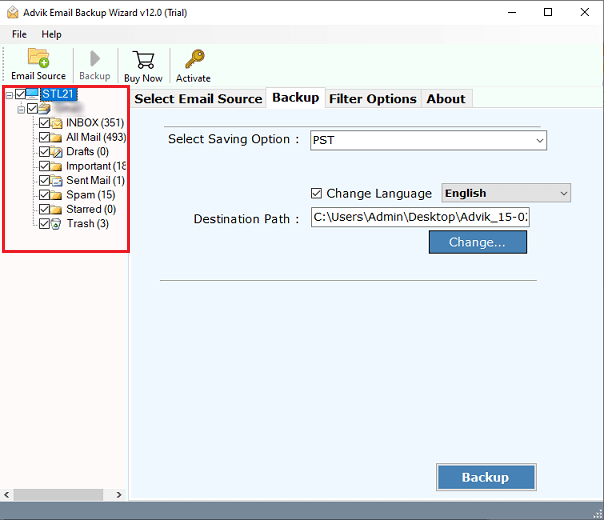
3. Choose the mailbox folders to export.
4. Next, select RTF as a saving option.
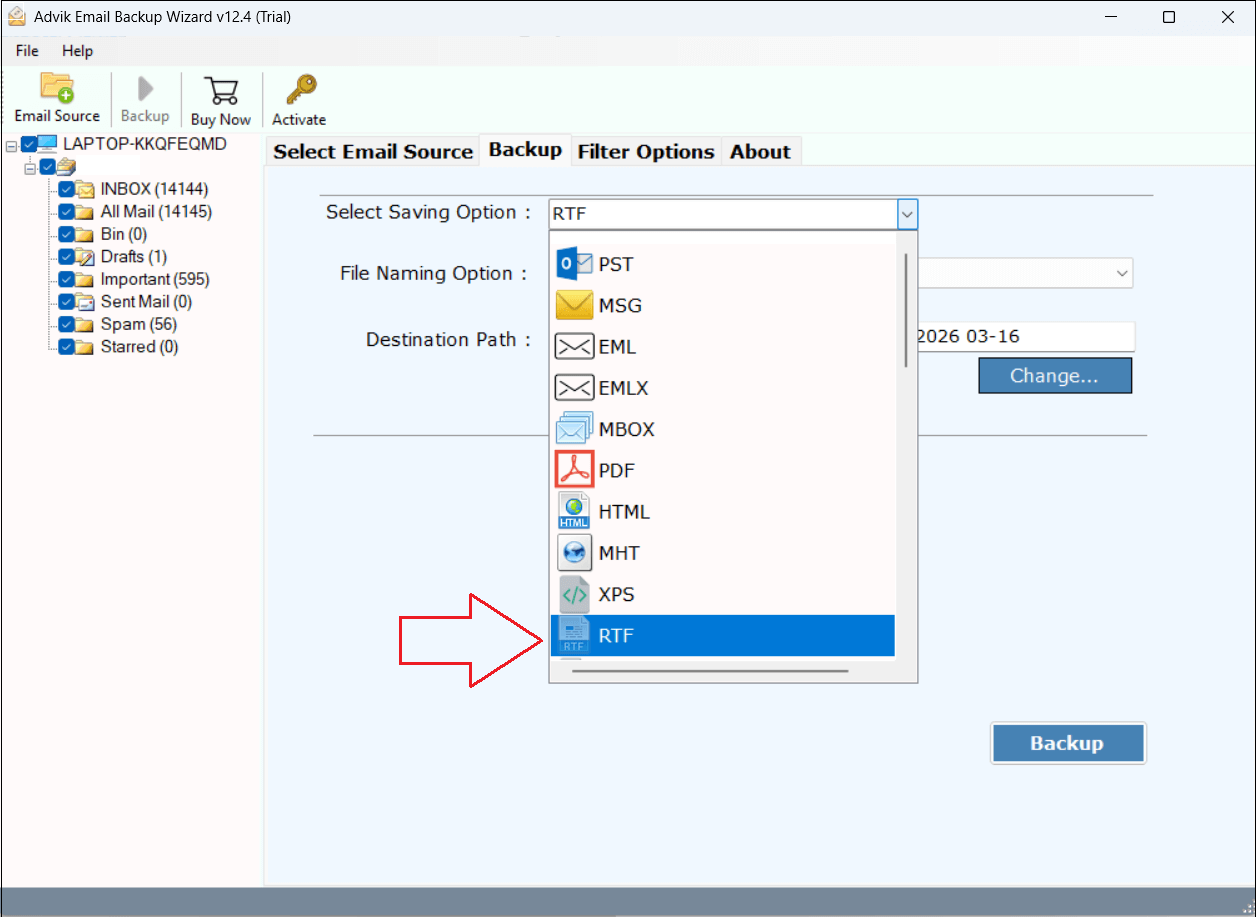
5. Choose the destination location and click Backup.
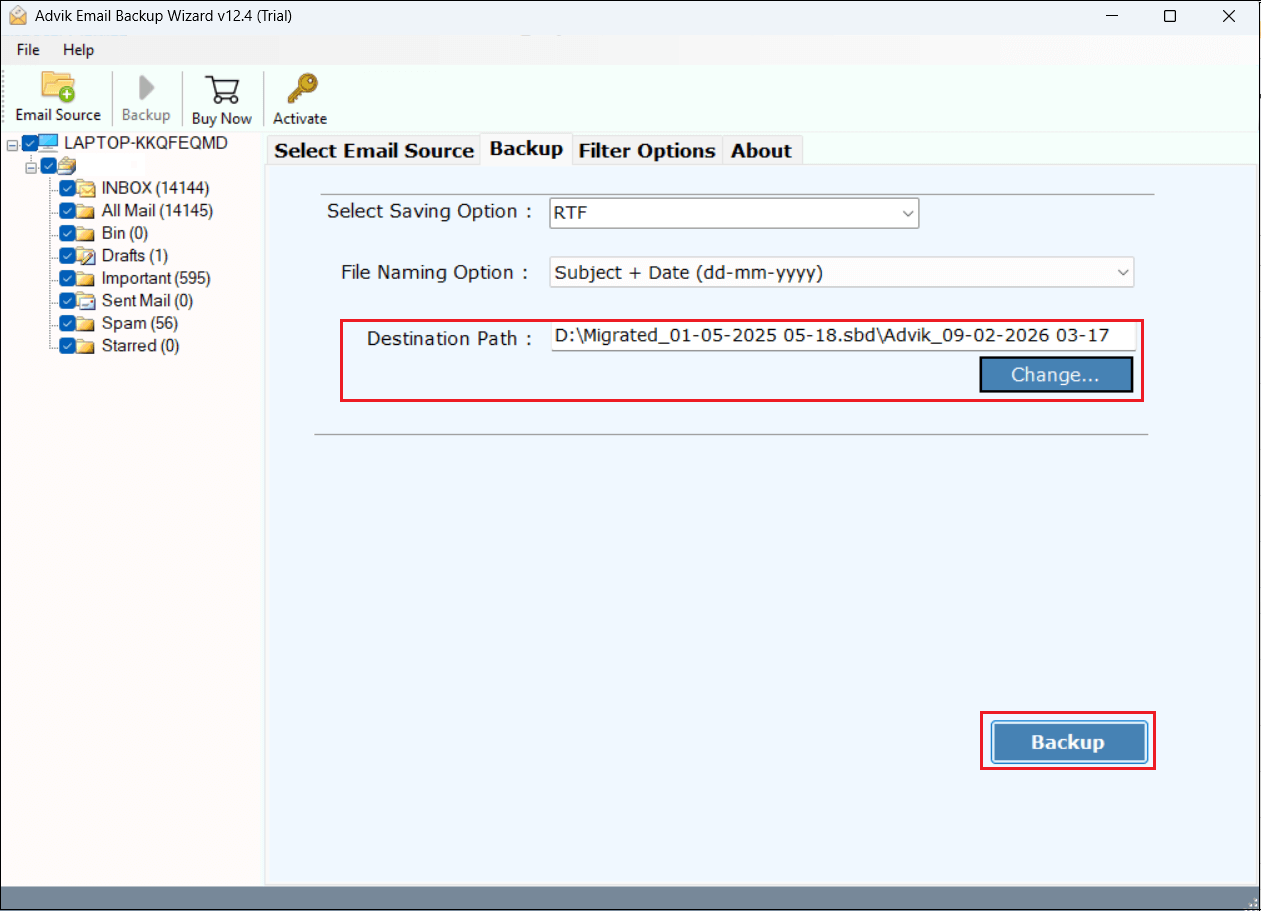
The software will start converting cPanel emails into RTF files. Once the process is complete, it will automatically redirect to the destination folder.
Why Choose Automated Tool Instead of Manual Solution?
- Direct Conversion: The software can directly export cPanel emails to RTF without any external program.
- Bulk Exporting: The tool can convert multiple cPanel emails in a single attempt.
- Advanced Filter Options: It offers various filter options to export only selected emails.
- Preserves Email Properties: The software maintains all email attributes during the process.
- Retain Folder Structure: It keeps the original structure of mailbox folders while exporting.
- Simple GUI: The tool is designed in such a way that any novice user can easily operate it.
- Wide Compatibility: This program supports all the latest and older versions of both Mac and Windows OS.
Final Words
In this post, we have discussed how to export cPanel emails to RTF files. Here, we have mentioned both manual and automated solutions. The manual approach is simple but it is suitable if you have a limited number of emails. If you have a large number of emails, then we recommend that you use the professional tool, which saves your time and effort. You can download its free version to check its working procedure.
