How to Export Hostinger Emails to PST File?
Jackson Strong | February 8th, 2026 | Data Backup
Summary: This blog is all about how to export Hostinger emails to PST file in easy ways. If you also have the same query, this article will guide you with step-by-step instructions. Here, we are going to discuss two different solutions to convert Hostinger emails to PST for Outlook. So, read this article completely and get more details about these methods.
Hostinger is the most popular brand in web hosting services. In addition, it also allows users to get the benefit of professional and personal emails. But it can’t beat the email management of Outlook in many areas. Exporting your Hostinger emails to PST file is a smart way to backup your data securely. It is a single file that consists of all of your emails, contacts, calendars, and other data items in an integrated manner. Also, you can lock your PST file as password-protected to ensure safety and data security.
This guide will walk you through the simple steps to export email data from Hostinger to Outlook PST file. By following these methods, you can ensure that your emails are safely stored and easily accessible for future use. So, let’s begin now!
How to Export Hostinger Emails to PST Free?
1. Launch Microsoft Outlook on your computer.
2. Go to File > Add Account.
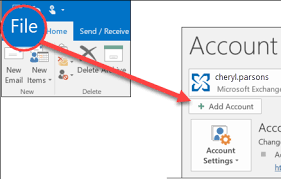
3. Enter your Hostinger email address and click Connect.
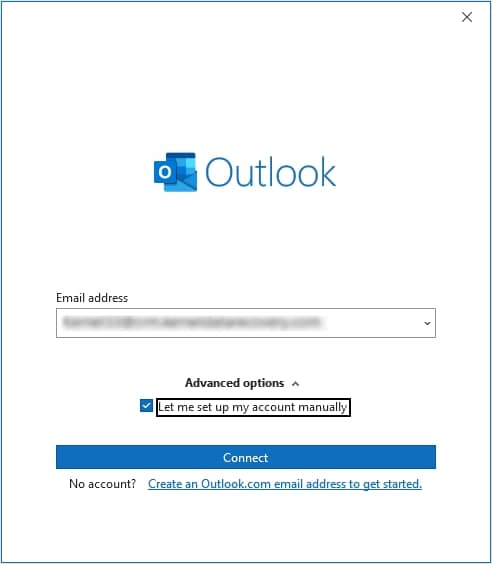
4. Now, enter IMAP settings of Hostinger.
5. Enter your Hostinger email password and complete the setup.
6. Next, restart Outlook and launch it again.
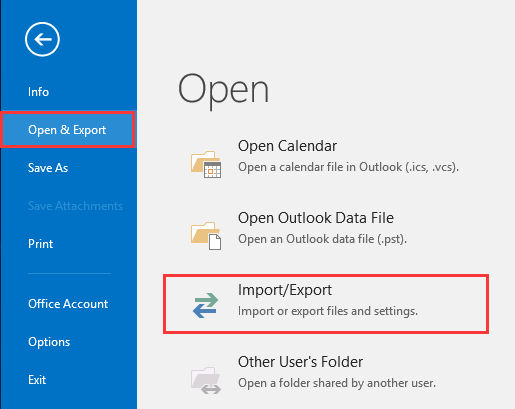
7. Go to File > Open & Export > Import/Export.
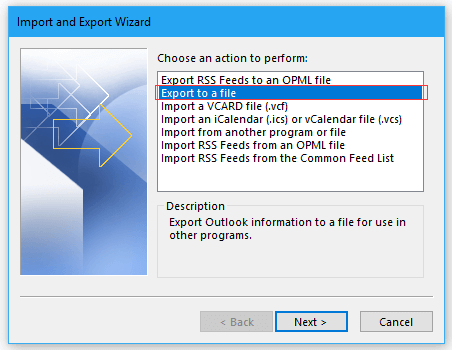
8. Select Export to a file and click Next.
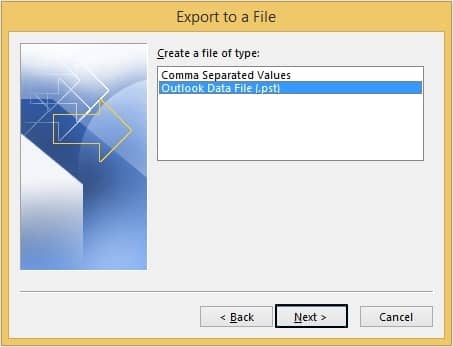
9. Choose Outlook Data File (.pst) and click Next.
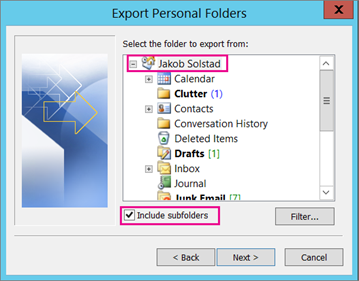
10. Choose the Hostinger email account you want to export.
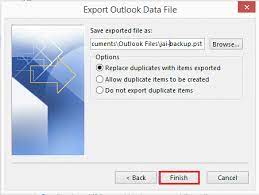
11. Browse a location to save the PST file and click Finish.
Note: You may set a password for the PST file for added security.
How to Convert Hostinger Emails to PST File Automatically?
Try the Advik Email Backup Wizard on your system. It is an easy-to-use approach to export Hostinger emails to PST file. Using this tool, you can export the complete Hostinger mailbox to PST file in just 5 simple steps. It provides various advanced filter options to export particular emails based on Date Range, To, From, Cc, Bcc, Subject, etc. Additionally, it will preserve data integrity and folder hierarchy throughout the process.
Click on the FREE download button to export 25 emails from Hostinger to PST.


Steps to Export Emails from Hostinger to Outlook PST
Step 1. Run the software & select IMAP as an email source.
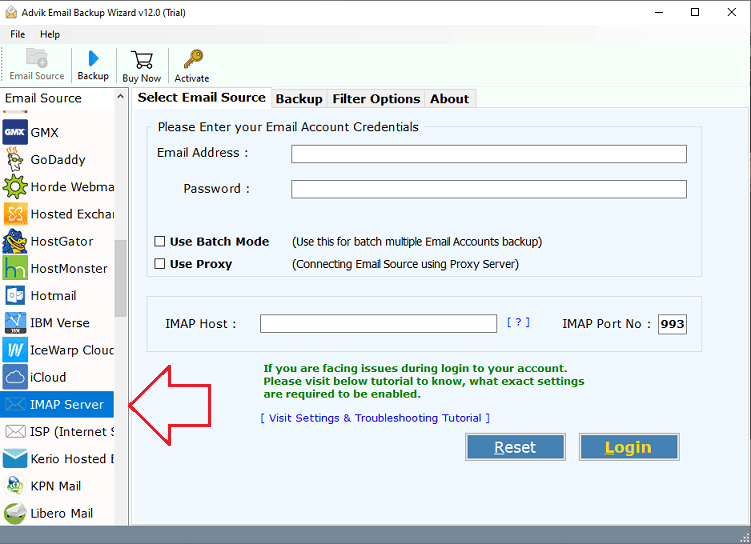
Step 2. Enter Hostinger email account details & login.
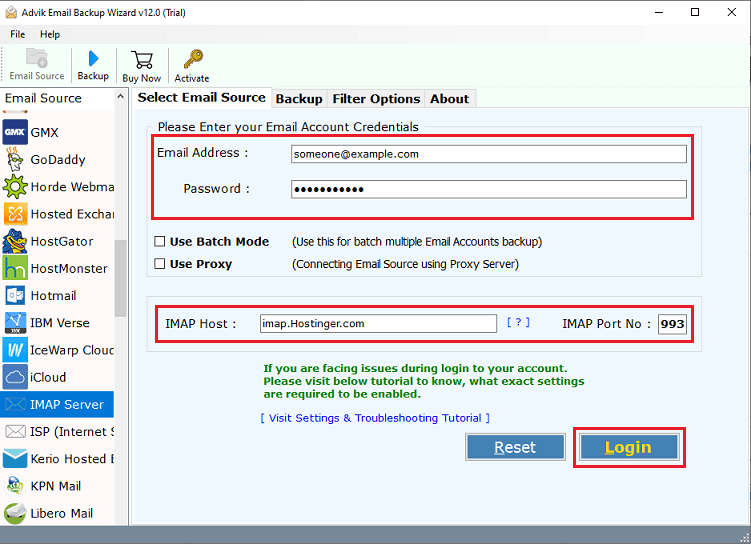
Step 3. Select mailbox folders to download.
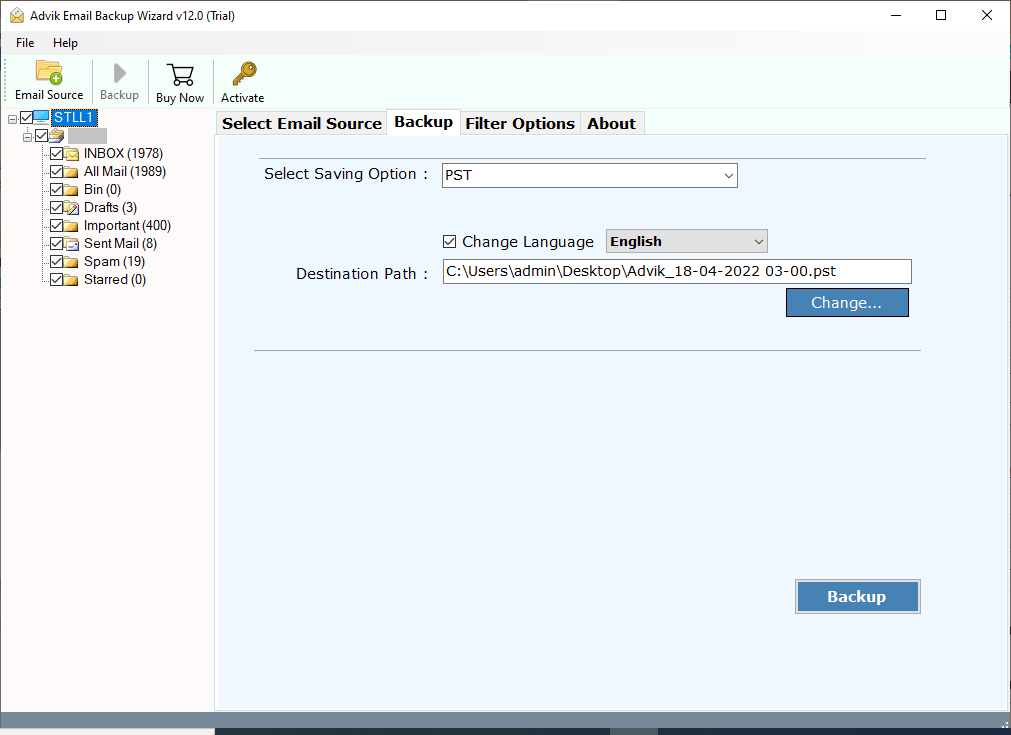
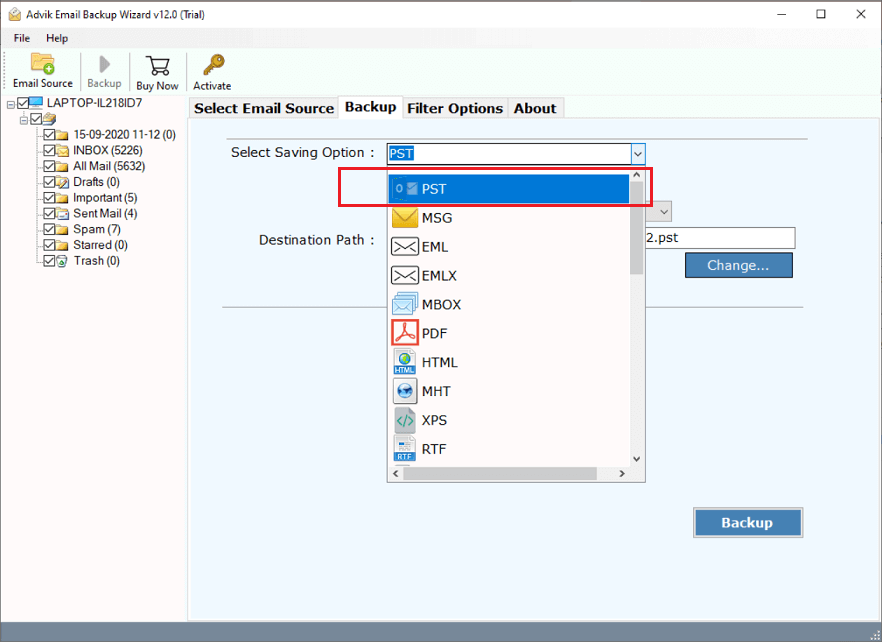
Step 4. Choose PST as a file format from the saving options.
Step 5. Browse the target location and click the Backup button.
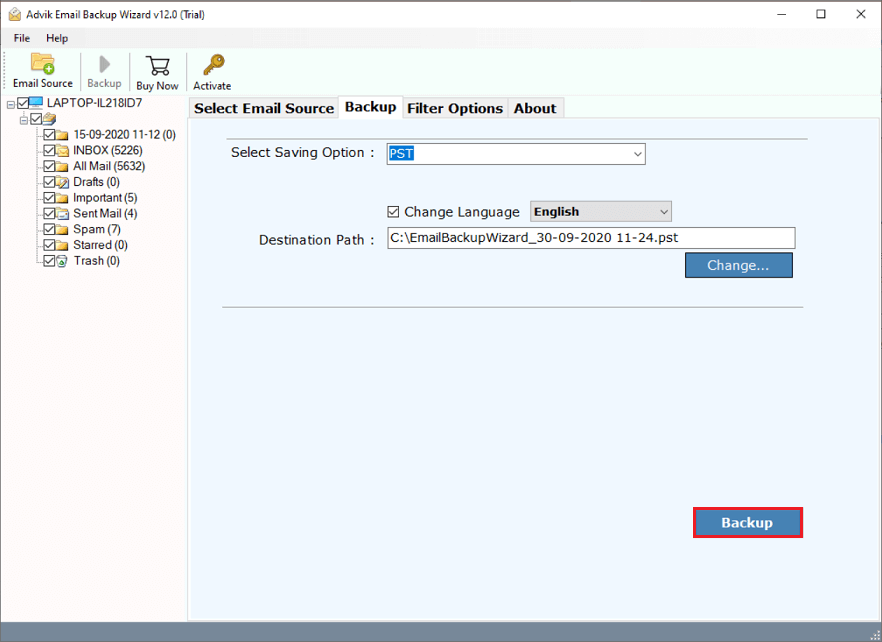
The software has started exporting emails from Hostinger to PST file.
Once completed, you will be redirected to your chosen destination.
Now, verify that all emails and folders have been exported correctly.
Watch How to Export Hostinger to PST
Benefits of using an Automated Software
- Users can choose the software language during installation.
- The tool exports Hostinger emails to PST file with attachments.
- It operates independently without needing extra installations.
- Easily backup Hostinger emails in multiple email and document file formats.
- The interface is user-friendly for both technical and non-technical users.
- Convert multiple Hostinger emails to Outlook PSTfile in a single attempt.
- It is a reliable and error-free solution that can be used by all types of users.
- Also migrate Hostinger emails to Office 365, Yahoo Mail, Zoho Mail, Roundcube, etc.
- Maintains data integrity and folder hierarchy throughout the process.
- Widely compatible with both Mac and Windows OS.
Conclusion
We are concluding this blog by providing the best ways to export Hostinger emails to PST file. At last, I would only say choose the solution that fits best your needs and requirements. Read the complete article, go through step-by-step instructions for each solution, then decide what to choose. Also, you can try the free demo version of an automated software to export the first 25 emails from each Hostinger mailbox folder to PST file.
