How to Save Outlook Email as MSG Files?
Jenny Lowrence | October 28th, 2025 | Data Backup, Outlook
This article will guide you on how to save Outlook email as MSG file format. Here, we will discuss three different techniques to export Outlook email to MSG file format. All methods are explained in detail in the upcoming section. Read this article till the end to learn more.
Before proceeding with techniques, we understand the reasons for exporting Outlook emails to MSG files.
Reasons to Save Outlook Email as MSG Files
There are a variety of reasons why users need to convert Outlook email to MSG file. Some of them are;
- MSG files retain the original email structure, including attachments and metadata.
- It stores a single email message, so Outlook to MSG conversion is beneficial if you need to share a specific email.
- Many organizations use MSG files for record-keeping and legal purposes.
So, let’s start to learn these three easy ways to save MSG file from Outlook.
How to Export Outlook Email to MSG via Save As?
1. Open the Outlook application on your system.
2. Now, open an email that you want to export.
3. Go to File tab and click on Save As option.
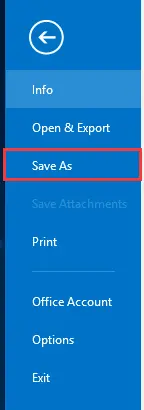
4. Choose destination location and enter a file name.
5. Select Outlook Message Format – Unicode from Save as Type and click on the Save button.
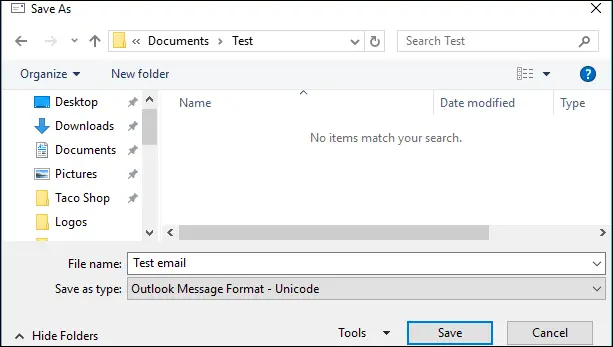
Repeat the process to export other Outlook emails.
How to Save Outlook Email as MSG via Drag & Drop Method?
Outlook can export all emails to MSG files using the drag & drop approach.
1. Open Outlook email client and select an email folder to export.
2. Now, press Ctrl + A to select all emails.
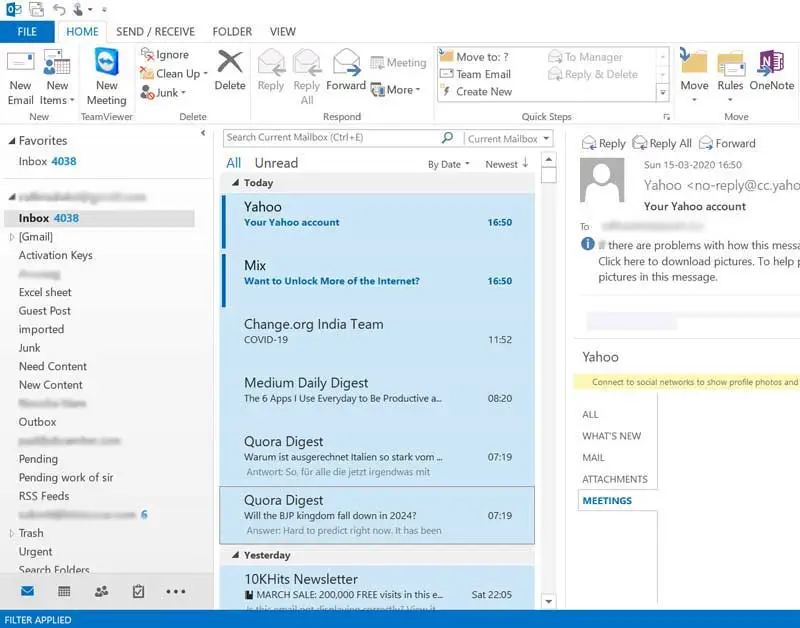
3. Drag & drop these emails into a specific folder.
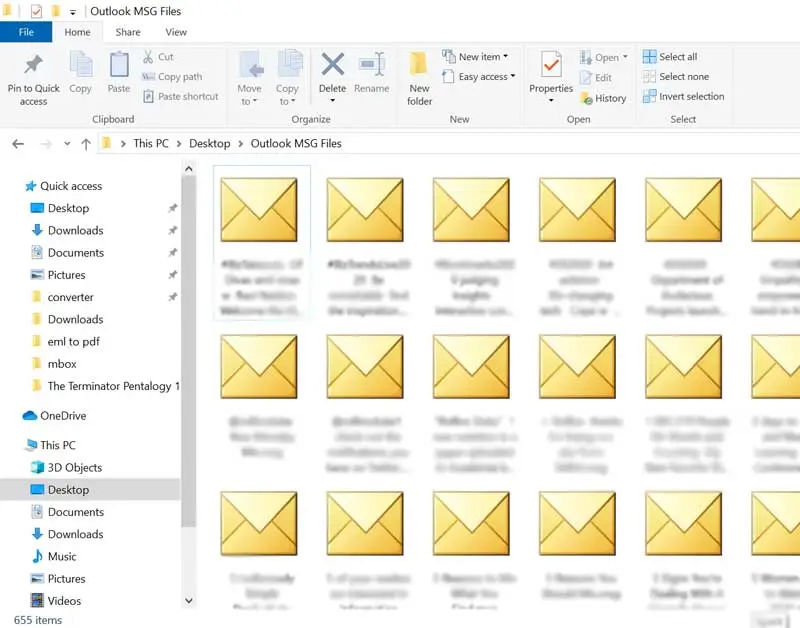
You will get all emails in .msg format. In this way, Outlook export multiple emails to MSG files.
How to Save Multiple Outlook Emails as MSG Files Automatically?
Download and install the Advik Outlook PST Converter on your system. With this utility, you can download Outlook email in MSG file in just a few simple clicks. The software can export Outlook message to MSG files in bulk. Also, it offers various advanced email filters for selective email conversion. It preserves all email attributes and structure during the process.
Tap on the below link to download it for FREE.

Steps to Save Emails from Outlook as MSG
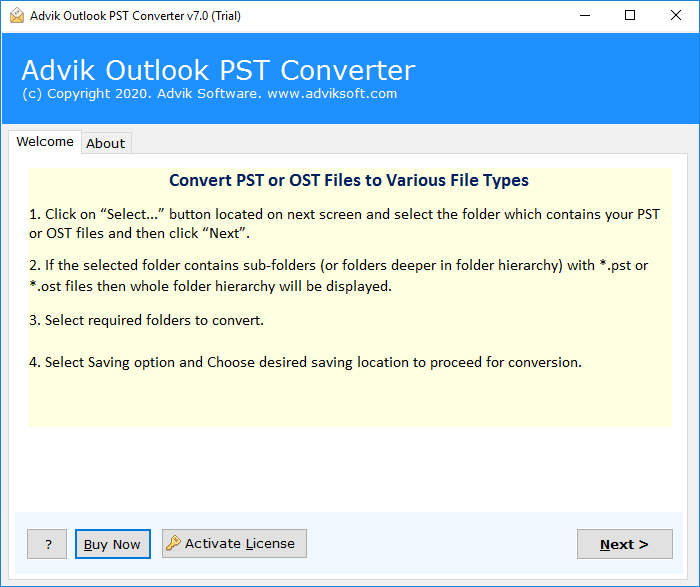
1. Run the tool in your system.
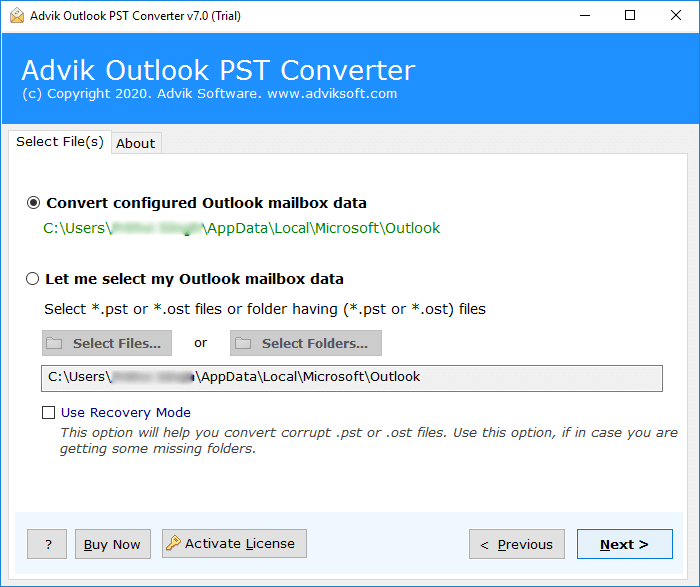
2. Choose the configured Outlook profile and click Next.
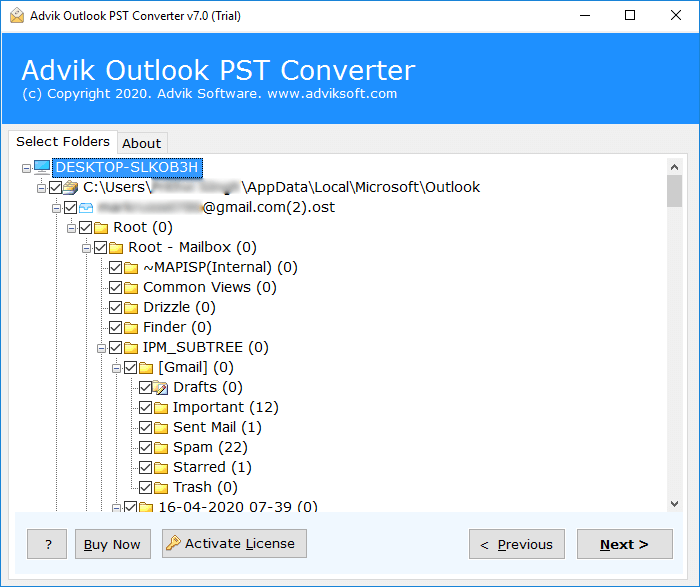
3. Select the required email folders to export.
4. Now, select MSG as a saving option.
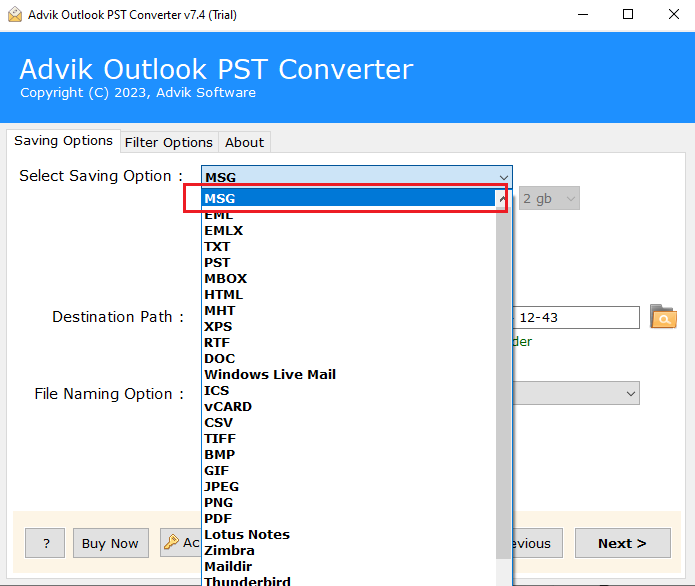
5. Browse target location and click Convert button.
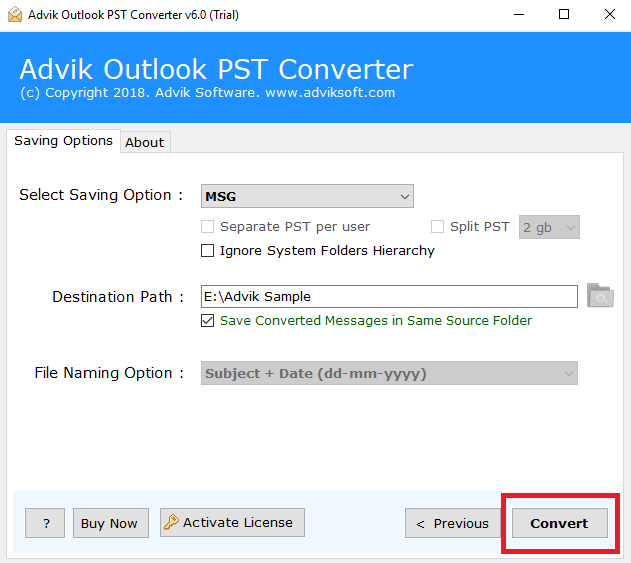
The software will start converting your Outlook emails to MSG files. Once the process is complete, it will automatically be redirected to the destination folder.
Benefits of Using Automated Tool
- Bulk Conversion: The software can export multiple emails from Outlook to MSG files in a single attempt. You do not need to repeat the steps again and again to save each email.
- Preserves Metadata Properties: The tool maintains the Outlook email attributes and structure during Outlook to MSG conversion. Also, it keeps all email folders in their original format.
- Multiple Saving Options: The software offers various saving options to convert Outlook emails. With this utility, you can export Outlook emails to MBOX, PDF, EML, HTML, and many other formats.
- Fast and Secure Conversion: The software is able to accomplish this conversion process quickly. It also ensures that all emails are exported accurately without any single bit of loss.
- Selective Email Conversion: The tool offers various advanced email filter options such as to, from, subject, cc, bcc, etc. Using these filters, you can export only selected emails.
- Easy to Use: The software comes with a simple graphical user interface. Beginners can easily use it without any technical training and guidance. In case you are stuck while exporting Outlook emails to MSG, you can contact our support team for further assistance.
Conclusion
In this post, we have discussed how to save Outlook email as MSG file. Here, we have explained both manual and automated solutions. However, the manual method is suitable if you have a limited number of emails. So, experts recommend using the professional tool for smooth and bulk conversion. You can try the demo version, which allows you to save 25 emails from each folder without any cost.
Frequently Asked Questions
Q 1. How to save email as MSG file in Outlook?
Ans. There are three different ways to export Outlook email to MSG. All methods are explained in detail in this post.
Q 2. How do I save multiple Outlook emails as MSG at once?
Ans. You can export all Outlook emails to MSG using drag & drop method or an automated tool.
Q 3. Does the tool preserve all email attributes and formatting of Outlook emails during the process?
Ans. Yes, the software keeps all key elements and the original structure even after the process.
