How to Export Rackspace Emails to PST File?
You can export Rackspace emails to PST format either by setting up your email account in Microsoft Outlook by using IMAP settings or by using by any professional methods available online. It’s so because Rackspace does not offer any option to export mailboxes to PST directly so users have to use these methods.
Whether you want to create backup, transfer Rackspace emails to Microsoft Outlook, account migration or to maintain a local archive of important messages, selecting the right method can save your crucial time and prevent data loss. The guide includes both manual and automated methods and best use scenarios to choose the solution as per your need and requirements.
In this article you will learn;
- Why Users Need to Export Rackspace Emails to PST Format
- How to manually export your emails and to set up Rackspace in Microsoft Outlook
- Professional Way to export Rackspace mailboxes without Outlook.
- Main differences between manual and automated approaches
- Best practices for mailbox data retention during export.
Why is it important?
PST is a native Outlook data format designed by Microsoft and is widely used for email backup. There is no built-in PST export functionality in Rackspace, so users must either sync the mailbox with Outlook or use third-party software to generate PST files.
Understanding these options is necessary to choose a method that fits best to your needs.
What is Rackspace Email and Why Export it to PST?
Rackspace is a cloud-hosted email service that businesses and individuals use to manage professional email communications. You can access it’s email service through webmail, desktop and mobile clients, and supports IMAP, POP3 and Exchange-based access.
PST (Personal Storage Table) is the data file format of Microsoft Outlook which is used to locally store emails, contacts, calendars, tasks and other mailbox information. If you export your Rackspace emails to PST file then it will be helpful for you to can be beneficial for you to backup your email data, access your email offline, migrate your mailbox data to Microsoft Outlook and store long term email storage needs.
Two Tried and Tested Ways to Export Rackspace Emails to PST
I have found two reliable ways for exporting Rackspace emails to PST format. The first method is to set up your Rackspace account on Microsoft Outlook with IMAP and then export the mailbox data to a PST file. This method is free but it requires Outlook installation and may take a longer time to export large mailboxes.
Another way is to use any professional tool that can export the emails to PST format selectively. This is suggested method for users who have large mailboxes, export multiple accounts, or want additional features such as email filters and selective export.
Let’s try both methods one by one and help you to decide best one as per your needs.
Method 1. How to Convert Rackspace Email to PST File for Free?
Microsoft provides a direct way to configure Rackspace account with IMAP settings for Microsoft Outlook and export its emails into PST format. This method is free but requires Outlook installation and takes time if you have large mailbox as Outlook needs to synchronise all emails first before exporting them.
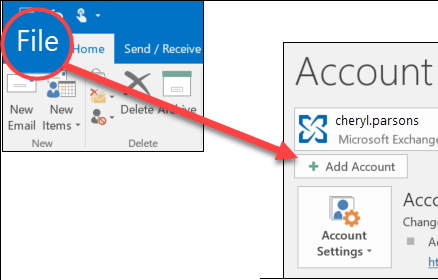
Step 1. Open the application and go to File >> Add Account.
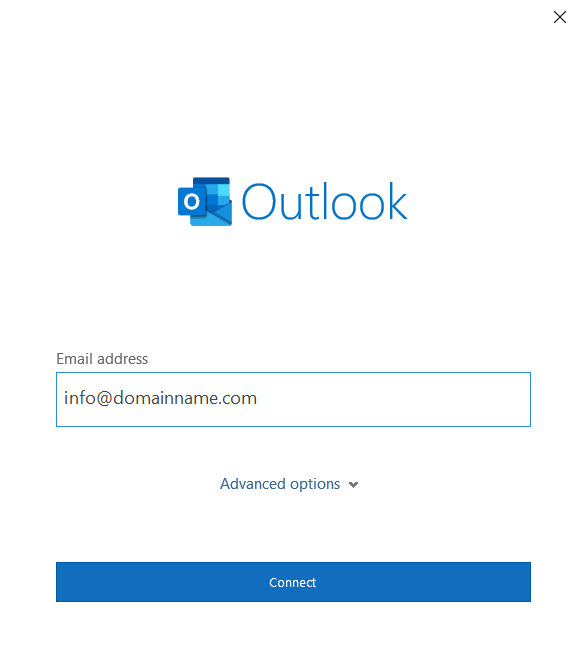
Step 2. Enter your Rackspace email ID and click Continue.
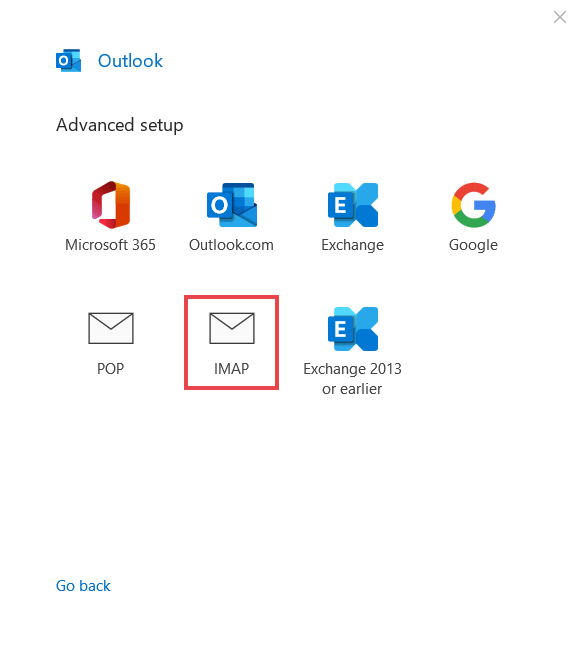
Step 3. Choose IMAP as a preferred option.
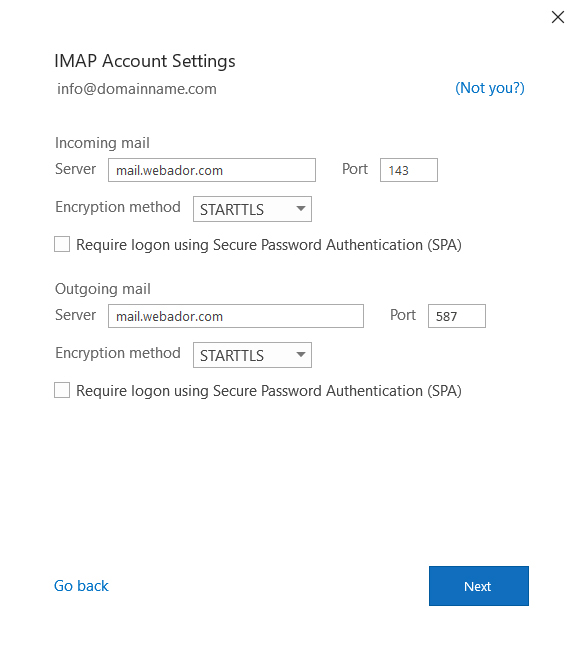
Step 4. Enter the required details in the following box.
Step 5. Provide your Rackspace email password & click connect.
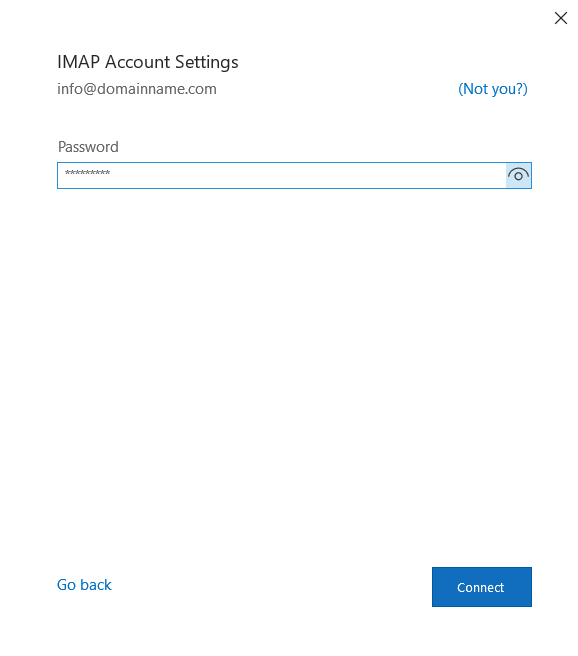
Step 6. Restart the application and find your Rackspace email ID.
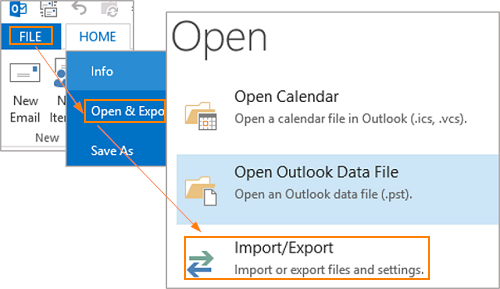
Step 7. Go to File > Open & Export > Import/Export.
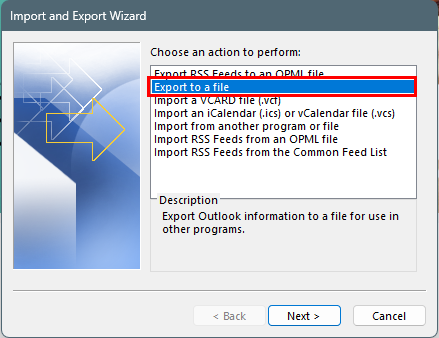
Step 8. Choose Export to a file and click Next.
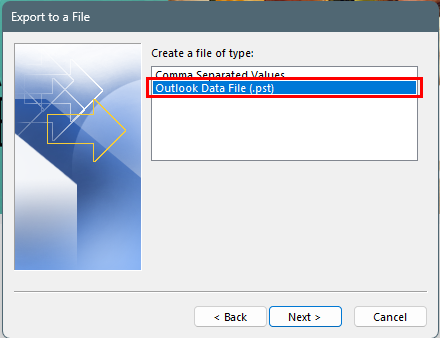
Step 9. Select Outlook Data File (.pst) and press Next.
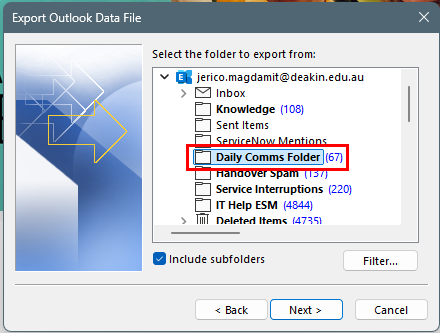
Step 8. Select the Rackspace email folder to export and click Next.
Step 9. Browse the target location and click Finish.
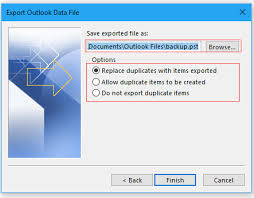
Once the process completes, Outlook will create a PST file that will contain your Rackspace emails.
Important Note: You’ll need Microsoft Outlook installed and configured with your Rackspace account to use the manual method. For large mailboxes it may take a while to synchronise and export. Also each Rackspace account needs to be exported separately so make sure you have a stable internet connection throughout the process.
Method 2. How to Export Rackspace Email to PST Securely?
If you have a large mailbox, need to export multiple Rackspace email accounts or export specific folders then you can use Advik Rackspace Email Backup Tool. It is a professional solution that export Rackspace emails directly to PST format and it will preserves attachments, folder hierarchy, metadata, email formatting and mailbox structure during the process of export. Also, you can choose selective emails to export with its email filter options.
Download and try the software for free. It will convert or export 25 emails from Rackspace for free. This will let you to understand the working process of the software before upgrading to it’s licensed version.


Steps to Export Rackspace Email to PST
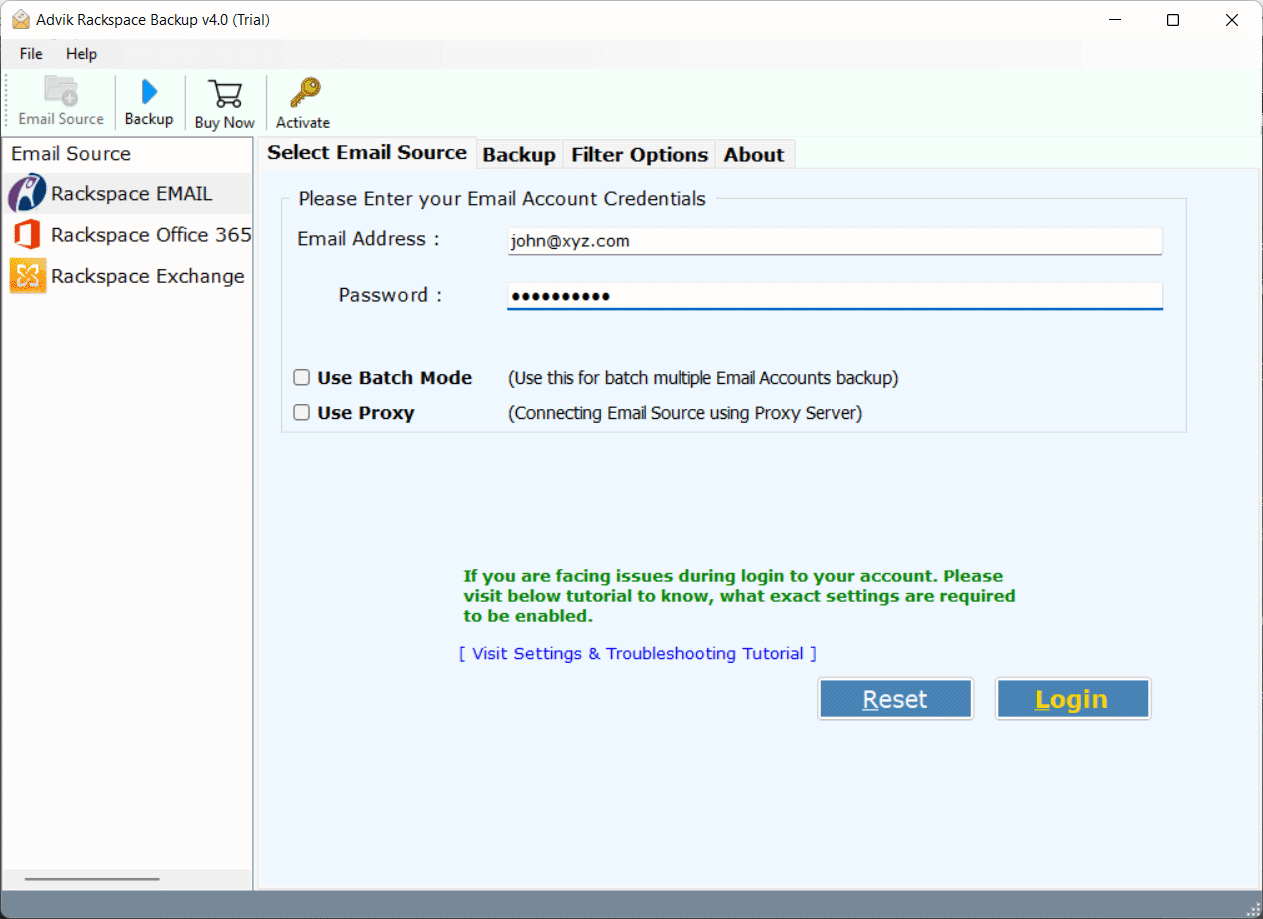
Step 1. Launch the software >> select Rackspace email >> login.
Step 2. Select the email folders you want to export.
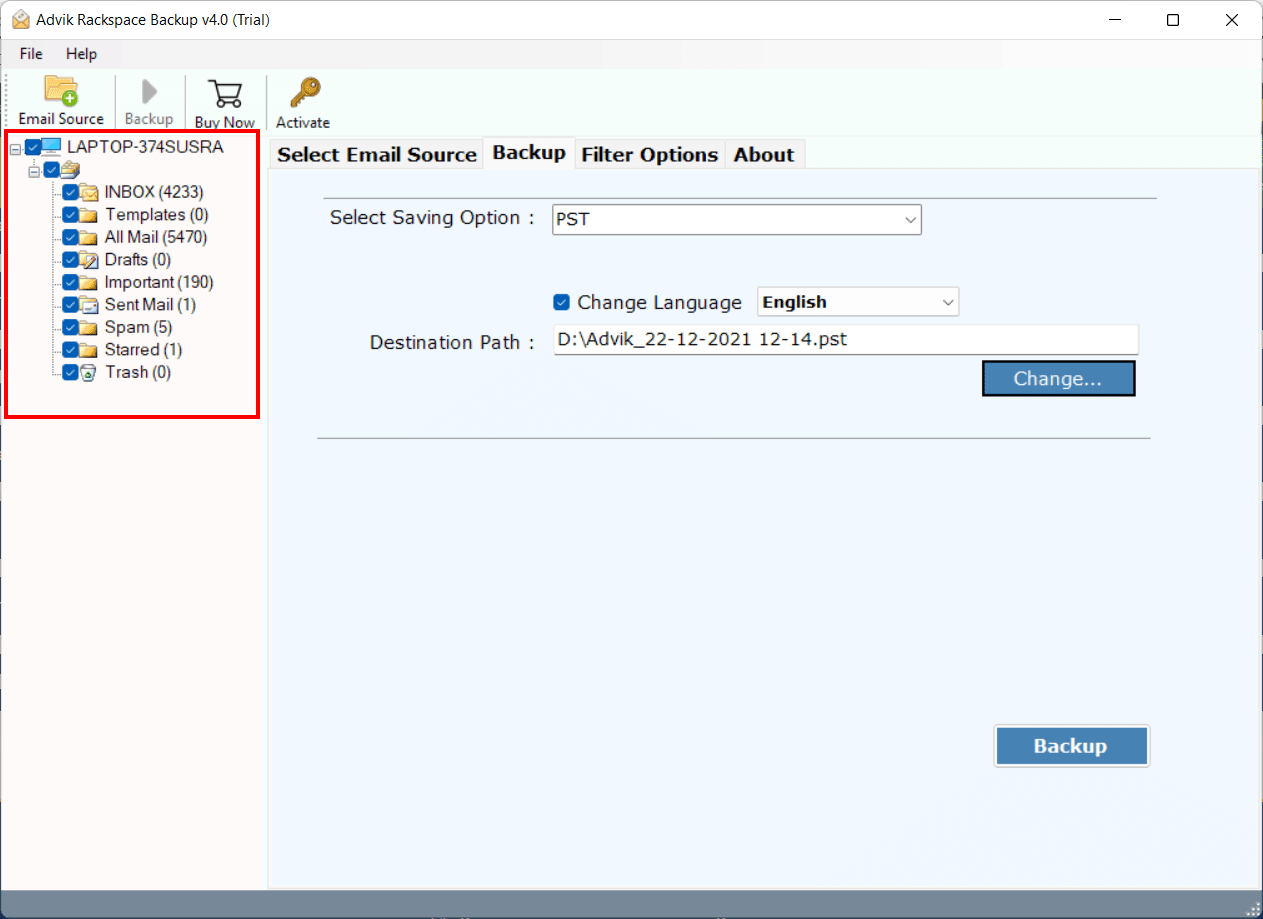
Step 3. Choose PST from multiple saving options.
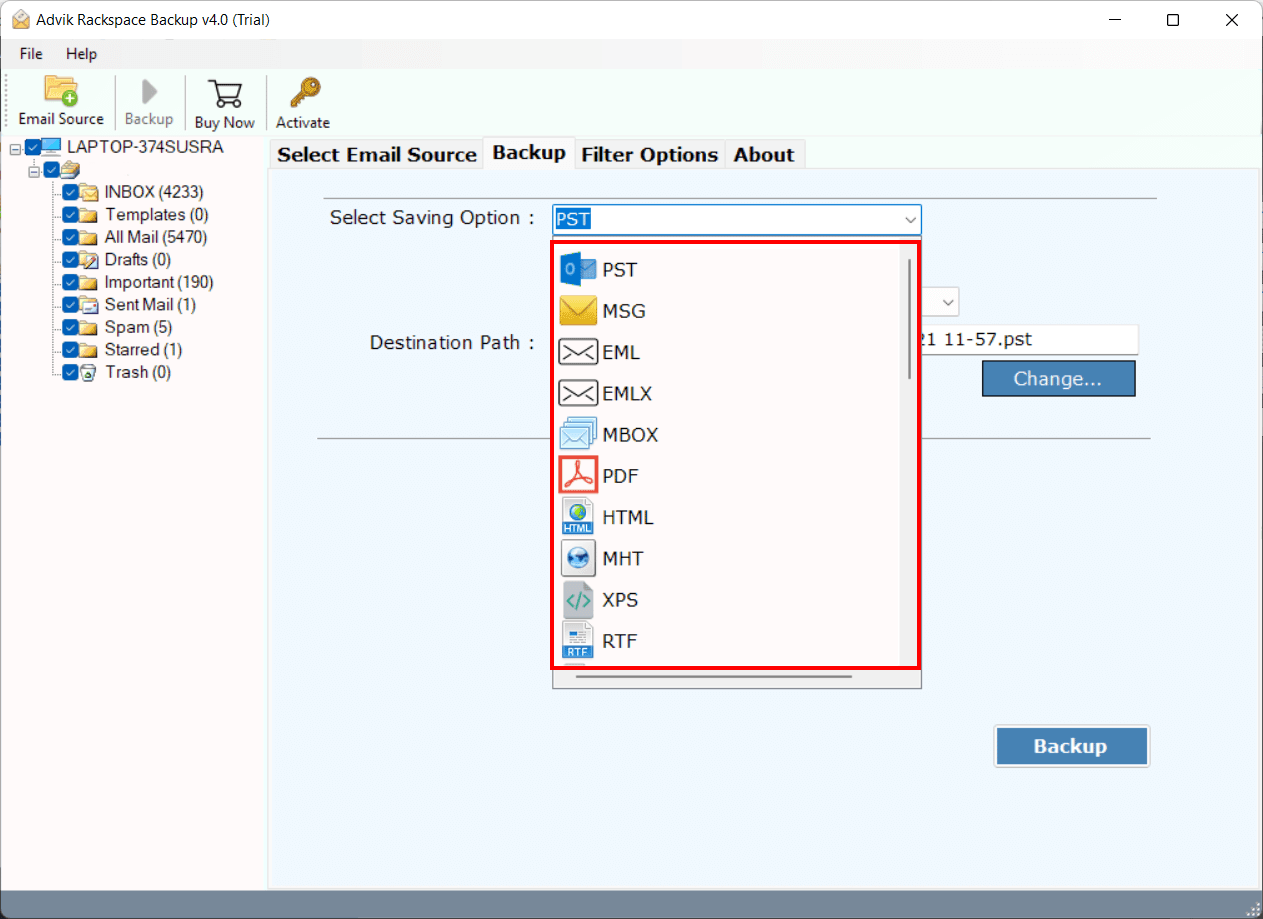
Step 4. Choose the destination location and hit the Backup button.
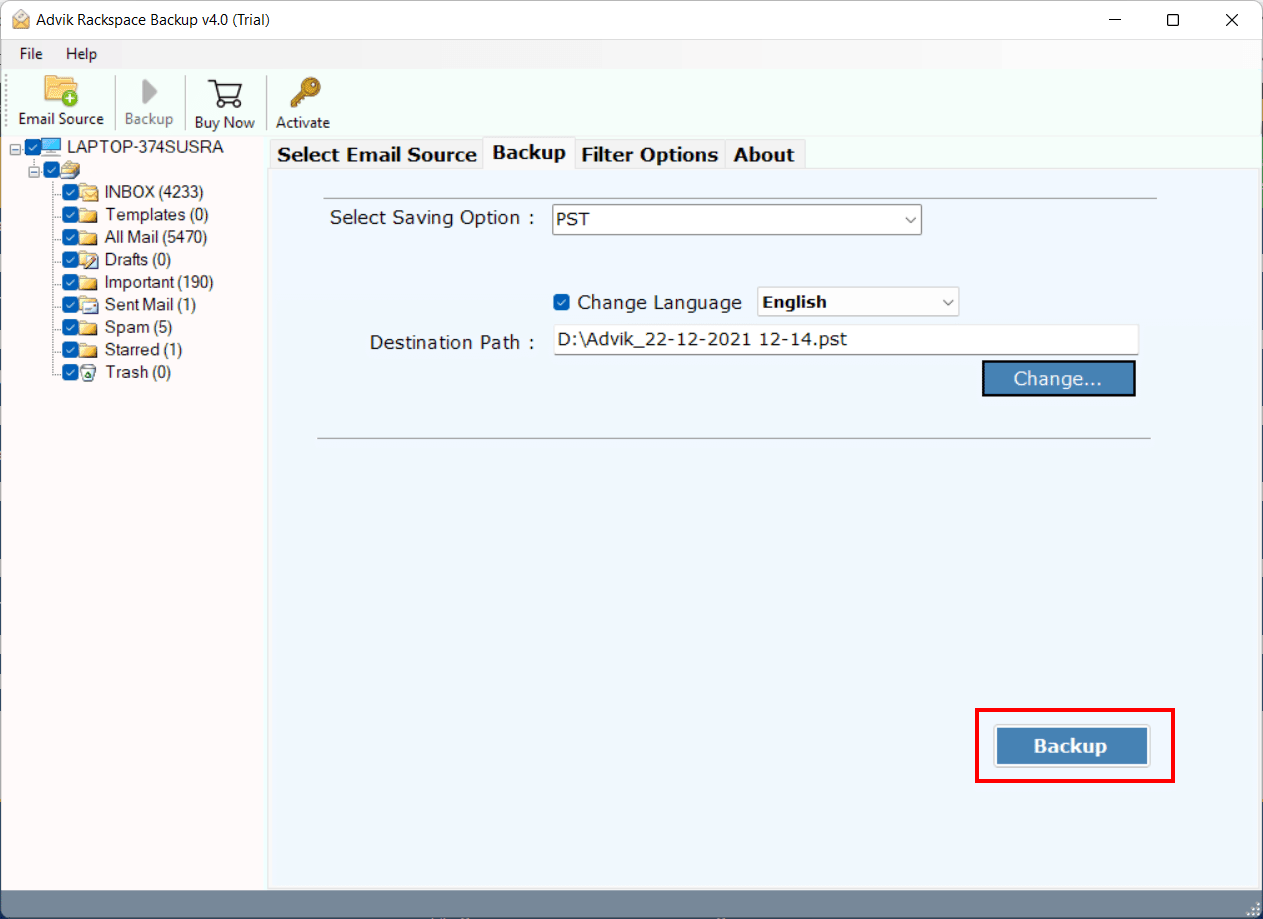
Here, start the exporting process. It will take a few minutes to export Rackspace emails to Outlook PST file.
Key Features of Advik Rackspace Email Backup Tool
Apart from the above functions, this tool has various additional features that will make the export process more efficient. Have a look at some of the few;
- Export Rackspace email to PST file with attachments.
- Saves emails directly as PST without Outlook.
- Maintain email folder hierarchy and structure.
- Filters to export emails from specific persons or dates.
- Preserve email key elements and attributes.
- Export specific folders or emails instead of the entire mailbox.
- Convert Rackspace emails to MBOX, EML, PDF, and more.
- Also, directly migrate Rackspace to Gmail, Office 365, and various other webmail accounts.
- Keeps email headers, sender details, and other details intact.
- Download emails from Rackspace to your computer with 30+ saving options.
- Simple and easy-to-use tool for all users.
- Compatible with Windows 11, 10, 8, 7, and older.
Manual vs Automated Comparison: Which Should You Choose?
| Feature | Manual Method | Automated Tool |
|---|---|---|
| Outlook Required | Yes | No |
| Large Mailbox Support | Limited | Yes |
| Email Filters | No | Yes |
| Multiple Accounts | No | Yes |
| Export Speed | Slow | Fast |
| Technical Knowledge | Required | Minimal |
Conclusion
Exporting emails from Rackspace to PST file is a practical solution for users who want a local copy of their mailbox data. Here in this blog, we discuss the manual as well as the instant solution to export Rackspace email to PST file. The manual approach through Outlook is best for those users with a limited number of emails to convert. However, if your mailbox has a massive amount of data, I will suggest opting for a professional approach. Choose any of the methods with your needs and export your emails.
FAQs – Export Rackspace to PST
Q1. I have lost some of my Rackspace emails while exporting it to PST?
Answer. You lost your Rackspace emails because the mailbox was not completely synced before the export or there can be any network interruptions during the export process. Check that all folders are synced, check the exported PST file in Outlook and try to export the folders that are affected if required.
Q2. Is it possible to export multiple Rackspace email accounts to PST at the same time?
Answer. The manual Outlook method only allows you to export one mailbox at a time. If you want to export multiple accounts at one time, then you may need a professional solution that can allow you to export multiple accounts.
Q3. How long is the Rackspace to PST export process taking?
Answer. The time to complete this export depends on the size of mailbox, speed of your Internet connection, server response time and performance of your system.
Q4. How to open the exported PST file on another computer?
Answer. Copy the PST file to the destination computer and open it in Microsoft Outlook via File > Open & Export > Open Outlook Data File. Make sure the version of Outlook you are using supports the PST file format.
Q5. Does the exported PST file will contain my attachments?
Answer. Yes, PST files created along with attachments and other mailbox properties. However, after completion it is a good idea to check the exported data, especially if you are using manual methods.