How to Export Spark Mail to PST File? Complete Guide
Jenny Lowrence | March 19th, 2026 | Data Backup
If you are using Spark Mail but now you want to switch to Outlook, you may need to export Spark Mail to PST format. PST is the file format used by Outlook to store emails, contacts, calendars, and other mailbox data. In this write-up, we are going to explain two different ways that will help you to convert Spark Mail emails to PST file.
Spark Mail is a popular email client that is known for its smart inbox and productivity features. Exporting Spark Mail emails to PST is useful for many reasons, such as email backup, migration to Outlook, or offline access. By saving Spark Mail emails in PST, you can easily open and manage them in Outlook. In this blog, we will explain both manual and automatic methods to export Spark Mail to PST format.
Let’s get started!
How to Export Emails from Spark Mail to PST for Free?
Although Spark Maildoes not support direct export to PST format. However, you can do it by adding the same account in Outlook that you are using in the Spark Mail client.
Follow the below given steps to export Spark Mail to Outlook PST:
1. Open Outlook and go to File >> Add Account.
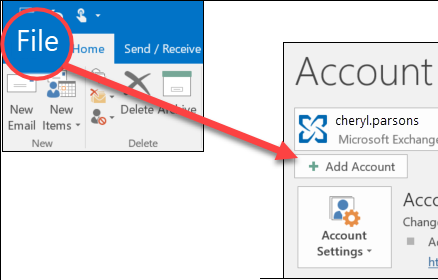
2. Enter Spark Mail account login details to configure it.
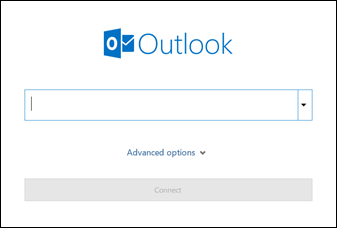
3. Follow the prompts to complete the setup. This will sync your Spark Mail emails with Outlook.
4. Once the emails are synced, go to File >> Open & Export >> Import/Export.
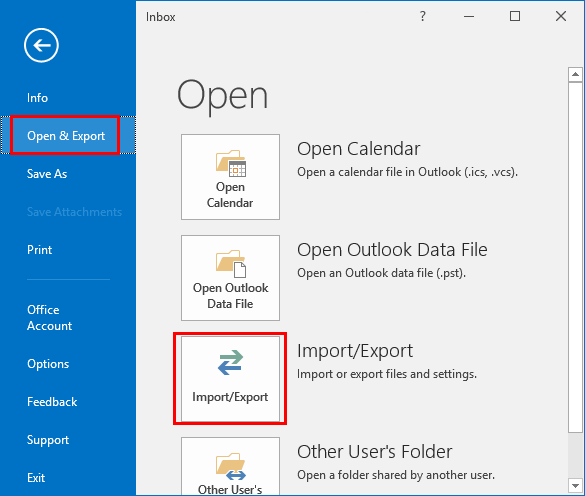
5. Choose Export to a File and click Next button.
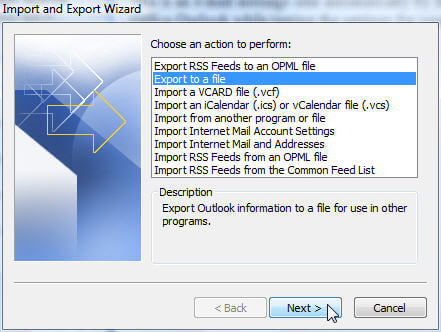
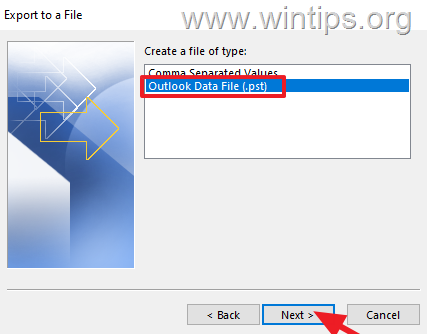
6. Select Outlook Data File (.pst) and press Next.
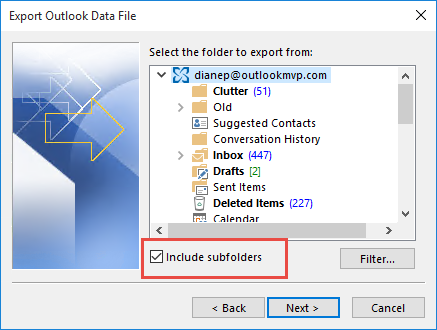
7. Choose Spark Mail folders and hit Next.
8. Browse target location and click on Finish button.
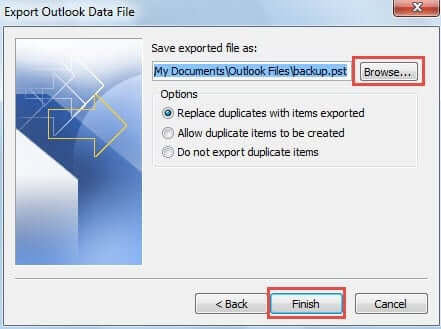
The exporting process is complete.
Note: This is a lengthy and time-consuming process. Ans, Outlook installation is required.
How to Convert Spark Mail Emails to PST Automatically?
You can use a professional tool to quickly export Spark Mail to PST file. Try the Advik Email Backup Wizard on your system. The software can export emails fro Spark Mail to PST in a few simple clicks. With this utility, you can download all email folders at once. Apart from this, it also provides various advanced filter options to export selected emails. It maintains the original structure of mailbox folders during the process. Also, it preserves all email attributes such as sender/receiver info, attachments, hyperlinks, etc.
Tap on the below link to download it for FREE.


Steps to Export Spark Mail to PST
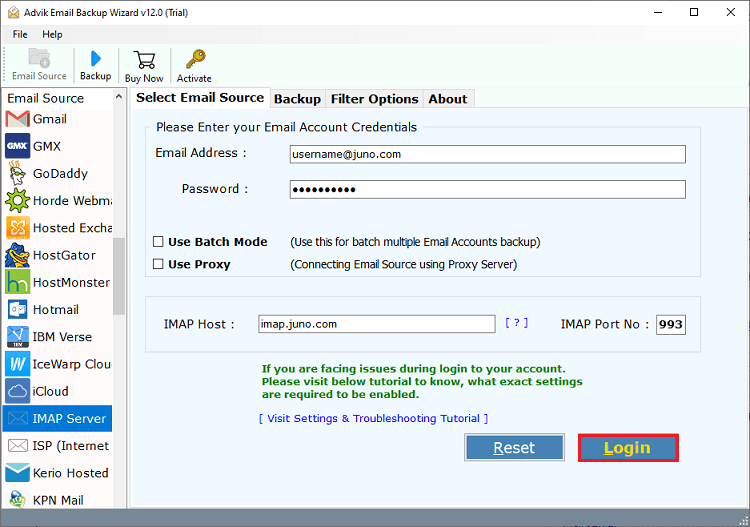
Step 1. Run the tool on your Mac/Windows PC and choose IMAP Server as email source.
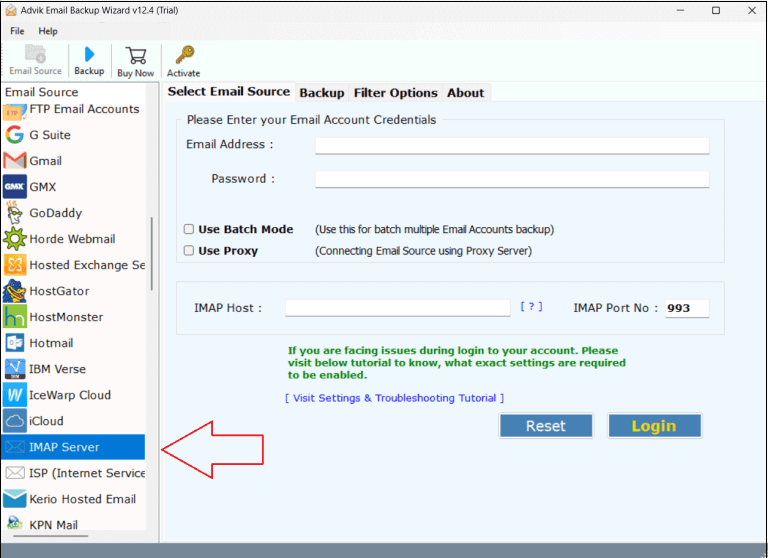
Step 2. Enter Spark Mail account login details and press Login to sign in.
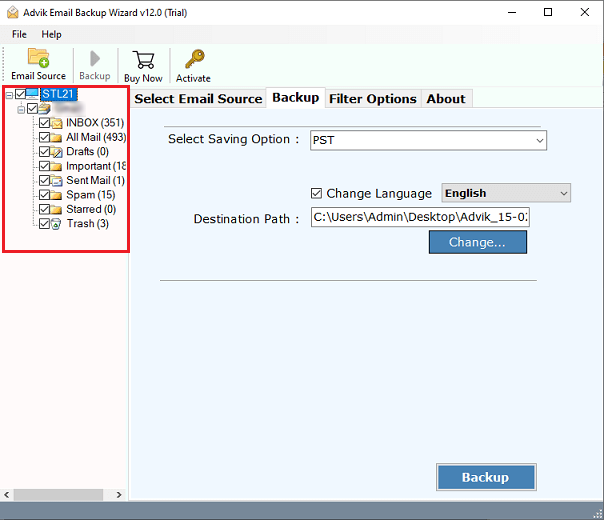
Step 3. Select the required email folders and subfolders.
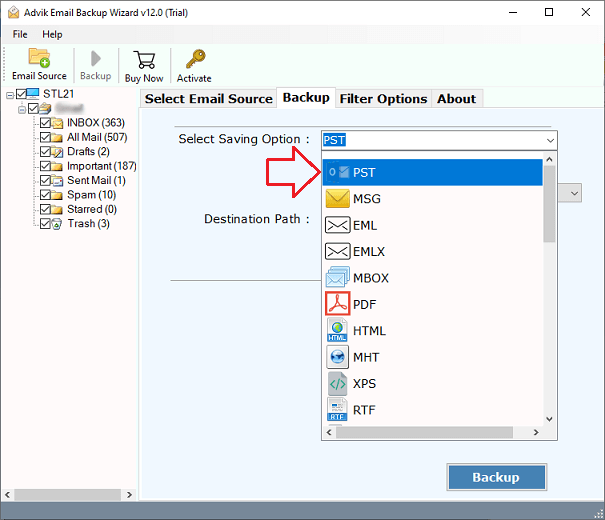
Step 4. Now, choose PST from Select Saving Options.
Step 5. Browse target location and click the Backup button.
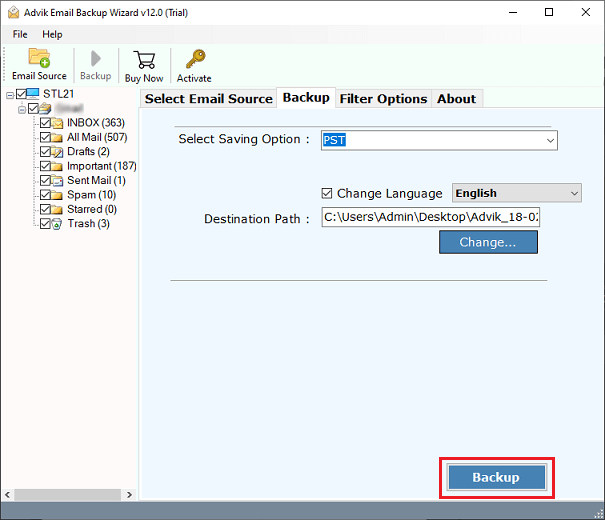
The software will start exporting emails from Spark Mail to Outlook PST format. Once the process is complete, it will automatically redirect to the destination folder.
There are several advantages of using this automated tool:
- Export all Spark Mail emails to PST at once.
- Adavanced email filter options for selective conversion.
- Preserves all email attributes & properties while exporting.
- Keeps the original folder structure even after the process.
- Backup Spark Mail emails into multiple formats like MBOX, EML, PDF, etc.
- Allows to choose any location to save the resultant files.
- Simple and easy-to-use interface is helpful for beginners.
- Compatible with both Mac and Windows operating systems.
- 24/7 customer support is available for assistance
Final Words
In this blog, we explained how to export Spark Mail to PST using two different methods. In the manual method, you need to use Outlook to export emails, but this is a complicated and time-consuming process. With the automated solution, you can easily export all emails from Spark Mail to PST in one go with full accuracy.
