How to Extract All Attachments from Outlook (2026 Guide)
Need to extract attachments from Outlook? You can save attachments manually using Outlook’s Save All Attachments option, automate the process with Outlook Rules or VBA, or use a professional Outlook Attachment Extractor to process multiple emails at once.
If you’re searching for the best way to extract attachments on Outlook, the right method depends on how many emails you need to process. Outlook’s built-in options work well for a few messages, while VBA or dedicated software can help when you need to handle hundreds or thousands of emails.
This guide explains how to save attachments from multiple emails Outlook, including methods for Classic Outlook, New Outlook, Outlook Web, PST files, and Outlook for Mac.
Email attachments often include invoices, reports, contracts, images, PDFs, spreadsheets, XML files, and other important documents. Saving these files separately can help you organize documents, reduce mailbox clutter, create backups, and access important files without opening the original email.
Quick Answer: How to Download All Attachments from Outlook
If you only have a few emails, open each message and use Save All Attachments. If you need to download all email attachments at once or process hundreds of messages, you can use VBA, Outlook Rules, or dedicated attachment extraction software.
For example:
- A few emails: Use Outlook’s built-in Save All Attachments option.
- Repeated tasks: Use Outlook Rules or VBA.
- Multiple emails: Use an Outlook attachment extractor.
- Specific sender: Filter emails by sender before extracting attachments.
- PDFs only: Use an attachment filter to extract PDF files.
- Large-scale extraction: Use dedicated software to batch-process Outlook mailboxes.
Why Extract Attachments from Outlook?
There are many reasons for users to save Outlook attachments separately.
- Easy Mailbox Storage
- Enhance Outlook Performance
- Backup important files
- Sort documents, PDFs and invoices
- Send attachments without forwarding the email
- Keep old email attachments for future reference
If you simply want to save attachments from a few messages then Outlook’s built-in options are perfect. However, if you need to extract attachments from hundreds of emails, an automated method can save you a lot of time.
Method 1. Extract All Attachments from a Single Outlook Email
The easiest approach is to use Outlook’s built-in Save All Attachments feature. This is useful when you need to extract files from one message.
If you are wondering how to copy all attachments at the same time on Outlook, follow these steps.
1. Start and run the Outlook email client application on your system.
2. Now open the email you want to extract attachments from.
3. Right-click on this email and select Save All Attachments from the drop-down list.
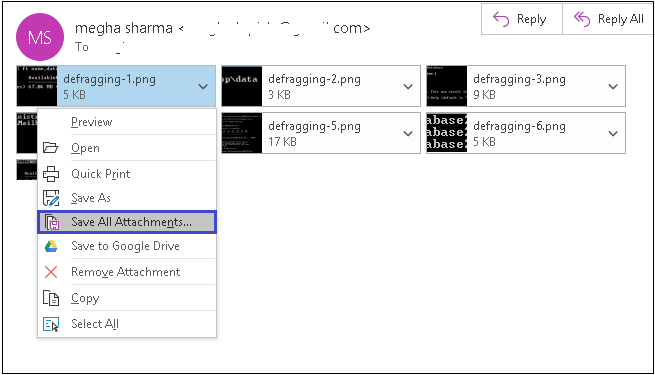
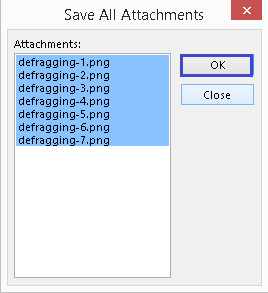
4. All attachments will be displayed in the new tab. Select all and click OK to continue.
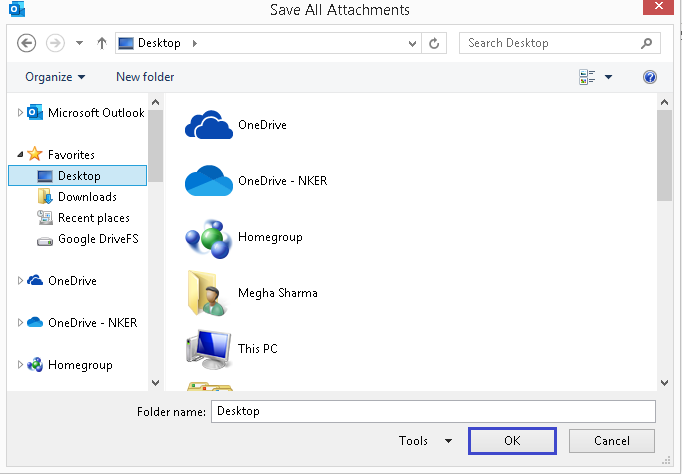
5. After that, browse and specify the folder on your system to save all attachments from emails on your system and tap OK.
Done!
This method allows you to download all attachments from Outlook from a single email without saving each file individually.
To export other attachments, you have to repeat this step over and over again, which is a bit tedious. To avoid such situations, perform the below methods.
Method 2. Outlook Attachment Extractor Coding Script
Advanced Outlook users can automate attachment extraction with VBA. This approach is useful when you need to mass extract attachments from multiple Outlook emails without manually opening every message.
Follow the below steps to export all attachments from Outlook using VBA code;
Step 1. Press ALT + F11 to open the VBA Editor in Outlook.
Step 2. Click Insert > Module and copy and paste the following code:
Sub SaveAttachments()
Dim objMsg As MailItem
Dim objAttachments As Attachments
Dim objSelection As Selection
Dim objAttachment As Attachment
Dim saveFolder As String
saveFolder = “C:\ExtractedAttachments\” ‘ Change this path
Set objSelection = Outlook.ActiveExplorer.Selection
For Each objMsg In objSelection
Set objAttachments = objMsg.Attachments
For Each objAttachment In objAttachments
objAttachment.SaveAsFile saveFolder & objAttachment.FileName
Next
Next
End Sub
Step 3. Change “C:\ExtractedAttachments\” to your desired folder path.
Step 4. Run the script to extract attachments from selected emails.
Limitations:
Requires VBA knowledge.
Not beginner-friendly.
Method 3. Bulk Extract All Attachments from Outlook Emails
If you need to download all email attachments from many messages, dedicated attachment extraction software can automate the process.
For Windows users, Advik Outlook PST Converter can be used to extract attachments from Outlook mailbox data in bulk. Whether you need to process a single email or multiple ones, the tool fulfills all your needs. It supports all Outlook versions, including 2021, 2019, 2016, and older editions, while maintaining data integrity throughout the process.
With features like advanced filters, batch processing, and organized folder-saving options, this tool simplifies Outlook attachment extraction for everyone. Just run the software, choose the configured Outlook profile, select mailbox folders, saving option, and click convert, and let the software handle the rest.
Download the software and try it for free.


Steps to Extract All Attachments from Outlook
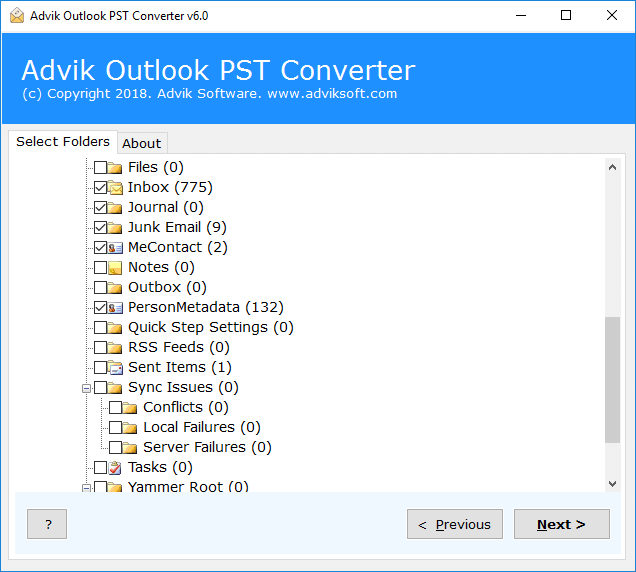
1. Run Advik PST Converter and select the Outlook profile.
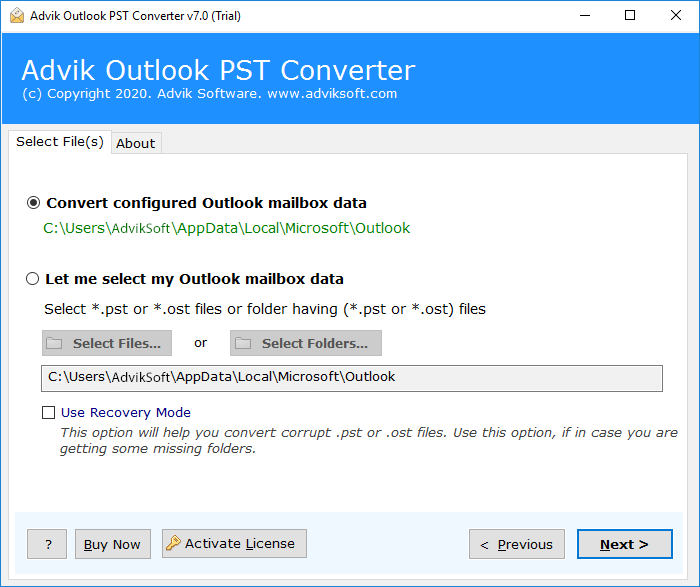
2. Select mailbox folders to extract attachments and click Next.
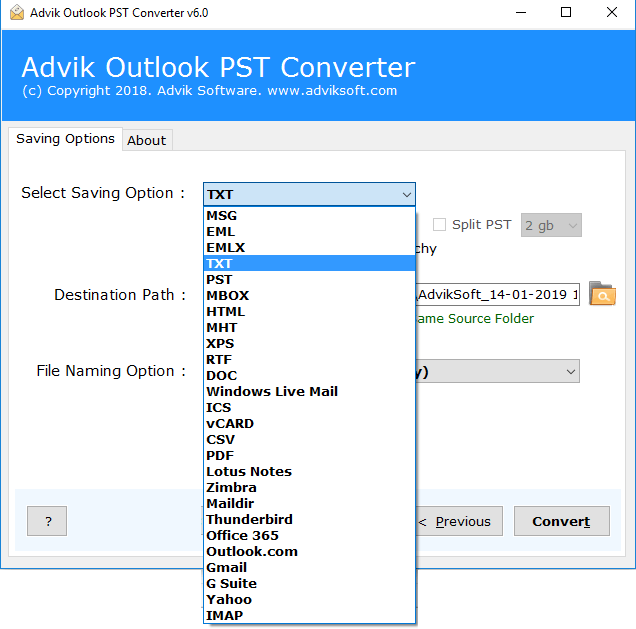
3. Select TXT as a saving option and click Next button.
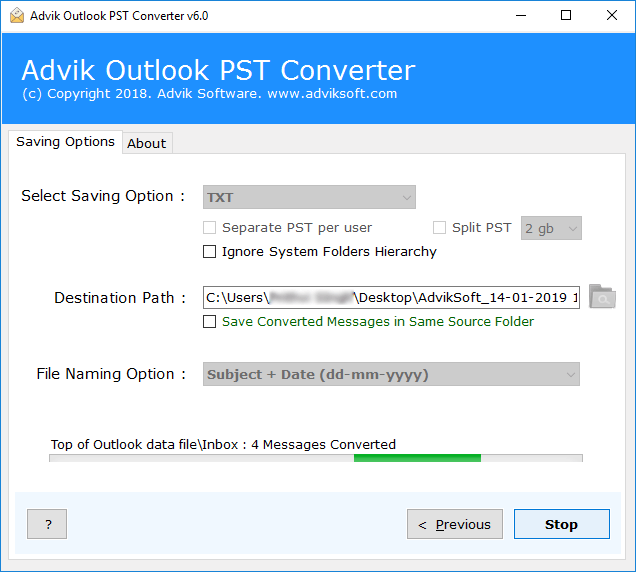
4. Hit the convert button, let the software finish the process.
After conversion, all your attachments are saved in a single folder named “Attachment”.
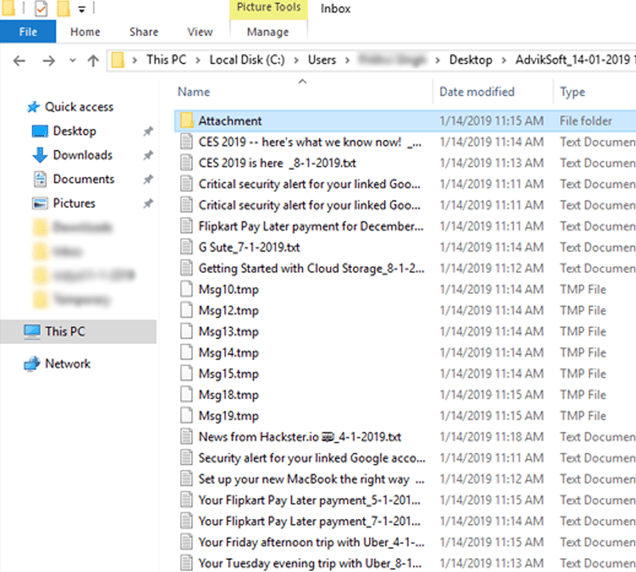
That’s how you can easily save all attachments from Outlook in multiple emails. Hence, making it the best Outlook Attachment Extractor for Windows.
Watch How the Advik Outlook Attachment Extractor Works
Why Use Advik Outlook Email Attachment Extractor?
There are many reasons to opt for this tool to extract attachments from Outlook. Some of them are as follows;
- Safe and Secure Solution: This tool provides the most accurate way of extracting all attachments from Outlook Application.
- Export Attachments from Outlook Emails in Bulk: The software can download all attachments from Outlook emails in a single attempt. You do not need to repeat the steps to save attachments one by one.
- Save Attachments in the Respective Folder: The tool saves all attachments of respective email folders in their respective folders. It allows the user to easily find attachments. E.g., an attachment of the Inbox can be found in the folder named Inbox.
- Supports Multiple Formats: Apart from extracting Outlook attachments, it also converts Outlook emails to MBOX, PDF, EML, and 30+ formats.
- Support All Windows OS: Outlook Attachment Extractor Tool is workable in all the latest Windows OS.
- Free Demo Download: You can also download this software for free to check its efficiency. Download this tool by hitting the download button below.
Best For:
- Users who need to extract attachments from multiple emails quickly.
- Those who want to filter attachments by type (e.g., PDFs, images, or documents).
- Anyone looking for a hassle-free automated solution.
Now, It’s Easy to Save Attachments from Multiple Outlook Emails
Extracting attachments from multiple Outlook emails is simpler than ever. To download attachments from Outlook emails, you typically need to use Outlook’s built-in option. However, this only works with a few emails. Instead, it’s better to use an automated tool (Outlook attachments extractor) that can easily extract attachments from Outlook used by various users without any risk of data loss.
Frequently Asked Questions
Q 1. How do I save all attachments from Outlook to my computer not one by one?
A. The expert’s tool is the best choice for extracting attachments from Outlook in bulk. This useful application will not only save your time but also minimise the manual efforts.
Q 2. Does Outlook export save attachments?
A. Yes, Outlook allows users to export data from import/export wizard. Data including emails will be exported along with attachments also.
Q 3. Can you save attachments from multiple emails in Outlook?
A. Yes, Outlook Attachment Extractor software offers an email filter option. You can submit the details to the software to extract attachments from specific emails in Outlook. On the other hand, in MS Outlook you have to manually find and download the attached files from emails.
Q4. How to mass export email attachments from Outlook?
Ans. Use Outlook Rules, VBA scripts, or an automated software to extract all attachments from multiple emails at once.
Q5. How do I copy all attachments from an Outlook email?
Ans. Open the email, click File > Save Attachments, choose a folder, and save them.
Q6. Why can’t I download an attachment from Outlook?
Ans. Check your internet connection, file size limits, or security settings. Also, ensure the attachment is not blocked by Outlook