Fixed: Unable to Open Attachments in Gmail? Try 6 Easy Ways
Unable to open attachments in Gmail? You’re not alone. Many users face this issue where Gmail attachments don’t open or display correctly, either due to file format, browser settings, or device errors. In this guide, you’ll learn exactly how to open attachments in Gmail, why they sometimes disappear, and how to fix the problem easily. So, read this complete article for more info.
Attachments are often crucial, be it a resume, invoice, or important document. But sometimes, Gmail refuses to open them due to technical issues, file restrictions, or even browser settings. This can be frustrating, especially when the file is urgent or important. You might click on the attachment only to see a loading icon, an error message, or nothing at all.
In some cases, the attachment may not appear in the email at all, leaving you confused. Whether it’s a one-time glitch or a recurring problem, knowing the reasons behind this issue can help you fix it quickly and avoid it in the future.
In this guide, we’ll explore the common causes and share simple, step-by-step solutions to help you open Gmail attachments without any trouble. So, let’s start without any further delay.
Why Are Attachments Not Showing in Gmail?
If you don’t see an attachment in your Gmail inbox at all, the issue may be related to how the sender attached the file, Gmail’s security restrictions, or a problem with the message loading. If the attachment is visible but won’t open or preview, browser settings, unsupported file types, corrupted files, or temporary Gmail issues may be responsible.
There could be several other reasons except the above why you can’t open attachments in Gmail. Understanding them early helps you fix the problem at the right time. Let’s understand them in more detail.
- If the attachment is too large to open: Gmail allows attachments only up to 25 MB. If the file is bigger, Gmail may not open or show it. Ask the sender to use Google Drive instead.
- Unsupported File Type: Gmail can’t open risky or uncommon files like .exe, .bat, or .vbs. These are often blocked for safety.
- Corrupted File: If the file got damaged while being sent or received, it won’t open. Try opening it on a different device to check.
- Gmail Blocked It for Security: Sometimes Gmail stops you from opening files that might contain viruses or harmful code.
- Browser Extensions or Pop-Up Blockers: Extensions like ad blockers or antivirus add-ons can stop Gmail from showing attachments. Try turning them off or using incognito mode.
How to Open Attachments in Gmail Account? Try 6 Quick Fixes
If you’re having trouble opening attachments in Gmail, it could be due to several common reasons. Let’s look at them one by one, along with how to fix them easily:
- Check if the attachment is too large: Gmail only allows files up to 25MB. If the file is bigger, you won’t be able to view or open it. You can check the size by hovering your mouse over the attachment. If it’s too large, ask the sender to upload it to Google Drive instead.
- Turn off browser extensions: Some browser add-ons or plugins (like ad blockers or antivirus tools) may stop Gmail from opening attachments. Try disabling them and refreshing Gmail.
- Check if the attachment is broken or corrupted: Sometimes the file gets damaged while sending or downloading. Try opening it on another device. If it works there, the issue might be with your system.
- Clear your browser’s cache: Go to Settings > Privacy > Clear browsing data > Clear cache. Old cache files can cause loading issues.
- Check your browser settings: Make sure your browser allows downloads and doesn’t block pop-ups. Blockers can prevent attachments from opening.
- Check Gmail on Another Browser or Device: If Gmail attachments are not opening in your current browser, sign in to Gmail using another supported browser or device. If the attachment works there, the problem is likely related to your original browser, extension, cache, or device settings.
These tips should help you fix the problem. But if you’re still unable to open Gmail attachments, try the solution below to download them directly to your computer.
Still Can’t Open Gmail Attachments? Use This Alternative Tool
If you’re regularly facing problems or want to bulk download attachments, try this smart method. Advik Gmail Backup Tool is one such application that will easily let you open attachments in Gmail on your Windows PC. This software lets you extract and download all Gmail attachments in one go, directly to your computer. It’s especially useful when attachments fail to open in Gmail or when you want to save multiple files at once for offline access.
Click on the free download button and see how it works effortlessly.

Steps to View Attachments in Gmail Account
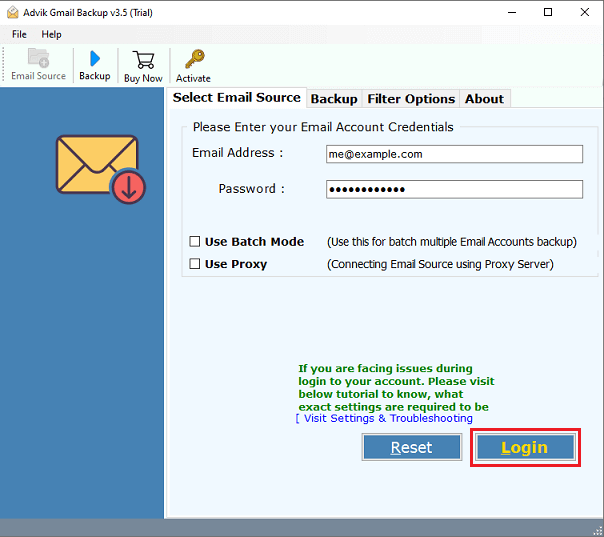
Step 1. Run the software and sign in with your account credentials.
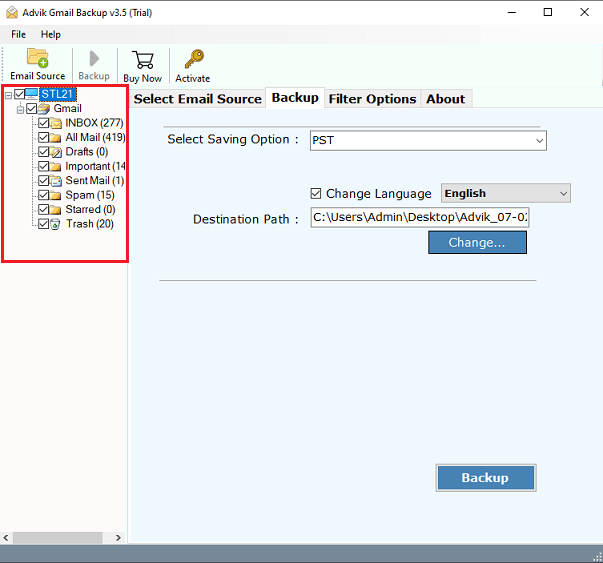
Step 2. Select the required mailbox folders.
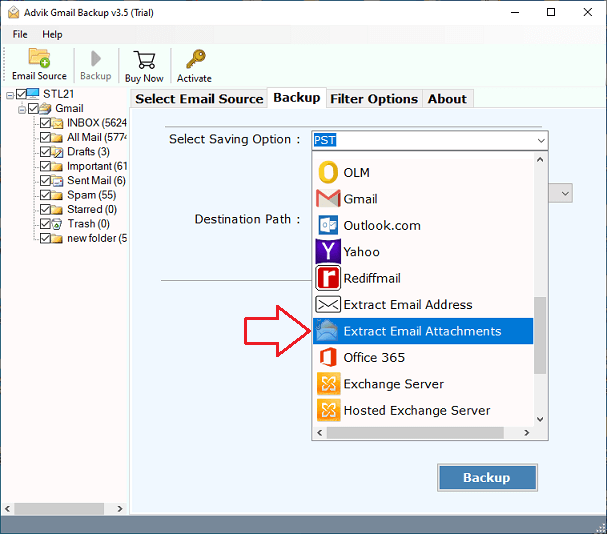
Step 3. Choose “Extract Email Attachments” from the saving option.
Step 4. Select a location and click the Backup button to start the process.
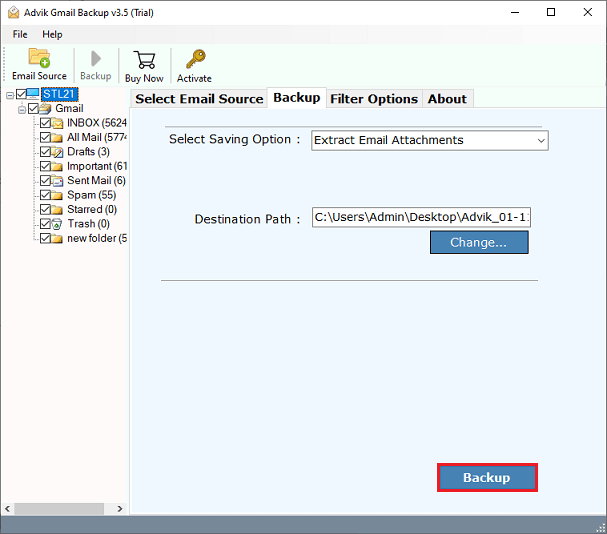
This is how you can download attachments in Gmail in bulk. Now you can view and open attachments.
Watch How to Solve Unable to Open Attachments in Gmail Issue
Concluding Words
When you’re unable to open attachments in Gmail, don’t panic. Use the above 6 methods to troubleshoot the issue, whether it’s a browser, device, or file problem. And if the issue persists, tools like AdvikSoftware provide a reliable, one-time fix for bulk attachment access.
Frequently Asked Questions
Q1. Can I Open an Attachment in Gmail Without Saving It?
Ans. Yes. For many supported file types, Gmail lets you preview an attachment directly from the email by clicking the file. However, Gmail may not provide an in-browser preview for every file type. If the attachment cannot be previewed, you’ll need to download it and open it with a compatible application.
Q2. Why are my attachments not showing up in Gmail?
Ans. Attachments may not show in Gmail if the sender didn’t attach the file correctly, the message hasn’t loaded properly, Gmail blocked the file for security reasons, or your browser is experiencing a temporary issue. Try refreshing Gmail, opening the message in another browser, or asking the sender to resend the attachment.
Q3. Why won’t Gmail attachments open when I try to view them?
Ans. Gmail attachments may fail to open because of an unsupported file type, corrupted file, browser extension, cache issue, or Gmail security restriction. Try downloading the file, opening Gmail in Incognito mode, or using another browser.
Q4. Why can’t I see an attached file in Gmail?
Ans. First, check whether the attachment was included in the original message rather than a reply or forwarded copy. If it is still missing, ask the sender to resend it and check whether Gmail has blocked the attachment.