Gmail Forwarding Not Working! How to Fix It?
Jenny Lowrence | February 26th, 2026 | Gmail Errors
Is your Gmail forwarding not working? You aren’t alone. many usersface issues where emails fail to forward, verification doesn’t complete, or forwading disables automatically. In this article, we will discuss the causes of this email forwarding error and several techniques to fix it.
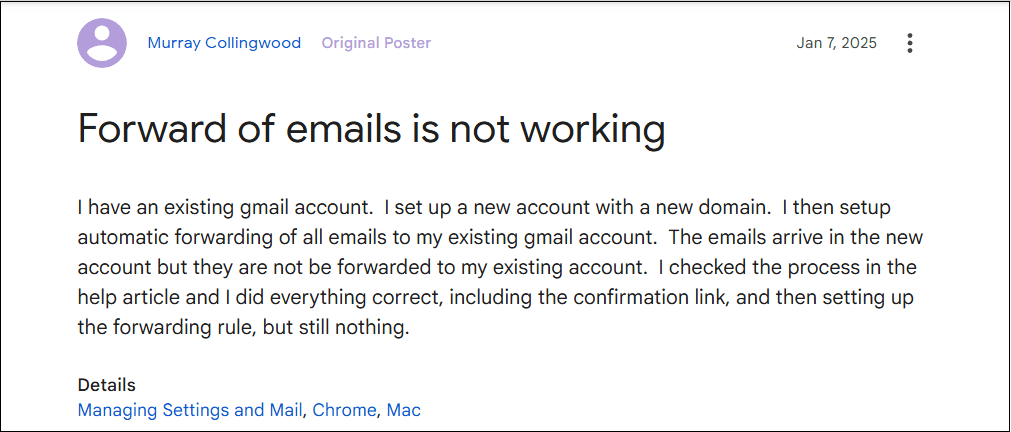
Gmail forwarding is a feature that automatically sends copies of your incoming emails to another email address. This is one of the most useful features in Gmail, especially for business users managing multiple accounts.
Why is Gmail Forwarding Not Working?
Here are some reasons why Gmail email forwarding is not working;
- Forwarding is Disabled: Sometimes, forwarding status is disabled due to security or other reasons. If it is turned off, then forwarding does not work.
- Wrong Forwarding Address: If you add the wrong email address in the forwarding tab, emails will not forward.
- Gmail Storage Full: If your Gmail storage is full, new emails may stop processing properly.
- Conflict with IMAP/POP Settings: Sometimes, IMAP/POP settings may conflict with the email forwarding settings.
- Filters Override Forwarding Rules: Filters can override forwarding settings and prevent them from working properly.
How to Fix Gmail Email Forwarding Not Working Issue?
Below are some methods to solve Gmail Forwarding Not Working problem.
1. Check Gmail Forwarding Settings
- Log in to your Gmail account.
- Go to Gear icon and click on See All Settings.
- Click on Forwarding and POP/IMAP tab.
- Check that a forwarding address is selected under forwarding.
- Click Save Changes.
2. Verify Forwarding Email Address
Gmail requires verification before forwarding begins.
- Open Gmail and click on Settings.
- Go to Forwarding and POP/IMAP.
- Click Add a forwarding address.
- Enter the destination email.
- Gmail will send a verification code.
- Enter the code and confirm.
3. Check Gmail Filters
Sometimes the filter settings may conflict with the forwarding feature. To resolve the Gmail forwarding not working issue, check the email filter rules.
- Log in to Gmail and go to See All Settings.
- Go to Filter and Blocked Addresses.
- Review existing filters.
- Delete conflicting filters.
4. Check Storage Space
If your Gmail storage is full, forwarding can stop working. Scroll to the bottom of Gmail and view storage usage. Delete unnecessary emails or attachments.
5. Check Gmail IMAP/POP Settings
If your Gmail forwarding is not working, conflicting the POP/IMAP settings may also cause for this issue.
- Log into Gmail account.
- Go to forwarding and IMAP/POP.
- Select Enable IMAP or Enable POP.
- Click on Save Changes.
6. Re-Add Forwarding Address
- Log into Gmail account.
- Remove the existing forwarding address and Save Changes.
- Add it again and re-verify the email.
7. Clear the Browser Corrupted Cache Data
Sometimes, browser issues can disrupt Gmail email forwarding. So, clear your cache and cookies for seamless Gmail forwarding.
Bonus Tips: Backup Gmail Mailbox Data
Even you can solve the Gmail forwarding not working issue using the above suggested techniques but a wrong tap inside Gmail can cause of important data loss. It’s always a good idea to create a backup of your Gmail emails to prevent data loss during account issues. Try the Advik Gmail Backup Tool to secure your sensitive data. The software can save your entire Gmail mailbox at once. With this tool, you can download Gmail emails in your desired format, such as PST, PDF, MBOX, EML, and many more. This is a completely safe and secure solution that does not store your login credentials.

Conclusion
In this post, we have discussed some manual tricks to solve Gmail forwarding not working issue. By using these methods, you can easily fix it. However, if the above suggested methods fail to fix the issue, visit Google Help Support.