How to Download All Emails From Gmail as PDF Files Easily?
Many Gmail users want to save their emails as PDF becuase this is a universal file format that can be opened and shared anywhere. Gmail only lets you save one email at a time, which is not practical if you have many emails. However, saving multiple emails as PDFs can be tricky and time-consuming.
Don’t worry! In this article, we will guide you on how to download all emails from Gmail as PDFs with simple step-by-step instructions. So, let’s get started and find the best method for you!
Reasons to Convert Gmail to PDF
Here are some common reasons why users prefer saving Gmail emails as PDF format:
- To access emails without an internet connection
- To maintain official records for legal or compliance purposes
- To share emails securely in a non-editable format
- To protect email data from accidental deletion
Without further delay, let’s dive into these methods one by one and help you download all emails from Gmail as PDFs easily.
How to Save Gmail Email as PDF Manually?
If you just want to download a few emails or a single important email as PDF, this is the easiest method. However, Gmail allows saving one email at a time as PDF using the Print option, which is slow for many emails.
1. Login to your Gmail account using login credentials.
2. Open the email that you want to export into a PDF.
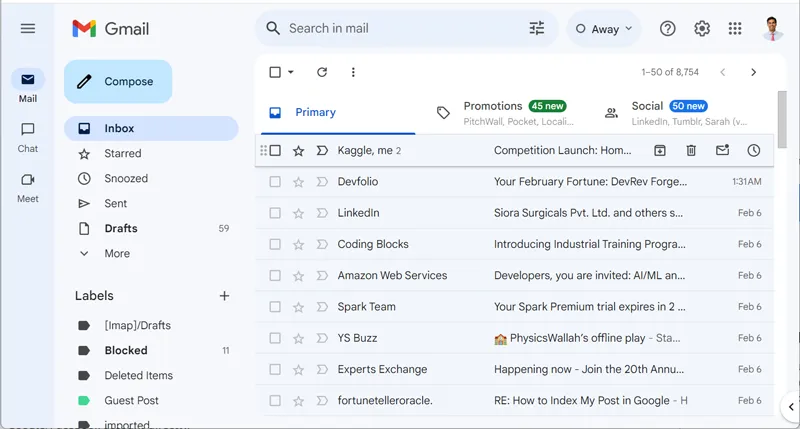
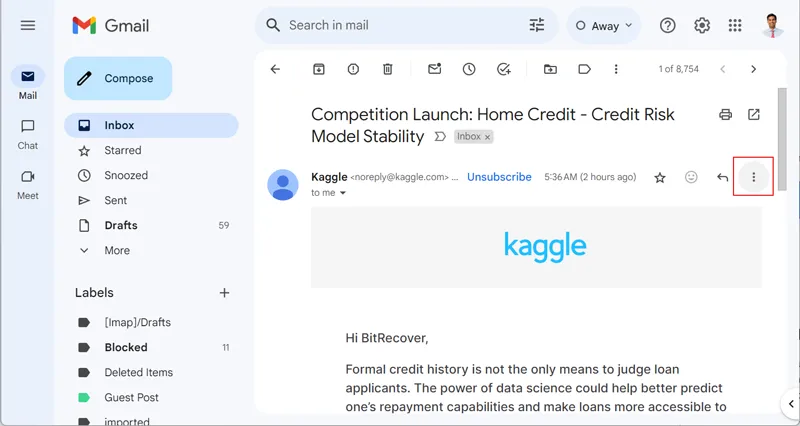
3. Go to the three-dot menu icon under the email interface.
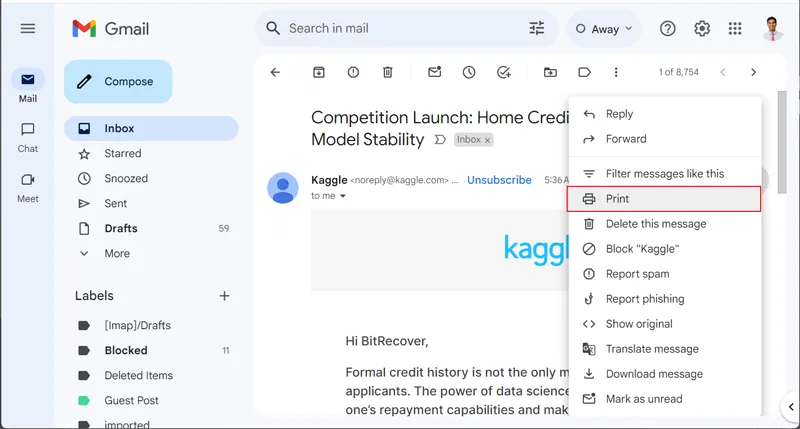
4. Select the Print option.
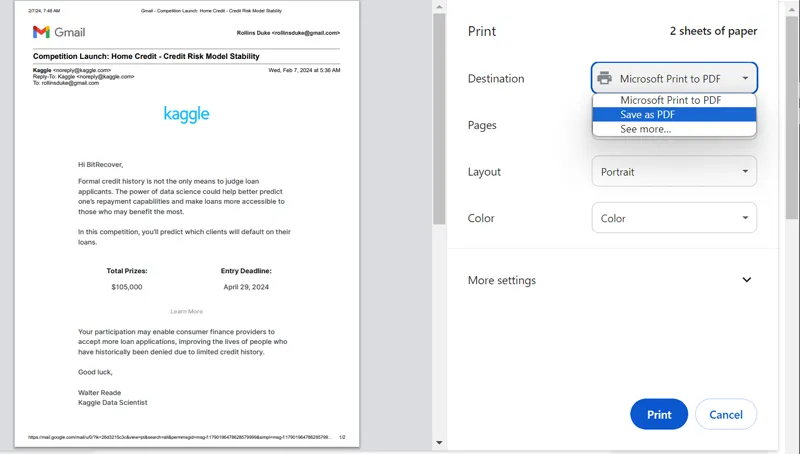
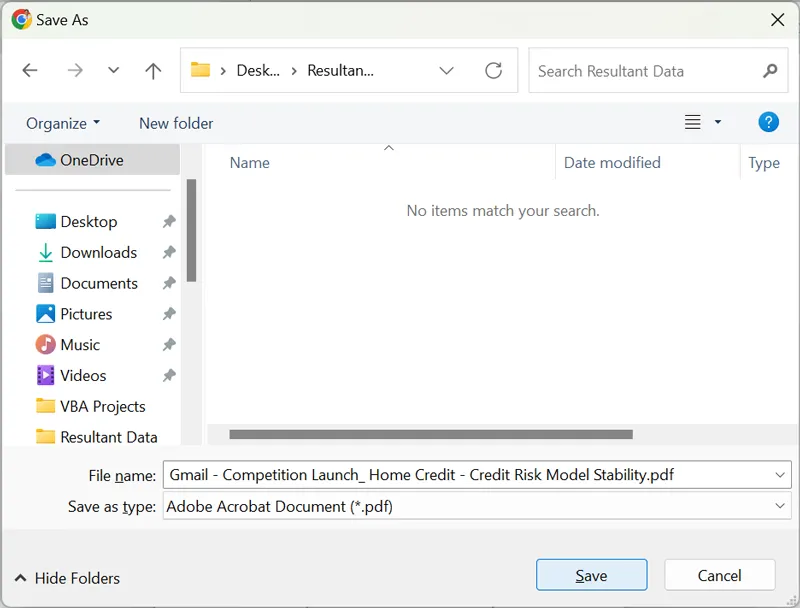
5. Choose Save as PDF in the print preview window and click on the Save button.
6. Select the destination folder and click on the Save button to begin the exporting process.
Saving a single email can be done easily, but what if you have multiple emails to convert? To export Gmail emails to PDFs in batches, let’s move ahead to the below given methods.
How to Download All Emails from Gmail as PDF Using Thunderbird?
First of all, install Mozilla Thunderbird on your machine. It is an email client developed by the Mozilla Foundation and is completely free of cost. Set up your Gmail account and configure it with Thunderbird.
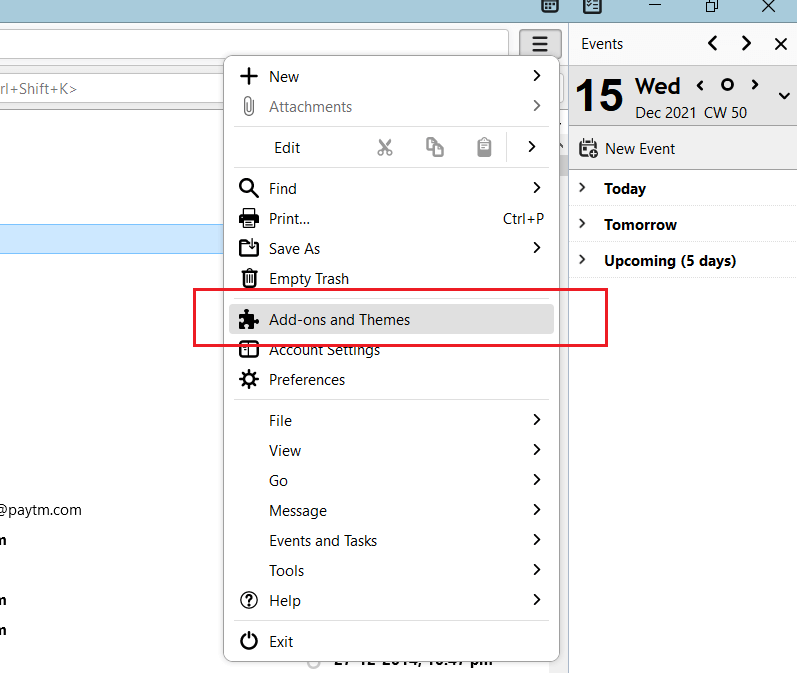
1. Launch the Thunderbird client and go to the Add-ons and Themes option.
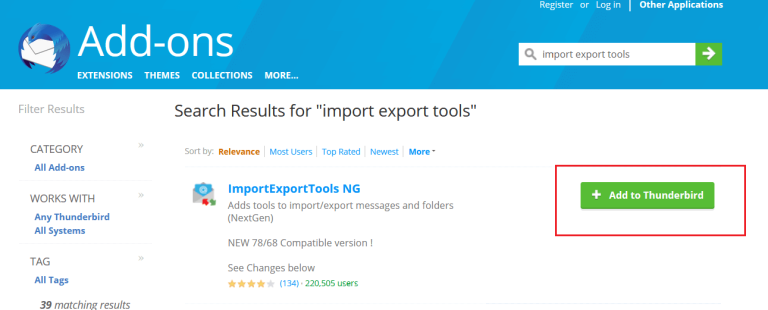
2. Search the Import/Export plugin and install it.
3. Now back to the dashboard and select the folder to download.
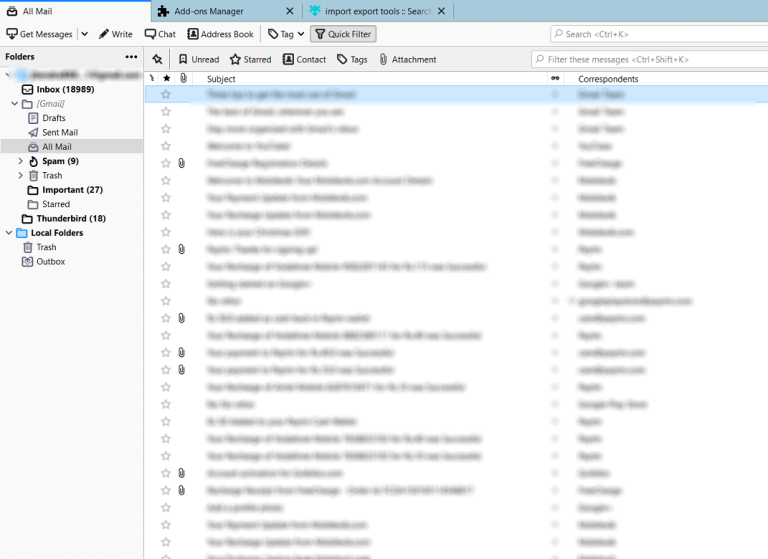
4. Select all emails and right-click. Select PDF format from the Save selected messages option.
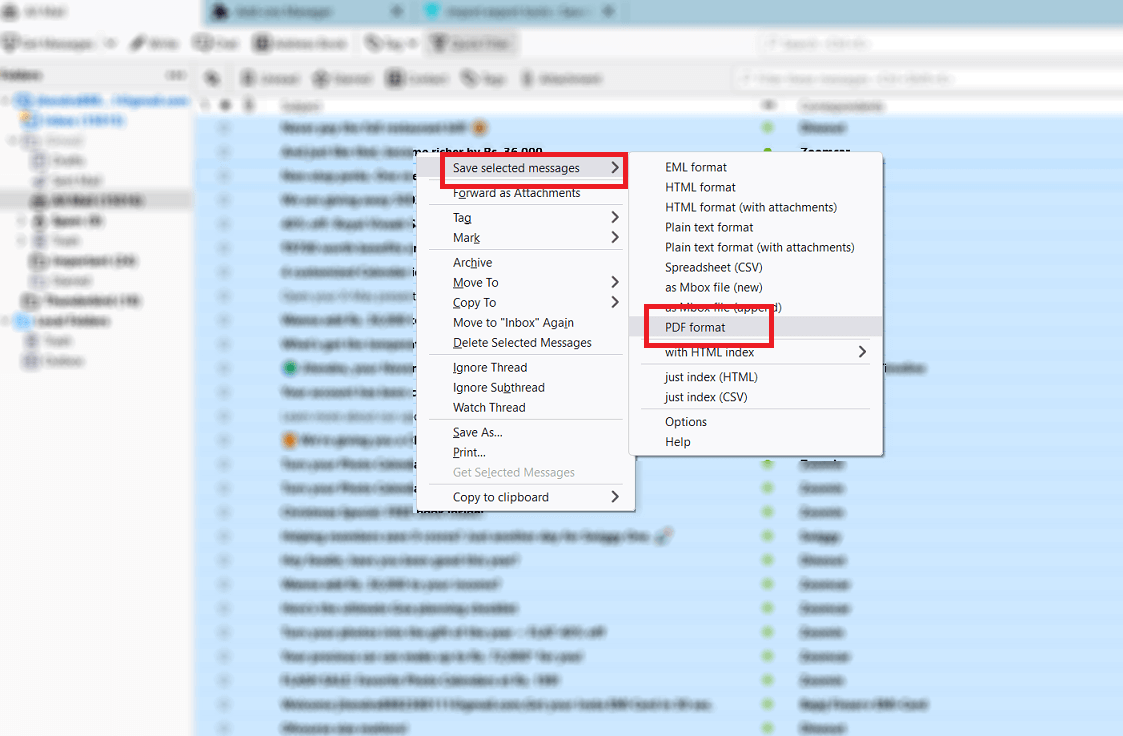
5. Choose a folder where you want to save .pdf files.
Now Thunderbird will start downloading all emails from Gmail in PDF file format.
How to Export Gmail Emails to PDFs Automatically?
Try the Advik Gmail Backup Tool on your computer to download all emails from Gmail as PDF. This software will help you save entire Gmail messages in PDF format. It will complete the whole process in just 4 simple steps. You will also get the additional benefits in this program, i.e., email filter, folder selection, saving options, and many more.
So, click on the free download button and check the complete working steps for free.

Steps to Download All Emails From Gmail as PDF
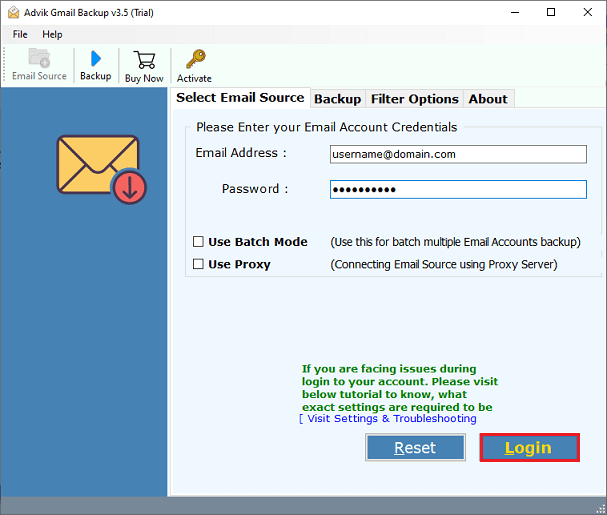
Step 1. Run the suggested tool on your computer and Sign in.
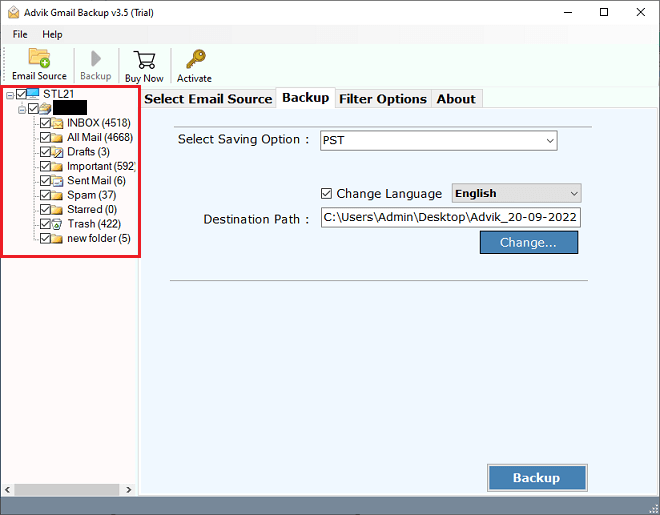
Step 2. Select the mailbox folders that you wish to download as PDF.
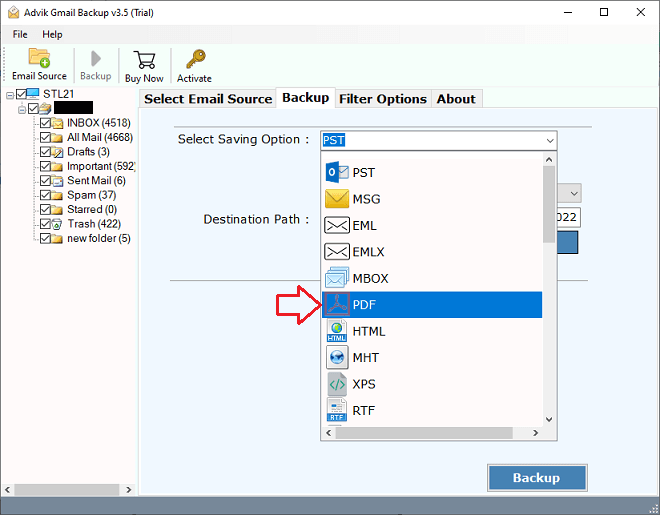
Step 3. Choose PDF as a saving option from the list.
Step 4. Browse the destination path to save the resultant data file.
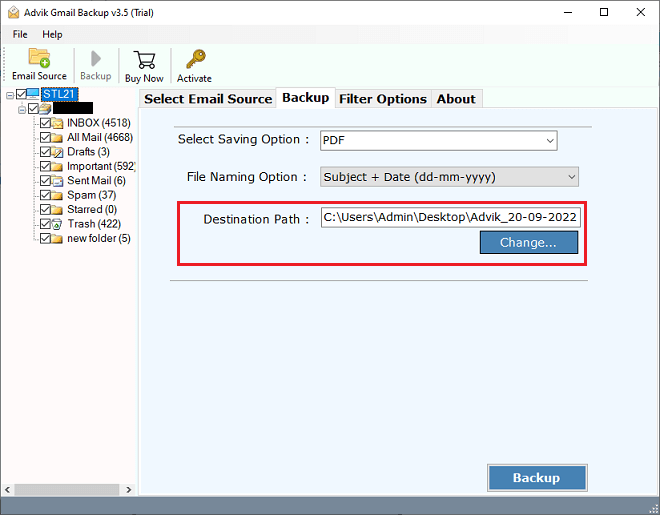
Step 5. Lastly, click the Backup button to start the process.
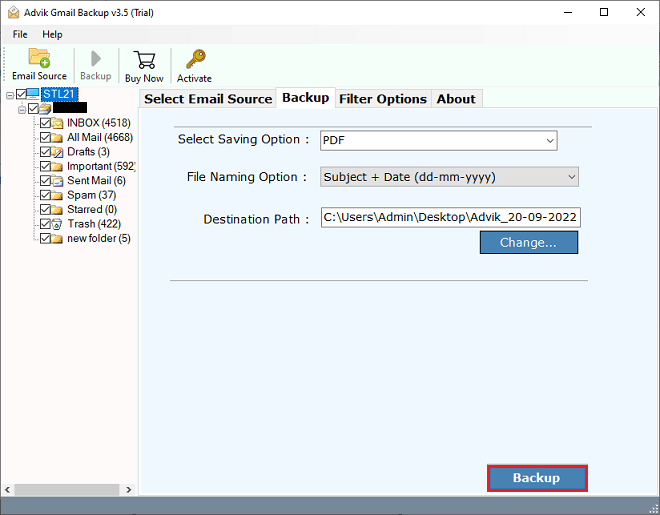
Now let the software handle the rest job. Your emails will be downloaded in .pdf files from your Gmail account.
You can also see step-by-step instructions on how to download Gmail emails as PDFs from the video below.
Watch How to Save Multiple Emails as PDF in Gmail
Key Features of the Automated Solution
Here are the main benefits of using this tool:
- Save Multiple Gmail Accounts: The software lets you download emails from multiple Gmail accounts as PDFs. It can handle large amounts of data more easily than free solutions. You can save the entire mailbox or select specific data to save into PDF.
- Selective Email Saving: You can choose specific emails by date, subject, or other criteria to download into PDF files. It will make it easier to manage and organize your email data.
- Multiple Saving Options: Apart from PDF, this software offers over 30 saving options. You can also export Gmail emails to MBOX, EML, HTML, XPS, MHT, CSV, and many more formats.
- Store Complete Gmail Mailbox Items: The tool allows you to save all Gmail emails as PDFs without losing any data. Also, preserves the mailbox structure and organization.
- User-Friendly Interface: Designed for users of all skill levels, the software features a simple and intuitive interface, requiring no technical expertise to operate.
- Supports Attachments in PDF: The tool ensures that attachments within emails are embedded or saved alongside the PDF files, keeping your email data complete and accessible.
- Compatible with all Windows OS: This utility can be downloaded and installed on all the latest and previous versions of Windows operating systems. Therefore, there is no concern about using this tool only on a specific system.
Conclusion
This blog post delves into effective techniques to download all emails from Gmail as PDFs along with their attachments. The content covers both expert and manual strategies to save all Gmail emails as PDFs. Nevertheless, it’s crucial to note that manual methods come with certain drawbacks that may compromise the integrity of your Gmail data. As a precaution, we recommend opting for the professional approach to ensure a secure and 100% reliable procedure.