How to Migrate Apple Mail to Office 365?
Summary: This article will guide you on how to migrate Apple Mail to Office 365. If you are also looking for the solution to import Mac Mail to Outlook 365 then this post will be helpful for you. Here, you will get the two best methods – including manual and professional solutions to perform Apple Mail to Office 365 migration.
Apple Mail is one of the most used email client applications included with the operating system mac OS by Apple Inc. While it works well for managing emails locally, many users and organizations want to transfer Apple Mail to Office 365 for its cloud-based features, better security, and anywhere access capabilities. Microsoft 365 is the greatest platform for businesses to easily manage their workflow.
Why Migrate from Apple Mail to Office 365?
There are several reasons why users switch to Office 365.
- Microsoft 365 provides Outlook, Teams, OneDrive, and SharePoint, along with Word, Excel, and PowerPoint.
- Access your emails and files from any device via the cloud.
- Protects your data with encryption, anti-phishing tools.
- Work together in real-time with Teams and OneDrive.
- Use a custom domain for business communication.
Methods to Export Mac Mail to Outlook 365
Here are two different solutions to migrate Apple Mail to Office 365.
- Manual Method – IMAP Configuration
- Professional Solution – Apple Mail to Office 365 Migration Tool
Let’s start without any further delay.
How to Import Apple Mail to Outlook 365 Manually?
You can manually migrate Apple Mail to Office 365 by configuring a Gmail account with both email accounts.
Follow the below-given steps to connect Apple Mail to Office 365.
- Open Apple Mail and configure your Gmail account using IMAP settings.
- Create a new folder in the configured Gmail account within Apple Mail.
- Now, select the required emails and move them to newly created folder.
- After that, log in to your Office 3565 account and configure the same Gmail account.
- Once the configuration is complete, go to the newly created folder.
- Open the folder, select the emails and move them to the Office 365 folder.
- After completing the migration, remove Gmail account from both accounts.
Done! That’s how you can transfer Apple Mail to Office 365.
Why Manual Solution is Not Recommended to migrate Mac Mail to Office 365?
There are some limitations of manual method. Some of them are;
- This is a lengthy and time-consuming process.
- Users must have a technical expert to configure email accounts.
- Users may lose folder structure while migrating manually.
How to Migrate Apple Mail to Office 365 Automatically?
Try Advik MBOX Converter on your system. This program is specially developed for Apple Mail/Mac Mail users who want to transfer Apple Mail to Office 365 account. It provides simple steps that perform the entire email migration process securely. With this tool, you can move all emails from Apple Mail to Office 365 at once. Furthermore, you will also get advanced email filter options to select specific email folders from Apple Mail mailboxes on the basis of To/From, Subject, Cc, Bcc, exclude/include folders, etc.


Steps to Migrate Apple Mail to Outlook 365
Step 1. Open Apple Mail, Click “Mailbox” and export emails to MBOX file.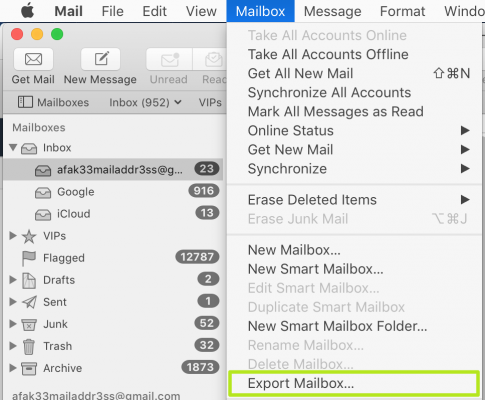
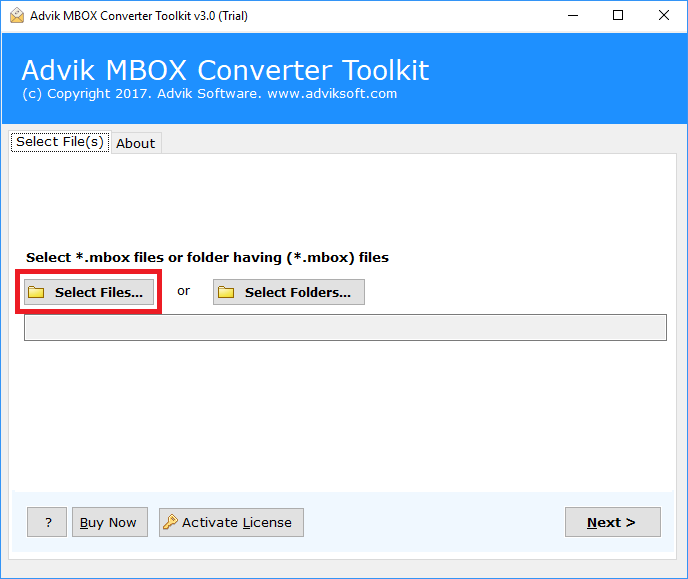
Step 2. Run this tool and add the exported MBOX file.
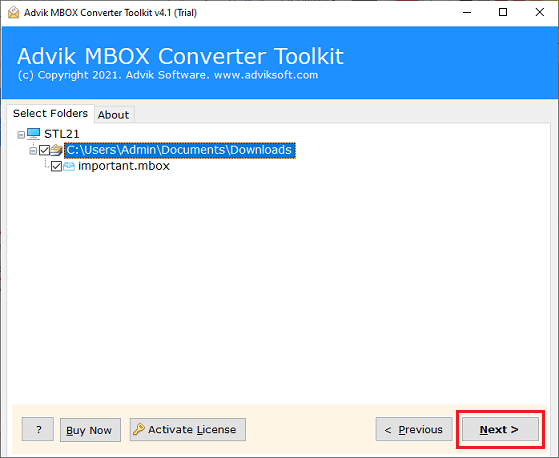
Step 3. Choose maibox folder and click Next.
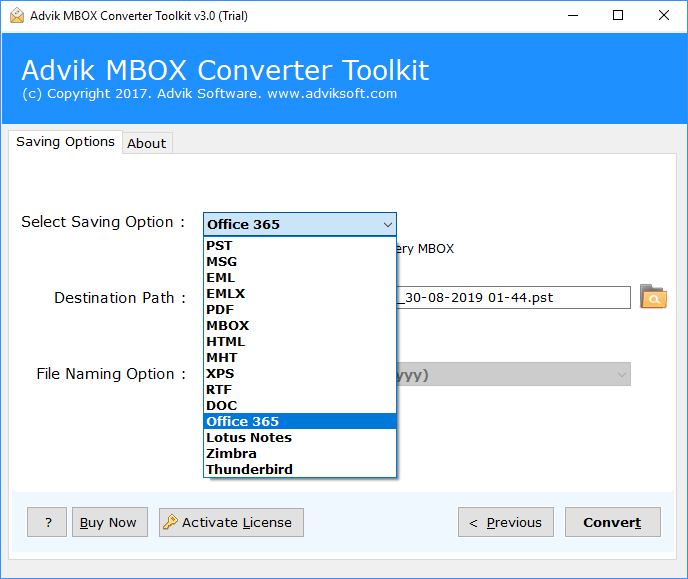
Step 4. Select Office 365 as a saving option.
Step 5. Enter Office 365 login credentials.
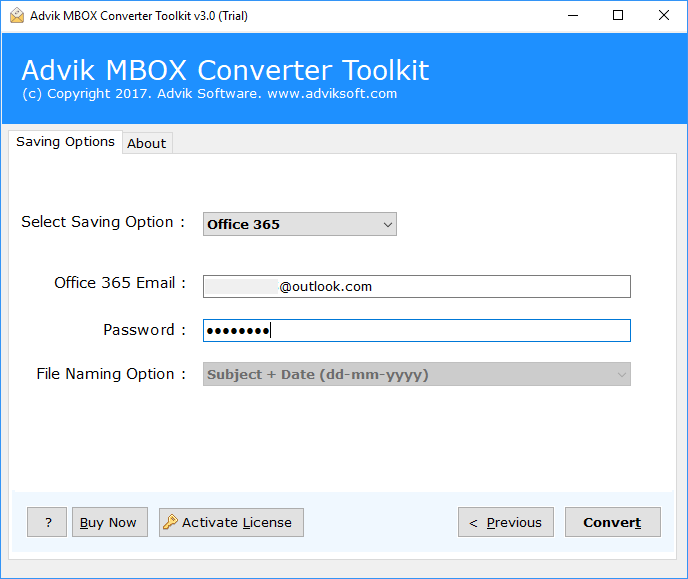
Step 6. Click on Convert button to start the process.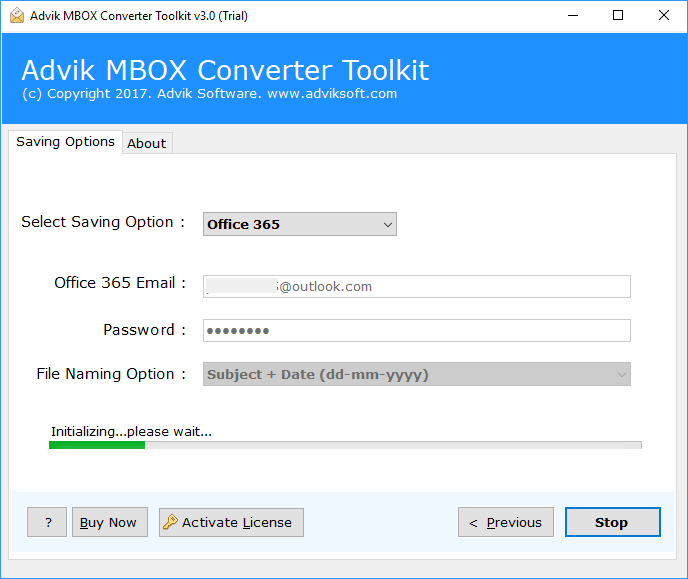
Done! That’s how you can migrate Apple Mail to Office 365 account.
Watch the Tutorial to Perform Apple Mail to Office 365 Migration
Advanced Features and Benefits of An Automated Tool
- Bulk Migrate Apple Mail Mailboxes to Office 365: There are dual ways to upload Apple Mail MBOX files in the solution. Users can effortlessly implement batch migration with the aid of the same. Just load all of your important Apple Mail mailboxes into one folder by using the Add Folder button. All of the stored files will be scanned by the tool and instantly imported into the Office account.
- Selective Mailbox Conversion Feature: All Apple Mail mailbox files will have checkboxes when the tool loads them. Users can import specific Apple Mail mailboxes into Office 365 without losing any data by checking or unchecking the corresponding item.
- Import Mac Mail to Outlook 365 Directly: The program has a quick way option to import emails from Apple Mail MBOX file to Office 365 account. You will be asked to enter your Office 365 email address and password when you click the same to complete the process. When you click the Convert button after providing the information, the app will begin the migration process and transmit all of your Apple Mail files to Office account.
- Export Apple Mail to Cloud Services: With this tool, users can easily import Apple Mail to Zoho Mail, Yandex Mail, Rackspace, AWS Workmail, Thunderbird etc. Thus, you can easily transfer Apple Mail MBOX file to any IMAP-based email service or desktop-based email client application.
- Windows Compatibility: The best feature of this tool is that it is compatible with every Windows operating system. Therefore, you can install and run the tool on Windows 11, Windows 10, Windows 8, Windows 7, Windows XP, Windows Vista etc.
Final Words
We had discussed how to migrate Apple Mail to Office 365 account manually and automatically. You can manually import Mac Mail to Outlook 365, but you must have a technical expert to complete this task. Thus, I would like to recommend choosing the above-suggested method to export Mac Mail to Office 365 account. Download the FREE Apple Mail to Office 365 Migration utility and start transferring mailboxes.
Frequently Asked Questions
Q 1. How do I connect my Apple Mail to Office 365?
Ans. You can set up an Apple Mail in Outlook 365 by adding your Microsoft 365 account in Mail settings:
- Open Apple Mail on your Mac.
- Go to Mail >> Add Account.
- Select Microsoft Exchange(Office 365).
- Enter your Office 365 email address and password.
- Click Sign In and allow access.
Q 2. Can I export emails from Mac Mail to Outlook 365 in bulk?
Ans. Yes, the software allows you to migrate all emails in one go.
Q 3. Are there any restrictions on the license version to migrate Apple Mail to Office 365?
Ans. No, you can transfer unlimited emails from Apple Mail to Office 365 with the license version.