How to Import Eudora Mail to Thunderbird?
Are you looking for a solution to import Eudora Mail to Thunderbird? If yes, you are at the right place. This article will let you know about the easy ways you can use to export Eudora Mail to Thunderbird Client. So, keep reading this post to know more information.
Eudora and Thunderbird are known for their exceptional features and functionalities as email clients. However, many users tend to favor Thunderbird over Eudora for several reasons, such as being open-source, free to use, having a user-friendly interface, and more.
Before moving to the solutions, we will first elaborate on the reasons for the Eudora to Thunderbird migration.
Why Import Eudora to Thunderbird?
There are various direct and indirect reasons available why users want to export Eudora Mail to Thunderbird. Some of them are explained below;
- Eudora is no longer supported by its users and needs to migrate emails to a more easy and secure email client like Thunderbird.
- Thunderbird is an open-source email client, which means it is free to use and has a large community of developers who can provide support and add new features.
- Thunderbird offers advanced features and customization options that are not available in Eudora.
- Users may be switching from a Windows-based computer to a Mac or Linux-based system, and Thunderbird is compatible with multiple operating systems, unlike Eudora.
- Some users may prefer the user interface and design of Thunderbird over Eudora.
Now, let’s discuss the possible methods to migrate Eudora to Thunderbird. So, keep reading to move on to the important section.
How to Export Eudora Mail to Thunderbird – Manual Method
First, locate the MBX file for Eudora Mail on your system. By default:
- For Eudora 8 on Windows 10 or 8:
C:\Users\USER_NAME\AppData\Roaming\Qualcomm\Eudora\
- For Eudora on Mac:
Macintosh HD > User > Documents > Eudora Folder
Now, follow the steps below to import Eudora to Thunderbird:
- Open Thunderbird and click on the three horizontal lines to select Add-ons and Themes.
- Search for ImportExport and click + Add to Thunderbird button.
- Now, restart the Thunderbird application.
- Right-click Local Folders and select ImportExport Tools NG >> Import MBOX Files >> Individual MBOX files.
- Browse to the location where Eudora’s source database file (MBOX) is, select the files, and click Open.
Now, your Eudora emails are imported into your Thunderbird application.
Limitations of Manual Method
- This is a lengthy and time-consuming process.
- Technical knowledge is required to convert Eudora to Thunderbird.
- It doesn’t import Eudora Mail to Thunderbird in bulk.
How to Migrate Eudora to Thunderbird – Automated Solution
Advik MBOX Converter is the most secure approach to transfer emails from Eudora Mail to Thunderbird. The software allows users to easily import Eudora MBOX to Thunderbird within seconds. We recommend using this solution because it is fully authorized to export emails from Eudora Mail to Thunderbird. This software is capable of uploading Eudora mailbox files to Thunderbird without any file size limitations. This tool is easy to use as it offers a simple and self-explanatory interface that can be easily used by novice users.
The tool also comes with a FREE Demo version to help users understand the procedure before choosing this solution.


Steps to Import Eudora Mail to Thunderbird
To start you need to locate the mailbox file for Eudora Mail;
The default location of the mailbox file for Eudora 8 on Windows 10 and 8 computers is:
“C:\Users\%UserProfile%\AppData\Roaming\Qualcomm\Eudora”
Copy this path to use it in the below steps;
Now, follow the simple steps to export Eudora Mail to Thunderbird directly;
- Install and run this utility on your Windows PC.
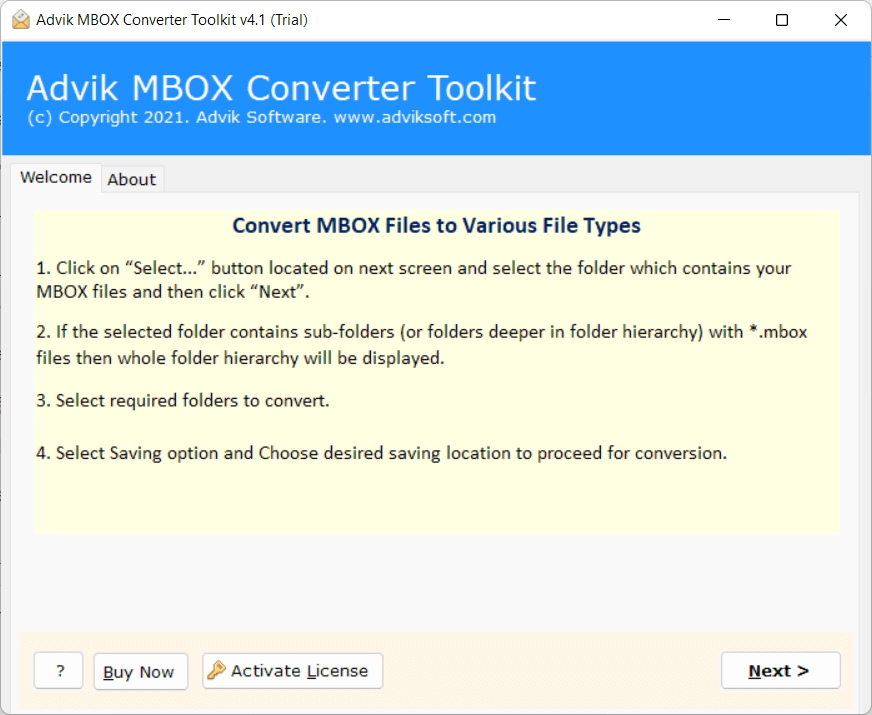
- Click on Select Folders to load Eudora Mailbox files.
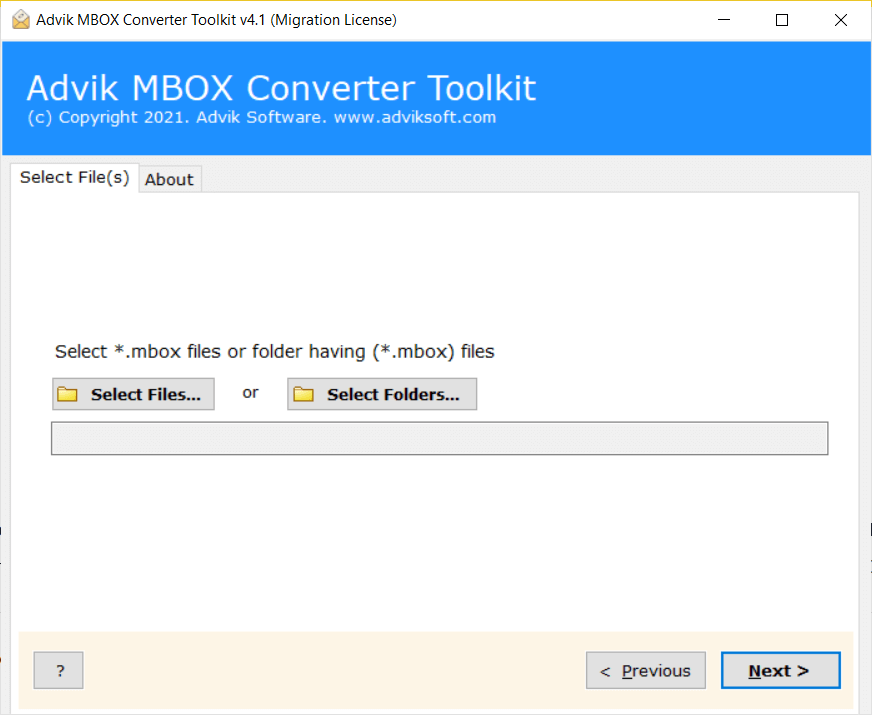
- Now, paste the copied path to access Eudora mailbox files and click on Open to upload it.
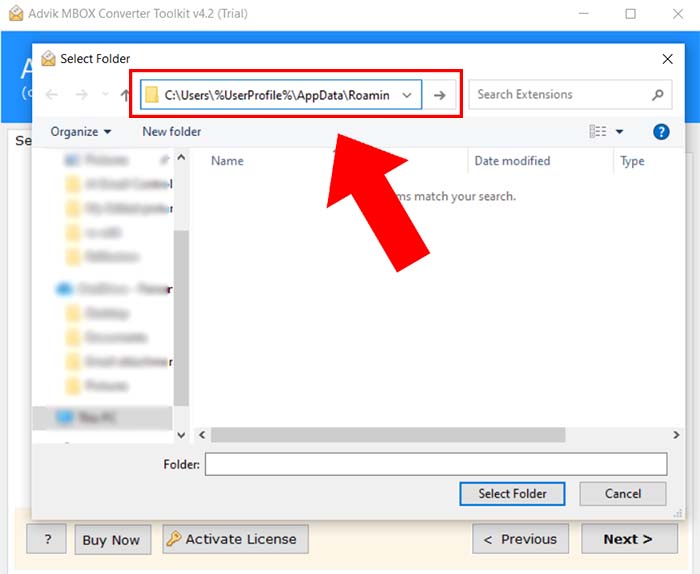
- After that, choose the required email files that you need to transfer into the Thunderbird client.
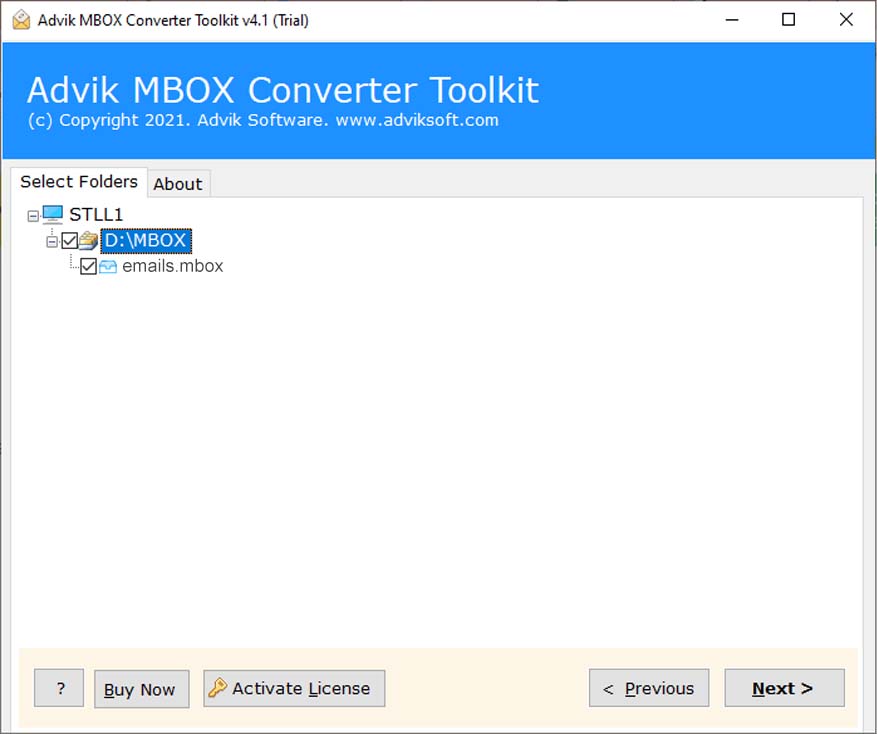
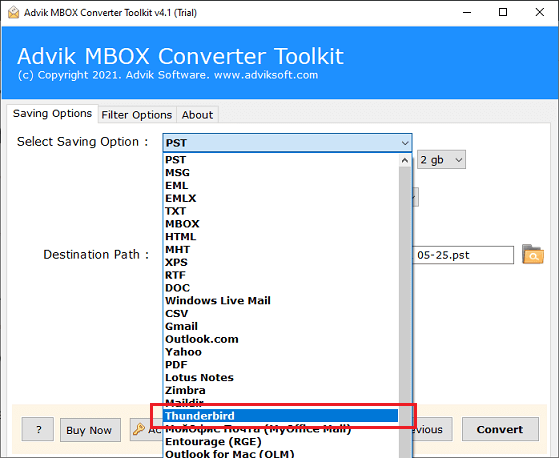
- Now, pick Thunderbird from the list of multiple saving options.
- Now, the software automatically detects Thunderbird’s default location. (If Thunderbird is installed on your PC). Click the Convert button to start.
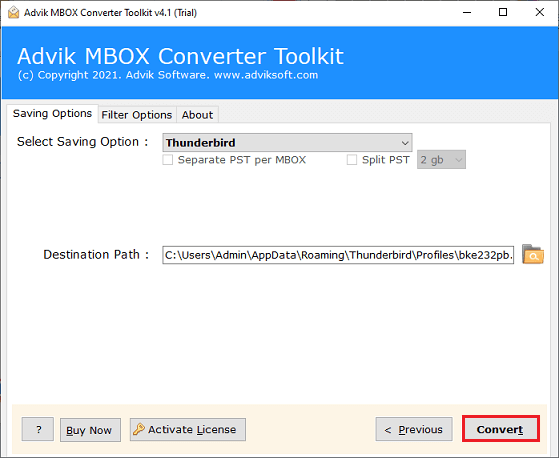
Done!! This tool starts converting emails from Eudora Mail to Thunderbird directly.
Highlighted Features & Benefits of Automated Tool
The following are the top advantages of using this automated software;
- Batch Conversion: This feature enables users to convert and export multiple Eudora mailbox files at once to save time and effort. This tool offers dual ways to upload Eudora emails into the software so that users can add multiple email files in a single attempt.
- Email Filters: The tool comes with email filtering options that allow users to choose specific emails for conversion on the basis of subject, Date range, To/From, Cc, Bcc, exclude folders, include folders, etc.
- Independent Toolkit: The software is a standalone utility, which means that it does not require any external applications or add-ons to perform its functions. It is a completely independent program that works separately without any other assistance.
- Multiple File Formats: This tool offers multiple file formats to save Eudora emails in various file-saving options such as including you can also convert MBOX to PST, EML, MSG, PDF, HTML, and many more.
- Cloud Migration: With this program, users can also import Eudora to Gmail, Yahoo Mail, Office 365, Zoho Mail, G Suite, Exchange Online, Outlook.com, Yandex Mail, Rackspace, Zimbra Webmail, Roundcube, etc.
- Support 20+ Email Clients: The software supports more than 20+ MBOX-supported email clients, including Eudora Mail, Yahoo, Thunderbird, Apple Mail, Google Takeout, Pocomail, Postbox, Spicebird, Sylpheed, and many others, making it a versatile tool for email conversion.
- Windows Compatibility: Users need not worry about which Windows OS will be suitable to use this software as this tool is compatible with all Windows versions, including Windows 10, 8, 7, Vista, and XP.
Final words
In this article, we get to know how to import Eudora to Thunderbird without facing any difficulties. Here, we have explained two different ways to accomplish this task. You can manually export Eudora Mail to Thunderbird but if you face any issues with it then you can choose the above-suggested tool. You can download its free demo version to check its working procedure before purchasing the licensed version.