How to Import Thunderbird to Gmail Account?
I recently saw a query on a tech forum: “How do I move my emails from Thunderbird to Gmail without losing data?” If you have the same question, you’re in the right place. This post will step-by-step guide you on how to import Thunderbird to Gmail account. Here, we will discuss both manual and automated solutions so that you can choose any one as per your requirement.
Thunderbird is widely used email client while Gmail is one of the most preferred email services With over 1.8 billion users. A lot of users are migrating Thunderbird to Gmail for better synchronization and cloud-based access. In this article, we will show you three easiest ways to export emails from Thunderbird to Gmail without any hassle.
Table of Contents
Reasons to Import Thunderbird to Gmail
There are many factors behind the users’ willingness to export Thunderbird emails to Gmail.
- Cloud Accessibility: Gmail enables you to access your mail from any device without the desktop version.
- Better Synchronization: Syncs with smartphones, tablets and browsers to keep your emails up to date on all your devices.
- Lower Maintenance: Gmail works on cloud servers, thus there are no local system malfunctions or corruption concerns like those that arise in Thunderbird.
- Google Service Integration: Once you have imported your emails into Gmail, they will be synced with other Google services, such as Google Drive, Calendar and Meet.
- Storage Capacity: Gmail has enough storage capacity so you don’t have to worry about inbox overload difficulties.
How to Transfer Emails from Thunderbird to Gmail Free?
You can manually import Thunderbird emails to Gmail by configuring a Gmail account with Thunderbird.
Follow the below-given instructions to see how to migrate Thunderbird emails to Gmail mailbox;
- First of all, open your Gmail account.
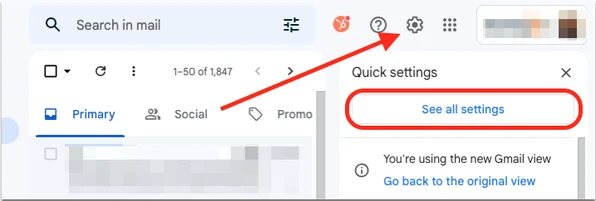
- Go to the Gear icon and click on See All Settings.
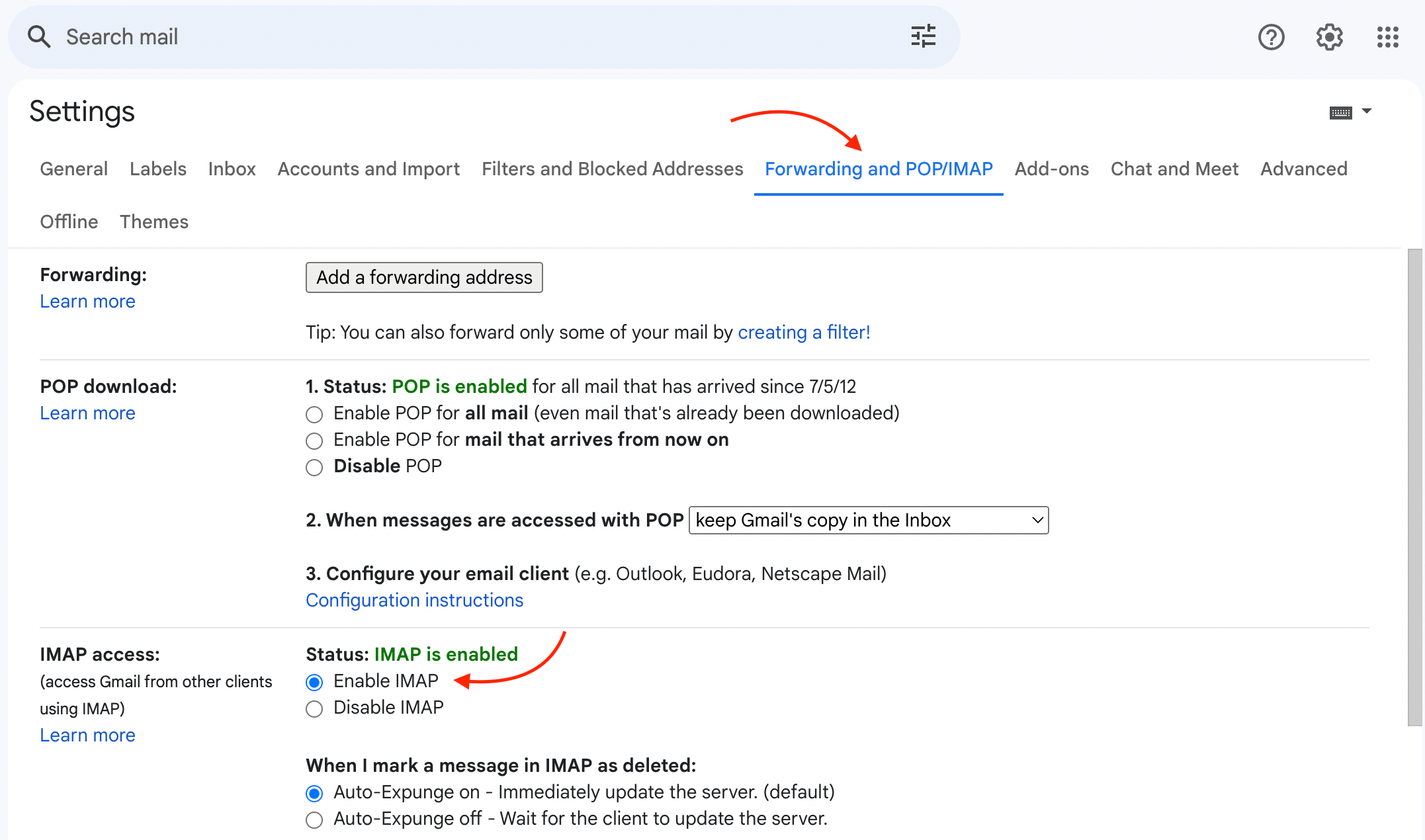
- Click on the Forwarding and POP/IMAP tab. After that Enable IMAP and click on Save Changes.
- Now, Open the Thunderbird application on your system.
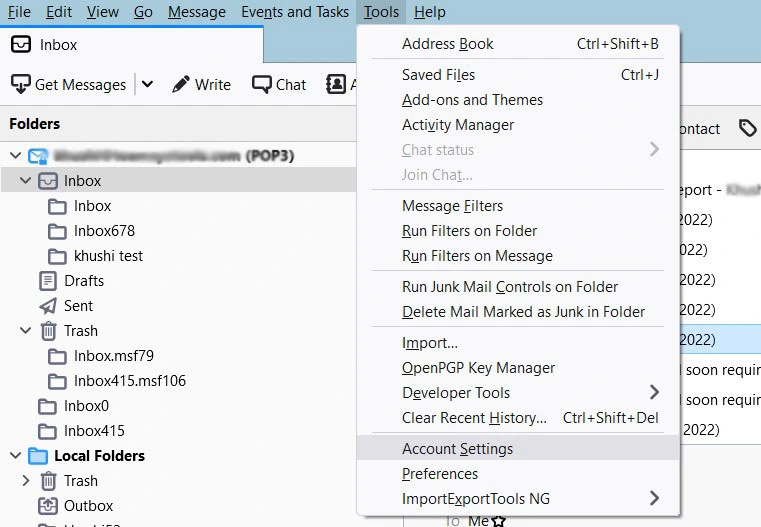
- Click on Tools and choose Account Settings.
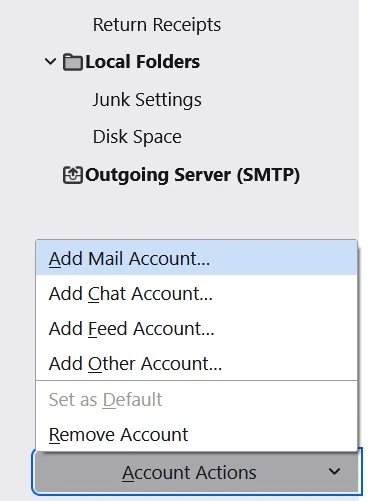
- Click on Account Actions and choose Add a Mail Account option.
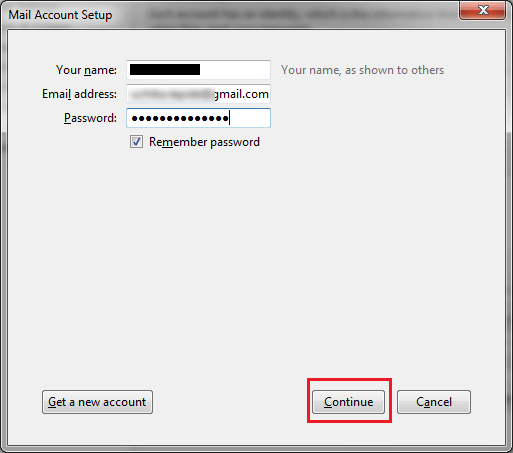
- Enter Gmail login details and press the Continue button.
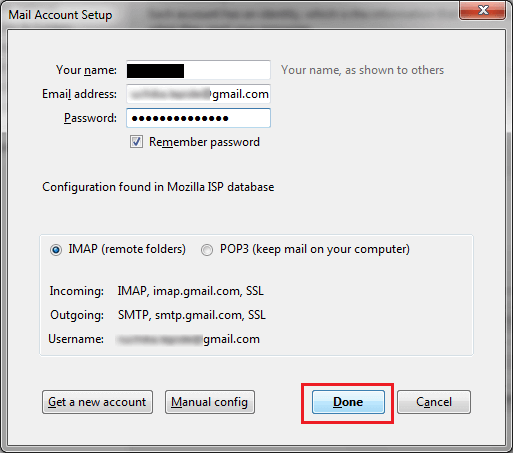
- Choose the IMAP option and click on the Done button.
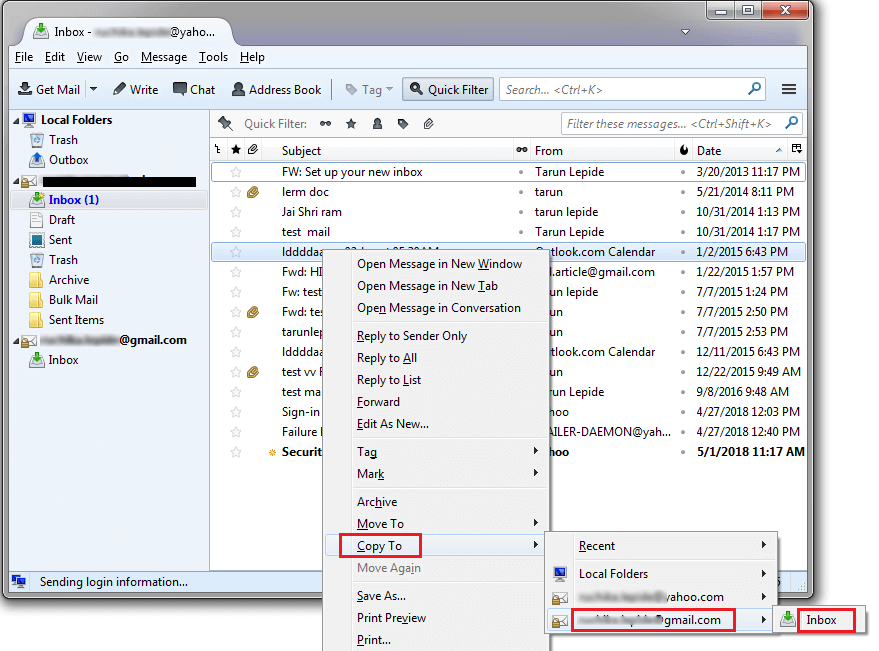
- Once both accounts are configured successfully the Gmail mailbox will appear in Thunderbird.
- After that, right-click on the email and navigate to Copy to >> Gmail id >> Choose Folder.
Hence, you can manually import Thunderbird to Gmail account, but this is a lengthy and complicated process. There is an automatic or fast solution available for the same. Check out the below method for instant email transfer.
How to Import Email Folders from Thunderbird to Gmail Instantly?
If you want to move large amounts of emails from Thunderbird to Gmail. However, moving one by one item takes a lot of time to complete the process. These issues can be solved by the Advik Thunderbird Converter. The software can import Thunderbird to Gmail in bulk without any issues. Also, it offers advanced filter options to export selected emails. The tool will preserve folder hierarchy while transferring emails. Thus, no modification will take place.
Download its free version and check its work performance.

Steps to Transfer Thunderbird to Gmail
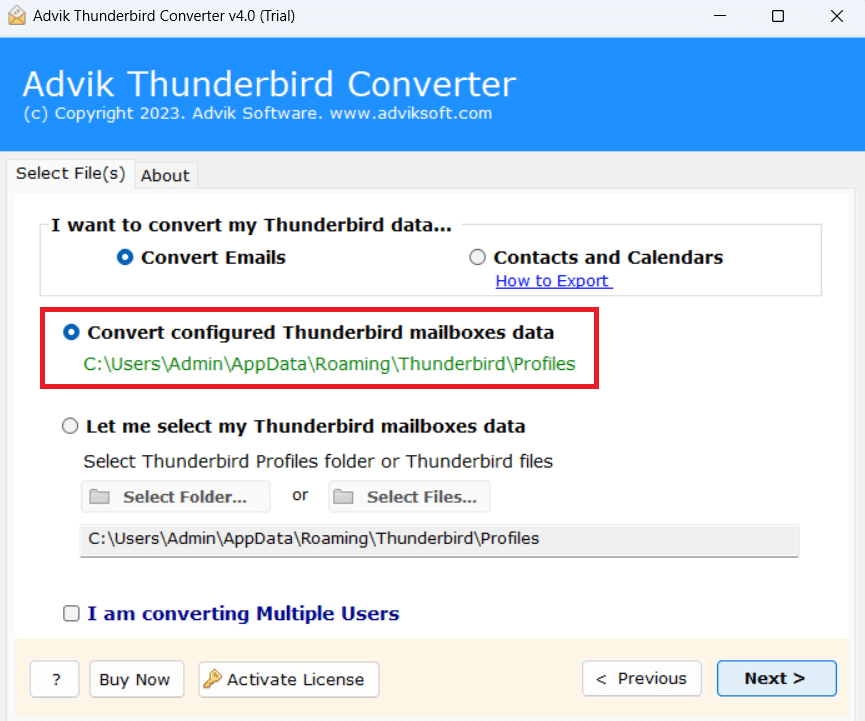
- Run the Thunderbird to Gmail Migration tool & Select your Thunderbird profile.
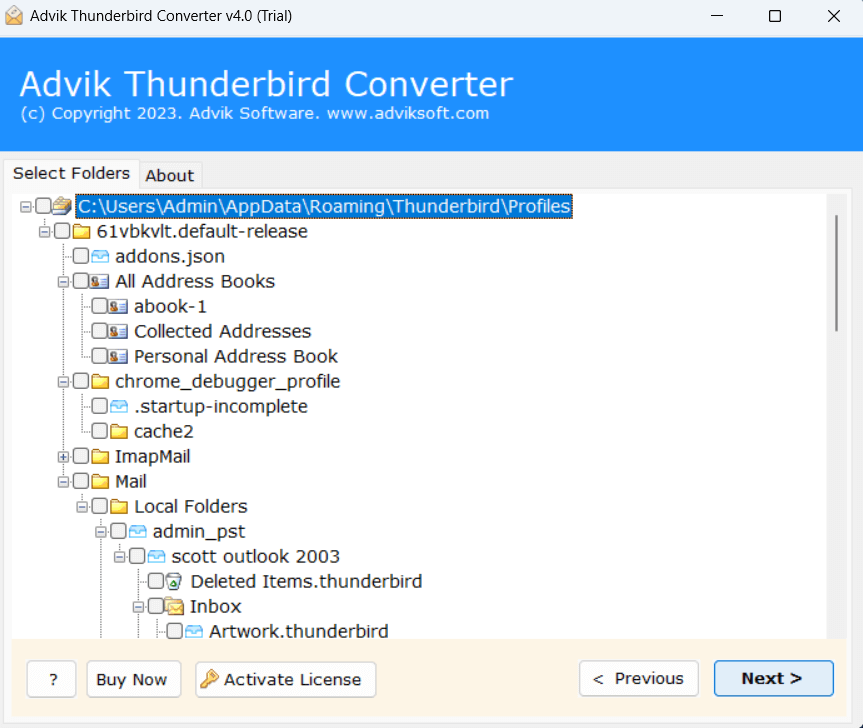
- Choose the Thunderbird folders that you want to export.
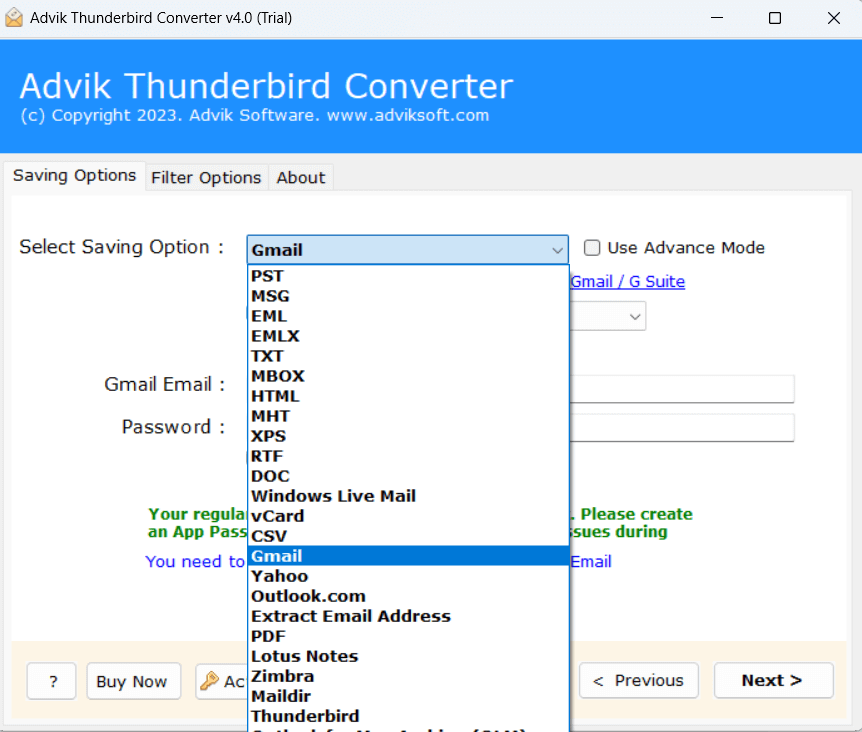
- Select Gmail as the Saving option.
- Enter Gmail credentials and press the Next button.
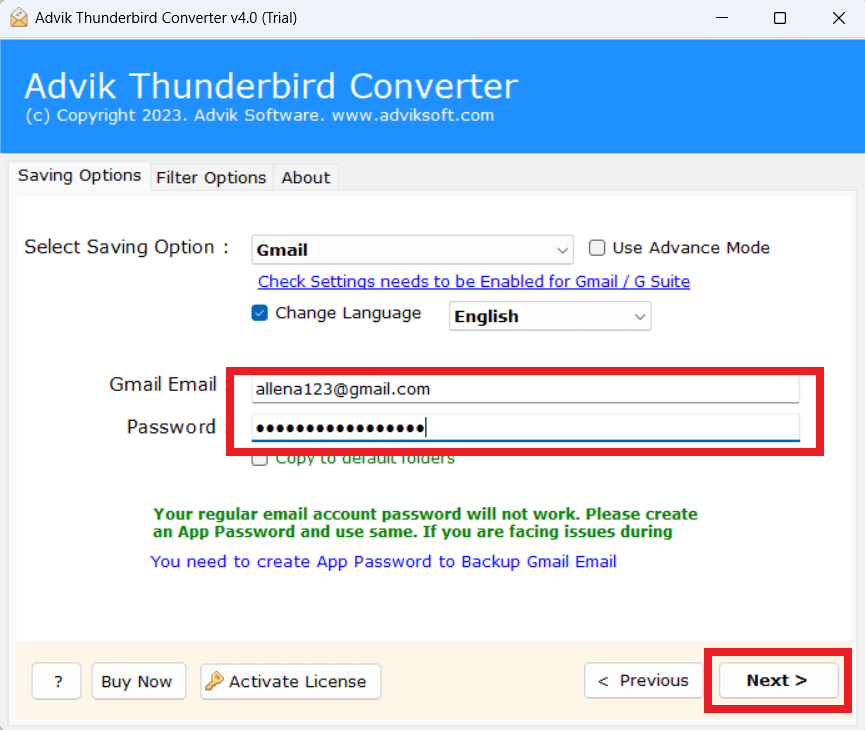
The software will start exporting emails from Thunderbird to Gmail. It will complete the process in a few seconds.
Watch How to Import Emails from Thunderbird to Gmail Account
Benefits of Using Automated Tool Instead of Manual Solution
There are dozens of other benefits of having this application on your computer which are mentioned below.
- Import email folders from Thunderbird to Gmail in bulk.
- Export Thunderbird emails to PST, PDF, MBOX, etc.
- Retains data integrity during Thunderbird to Gmail migration.
- Maintains folder hierarchy throughout the importing process.
- Export emails from Thunderbird to Office 365, and many more.
- Automatically detects Thunderbird mailbox location for easy migration.
- Supports bulk migration of several Thunderbird profiles.
- Enhanced filter features allowing export of specific emails by date, subject, sender, etc.
- User graphical interface simplified with step-by-step assistance.
- Help with 24/7 technical support.
- Works on all Windows operating systems.
Concluding Words
In this post, we have discussed how to import Thunderbird emails to Gmail with attachments. Here, we have mentioned both manual and automated solutions to transfer emails from Thunderbird to Gmail. You can choose any one that is best suitable for you. However, with the above-recommended Thunderbird to Gmail migration tool, you can directly migrate Thunderbird to Gmail without any configuration.
Frequently Asked Questions
Q1. Why am I unable to sign in Gmail account?
Ans. Because you have to enable IMAP as well as generate a one-time password.
Q2. How do I sync Thunderbird with Gmail?
Ans. First, ensure IMAP is enabled inthe Gmail account. After that, navigate to Tools >> Account Settings >> Account Actions >> Add Mail Account in Thunderbird. Enter Gmail account information and click Done.
Q3. How to automatically forward email from Thunderbird to Gmail?
Ans. To automatically forward emails from Thunderbird to Gmail, Go to Tools >> Message Filters to set up a message filter in Thunderbird and then create a new filter with the Forward Message To option and enter your Gmail address.
Q4. Will my emails get removed after moving from Thunderbird to Gmail?
Ans. No, emails will remain in your Thunderbird email account.
Q5. How many Thunderbird email accounts can I transfer?
Ans. With the licensed version of the software, you can transfer unlimited accounts. However, the free version lets you export up to 25 emails from each Thunderbird mailbox folder to Gmail.