How to Transfer Gmail to Office 365? [Manual & Automated Methods]
Jim Backus | April 16th, 2026 | Email Migration, Gmail
Summary: Explore this article to learn how to transfer Gmail to Office 365, including all emails, attachments, and other elements. In this post, we’ll share a manual and a professional solution to accomplish this task. So, read the complete article to get a step-by-step procedure and a detailed guide to easily migrate Gmail to Office 365. Let’s begin.
Gmail is a popular email service provided by Google that allows users to send and receive emails, manage contacts, and take advantage of extra features. On the other hand, Office 365 is a subscription-based program that gives users access to Word, Excel, Outlook, and other productivity tools.
Businesses and professionals frequently choose Office 365 for its strong productivity suite, scalability, security features, and collaboration tools. There are many challenges faced by users when they perform the Gmail to Office 365 migration. However, by reading this comprehensive guide, they can easily simplify this process.
Table of Contents
Why Migrate from Gmail to Office 365 Account?
Businesses and professionals often move from Gmail to O365 for enhanced productivity, collaboration, and data security. Below are a few reasons why Gmail to Office 365 migration makes sense:
- Centralized Work Hub: Access emails, Teams, OneDrive, Word, Excel, and more—all in one platform.
- Professional Communication: Get a custom domain (like yourname@company.com).
- Flexible Plans: Office 365’s subscription model is budget-friendly, even for small-scale users.
- User-Friendly Interface: Office 365 is easier to navigate compared to Gmail.
- Advanced Security: Better encryption, DLP (Data Loss Prevention), and compliance features.
What Should You Do Before Starting?
Before moving emails, check these points:
- Enable IMAP in Gmail (Settings > Forwarding and POP/IMAP).
- Turn off two-step verification or create an app password.
- Make sure your Office 365 account is active.
- Backup Gmail emails just in case something goes wrong.
- If migrating multiple users, ensure you have admin rights.
Note: Before we move to the methods, keep in mind that the manual process can be a bit tricky and time-consuming. It involves setting up email settings and transferring data by hand. We’ll still explain this method for those who prefer it, but if it feels too complex, you can go with the automatic method to save time and avoid mistakes.
How to Transfer Emails from Gmail to Outlook 365 Manually?
Follow the steps below to manually migrating from Gmail to Office 365
Step 1. Domain Verification
To transfer Gmail to Office 365, you need to verify that the domain used for the Gmail account is owned by you. Follow the steps to do it:
- Go to the Admin Center.
- Click on Go to Setup.
- Choose a Domain.
- Add Users.
- Set up DNS.
Step 2. Create a User Mailbox and Assign the License
- Go to Admin center >> Users >> Active Users >> More.
- To add a single user. Choose the Add user option and to add users in bulk, select Import Multiple Users through CSV.
- Once you upload the file, then click on the Verify button to check the data.
- After that, select and assign an appropriate license to the user or select the option Create user without product license.
Step 3. Establish a Connection Between Office 365 & Gmail
To securely migrate, Office 365 needs to be connected with Gmail.
- Choose the Exchange admin center >> Recipients >> Migration >> Migration endpoints.
- Click on + and choose IMAP.
- Enter the IMAP Server & Settings on the IMAP migration configuration page.
- Now, provide a migration endpoint name in the Enter general information page.
Step 4. List User Mailbox in Gmail for Migration Batch Creation
- Sign in to your Google Admin Console.
- Choose the Users and select a list of users from the Admin center.
- Collect the email address of the user’s mailbox that you want to transfer.
- Create an Excel Sheet and enter the collected email address and password and save it as CSV.
Step 5. Create Migration Batch & Start Gmail to Office 365 Migration
- Choose Exchange from the Admin Center.
- Select the Recipient >> Migration.
- Click on + and choose the Migrate to Exchange Online option.
- Select IMAP migration >> Next and choose the CSV file on the Select the user’s screen.
- Once the validation is completed, Gmail will show the mailbox.
- Choose the previously created migration point and continue with the default values.
- Go to the Move Configuration page and provide the migration batch name.
- Provides the needed options and start the Gmail to Office 365 migration.
Step 6. Up-to-Date DV+NS Record
- Go to Admin Center and select Settings.
- Click on Domain and choose the Domain Name option.
- A notification will appear as a completion message to transfer emails from Gmail to Outlook 365.
Limitations of Manual Method
- This is a lengthy and complicated process.
- It does not maintain the folder hierarchy.
- It does not allow to transfer of a selective mailbox.
- If you have a large mailbox, then it takes several days to complete the process.
- This approach cannot transfer Google Drive attachments or Gmail label metadata.
How to Migrate Gmail to Office 365 with Ease?
If you want to skip the lengthy manual process and want an easy and smooth Gmail to Office 365 migration process, then use a professional tool like Advik Gmail Migration Tool. With this software, you can easily transfer emails from Gmail to Outlook 365 small business account in no time. It just requires email account details of both the source and destination account and completes the whole process in just 5 simple steps. No manual configuration is required for this solution. You can easily move emails from Gmail to Office 365 in a single attempt.
Click on the FREE download button and analyze the whole working process.


Steps to Transfer Gmail to Office 365 Small Business
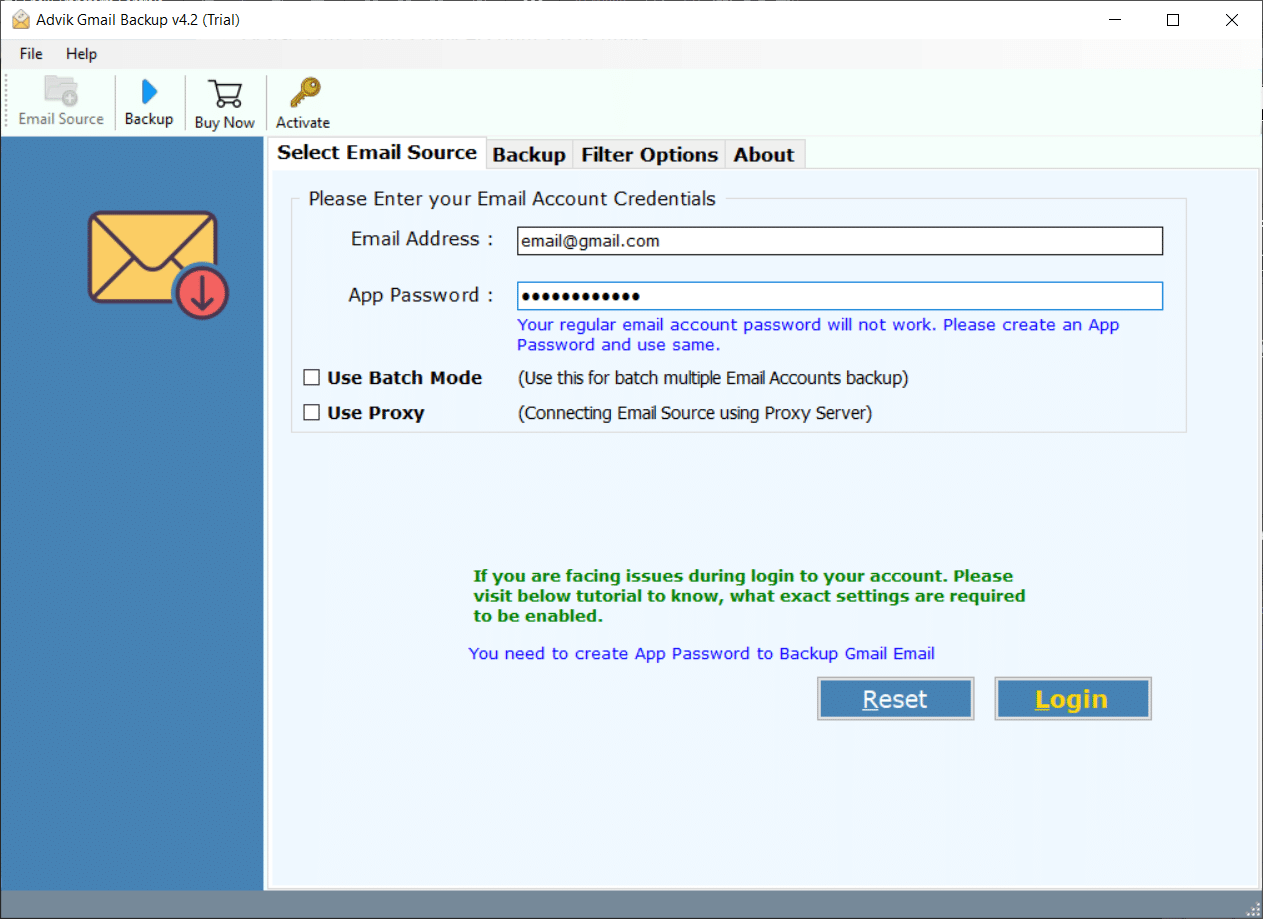
Step 1. Run the software and enter your Gmail login credentials.
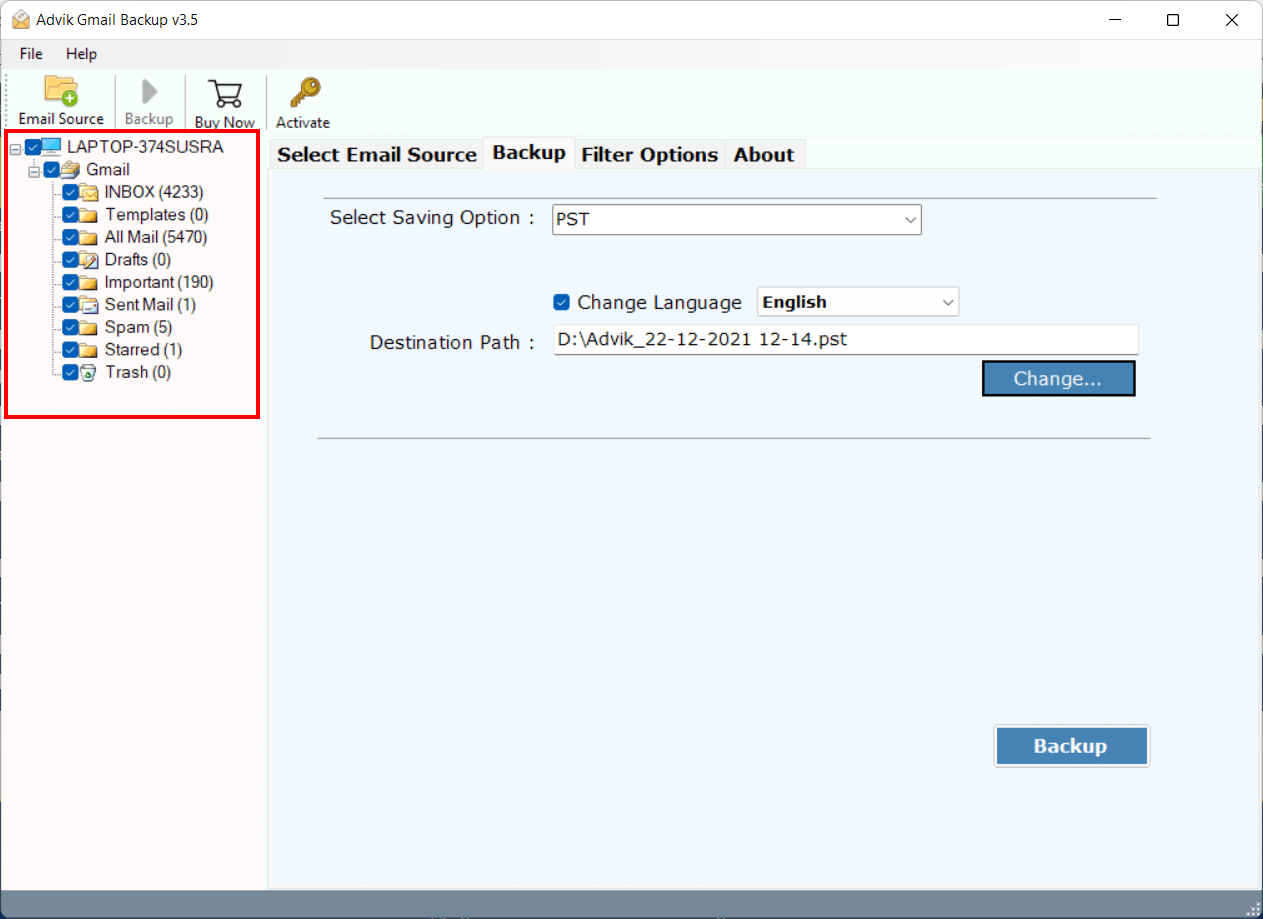
Step 2. Select the mailbox folder for migration.
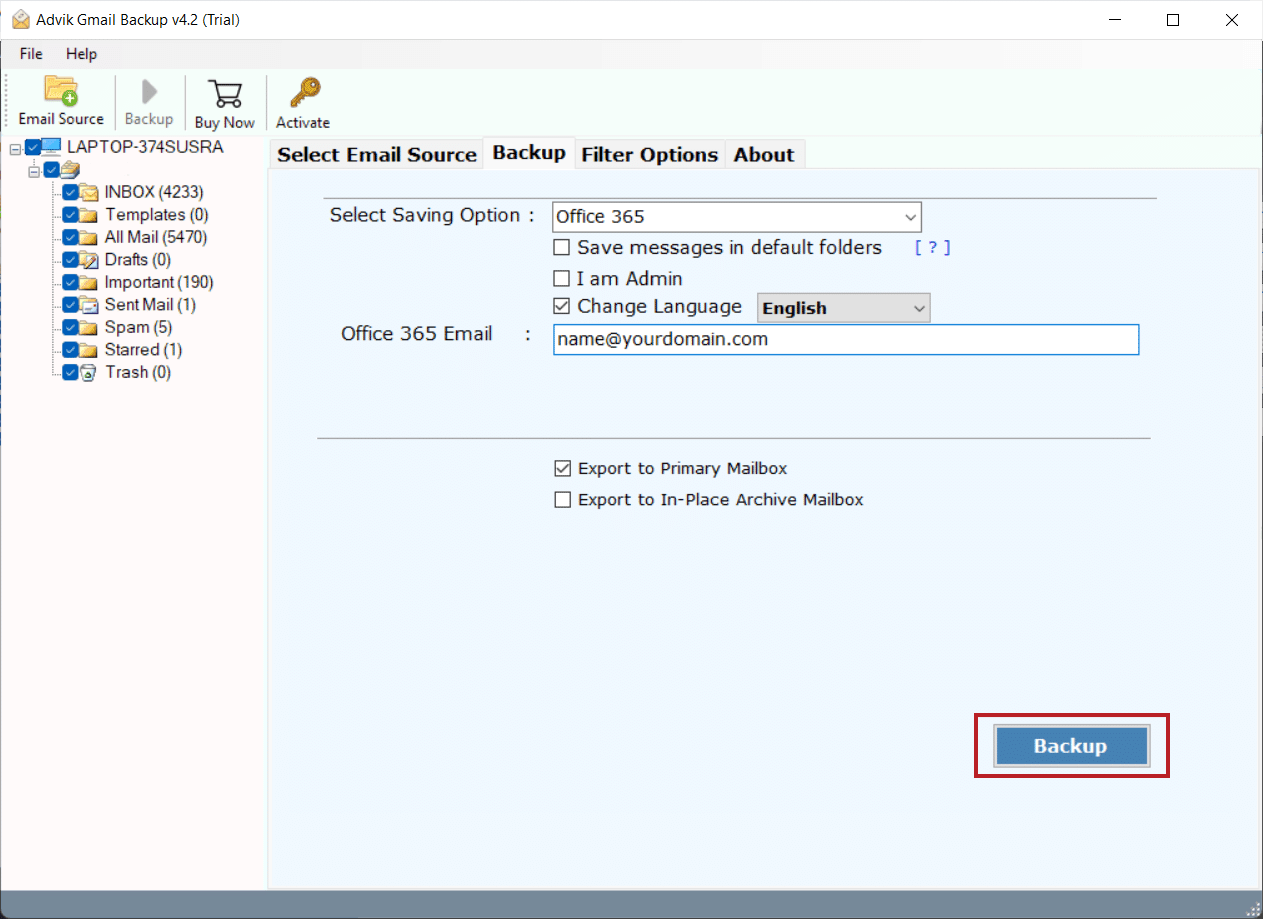
Step 3. Choose “Office 365” as a saving option from the list.
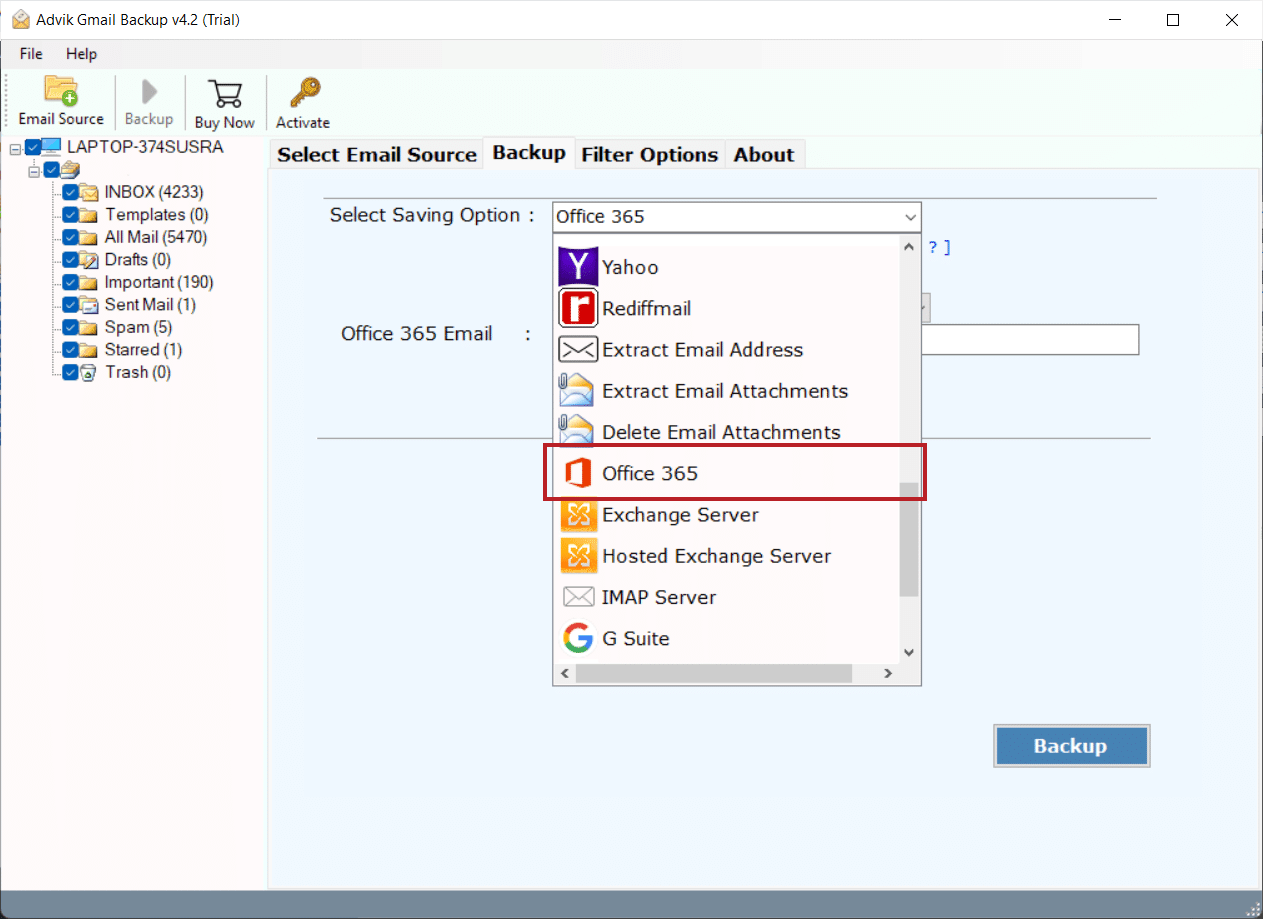
Step 4. Enter Office 365 email address and click on “Backup”.
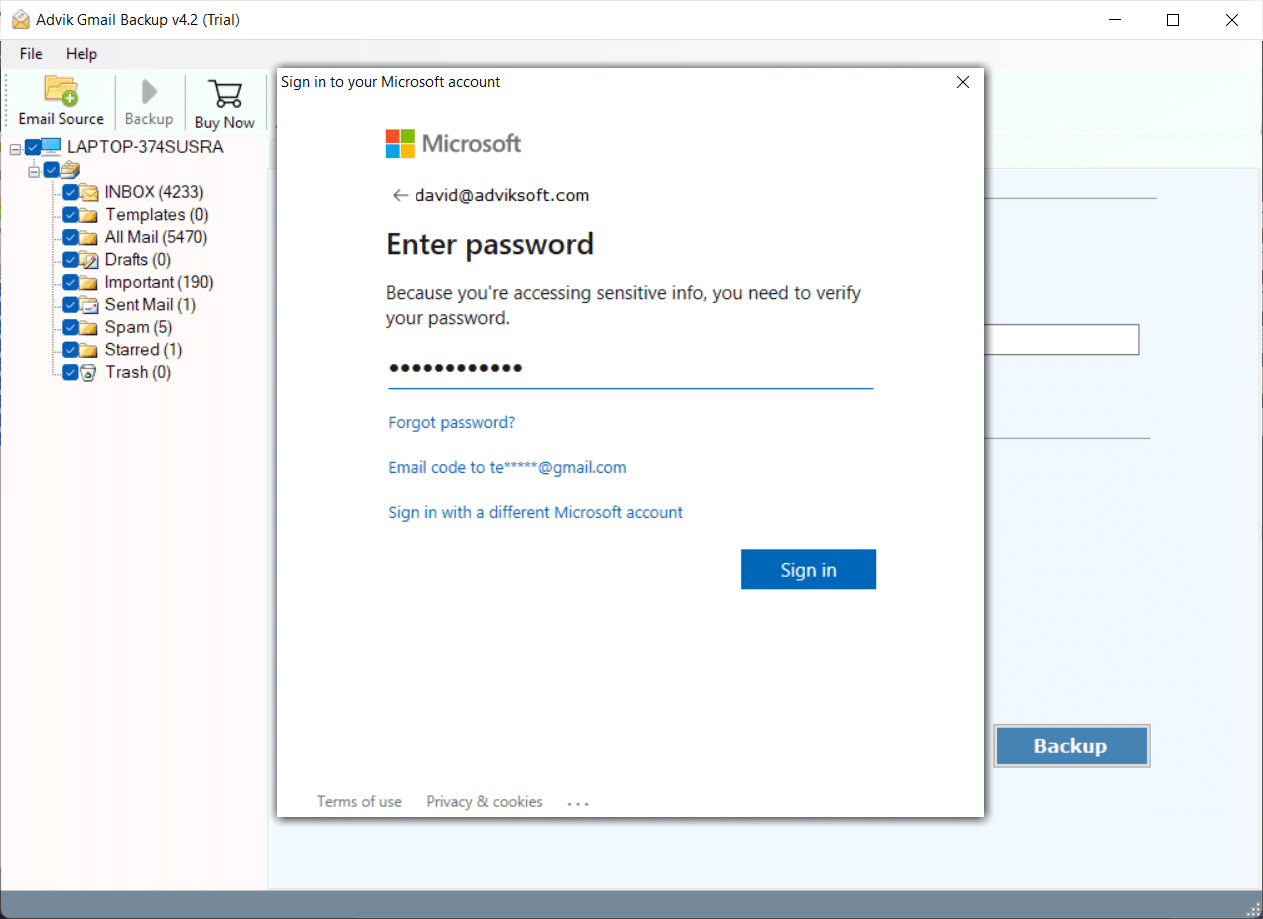
Step 5. You will receive a pop-up prompt asking for your Office 365 account password.
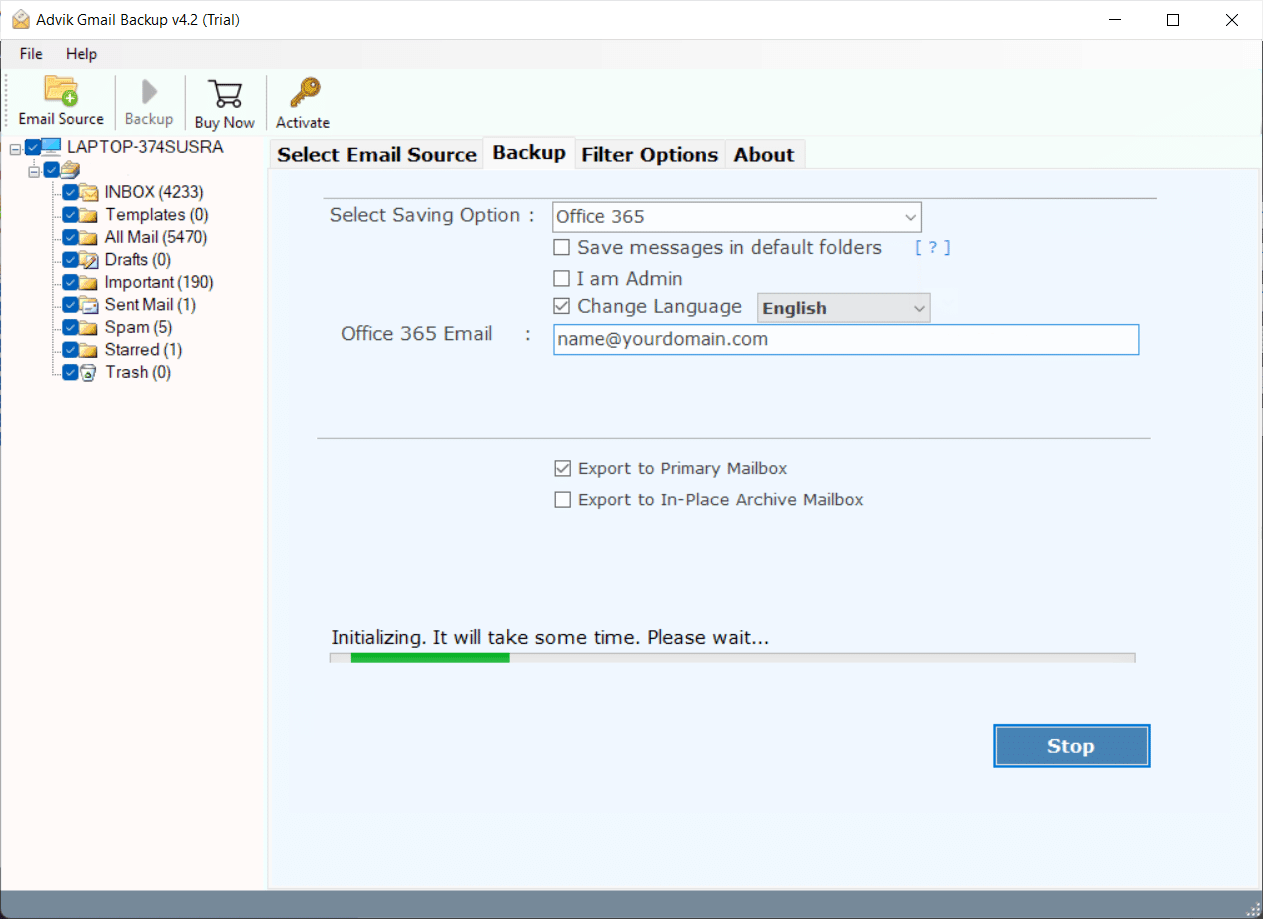
The software will start exporting emails from Gmail to Office 365.
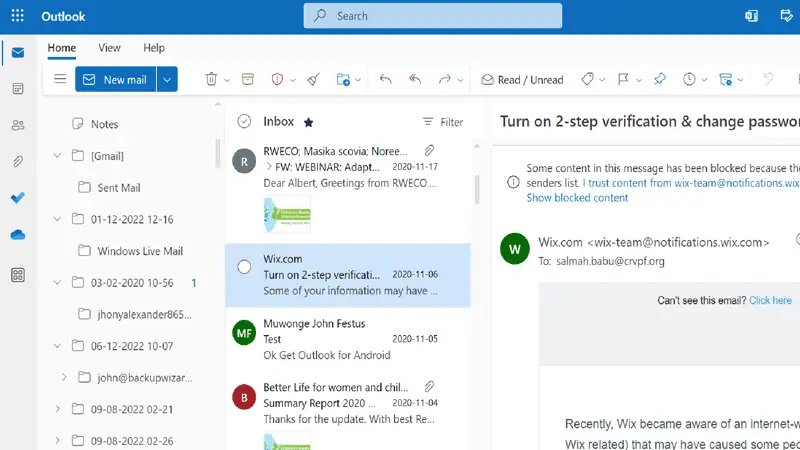
Once completed, log in to your Office 365 account and check all the transferred Gmail emails there.
Watch How to Perform Gmail to Office 365 Migration
Why Choose the Gmail to Office 365 Migration Tool?
- Simple and Easy-to-Use GUI: The user interface of this migrator tool is designed in such a way that users can experience swift working. All the steps involved in this blog are self-explanatory, and you don’t need anyone’s assistance to perform the steps.
- Preserve Meta Elements: This Tool is well-known for its safe and precise Gmail migration process. It maintains data integrity during and after the Gmail to Office 365 migration process.
- Advance Email Filter: The software is fully loaded with advanced and specialized features to import Gmail to Office 365 shared mailbox. It is a well-known utility that offers various email filters that can be used to perform a selective email migration process.
- Migrate Gmail to Other Accounts: This tool lets you quickly move emails from Gmail to various email services. Such as that you can transfer Gmail to Yahoo Mail, Zoho Mail, Rackspace, ProtonMail, iCloud, and more.
- Selective Folder Selection: Users can choose specific folders, such as Inbox, Sent, or Custom folders, for migration. This feature saves time and ensures only the necessary data is transferred to Office 365.
- Support Bulk Migration: This feature is best for users who need to bulk export Gmail emails to Office 365 Account. It allows users to transfer multiple Gmail email accounts to Office 365 in a single attempt. By using the “batch mode” feature in the login interface, you can do so.
- Maintain Folder Hierarchy: During the migration process, this tool ensures that the original folder structure of your Gmail account is preserved in Office 365. This helps users access their emails in the same organized way as before.
- Free Demo Version: The tool offers a trial edition that allows users to test its functionality before making a purchase. This helps users evaluate the software’s features and ensure it meets their requirements.
Final Words
So, this blog comes to an end. We have explained step-by-step how to transfer Gmail to Office 365 using both methods. You can pick whichever suits you best. However, if you want more control and faster results, the Advik Gmail Migration Tool is the best option. Make sure to try the free demo first to see if it works for you.
FAQs
Q1. Will my email folders stay the same after moving my Gmail account?
Ans. Yes, your Gmail emails will be transferred without changing the folder structure. Everything will remain the same as in your original account.
Q2. What is the easiest way to transfer emails from Gmail to Outlook 365?
Ans. The simplest way is to use the software mentioned above. It allows you to move emails from Gmail to Office 365 directly without needing any technical expertise.
Q3. Will my attachments also be moved?
Ans. Yes, the tool ensures all attachments are transferred along with emails.
Q4. Do I need to keep my Gmail account active during the transfer?
Ans. Yes, make sure Gmail account access is active and IMAP is enabled.
Q5. How long does the migration take?
Ans. Time depends on the number of emails and internet speed. The tool ensures faster results than manual methods.