How to Remove Password from Bank Statement PDF File?
Jackson Strong | January 4th, 2026 | Data Backup
Bank statements are important financial documents that show account holder transactions and balances. However, they contain important records, so the bank provides an extra layer of security with password protection, such that only authorized users can read and access. Sometimes, users need to remove password from bank statement PDF file for various reasons. This article will describe different ways to remove bank statement password.
Before moving to the methods, let’s know why users want to remove password protection from bank statement.
Why Need to Unlock Bank Statement PDF Files?
There are various situations where users need to open password-protected PDF bank statement. Some of them are:
- Lost Password: If you have lost or forget password, then you will be unable to open bank statements.
- Easy Access: If you want easy accessibility to their bank records.
- Share with Others: Sometimes users need to remove password from bank statement PDF file as they want to share it with others.
- Legal or Financial Needs: If you need the PDF statement for legal or financial purposes. Thus, you need to remove password from PDF bank statement for easy access.
How to Remove Password from Bank Statement PDF Manually?
Here are some manual ways to unlock bank statement PDF file. However, these methods have limitations, which we will discuss later.
1. Open Bank Statement PDF Password Using Adobe Acrobat Pro (Paid Method)
Adobe Acrobat Pro allows you to unlock a password-protected PDF file easily.
- Open the password-protected PDF in Adobe Acrobat Pro.
- Enter the password when prompted.
- Click on File > Properties.
- Go to the Security tab and change the Security Method to No Security.
- Click OK and save the PDF.
Limitation: Adobe Acrobat Pro is a paid tool, which may not be suitable for all users.
2. Unlock Bank Statement PDF Password Using Google Chrome or Microsoft Edge (Free & Easy)
Web browsers like Chrome and Edge can remove password from bank statement by saving the file as a new PDF.
- Open the password-protected PDF in Google Chrome or Microsoft Edge.
- Enter the password to unlock it.
- Click the Print button (or press Ctrl + P).
- Choose Save as PDF as the destination.
- Click Save and store the new password-free PDF.
Limitation: This method only works if the PDF allows printing. Some protected PDFs disable printing, making this method ineffective.
Not satisfied with manual methods? Looking for a fast and easy way to remove passwords from bank statement PDFs? Manually unlocking multiple PDFs can take a lot of time. That’s why using a tool like Advik Bank Statement Password Remover is a smarter choice. Keep reading to discover the best bulk-unlocking solution!
How to Open Password-Protected Bank Statement PDF Files in Bulk?
If you often deal with multiple password-protected bank statement PDFs, manually entering passwords each time can be frustrating. Advik Aadhar Card Password Remover is designed to simplify this process by unlocking PDFs in bulk quickly and securely. This software is capable enough to remove password from any PDF file including bank statements.
With just a few clicks, you can unlock multiple PDFs at once without compromising data security. Unlike online tools that require you to upload sensitive files, this software works offline, ensuring complete privacy. It preserves the original file formatting, content, and structure, so your documents remain unchanged after the password is removed.
Once you remove the password using this tool, your PDF file will become a normal, unprotected document. You can open, view, or share bank statement without password.
Click the free download button to see how it works;

Steps to Remove Password from PDF Bank Statement
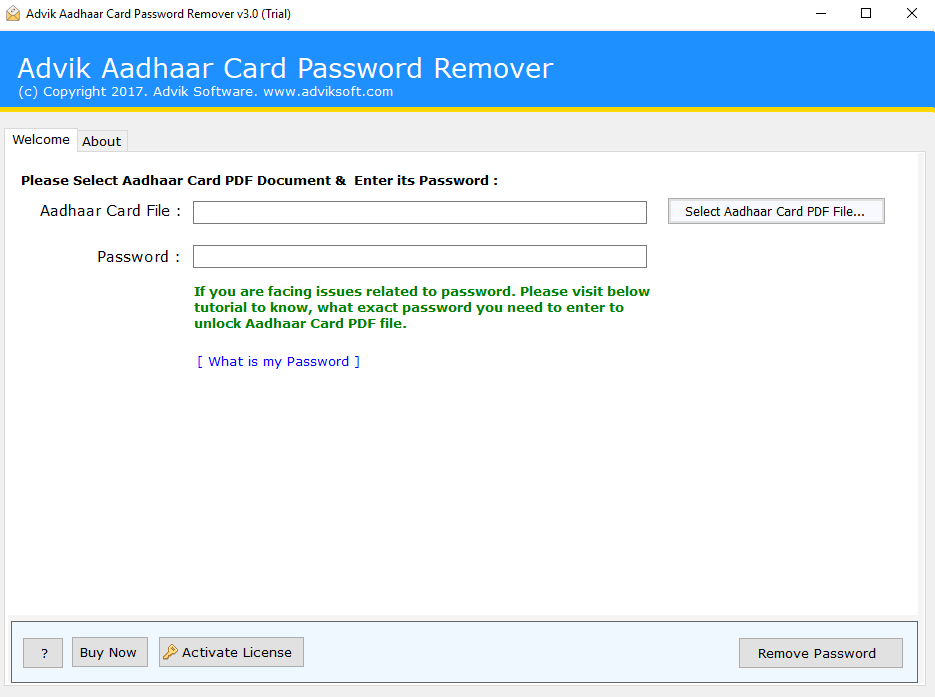
Step 1. Run the software and add your bank statement PDF files.
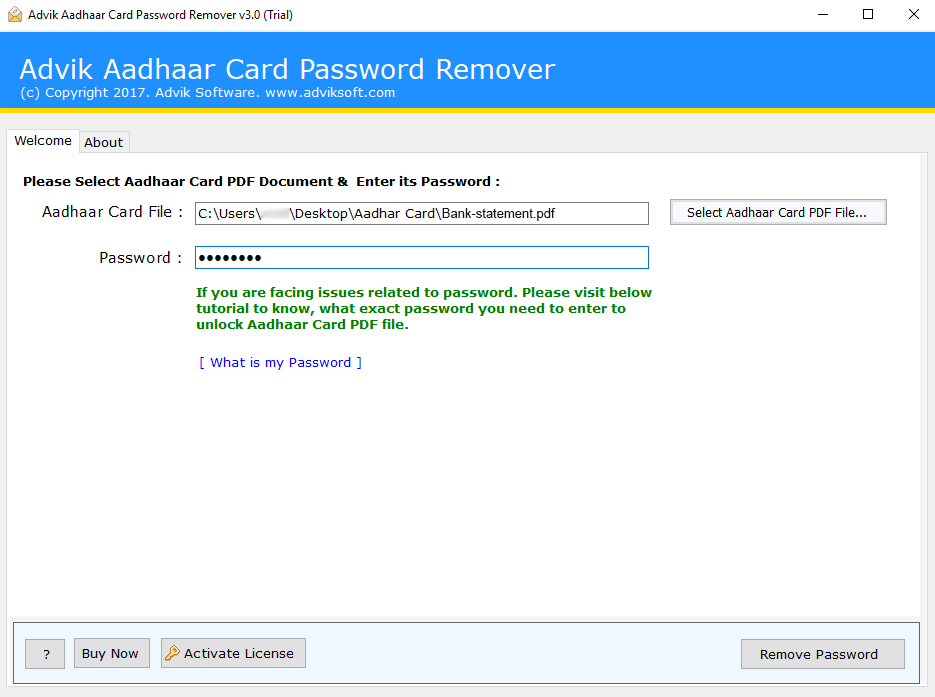
Step 2. Enter your existing password for the bank statement PDF.
Step 3. Click the Remove Password button.
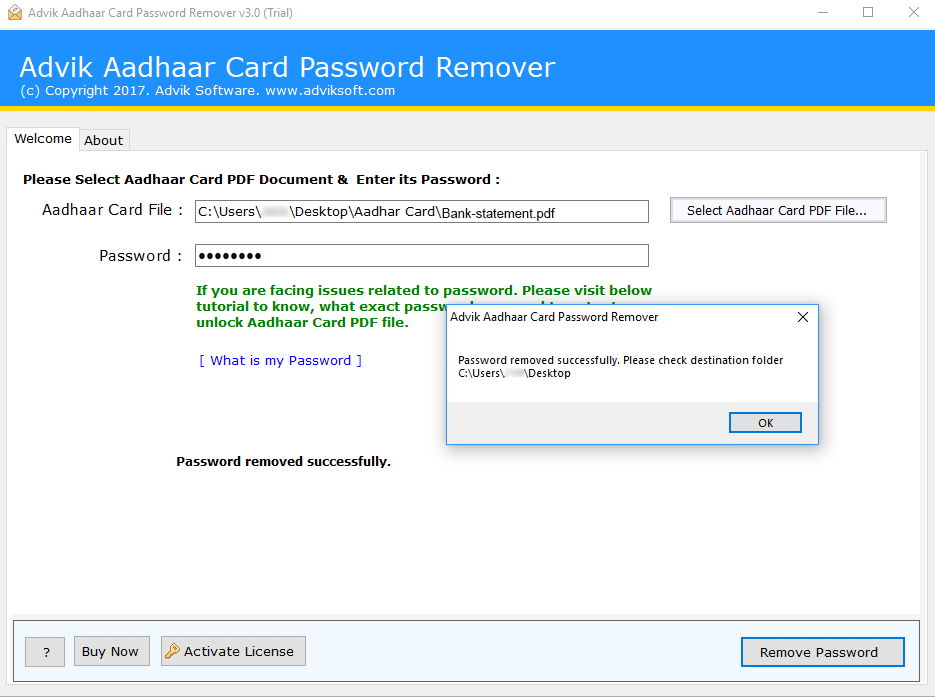
You will now be automatically taken to the folder where your unlocked bank statement PDFs are saved.
Now, you can now access all your bank statements without a password.
That’s it! You’ve removed the password in just three simple steps.
Watch How to Unlock Bank Statement PDF Files Instantly
Why Choose Advik Bank Statement Password Remover Tool?
Here’s why this tool is the best choice for removing passwords from bank statement PDFs:
- Bulk Password Removal: This tool allows you to remove password from multiple Bank statement PDF files at once. Instead of unlocking each file manually, you can process all your bank statements in one go.
- 100% Offline & Secure: Unlike online tools that require file uploads, this software works completely offline to secure your sensitive financial data. There’s no risk of data leaks or unauthorized access.
- Converts Protected PDFs to Normal PDFs: After unlocking, the tool converts password-protected PDFs into normal PDFs that you can open anytime without entering a password. This makes it easy to store, print, or share bank statements without password restrictions.
- Simple & Easy-to-Use Interface: Designed for all users, this tool has a clean and intuitive interface. You don’t need technical knowledge; just add your files, unlock them, and save the new PDFs.
- No File Size Limit: The software supports unlocking PDF files of any size, whether it’s a small statement or a large financial document. There are no restrictions on how many pages your PDF contains.
- Maintains Original File Quality: After removing the password, the PDF retains its original formatting, structure, and quality. No data is altered or lost during the unlocking process.
- Supports All PDF Versions: This tool is compatible with all versions of PDF files, so you don’t have to worry about compatibility issues. It works easily with old and new PDF formats.
- Works Without Adobe Acrobat: You don’t need Adobe Acrobat Pro or any other software to unlock PDFs. The tool functions independently and provides a quick solution to remove password from Bank statement PDF.
- Fast & Efficient Processing: With advanced algorithms, the software unlocks PDFs quickly without slowing down your system. Even large batches of PDFs are processed within minutes.
- Compatible with Windows OS: Advik Bank Statement Password Remover supports all Windows versions, including Windows 11, 10, 8, and 7. It runs smoothly on both 32-bit and 64-bit systems.
Conclusion
It’s important to note that removing password protection from bank statements is not recommended at all. It should be done with caution and only if you have a valid reason to do so. We had discussed three different ways to remove Password from Bank Statement PDF files. Choose the solution that is suitable for your needs.
Frequently Asked Questions
Q 1. Can I remove password from bank statement without password?
Ans. No, you must know the original password to unlock
Q 2. How to unlock bank statement PDF in batch?
Ans. With the Advik bank statement password remover, you can remove passwords from multiple files.
