How to Send Gmail to WhatsApp? Complete Guide
Have you ever received an important email in Gmail and wanted to share it quickly on WhatsApp? This is a common need we all need as WhatsApp is one of the most popular messaging apps these days. Professionals, students and business owners etc. often want to share information via email and instant messengers.
Gmail is more for formal communication and sharing of documents. WhatsApp is more popular for quick conversations and instant sharing. But many users get confused while trying to send Gmail to WhatsApp directly as this type of built-in option is not available.
We tested different methods to share Gmail emails on WhatsApp and found two options: share messages one by one manually, or convert the emails into a shareable format to share in bulk. In this guide we will go through both procedures, talk about their usage in different scenarios and help you decide which one is the best option for your needs.
Table of Contents
- Why Users Want to Send Gmail Emails to WhatsApp
- Why Gmail Cannot Directly Forward Emails to WhatsApp
- How We Tested These Methods
- Method 1: Share a Gmail Email as PDF via Desktop
- Method 2: Send Gmail Attachments to WhatsApp from Mobile
- Method 3: Export Gmail Emails for Bulk WhatsApp Sharing
- Watch Video Tutorial to Send Gmail Messages to WhatsApp
- Manual vs Automated Method Comparison: Which Method Should You Choose?
- Final Words
- Frequently Asked Questions
Why Users Want to Send Gmail to WhatsApp?
There are a few common scenarios when users want to share Gmail emails via WhatsApp;
- Share invoices and receipts with customers.
- Share project updates with team members
- Send or forward client communication for approval.
- To send legal or financial documents.
- Move old emails for future reference.
- To discuss important email discussions in WhatsApp groups.
As we are habituated to seeing WhatsApp notifications quicker than emails, many users like to share important email information via WhatsApp.
Why Gmail Can’t Send Emails to WhatsApp Directly?
Before we go ahead with the methods, let’s understand first why Gmail does not have a direct “Send to WhatsApp” option.
We need to understand it first that Gmail and WhatsApp are two different messaging platforms.
Uses of Gmail
To send and receive emails via two transfer protocols;
- SMTP ( Simple Mail Transfer Protocol ) – to send emails
- IMAP (Internet Message Access Protocol) & POP3 – to receive emails
WhatsApp Apps
- End-to-end encryption messaging application
- Mobile and web chat access
Because the two platforms function differently, you can’t transfer Gmail emails straight into WhatsApp chats.
Thus, you need to do the following things to send Gail to WhatsAapp:
- Save emails as PDF and share them.
- Share email attachments individually.
- Export the emails and then send them through WhatsApp.
Which is why we need some workable methods to carry out this task.
Testing of Methods and It’s Results
To test the accuracy and working of each method, we tried them with:
Setup for Testing:
- 64-bit Windows 11 Pro
- Latest Version Google Chrome
- Personal Gmail account
- WhatsApp Web Android WhatsApp App
Sample Data :
- 2500 Gmail email addresses were used
- Images
- PDF attachments
- Office documents
- Email discussions
Results:
- For individual emails, manual methods worked well.
- Sharing mobile attachments was quick and fast.
- Bulk sharing requires exporting emails first.
- PDF was better than copy-paste methods as it retains email content.
- Large collections of email were difficult to process manually.
From these observations, we learned that different use cases require different methods.
Now, after trying all the availble methods, we have came up with top 3 workable ones. I have tried all these myself with above results so that you can trust them and try to see if it meets your requirement or not.
Method 1. Send Message from Gmail to WhatsApp via Desktop
1. Sign in to your Gmail account.
2. Open the email that you want to share.
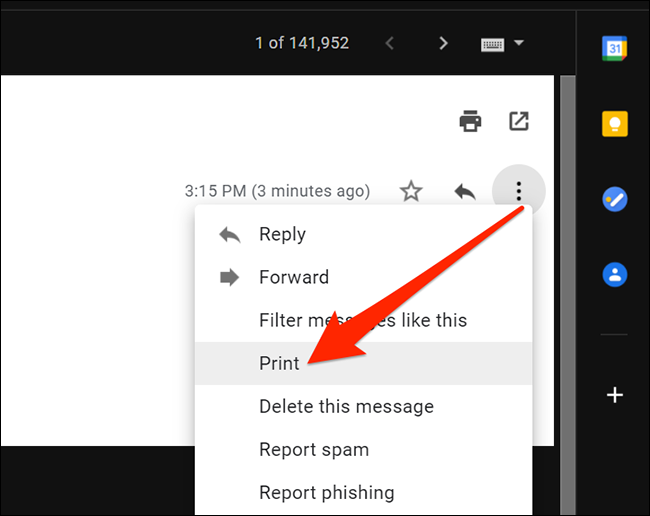
3. Click on the 3 dots icon and choose Print.
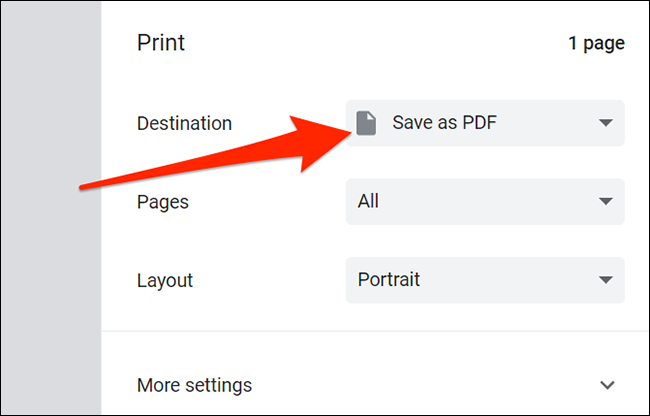
4. Now, click on Destination and select Save as PDF option.
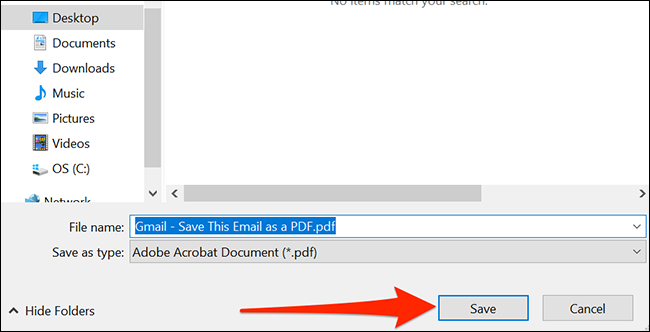
5. Browse the location and click Save button.
Method 2. Share Gmail Attachment to WhatsApp
- Open Gmail on your phone to send Gmail messages to WhatsApp.
- Now, open the Gmail email that you want to move.
- Click on the Attachment icon to preview the attached file.
- Click on Three Dots >> Share >> WhatsApp.
- Choose the person you want to send Gmail messages to WhatsApp.
Limitations of the Manual Method
- Users need to repeat the procedure.
- Not suitable for large data.
- The email structure may be changed while moving.
Method 3. Send Emails from Gmail to WhatsApp in Batch
Check out the Advik Gmail Backup Tool software for Windows. This software will help you to share emails from Gmail to WhatsApp in bulk. You can send multiple emails in less time compared to manual solutions. The software simply convert Gmail emails to PDF files in batch. Then, you can share PDF files in WhatsApp that are easily readable.
Download the software from below and try it now.


Steps to Move Gmail Emails to WhatsApp
1. Run software on your Windows PC.
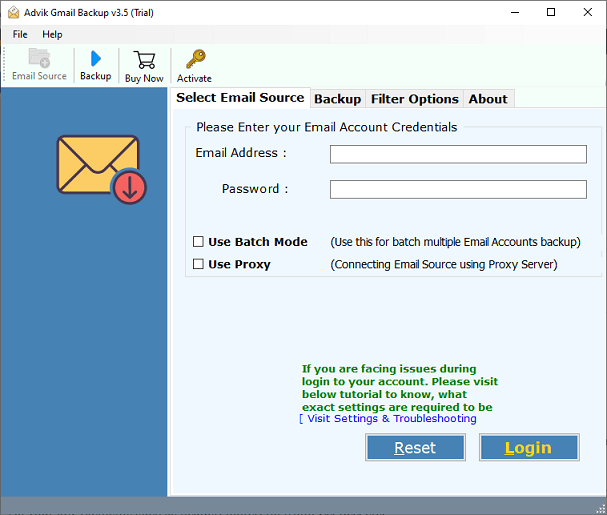
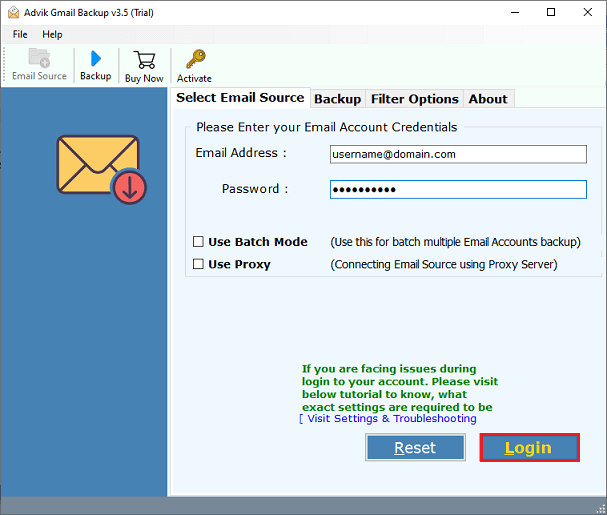
2. Enter Gmail credentials and click the Login button.
3. Select the mailbox folders of your choice.
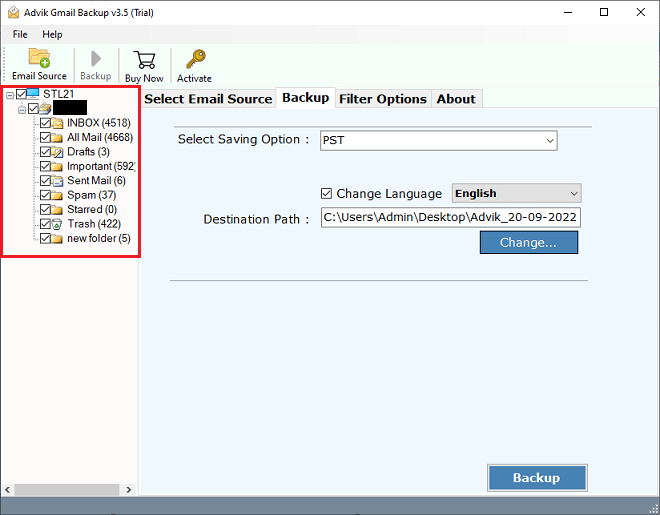
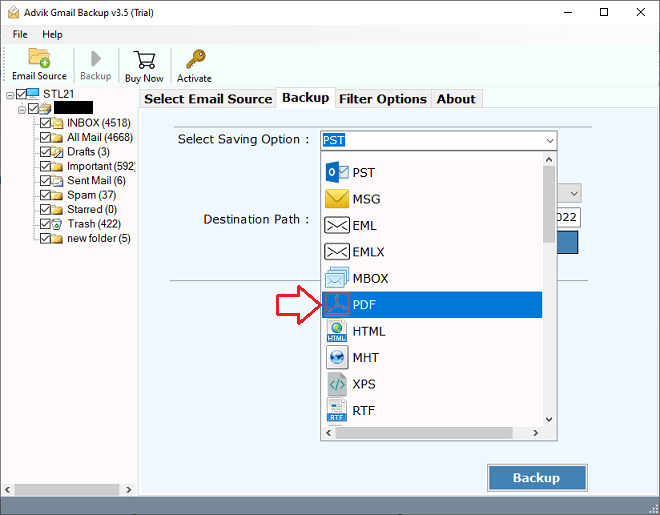
4. Choose PDF as a saving option.
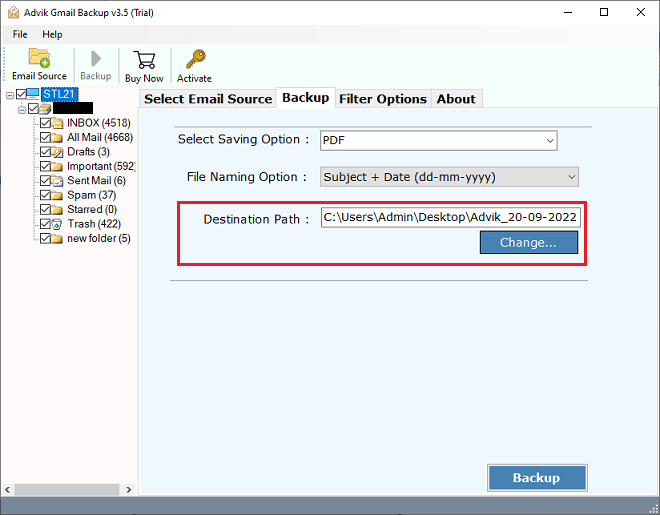
5. Select the destination path to save PDF files
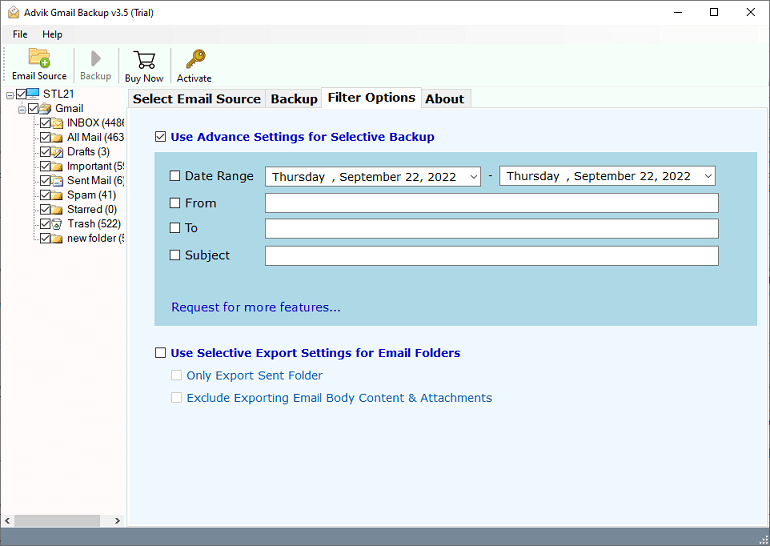
6. Apply filters from Advanced Settings if you want to convert only selected emails
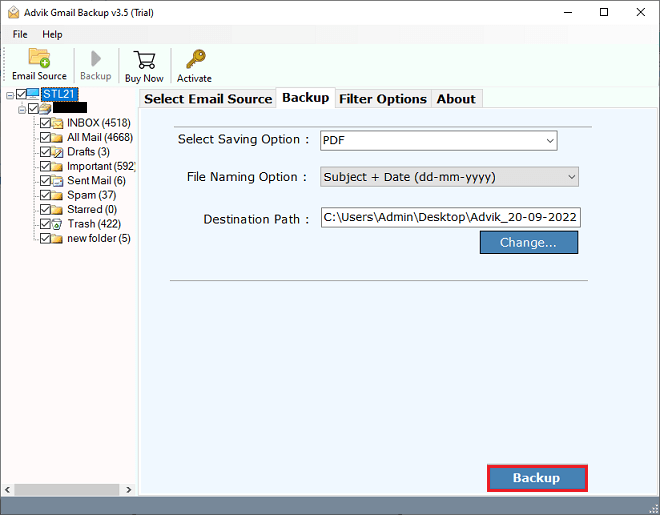
7. Click the Backup button to start email conversion
After completion, open web.whatsapp.com in your browser. Select the contact and drag & drop all PDF emails that you want to send.
This method is especially for professionals who want to share multiple Gmail messages to WhatsApp in one single attempt.
Watch How to Send Gmail to WhatsApp
Manual vs Automated Method Comparison: Which Method Should You Choose?
| Feature | Manual Method | Automated Solution |
|---|---|---|
| Single Email Sharing | Yes | Yes |
| Multiple Email Sharing | No | Yes |
| Bulk Transfer | No | Yes |
| Email Filters | No | Yes |
| Preserve Email Formatting | Limited | Yes |
| Time Required | High, process slowly | Takes Less Time Comparatively |
| Large Mailbox Support | Difficult | Easy |
| Technical Skills Required | Moderate | Low |
Conclusion
As we have discussed earlier, there is no direct way to send Gmail to WhatsApp as both are different communication systems. However, users can still share Gmail content using PDF exports, attachments or email conversion methods.
As for few emails, you can use manual methods. But when you need to share many emails at once, keep formatting or work with large mailboxes you can also go with the professional method. It can save your lot of time and efforts to export emails in PDF format that you can easily share through a WhatsApp.
Choose the method that best fits your needs and requirements for email sharing.
FAQs – Send Gmail to WhatsApp
Q1. Does this software store credentials during export?
Ans. No, this is a secure and authentic program that does not save login credentials while exporting.
Q2. I want to send selected messages from Gmail to WhatsApp. Can I do it?
Ans. Yes, the software offers advanced filter options to forward selective emails.
Q3. Will my email formatting remain the same?
Ans. Yes, the tool maintains email formatting as well.

Related Articles