How to Import Emails into Excel?
Quick Answer: To import email to Excel, use classic Outlook to copy selected email-list details into a worksheet, or use Advik Email Backup Wizard to connect to a supported email account and export the required mailbox data in CSV format. Open the resulting CSV file in Excel, verify the columns, and save it as an XLSX workbook if needed.


In this guide, we explain two practical methods to import emails into Excel. The first uses classic Outlook for a quick manual transfer. The second uses professional tool to export emails from supported email accounts to CSV, which Excel can open.
What Email Data Can You Import into Excel?
Before choosing a method, decide which information you want in your spreadsheet. For our recommendation, excel works best when you need to represent each email by a row and each data field in a separate column.
| Email Data | Example | Common Use |
|---|---|---|
| Sender name | John Smith | Identify the sender |
| Sender email address | john@example.com | Create an email address list |
| Recipient address | support@example.com | Track recipients |
| Email subject | Order confirmation | Categorize messages |
| Received date | 15-Oct-2026 | Review communication timelines |
| Message body | Your order has shipped | Analyze email content |
| Folder name | Inbox, Sent Items | Organize mailbox records |
| Attachment information | Invoice.pdf | Track associated files, where supported |
The available fields depend on your source and export method. For example, if you are copying an email from Outlook message list then it can capture visible columns, while a contact CSV file may contains contact information instead of complete email messages.
Method 1: Import Emails into Excel Using Classic Microsoft Outlook
If your emails are available in classic Outlook for Windows then you can use this method to copy the message list directly into Excel. This is a helpful method when you want to import selected email details without installing additional software.
Steps to Import Email Data into Excel
Step 1. Launch classic Outlook and open the email folder that contains emails you want to transfer.
Step 2. Switch to a list or table view, as you can also customize the view to display the fields you need.
Step 3. Select the required messages. Use Ctrl+A to select all email messages from the folder.
Step 4. Press Ctrl+C to copy the selected items.
Step 5. After that, Open the Microsoft Excel, create a blank worksheet, select cell A1 and press Ctrl+V.
Step 6. Now, check whether the fields appear in separate columns.
Step 7. Now, to save the file, click File >> Save As and save the workbook in Excel Workbook (.xlsx) format.
Important: This method depends on the Outlook version, view and selected items. Verify the pasted data before relying on it.
Method 2: Import Emails from Any Supported Email Account to Excel
If you need to import email data from any IMAP supported email accounts like Gmail, Yahoo Mail, Microsoft 365, Zoho Mail, or another supported email service, you can also try an automated solution such as Advik Email Backup Wizard. It offers a more convenient export workflow.
The software supports more than 200 email providers and offers CSV among its available output formats. CSV is compatible with Excel, so you can export email data from a supported account and open the resultant file in a spreadsheet application. It supports all types of accounts depends on its available connection method, such as OAuth or IMAP/POP3.
Now, try the software with its free trial version to check if it works for you.

Steps to Import Data from Email to Excel
Step 1. Visit the software page and download the software on your Windows computer.
Step 2. Launch the software and choose your email provider from the available options. If your provider is not listed, check whether you can connect through the supported IMAP/POP3 configuration.
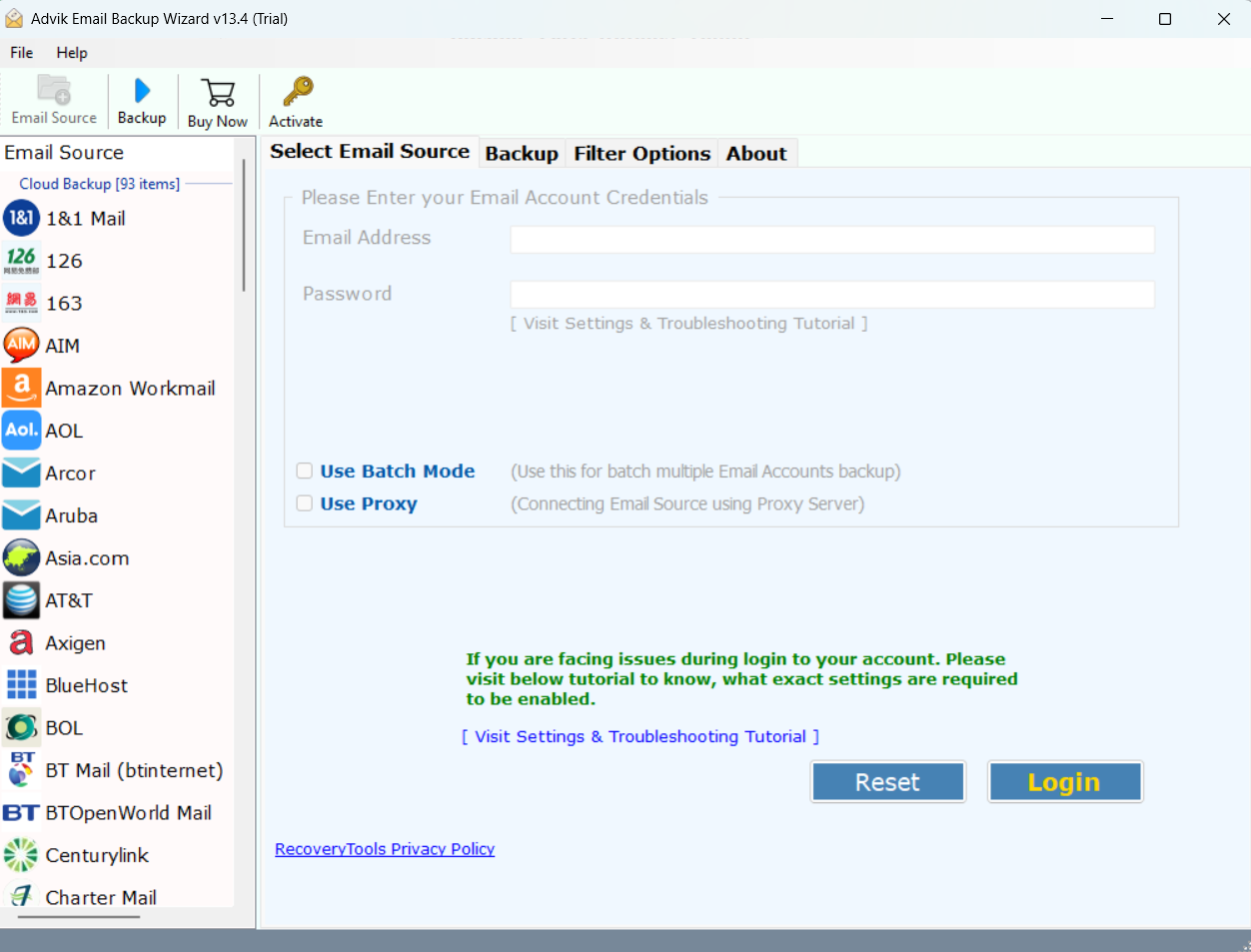
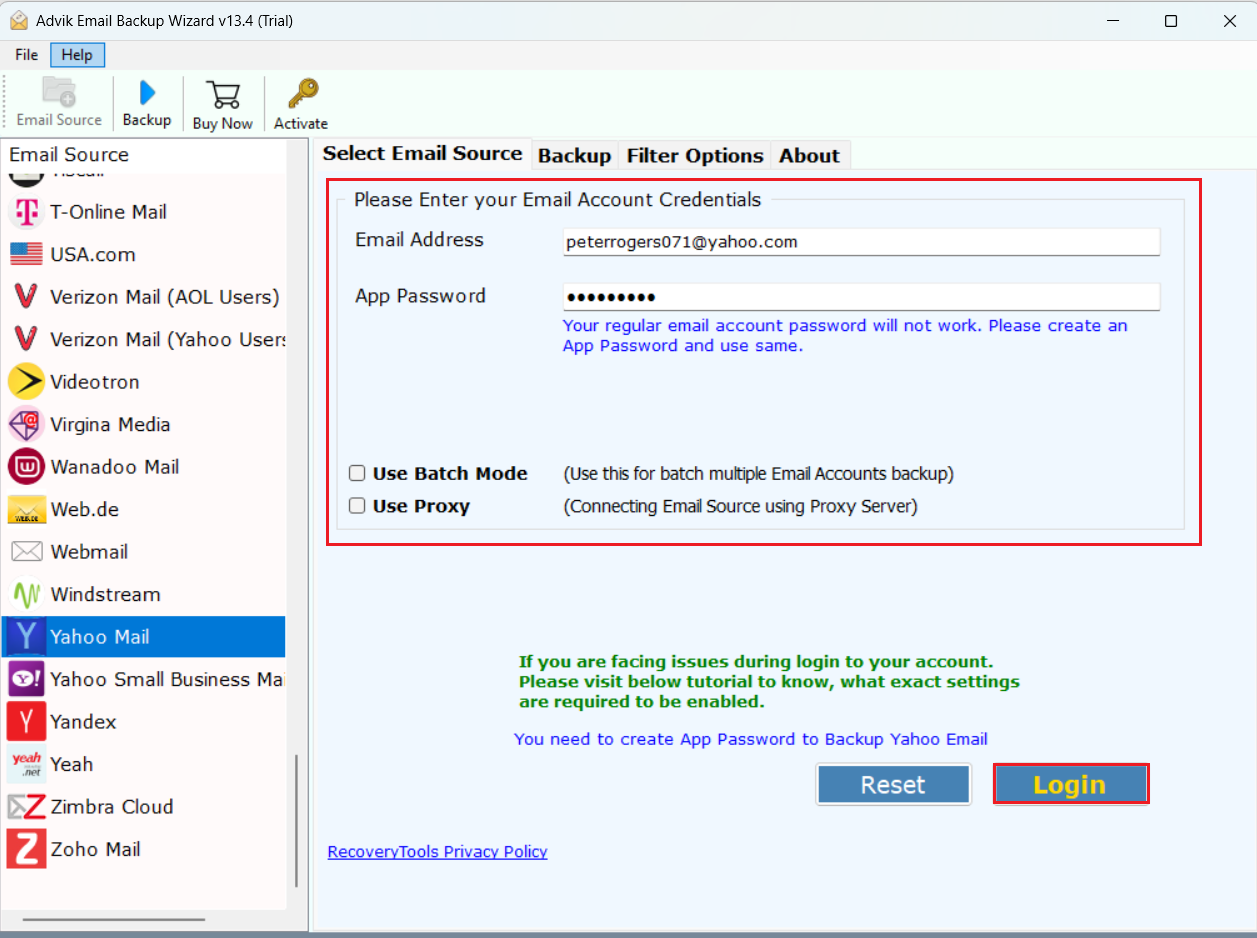
Step 3. Authenticate using the connection method supported by your email service. Depending on the provider, it may also include OAuth authentication or the appropriate email-server credentials.
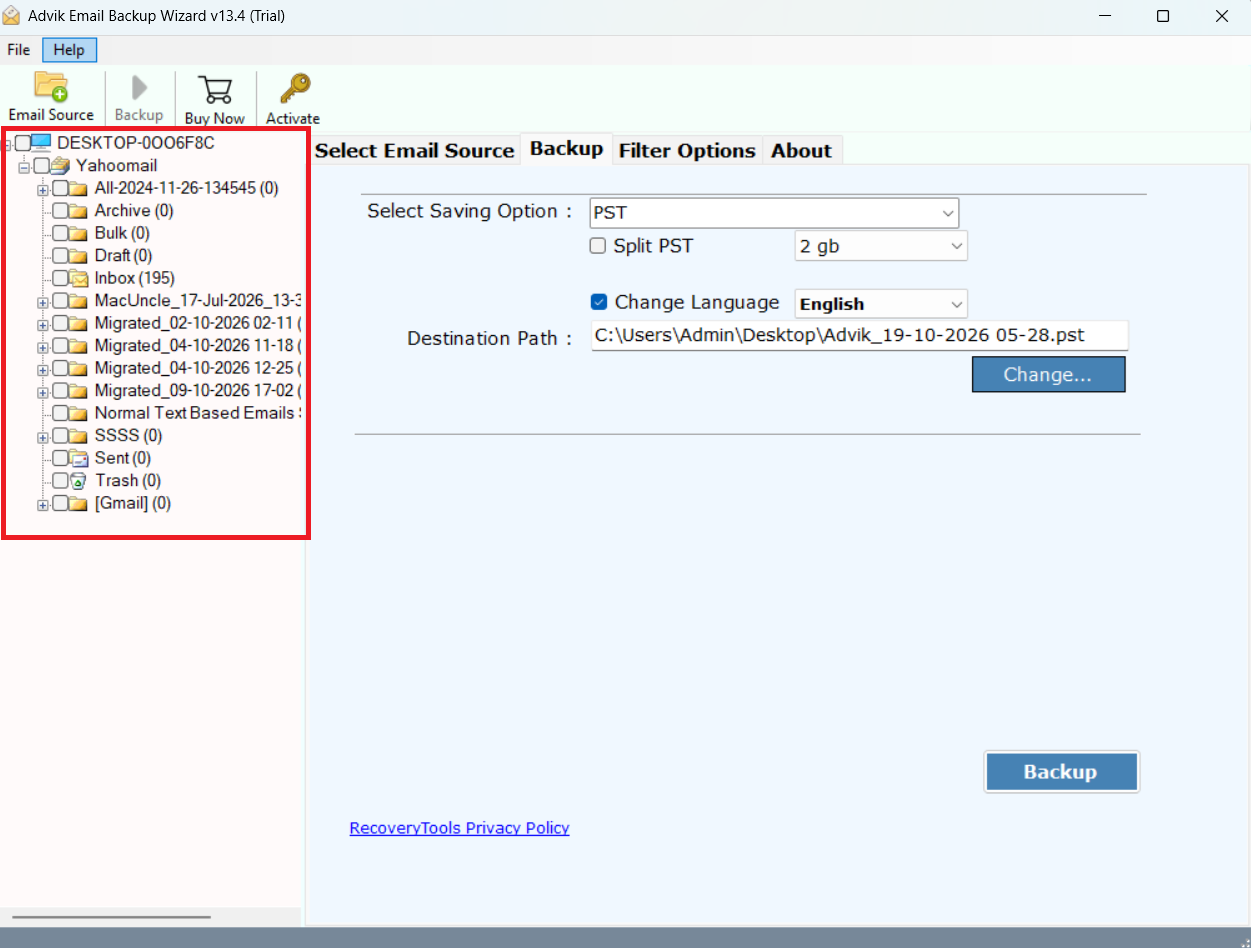
Step 4. Select the folders you want to export, such as Inbox, Sent Items, or other available folders.
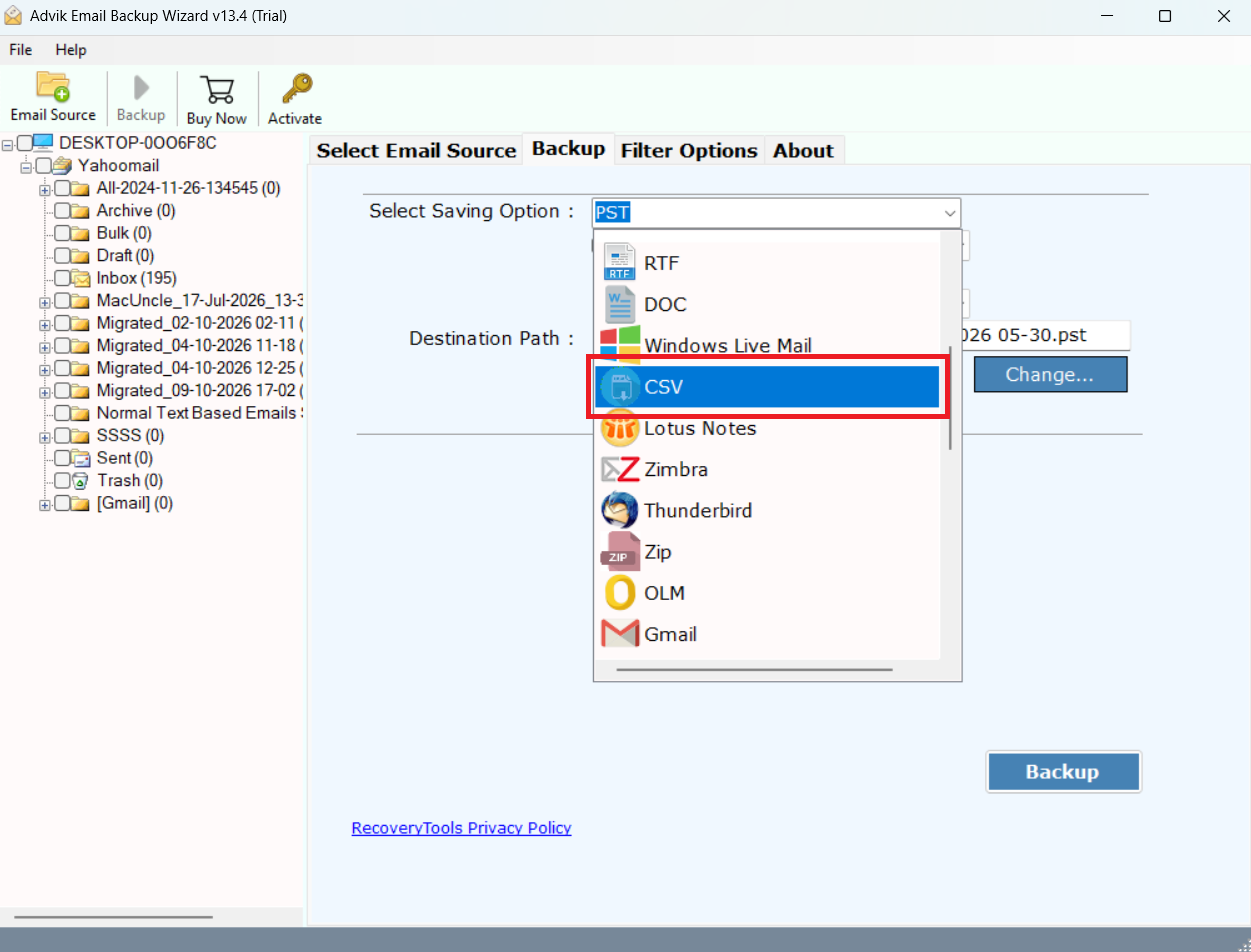
Step 5. Choose CSV from the available saving options.
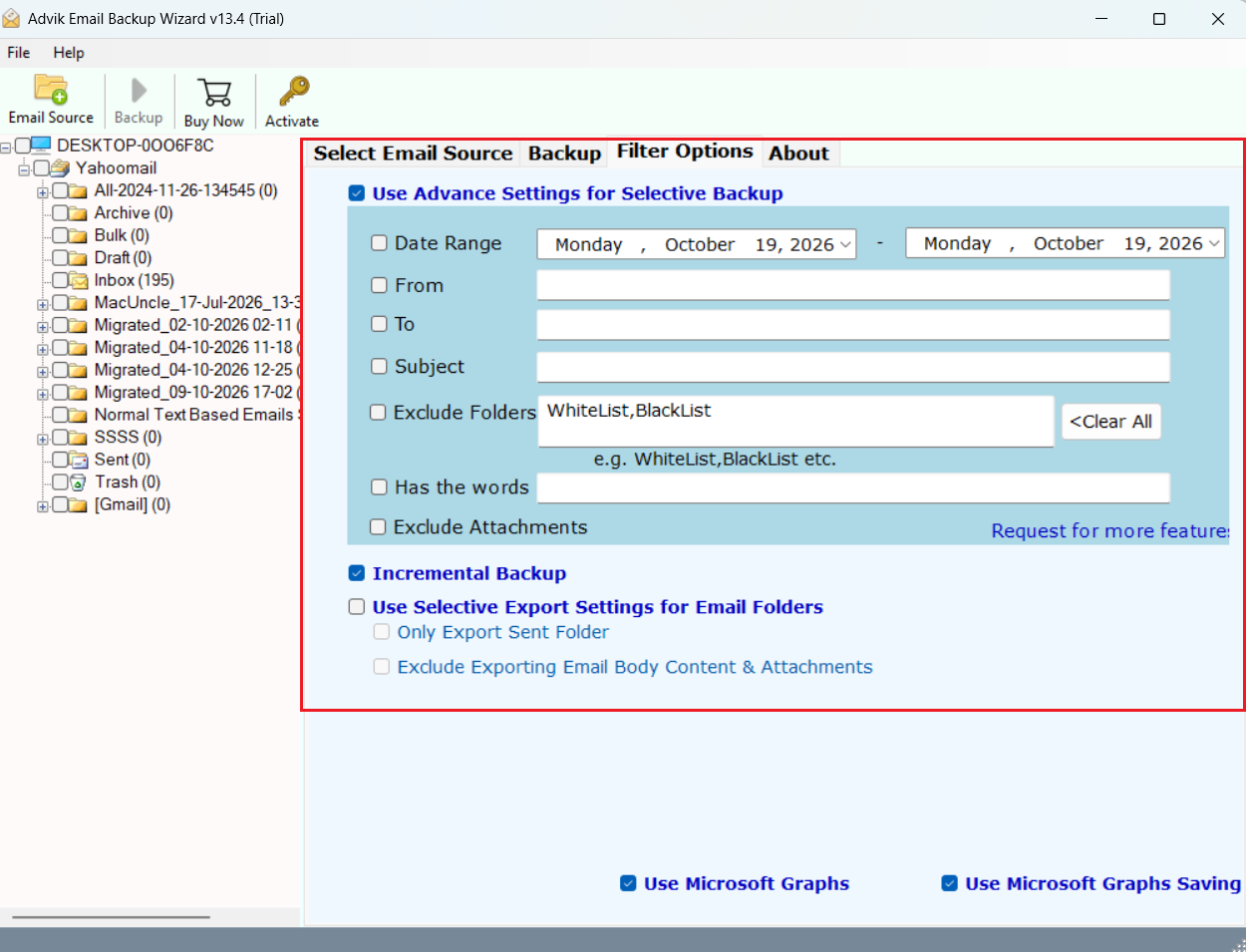
Step 6. If you only need specific messages, use the available filters.
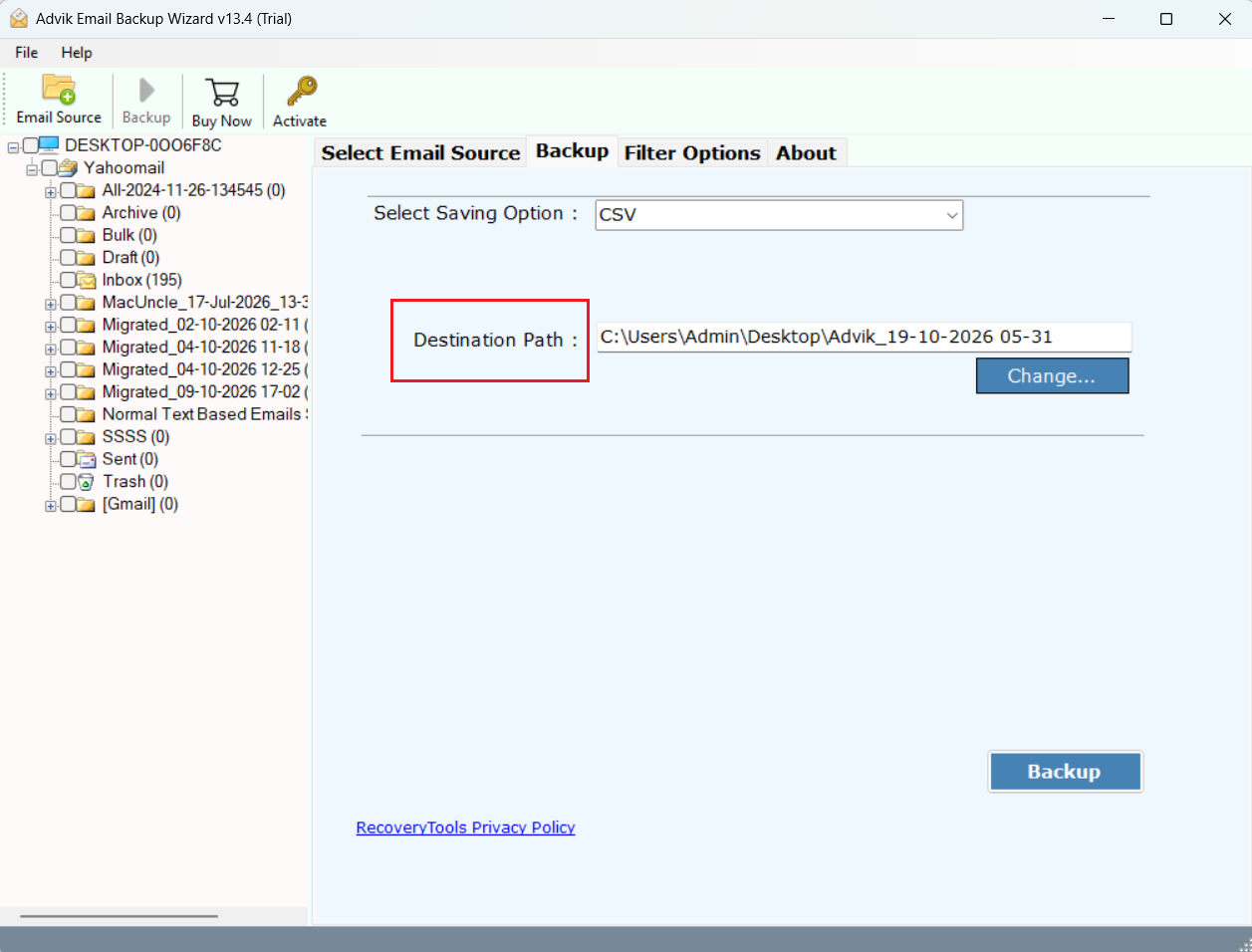
Step 7. Select where you want to save the exported CSV file.
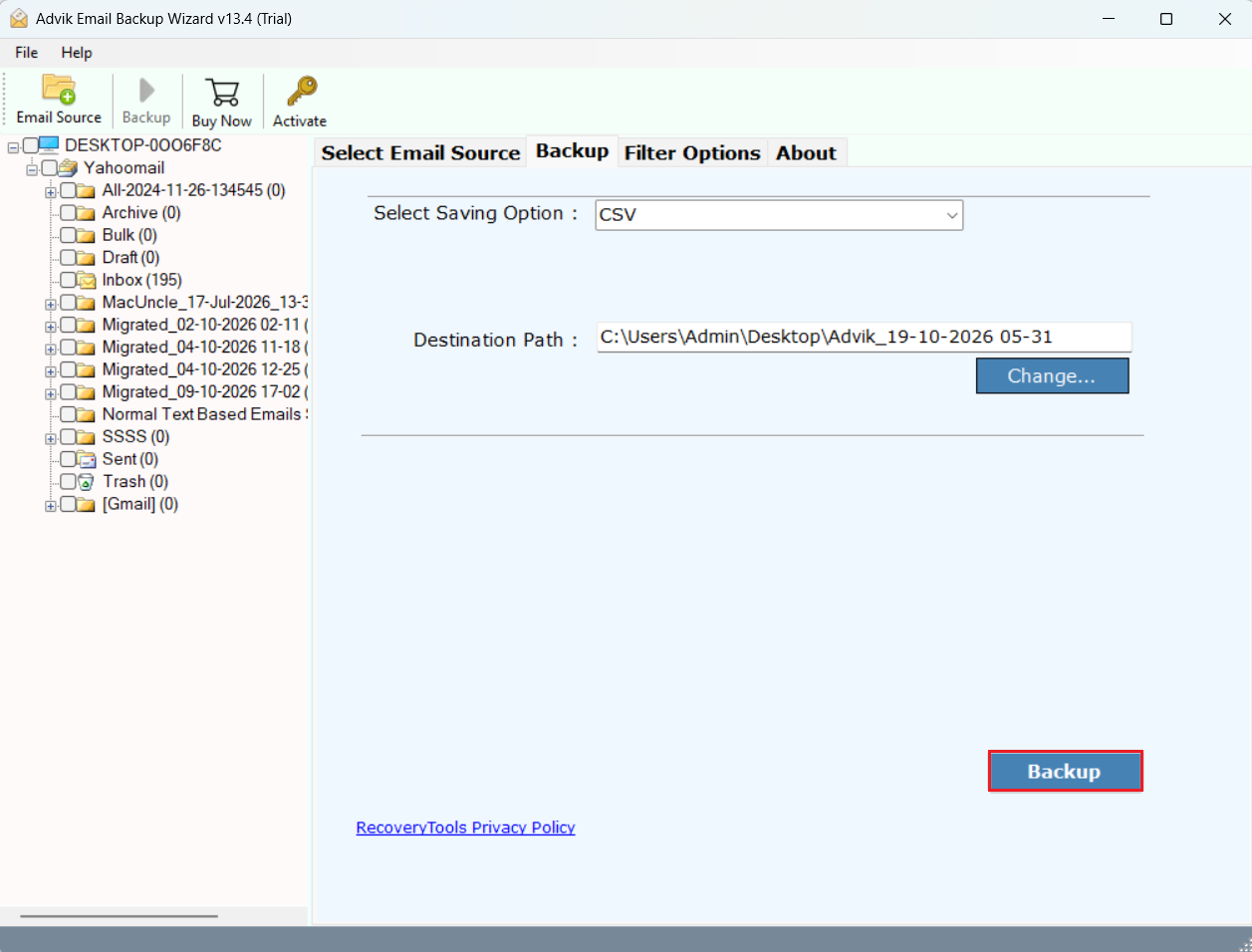
Step 8. Click the backup button to start the process.
Review the completion status and any available log report.
Launch Microsoft Excel and open the exported CSV file.
Confirm that the data appears in the intended columns and that important fields are present.
Benefits of Advik Email Backup Wizard
This is a useful tool when you have to export more than a few email records manually.
- It supports over 200 email providers including Gmail, Yahoo Mail, Microsoft 365 and Zoho Mail.
- Provides CSV as an output format that can be used in Excel.
- Allows you to select which mailbox folders to process.
- Provides filter options including date range, sender, recipient and subject.
- Provides various output formats to cater to different needs of email backup and migration.
Which Method Should You Choose?
| Your Requirement | Recommended Method | Main Limitation |
|---|---|---|
| Transfer a few email details | Classic Outlook copy and paste | Depends on the displayed fields and Outlook version |
| Export email data from a supported online account | Advik Email Backup Wizard | Requires a compatible account connection |
| Process selected mailbox folders | Advik Email Backup Wizard | Available folders depend on the connected account |
| Export emails by date, sender, or subject | Advik Email Backup Wizard with supported filters | Filter availability may vary by connection and version |
| Save the result in an Excel-compatible format | CSV export followed by opening in Excel | CSV is not the same as an XLSX workbook |
| Analyze the exported records | Microsoft Excel | Data may need cleaning and formatting |
How to verify that email data was imported correctly
Note: Please check exported information before using the spreadsheet for reporting or for business records.
- Scan a few lines of the spreadsheet against the original email messages.
- Where those fields are available please check that the sender addresses, recipients, subjects and dates are identical.
- Make sure that each field is in the right column.
- It looks at messages that contain commas, quotes, line breaks and characters from other languages.
- Check that the correct folders and date ranges were included.
- Save the workbook in XLSX format and open it to get the final result.
- If source messages need to be preserved, keep the original mailbox or a separate backup.
Conclusion
The best way to import emails into Excel varies depending on how much data you need and where your emails are stored. Copy and paste in Classic Outlook helps when you want to transfer a small amount of visible email data. Alternatively, you can also use an automated tool that provides a CSV option and complete process to export data from supported email accounts that can reduce manual work.
After you have the CSV file in your hand, open it in Excel, verify the exported fields, clean up the data if needed and save it as an XLSX workbook. Choose the correct approach for your data that will help you to create a more organized spreadsheet.