How to Import EML to Gmail Quickly | 2026 Updated
This article will not only help you in learning how to import EML to Gmail, but will also help you to transfer multiple .eml files to Gmail in one attempt. This is far most the best method that you are about to explore. Scroll down below and explore various methods to import .eml files to Gmail in batch.
EML is a file format that is used by many email clients to store individual email messages. This file contains email content, along with sender, recipient, subject, and timestamps. On the other hand, Gmail is a popular email service provided by Google. It allows users to access emails from anywhere.
Transferring EML files to Gmail accounts makes it easier to manage and access emails without relying on desktop clients. That’s why users around the globe are looking for the perfect way to open .eml file in Google Mail.
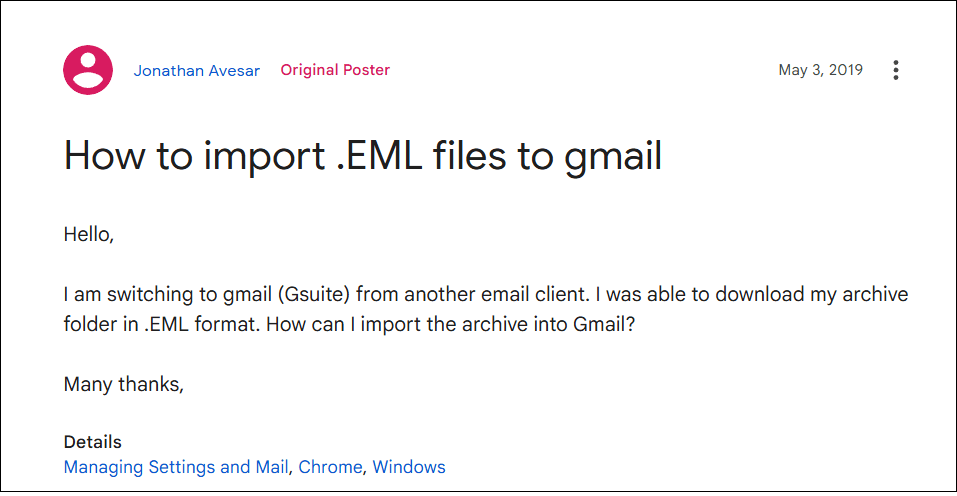
Officially its not possible as Gmail doesn’t have any direct option. But the best part is that we found 2 loopholes along with one Professional solution.
Let’s quickly begin to understand them one by one.
How to Import EML to Gmail Manually?
Two manual ways can be used easily to open .eml in Gmail account. In both the free solutions, you need to use desktop-based email client applications. Follow the below steps for the eml to Gmail migration process.
- Open the Windows Live Mail application and navigate to the File tab.
- Choose the Import Messages option, then choose Windows Live Mail.
- Tap on the Browse button to locate the file path and click Next.
- Choose folders of EML files that you need to import, then click the Next button.
- The import process of EML files will start.
- Now, configure your Gmail account in Windows Live Mail.
- Go to the Accounts tab and select Email.
- Enter all the necessary credentials of your Gmail account and click Next.
- Now, with the drag-and-drop feature import the needed EML files into your Gmail account.
Important:
- Windows Live Mail is no longer available to download; only users who are using it currently can access it.
- Lengthy and time-consuming process.
How to Open EML File in Gmail Free?
- Install and run the Outlook application on your computer.
- Look for the EML file and drag and drop the file into Outlook.
- You can now open and view the imported EML file.
- Now, configure your Gmail account. For this Go to the File tab and select Add Account.
- Enter your Gmail email address and password; click Continue.
- After, drag and drop the previously imported EML files into your Gmail account.
Done!! Now, repeat the same steps for the remaining EML files.
As you can see, importing EML files to Gmail using Outlook is a bit complicated. Then, how do I import EML to Gmail without Outlook? That can be done using an automated tool.
How to Import EML to Gmail Quickly? – Professional Way
Check out the Advik EML Converter to easily upload EML files to Gmail with attachments. It is an advanced tool that enables you to load an unlimited number of EML files in a single attempt. It allows transfer by maintaining the email folder structure, metadata, and attachments. EML to Gmail Migration software is designed for both technical and non-technical users. Just add your EML files, select Gmail as the destination, enter your login details, and start the conversion. No manual effort is needed!
Try the free demo version to experience its features before purchasing.


Steps to Import EML Files to Gmail
- Run Advik EML Converter on your PC.
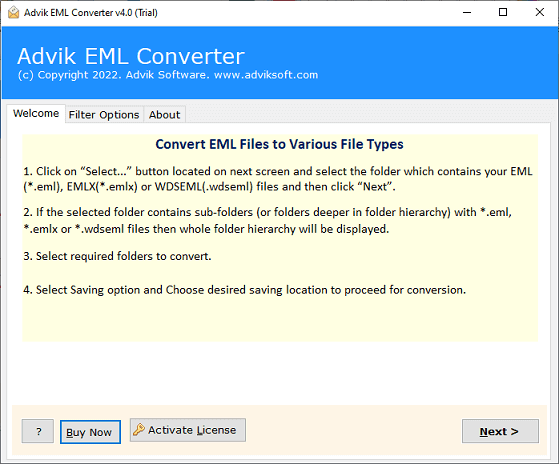
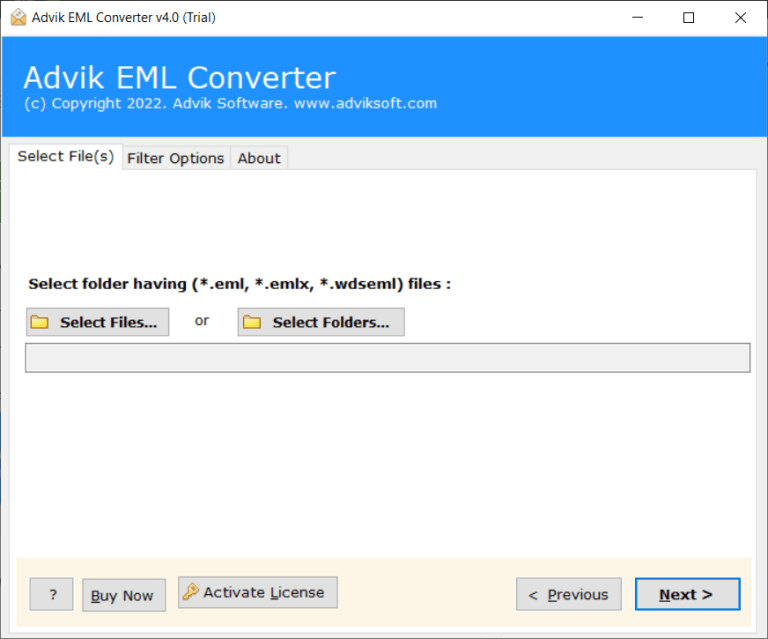
- Click Select Files or Folders to load EML files.
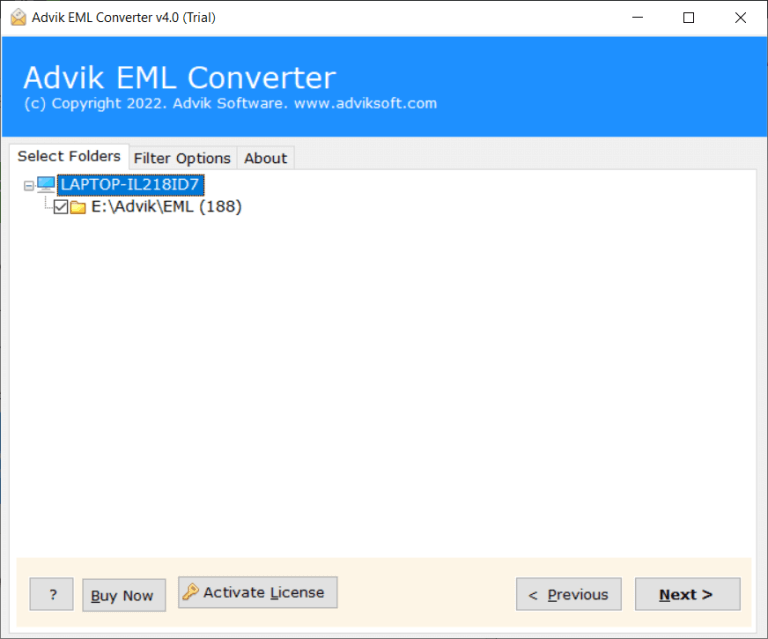
- Choose the required email folders from preview mode.
- Select Gmail as a saving option from the list.
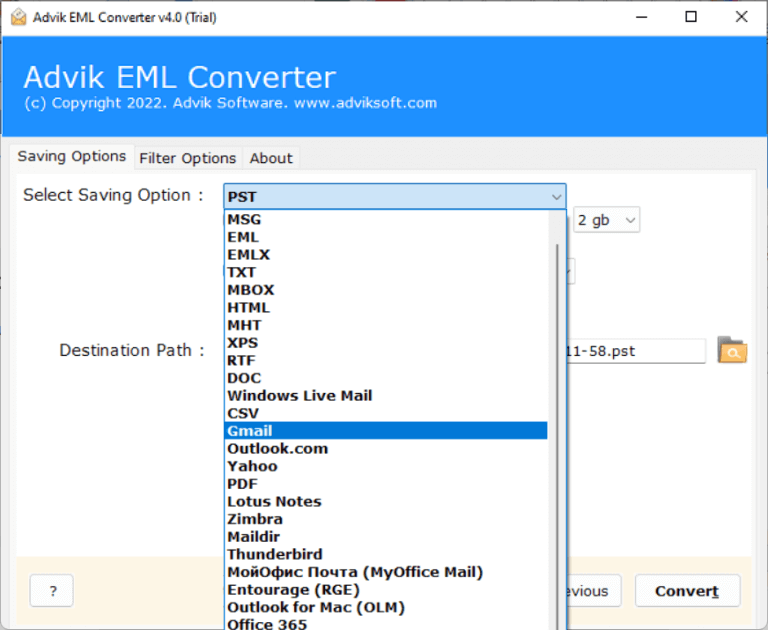
- Enter Gmail account credentials and press the Convert button.
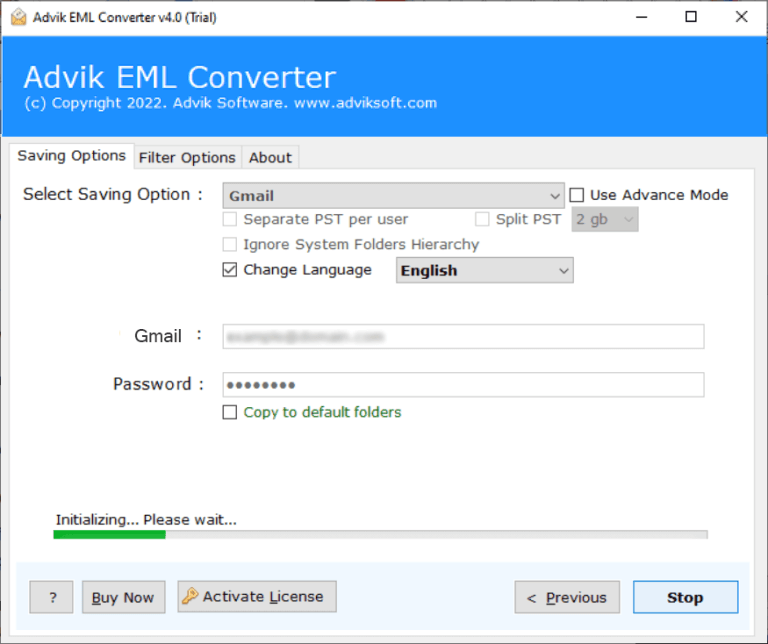
Done!! Once the EML to Gmail migration is complete, open your Gmail account and check all the imported EML files in it.
Watch How Gmail Imports EML Files
Benefits of Using the Best EML to Gmail Importer
Apart from importing EML files into Gmail account, the tool has many other advantages.
- EML to Gmail Converter can import unlimited EML files in one go.
- Batch convert .eml to .pst, .pdf, .msg, .doc files in one single attempt instantly
- Preserve key elements of emails like cc, bcc, attachment, date, signature, hyperlinks, etc during the EML to Gmail migration
- Offers an advanced and self-explanatory graphical user interface for novices
- Import EML to Office 365, Yahoo Mail, Zoho Mail, Exchange Server, etc., directly
- Upload emails along with attachments while maintaining data integrity.
- Support all types of EML file formats (including Thunderbird, Gmail, MS Outlook Express)
- More than 20+ email output options available in a single application
- No File size limitation in uploading EML Files.
- Easily Compatible with Windows 11/10.1/10/8/7/XP/Vista/90s Series [32/64 Bit]
Final Words
In this article, we have discussed the top 3 methods to import EML to Gmail account. Importing EML files into Gmail may seem tricky since Gmail lacks a direct import option. However, we have explored multiple methods to help you achieve this. While manual approaches can work, they are time-consuming and require additional configurations.
The most efficient and hassle-free solution is to use Professional Software, which allows you to import EML files into Gmail in just a few clicks. You can also try out its free demo version to check its working procedure before purchasing the full licensed version.
Frequently Asked Questions
Q1. Can Gmail import EML files?
Ans. No, EML files can’t be directly opened in Gmail. EML files are a single email file and you must have a compatible email client or an automated tool to import the EML data into Gmail account.
Q2. Is it possible to transfer multiple EML files to Gmail account?
Ans. Yes, with the Advik EML to Gmail Migration Tool explained in this blog, users can import multiple EML files at once with attachments.
Q3. I enabled IMAP in Gmail, but my emails are not appearing. What should I do?
Ans. If you have manually imported emails via Thunderbird and they are not showing up:
- Try restarting Thunderbird and resyncing Gmail.
- Check if you have dragged EML files into the correct Gmail folder.
- If emails still don’t appear, use Advik EML to Gmail Converter for a hassle-free import.

Related Articles