How to Import Entourage to Thunderbird? Step-by-Step Guide
Jenny Lowrence | February 25th, 2026 | Import Emails
Entourage is discontinued and Thunderbird is a modern, open-source email client. So, many users prefer to switch from Microsoft Entourage to Thunderbird for better performance and flexibility. In this blog, we’ll show you how to import Entourage to Thunderbird without losing data.
Before proceeding with the solution, let’s understand the benefits of exporting Entourage emails to Thunderbird.
Why Migrate from Entourage to Thunderbird?
Here are some common reasons for moving Entourage emails to Thunderbird;
- Outdated Application: Entourage is no longer supported by Microsoft.
- Free & Open-Source: Thunderbird is completely free to use.
- Cross-Platform Support: Thunderbird works on Windows, macOS, and Linux.
- Better Customization: Thunderbird includes advanced extensions and security features.
How to Import Entourage to Thunderbird?
Entourage Mail stores emails in RGF format, but Thunderbird doesn’t support this format. So, if you want to transfer emails from Entourage to Thunderbird, you need to extract the RGE archive into an MBOX file.
Download and install the Advik MBOX Converter on your system. With this tool, you can import MBOX to Thunderbird easily. The software preserves all email attributes and structure during the process. This is ideal for users who want an accurate and smooth migration.
Click on the below link to download it for FREE.


Steps to Import Entourage Emails to Thunderbird
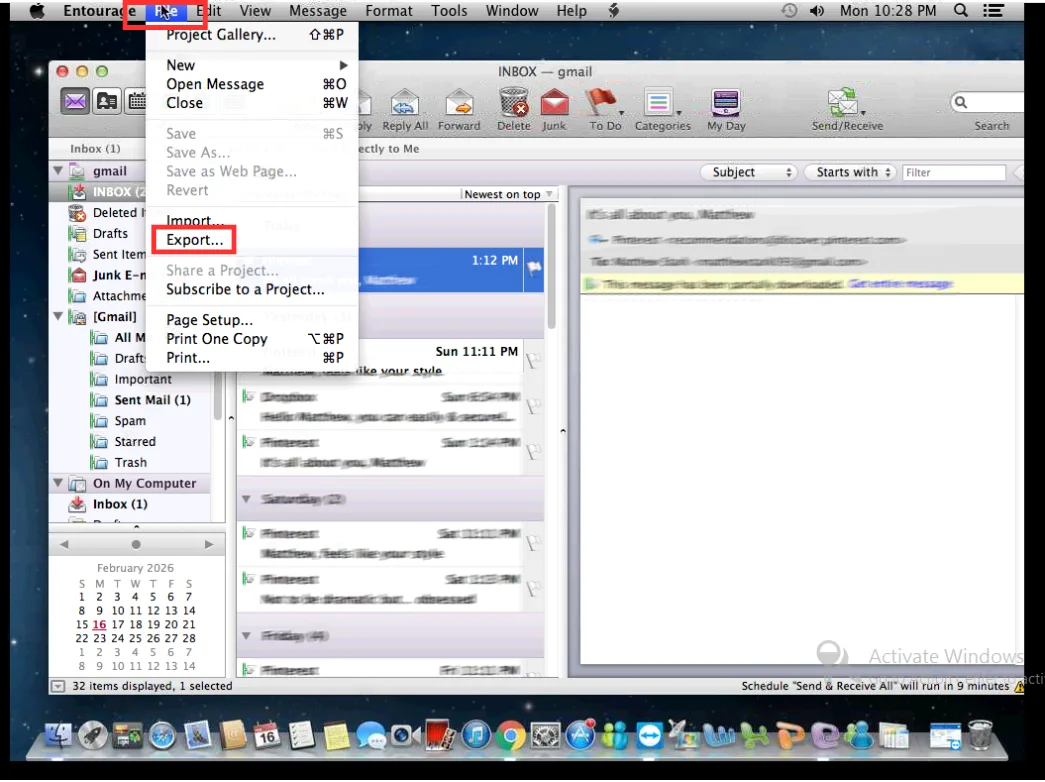
1. Open Entourage Mail, go to File tab and choose Export option.
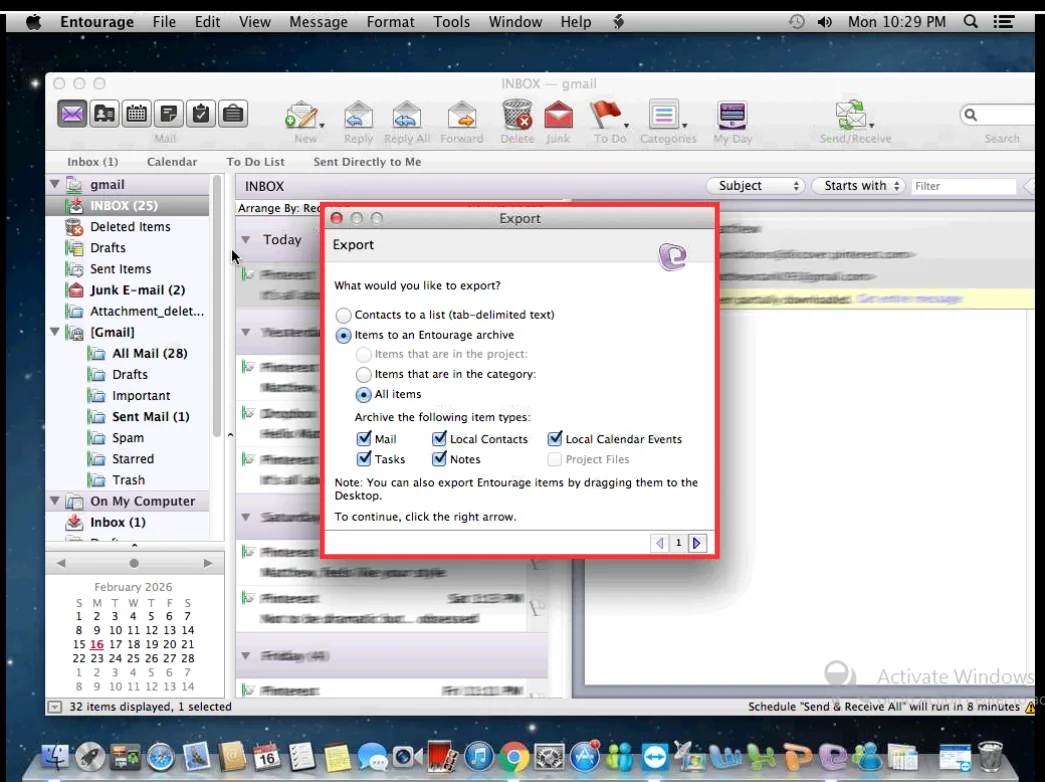
2. Choose the items that you want to migrate from Entourage to Thunderbird.
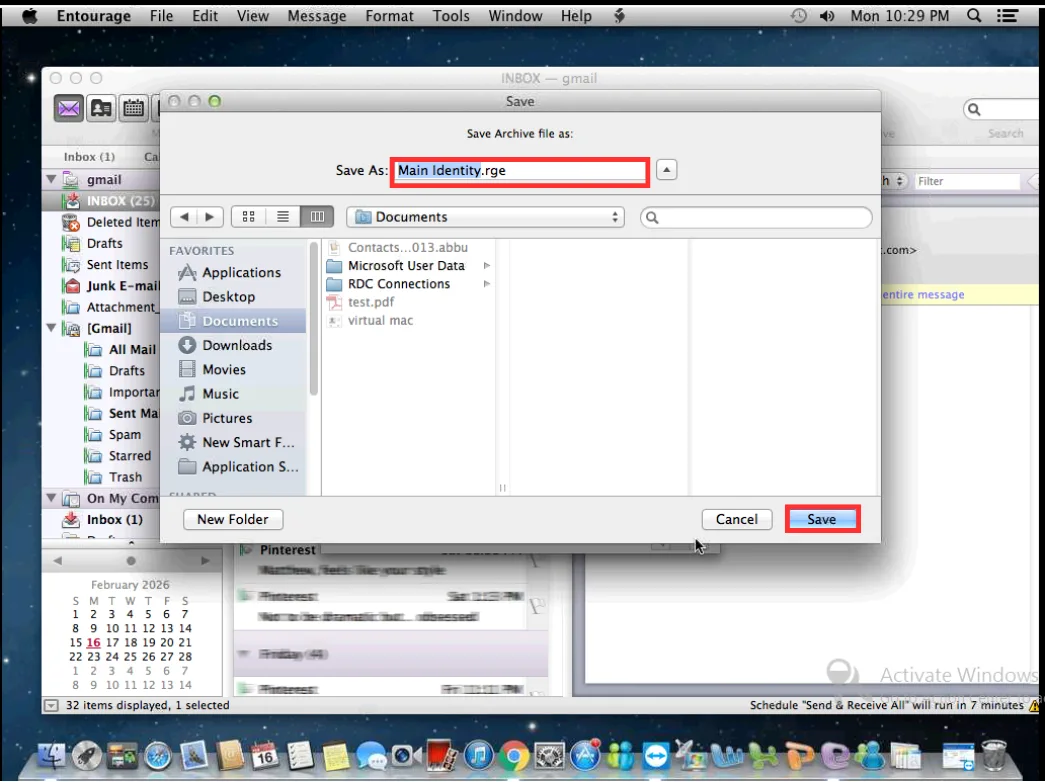
3. Select the destination path and click Save button.
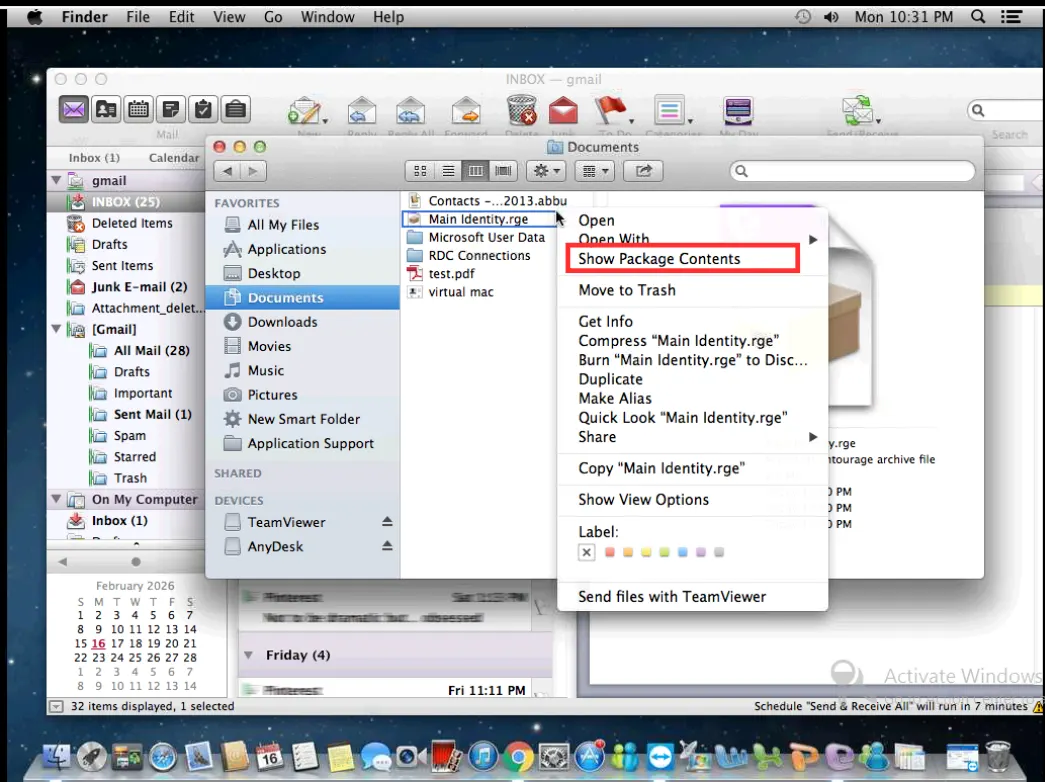
4. Now, right-click on .rge file and choose Show Package Contents.
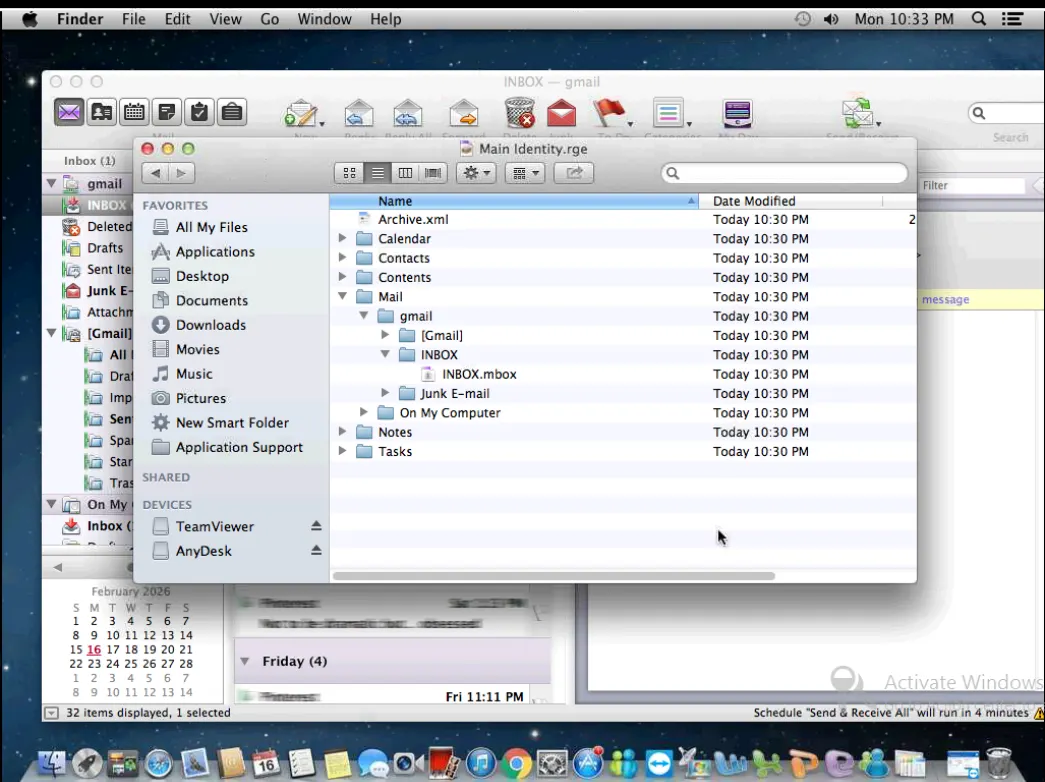
5. Copy all the content and paste it into the newly folder. Go to the Mails Folder >> Open the desired folder from Mailbox to access its MBOX files.
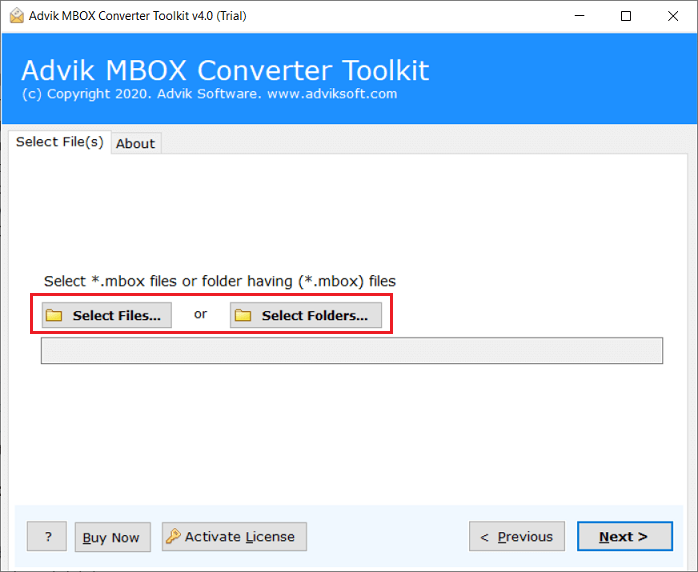
6. Now, run the Advik MBOX Converter and add MBOX file.
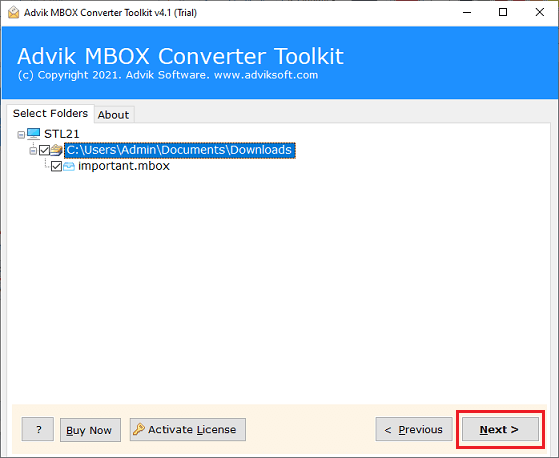
7. Choose the mailbox folders and click Next.
8. Select Thunderbird as a saving option.
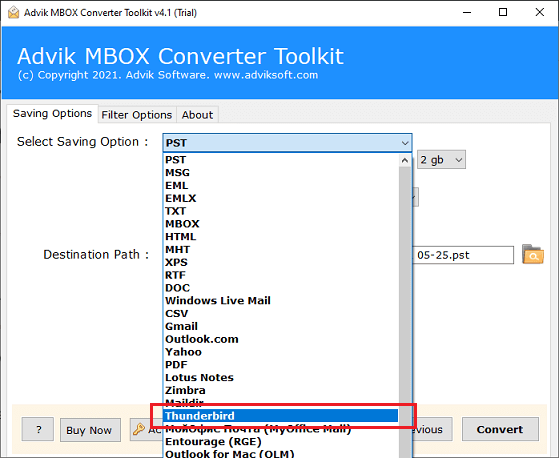
9. Click the Convert button to begin the importing process.
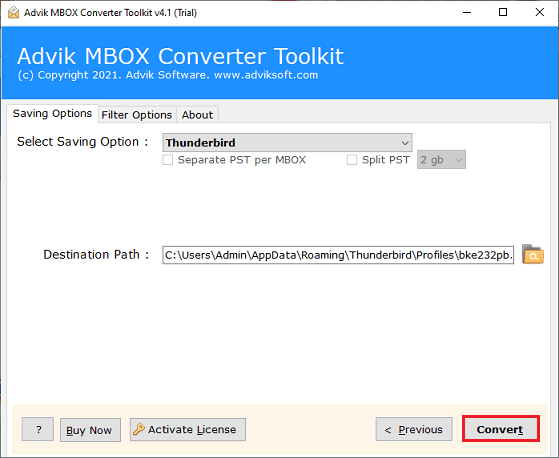
Done! This is how you can import emails from Entourage to Thunderbird.
Prime Features of the Entourage to Thunderbird Migration Tool
- The software can import multiple Entourage MBOX files to Thunderbird in bulk.
- It offers advanced filter options to import selected emails based on date range, to, from, etc.
- This utility preserves all email properties and attributes while importing.
- The tool keeps the original structure of email folders throughout the process.
- The interface of this utility is very simple, helpful for all types of users.
Final Words
In this post, we have discussed how to import Entourage to Thunderbird. Here, we have explained step-by-step instructions to export emails from Entourage to Thunderbird. If you have queries regarding the tool, feel free to ask our support team.