How to Import MBOX to Thunderbird Profile? Complete Guide
Christopher Plummer | May 3rd, 2026 | Import Emails
In summary: The most efficient way to recover archived emails and view old mailbox data is to import mbox files to Thunderbird as Thunderbird internally stores emails locally in the mbox format. You can import MBOX files in Thunderbird using its inbuilt import feature or the ImportExportTools NG add-on, depending on the Thunderbird version. I have recently went through with different import techniques on different mailbox sizes and different Thunderbird versions and saw a few common problems. In this guide, I will be explaining all working methods with real problems that you may encounter and their practical solutions.
Why Import MBOX Files into Thunderbird App?
MBOX file format stands best among the mostly used mailbox storage formats. It’s so because they are used by many email applications like Apple Mail, Eudora, Opera Mail, SeaMonkey and Thunderbird itself to store emails locally.
There are many reasons to open and read MBOX files in Thunderbird.
- restore old email backups
- import emails from other email program to view archived emails
- handle orphaned MBOX files
- To open mailbox data without internet access
Since Thunderbird stores mailbox data internally in MBOX structure, it can read imported mailbox files better than many other MBOX supported email clients.
How Thunderbird Handles MBOX Files?
Before you begin the import process, it is helpful to understand how Thunderbird stores mailbox data internally.
Mailbox folders are stored by Thunderbird using:
- MBOX mailbox files
- MSF index files
The MBOX file is the actual email content, while the MSF file is the mailbox index to load faster.
While importing MBOX files:
Thunderbird rebuilds mailbox indexes, scans MIME email structure, maps folder hierarchy, indexes attachments and metadata.
Large MBOX files can temporarily increase:
CPU load memory consumption mailbox index time
When i tested this method with 6GB MBOX archive that contains roughly 42,000 emails, then i saw that it caused issues in Thunderbird to index for several minutes before mailbox folders were completely available.
How to Import MBOX to Thunderbird 145, 144, 143?
First of all, make sure that you have installed the Thunderbird application on your system. Then, you can follow these steps and make your Thunderbird import mbox file.
Follow the step-by-step guide below to open MBOX file in Thunderbird manually.
1. Open the Thunderbird application on your system and head to the 3 line menu icon.
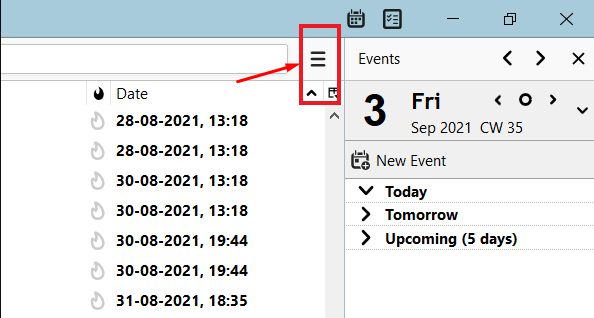
2. Now click that and select “ Add-ons and Themes ” and proceed.
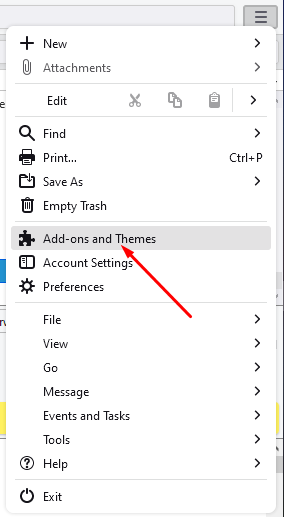
3. Next, type “Importexporttools” into the search box and hit the enter button.
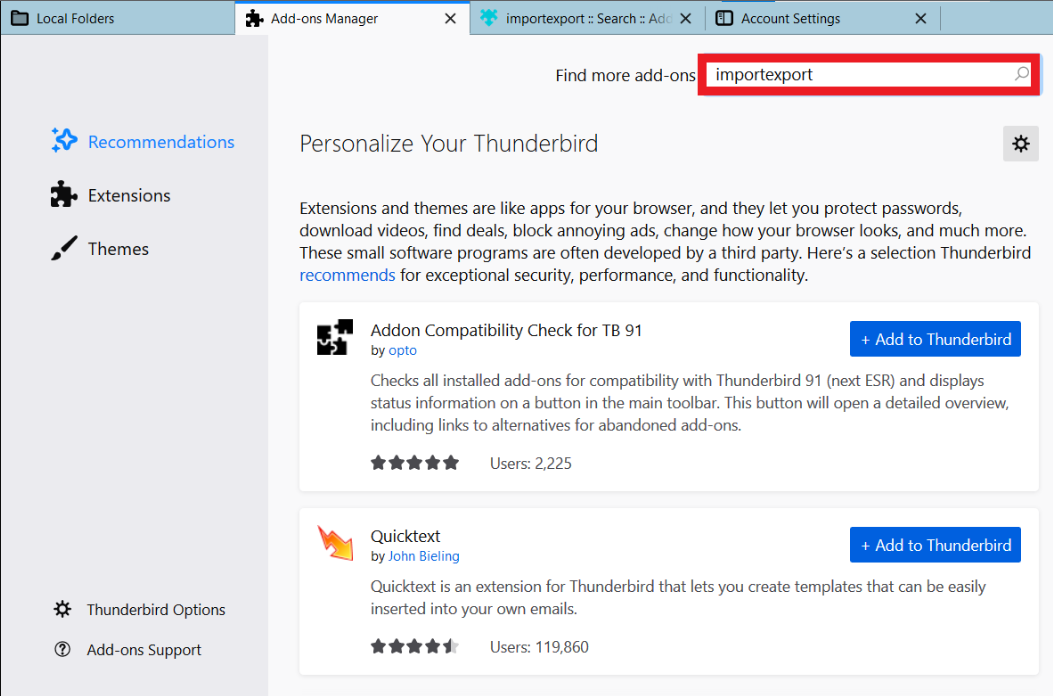
4. Click on the “+Add to Thunderbird” option in the new tab now.
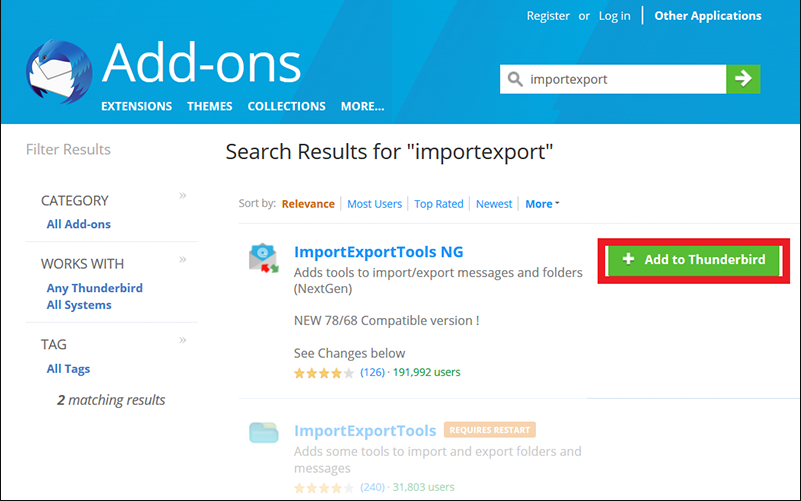
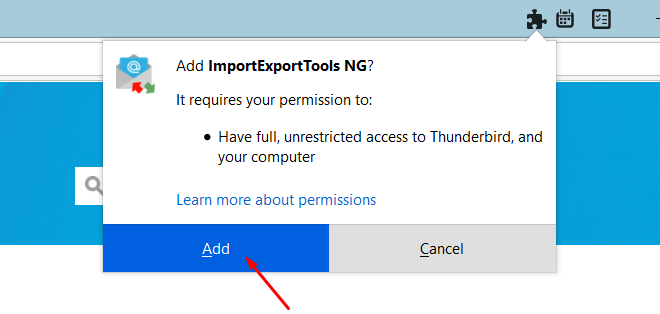
5. Then, click on the “Add” button to add it into your Thunderbird app.
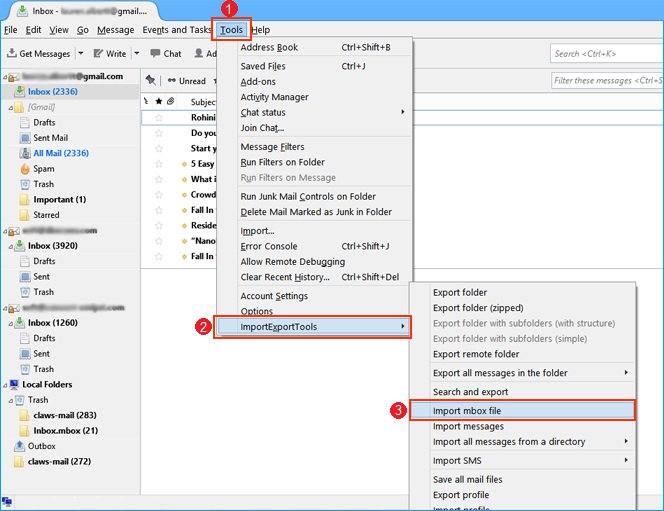
6. Restart the Thunderbird client and then navigate to Tools > ImportExportTools > Import mbox file.
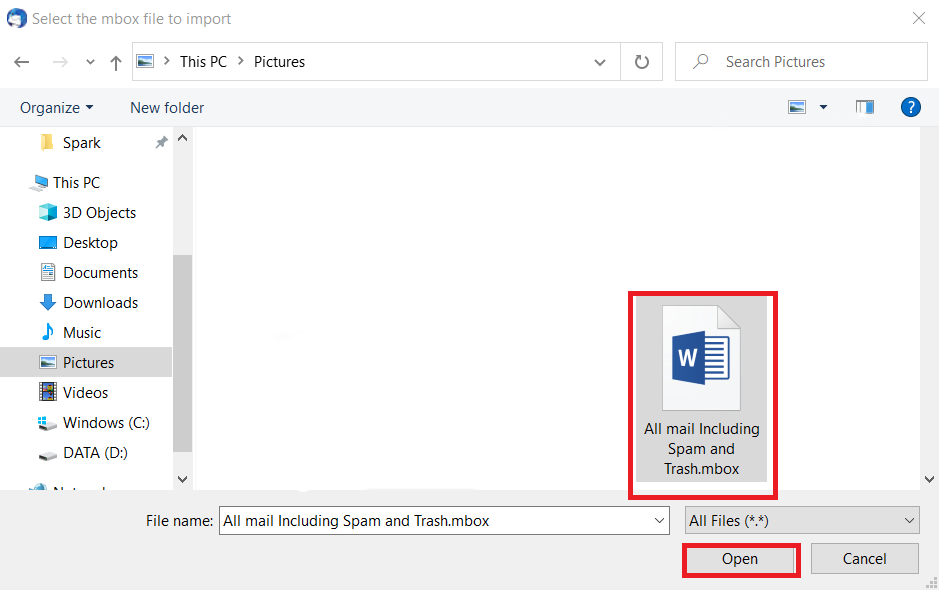
7. Browse and select the MBOX file to add to Mozilla Thunderbird.
Done!! This is how to use Thunderbird import MBOX file.
Note: If import MBOX File is disabled in Thunderbird, you can’t be able to use this method. So, you need to be careful while performing these steps.
How to Open MBOX File in Thunderbird Manually?
If you are using Thunderbird 115 on your system, then there is an import option in your profile. It allows you to import MBOX into Thunderbird. Let’s check out the process.
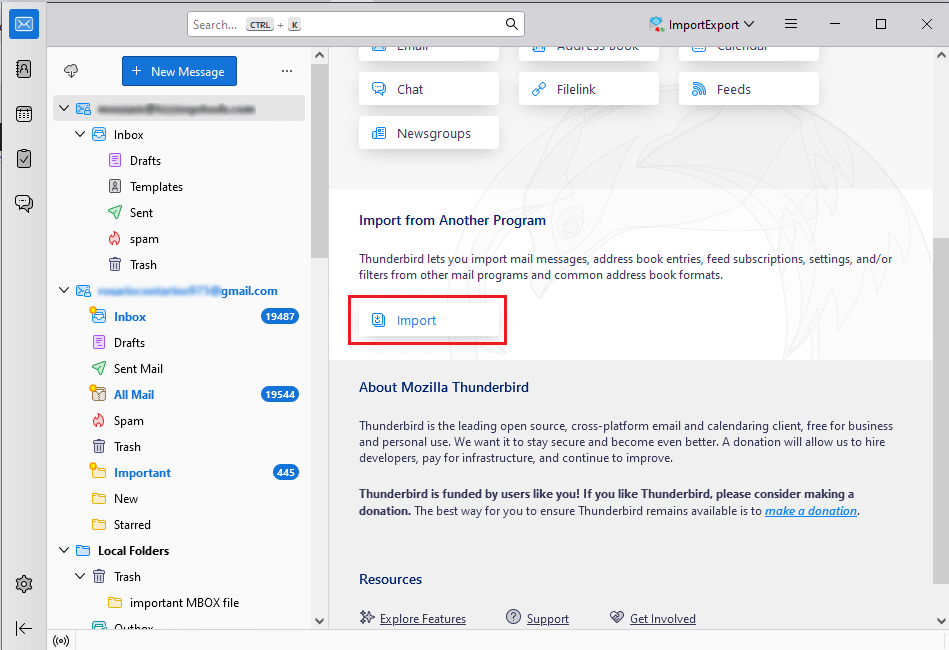
- Run the Thunderbird application and go to the dashboard.
- Here, choose the Import option in Import from another program.
- Next, select Import from a file and click Continue.
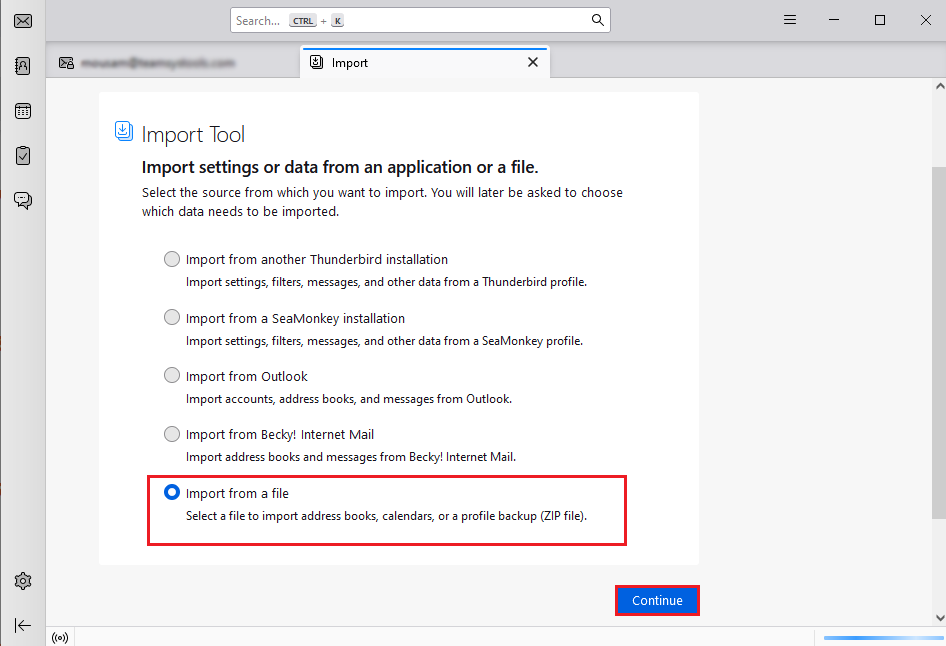
- After that, choose Import Backup profile and tap continue.
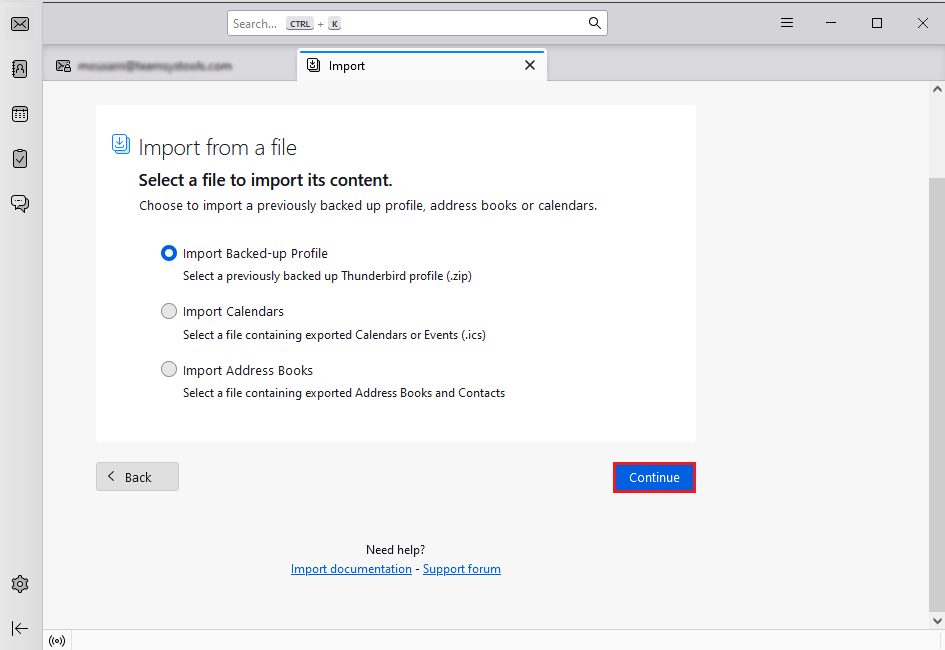
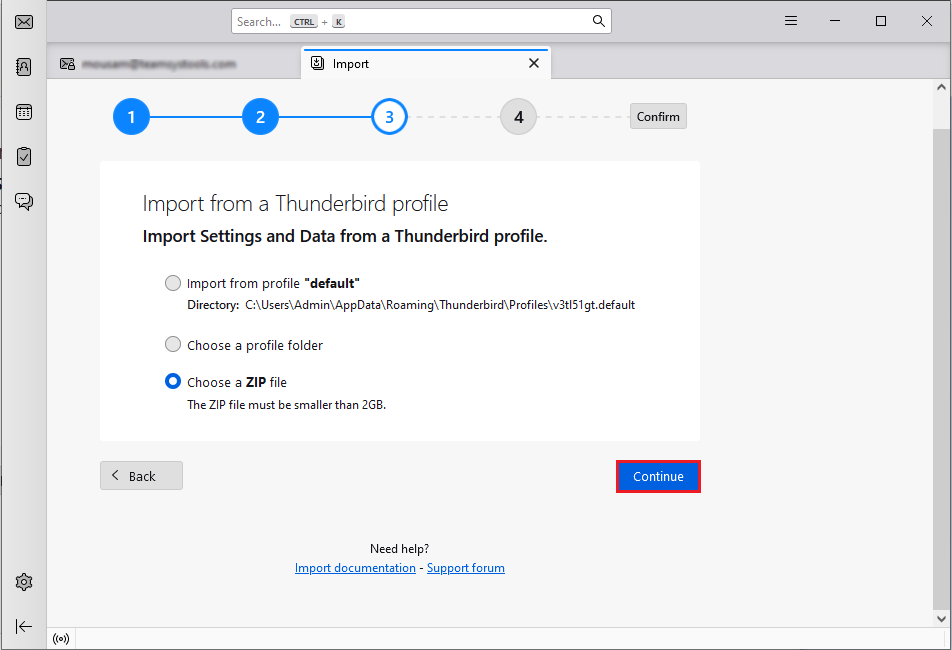
- Next, click on choose a ZIP file >> continue.
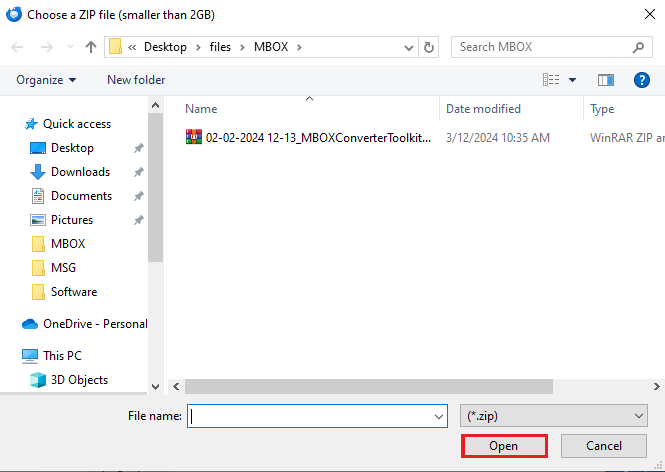
- Browse a zip file consisting of MBOX files and click open.
- Now, choose the items to import and click Continue.
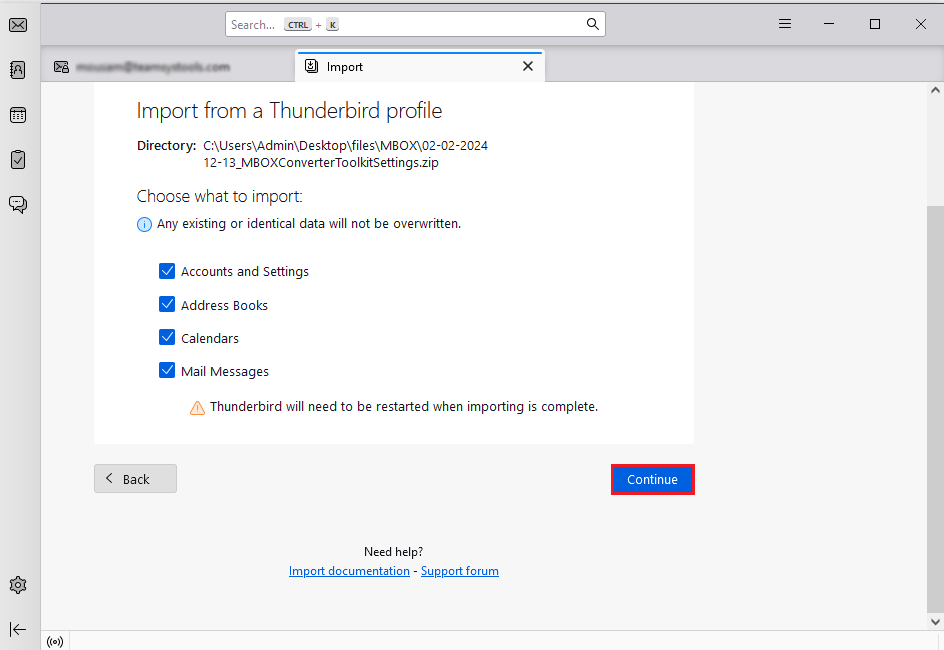
- Lastly, recheck the data and click Start Import.
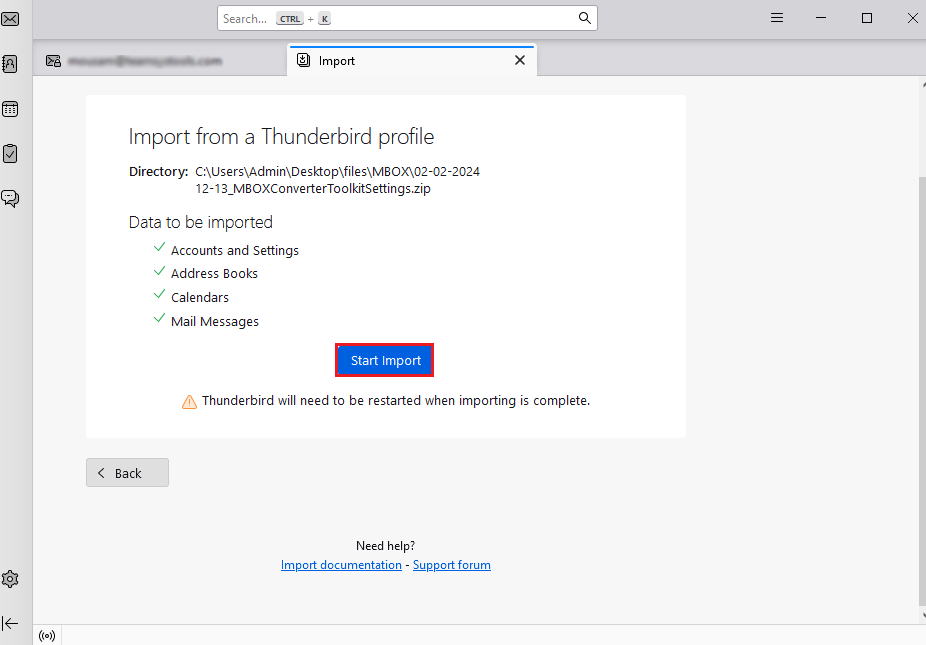
Now, Thunderbird will import the ZIP (.mbox) file.
Common Issues During MBOX Import
Sometimes, in certain conditions Thunderbird Import/ExportTools NG doesn’t work, thus not allowing you to import MBOX file. This situation can only be faced if you are using an old version of Thunderbird. Although Thunderbird 115 has an in-built import feature, it is a time-consuming process. For a hassle-free import, try out the automated tool mentioned below.
How to Transfer Emails from MBOX to Thunderbird Profile Automatically?
If you are facing issues in importing large MBOX files through Thunderbird’s ImportExportTools NG plug-in, then you can try an automated solution. Advik MBOX Converter is one such alternate method that you can use to transfer your mailbox data into Thunderbird App. I personally tried and able to import all the data of MBOX file into Thunderbird profile while maintaining the accuracy of data. Also, here you can use email filter to import only those emails that you want in Thunderbird, such as on the basis of to, from, subject etc. It removes dependency on add-ons and provides a complete and secure way to get your work done.
While using this method, i have figured out some helpful features;
- It supports large or multiple MBOX files
- compatible with all Thunderbird versions
- work with damaged or orphaned mailbox file
- Provide a bulk email transfer option.
You can download it’s free trial version to check if it works as per your need or not;

Steps to Import MBOX to Thunderbird 145, 144, 143
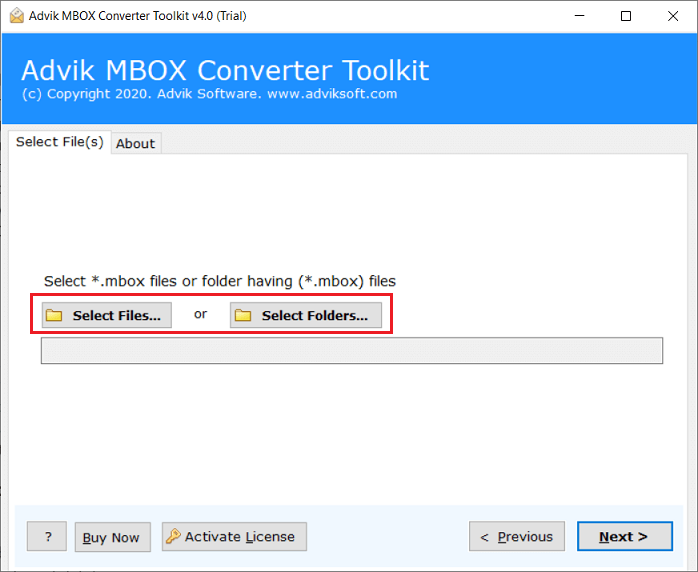
Step 1. Run the software and add MBOX files & folders.
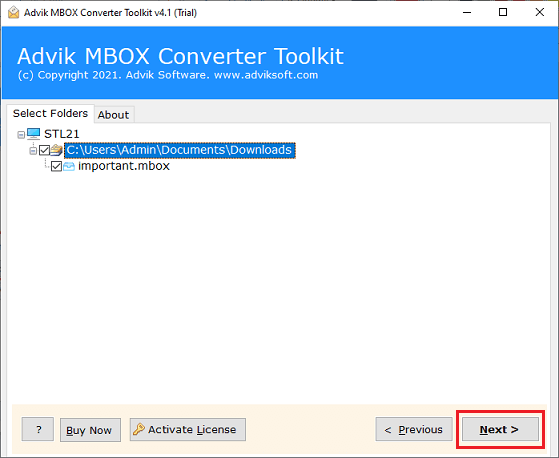
Step 2. Choose mailbox folders and then click the Next button.
Step 3. Now Select Thunderbird as a saving option.
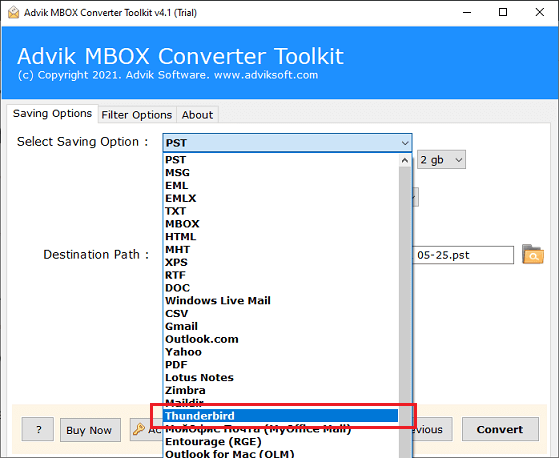
Step 4. Click on the Convert button to start the process.
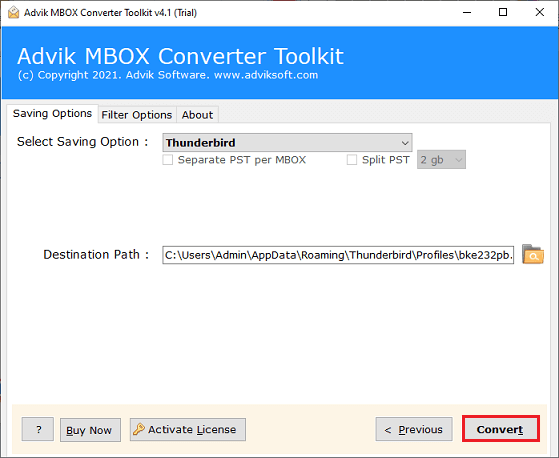
Done! The software will start copying or migrating emails from MBOX file to Mozilla Thunderbird.
Once the importing process is complete then open Thunderbird and check the imported MBOX file.
Watch How Thunderbird Import MBOX File
Why Automated Tools Perform Better Than Manual Methods?
Additionally, this tool also offers various advanced features that make the importing process so easy. Some of them are-
- Import MBOX to Thunderbird in bulk with full accuracy.
- Maintains the original structure of emails during the process.
- Allow to import multiple MBOX files at once without data loss.
- Various advanced filters to import selective emails.
- Directly import MBOX into Thunderbird’s user profile.
- Preserves data integrity and folder hierarchy.
- Simple GUI and 24/7 technical support team.
- Supports opening MBOX file in Thunderbird 145, 144, 143 versions.
Final Words
Thus, how to convert MBOX to Thunderbird blogs comes to an end. You can now understand how easy it was to upload MBOX to Thunderbird using the manual and professional solution. After going through the above manual vs. automated solutions comparison table, you can understand which is better to choose. The manual methods are free, but some drawbacks are unavoidable. To overcome these limitations, we have offered an instant approach that will directly import MBOX to Thunderbird 145/144/143 and more previous versions easily.
Frequently Asked Questions
Q1. How can I transfer Gmail mbox to Thunderbird?
Ans. You can transfer Gmail MBOX file to Thunderbird using the ImportExportTools NG add-on.
Q2. How do I import files into Thunderbird inbox?
Ans. To import files into Thunderbird’s inbox, you can simply drag and drop the files into the inbox folder in Thunderbird.
Q3. How to add MBOX file to Thunderbird in bulk?
Ans. The software allows you to add multiple MBOX files at once.
Q4. Can I import Apple Mail MBOX to Thunderbird using this application?
Ans. Yes, this tool supports MBOX file of more than 30+ email clients, including Apple Mail.
Q5. How to migrate selective emails from MBOX files to Mozilla Thunderbird?
Ans. Yes,You can import selected emails based on Date Range, Sender, Recipient, etc. using Filters.
Q6. Does Thunderbird automatically detect MBOX files from my system?
Ans.Thunderbird does not automatically detect MBOX files.