How to Import MBOX to Yahoo Mail: Top Methods
Quick Answer: Configure Yahoo Mail into Thundebrird and install Import export NGTools AdOn. Afterthat right click Inbox folder and select Import MBOX file. Alternatively you can download and try this software to import MBOX to Yahoo Mail without Thunderbird.
MBOX is the storage format used by desktop clients such as Thunderbird, Apple Mail, Eudora, Entourage, etc. Yahoo Mail is a cloud service that syncs using IMAP and has no built-in import MBOX option. This blog post covers every working method to import MBOX file into Yahoo Mail. The free Thunderbird option and direct converter for bulk migrations. Here we will discuss the advantages and disadvantages of each method so that you can make a wise decision. Let’s start to successfully resolve your issue.
Why Import MBOX to Yahoo Mail?
There are many instances where users want to import MBOX emails into Yahoo Mail.
- Get old backup e-mail: Many users still have old MBOX backup files of Thunderbird or Apple mail. Import them into Yahoo Mail so you can access them anywhere.
- Switch to Yahoo Mail: Some users have migrated from desktop email clients to Yahoo Mail for the additional accessibility and online storage.
- Login to Your Email Anywhere: Yahoo mail can be accessed on mobile phones, tablets and browsers. This makes email more accessible than with local MBOX files.
- Better Email Management: Yahoo Mail offers features such as search filters, folders, spam protection and other management tools to properly organise emails.
- Safe Cloud Backup: Keeping emails in Yahoo Mail also reduces the risk of losing important messages during local system crash or accidental deletion.
Before You Start Prepare Your Yahoo Mail Account
Any third party email client like Thunderbird connects to Yahoo using IMAP and requires Yahoo App Password, not your normal login password. Set this up once:
- Sign in to Yahoo Mail in a browser.
- Click your profile icon > Manage your account > Account Security.
- Create a new app password under App Passwords and give it a name.
- Copy the generated password. You will paste this into Thunderbird when you add the account.
How to Import MBOX File into Yahoo Mail?
Yahoo Mail does not support direct import of MBOX files but MBOX emails can be transferred manually. You can use Mozilla Thunderbird to do it if you have it installed.
Follow the steps to import MBOX to Yahoo Mail account;
- Open the Thunderbird application on your system.
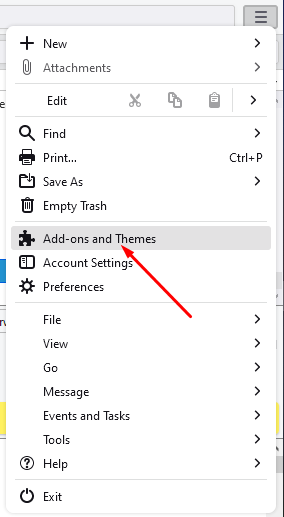
- Click on 3-lines and choose Add-ons and Themes option.
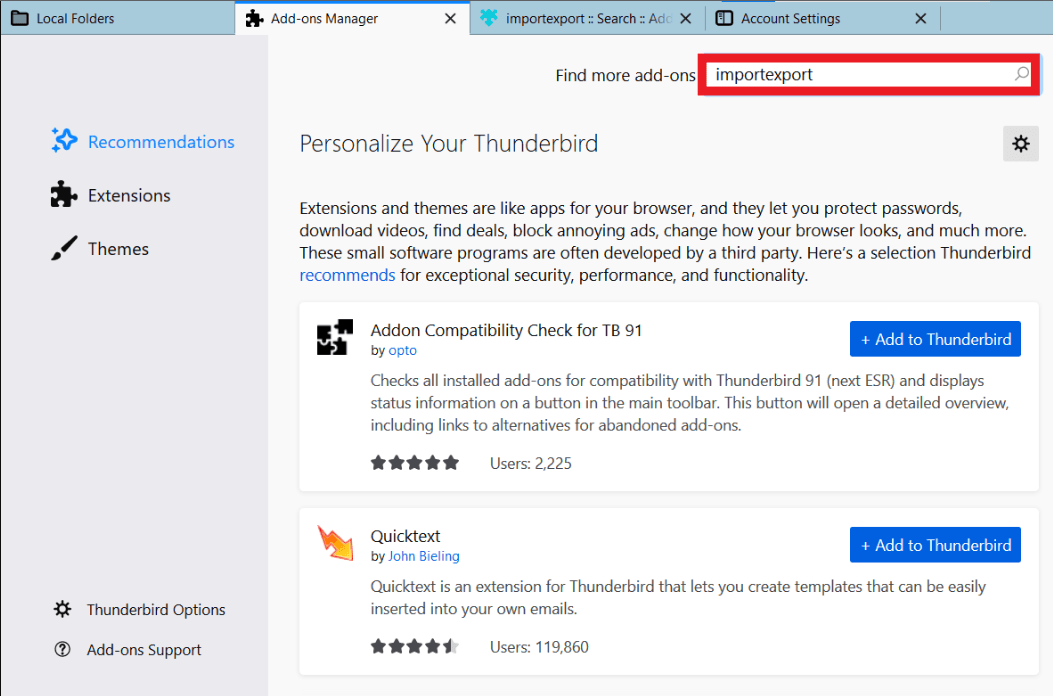
- Search for ImportExportTools NG and click Install.
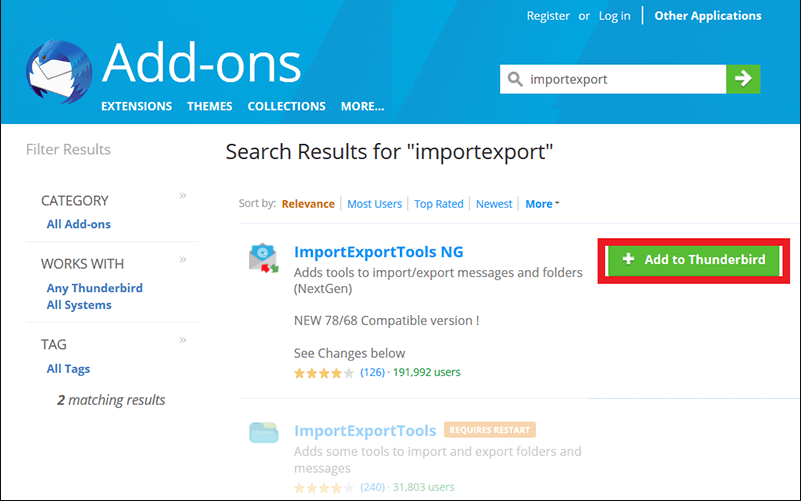
- Click on the + Add to Thunderbird button.
- Restart Thunderbird to activate the add-on.
- Right-click on Local Folders in Thunderbird.
- Choose ImportExportTools NG > Import MBOX file.
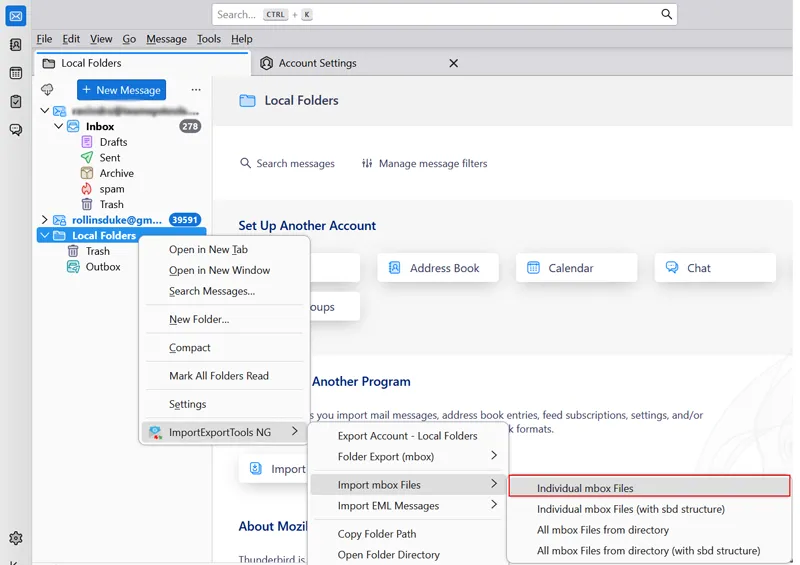
- Navigate to and select your MBOX file and click Open.
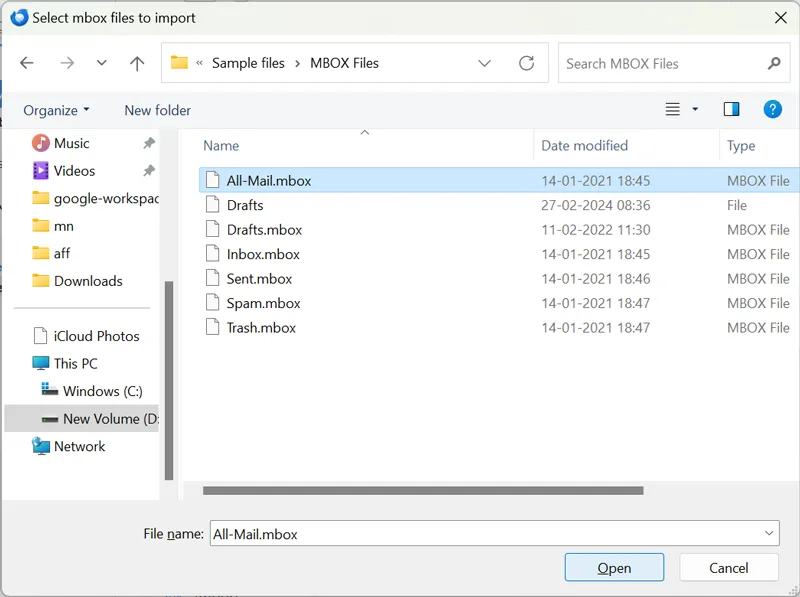
- Your emails will now be visible in Thunderbird under Local Folders.
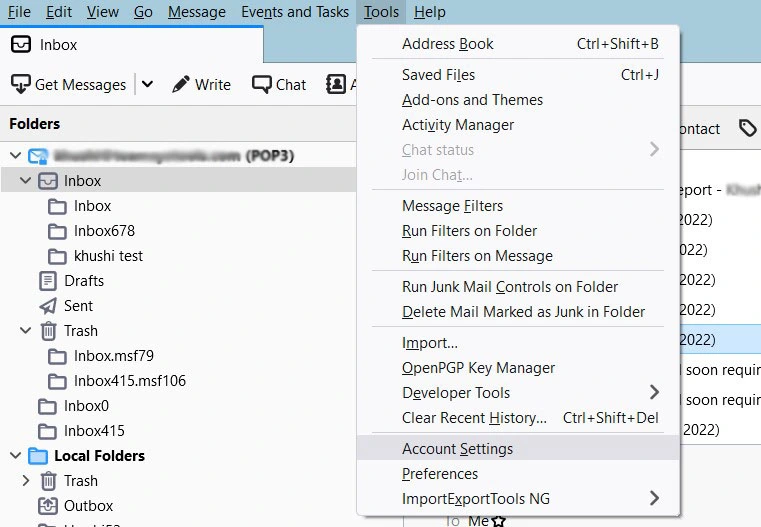
- Now go to Tools > Account Settings.
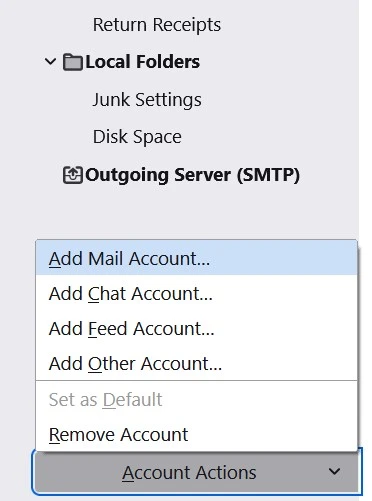
- Click Account Actions > Add Mail Account.
- Enter your Yahoo Mail email address and app password (not your normal password).
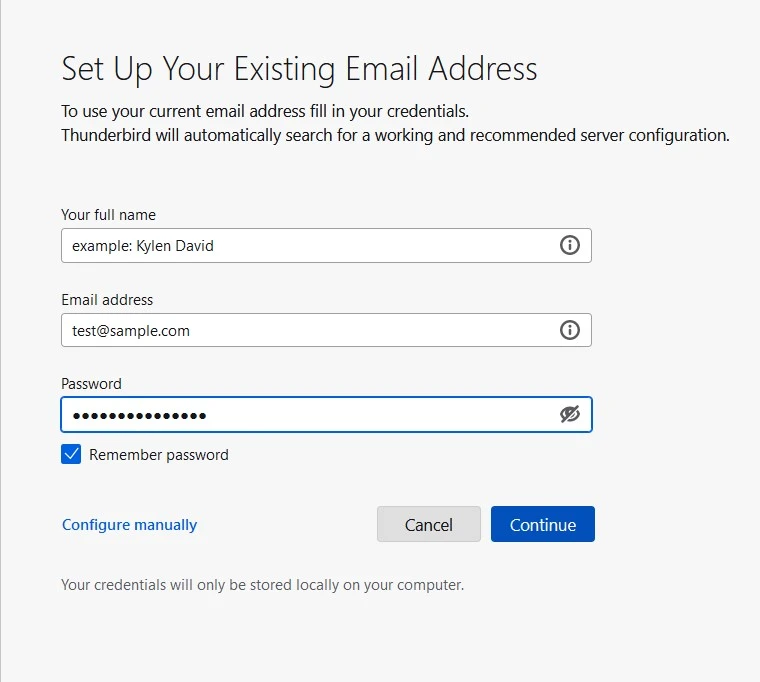
- Thunderbird will auto-detect the IMAP settings. Click Done to complete setup.
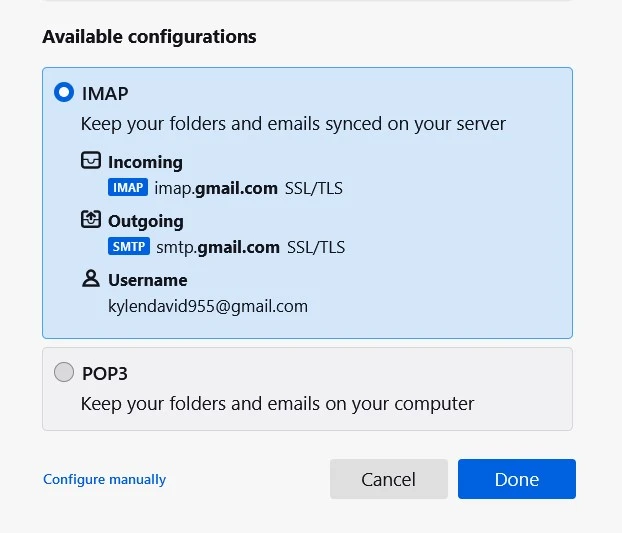
- Navigate to the Local Folders section where your MBOX emails are stored.
- Choose the emails you want to move.
- Right-click and select Move To > Yahoo Mail > Inbox (or whichever folder you want).
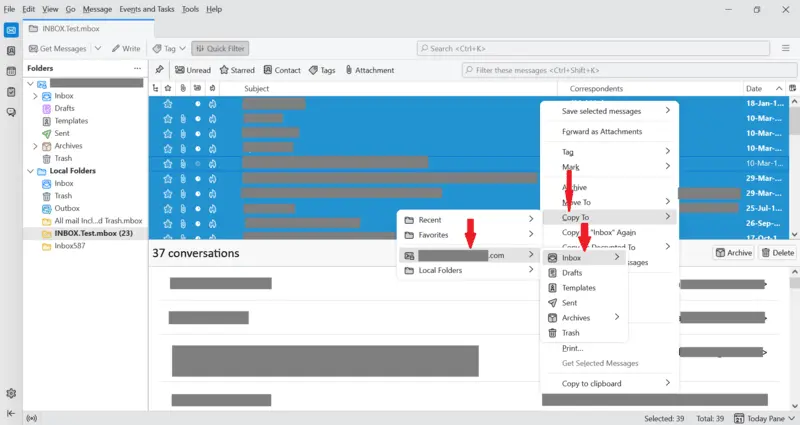
- Thunderbird will now upload all the selected emails to your Yahoo Mail account.
And that’s it! So, you have successfully imported MBOX emails into Yahoo Mail free with the help of Thunderbird.
How to Transfer MBOX Emails to Yahoo Mail Automatically?
Try Advik MBOX Converter for Windows, it is super-fast and straightforward. Install the software, add your MBOX files, add your Yahoo Mail credentials and click “Convert”. This tool will import MBOX to Yahoo Mail with original folder structure, email formatting and attachments. It facilitates bulk migration, with which you can migrate multiple MBOX files at a time without any size limitations. It’s easy, safe & simple way to import MBOX emails to Yahoo Mail.


Important Note: It requires you to generate Yahoo Mail app password.
Steps to Import MBOX to Yahoo Mail
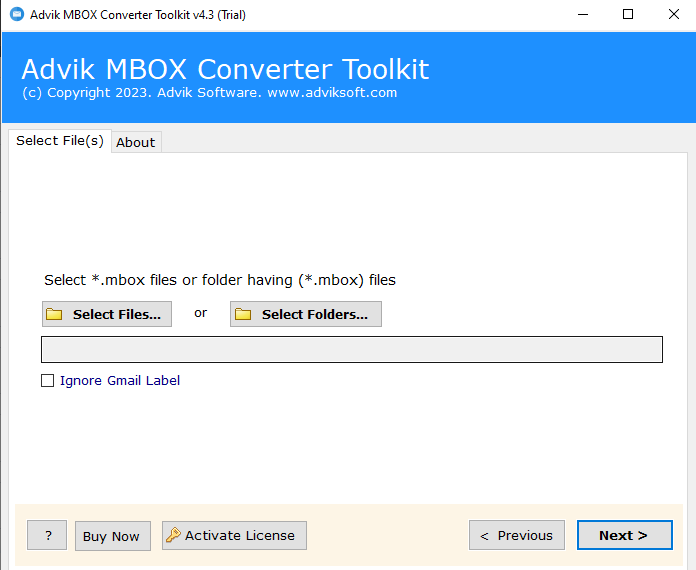
Step 1. Run the software and add MBOX Files.
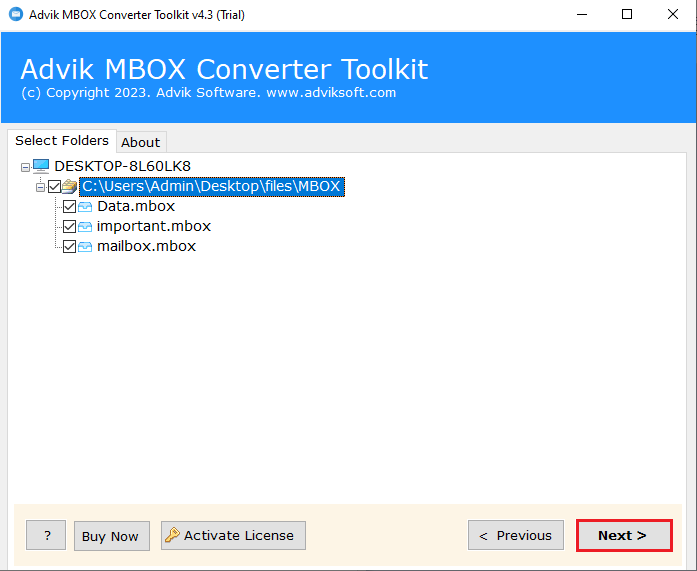
Step 2. Choose the required email folders.
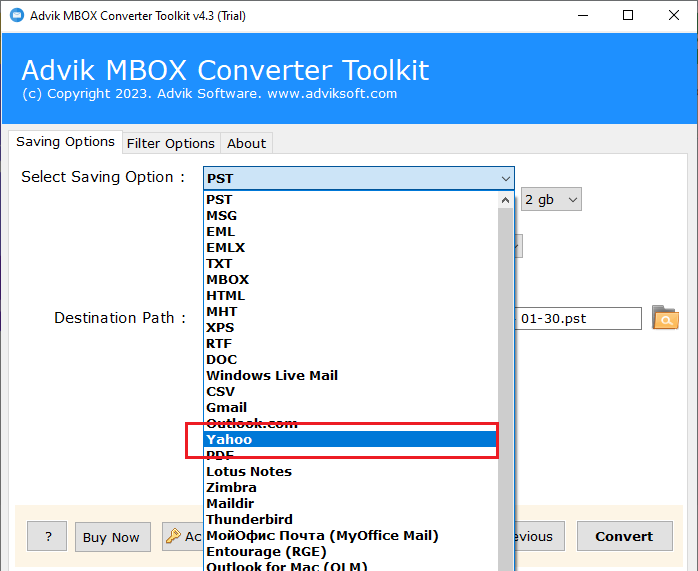
Step 3. Select Yahoo as saving option from the list.
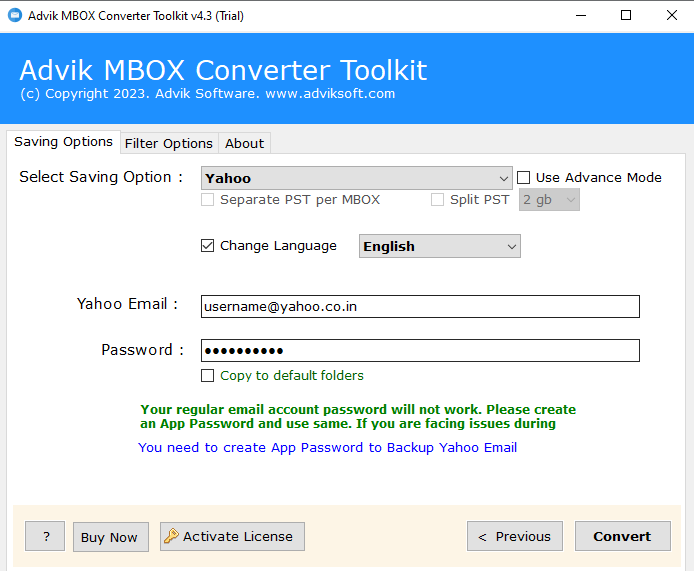
Step 4. Enter your Yahoo Mail email address and app password and then click Convert.
Once the process is completed, log in to your Yahoo Mail account to check all the transferred emails there.
Done! You have successfully imported your MBOX file into Yahoo Mail without any manual effort.
Benefits of Using MBOX to Yahoo Mail Import Tool
- Simple & Easy to Use: This tool provides simple and direct way to transfer your entire mailbox to Yahoo Mail. To begin the process, simply add the MBOX files and enter your Yahoo email address and password. You can check all of your emails in your Yahoo account after the transfer is finished.
- Batch Import MBOX Files: This tool eliminates the need for individual email transfers. You can load several MBOX files into Yahoo Mail simultaneously by using its bulk transfer tool. The lack of file size constraints ensures smooth and trouble-free migration.
- Maintains Your Folder Structure: The program makes sure that your email folders stay organised just like they were in the MBOX file. This implies that all of your data, including attachments and metadata, will remain in their original format and that you will not lose track of crucial correspondence.
- Safe and Reliable: This software provides complete security protection for your emails against corruption, data loss and security risks. It ensures secure, precise email transport without storing or altering any of your data. It is a reliable option for MBOX to Yahoo transfer because experts have tried it.
- 24/7 Customer Support: We want every user to have an excellent experience, so if you have any questions or encounter any issues, our support team is available to assist you. We will reached via email or live chat and we will be happy to help.
Conclusion
So, we are done with providing some easy ways to import MBOX to Yahoo Mail. You also understand now that transferring MBOX emails to Yahoo Mail is not as easy as it involves multiple lengthy steps. If you want a quick and direct solution, using a professional solution like Advik Software is the best option. Try the method that suits you best and easily open MBOX file in Yahoo Mail account.
Frequently Asked Questions
Ques 1. Does Yahoo Mail support MBOX files?
Ans. No. Yahoo Mail has no native option to import MBOX files. You need to use an IMAP email client like Thunderbird or a professional MBOX to Yahoo import tool.
Ques 2. How can I import MBOX file to Yahoo Mail for free?
Ans. Using Thunderbird, you can transfer MBOX emails to Yahoo Mail for free.
Ques 3. Is it possible to migrate only selected emails from MBOX file?
Ans. Yes. Manual method does not offer filter option. The software provides various advanced filter options to move only selected emails based on date range, to, from and subject.
Ques 4: Can I continue to use Yahoo Mail during the import process?
Ans. Yes. Yahoo Mail remains fully operational during importing; however, it can take some time for newly migrated emails to show up until the sync is complete.