How to Import OST to Google Workspace?
Jenny Lowrence | March 26th, 2026 | Import Emails
If you have OST files and want to open them in Google Workspace, then this post will help you. In this write-up, we will provide the best methods to import OST to Google Workspace. Stay tuned with us and get step-by-step instructions to accomplish this task.
OST file is created by MS Outlook to store a synchronized offline copy of your mailbox. On the other hand, Google Workspace is a cloud-based productivity suite offered by Google. It includes various services such as Gmail, Docs, Sheets, Drive, and more.
Importing OST files to Google Workspace enables users to access their emails, contacts, and other mailbox data from anywhere. It reduces dependency on Outlook, minimizes the risk of data loss, and simplifies email management with a centralized platform.
Can You Manually Import OST To Google Workspace?
OST files are tied to a specific Outlook profile, which makes the importing process difficult. However, if you have access to the Outlook profile connected to the OST then you can manually import by following below given step:
Step 1. Convert OST to PST
Step 2. Import PST to Google Workspace via Outlook or GWMMO Tool
However, if your OST file is orphaned, then this method doesn’t work. Then, you can only complete this process using a professional tool.
How to Open OST File in Google Workspace Automatically?
Download and install the Advik OST Converter on your system. With this tool, you can directly import OST to Google Workspace without Outlook or any other external help. Just add the OST file into software, choose G Suite as the saving option, enter your Google Workspace login details, and press Next to begin the importing process.
The software is able to upload orphaned OST files with full accuracy. The software retains all email attributes and mailbox folder structure while importing.
Now, why are you waiting? Just tap on the below link and give it a FREE try!


Steps to Import OST to Google Workspace
1. Run the tool and add OST file.
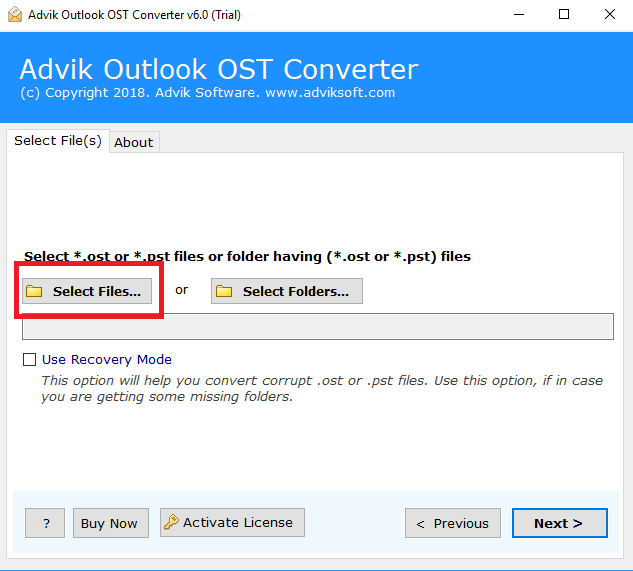
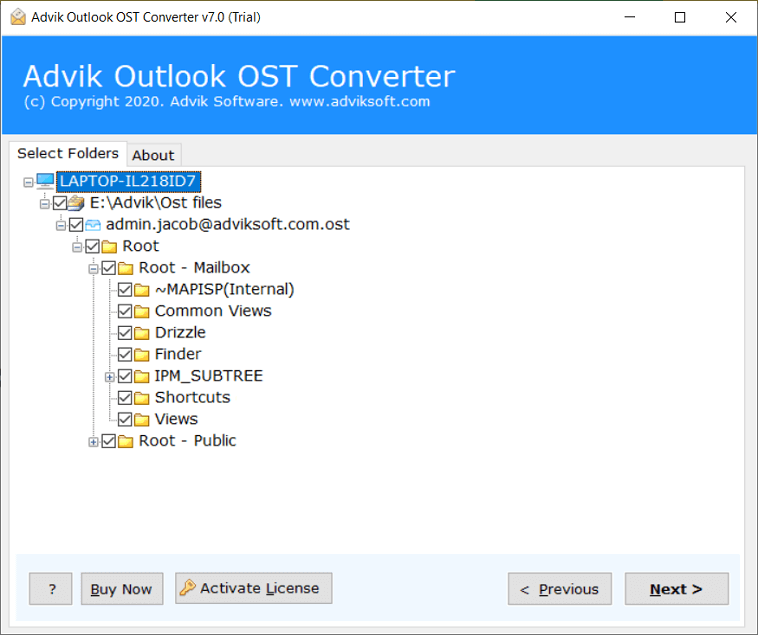
2. Choose the required mailbox folders and click Next.
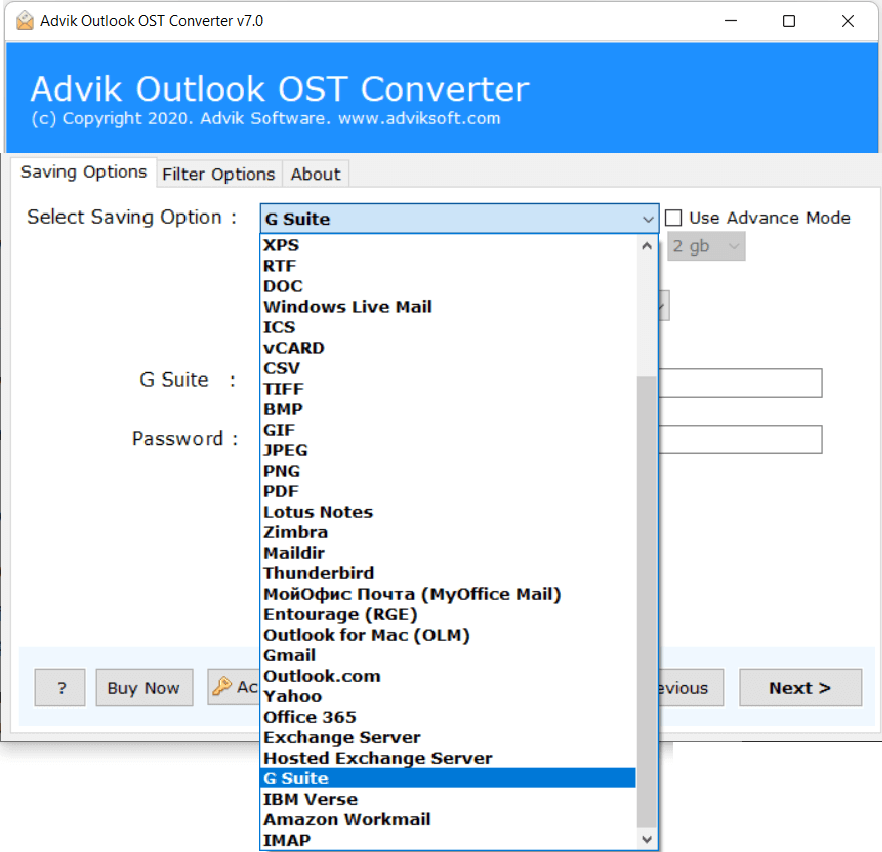
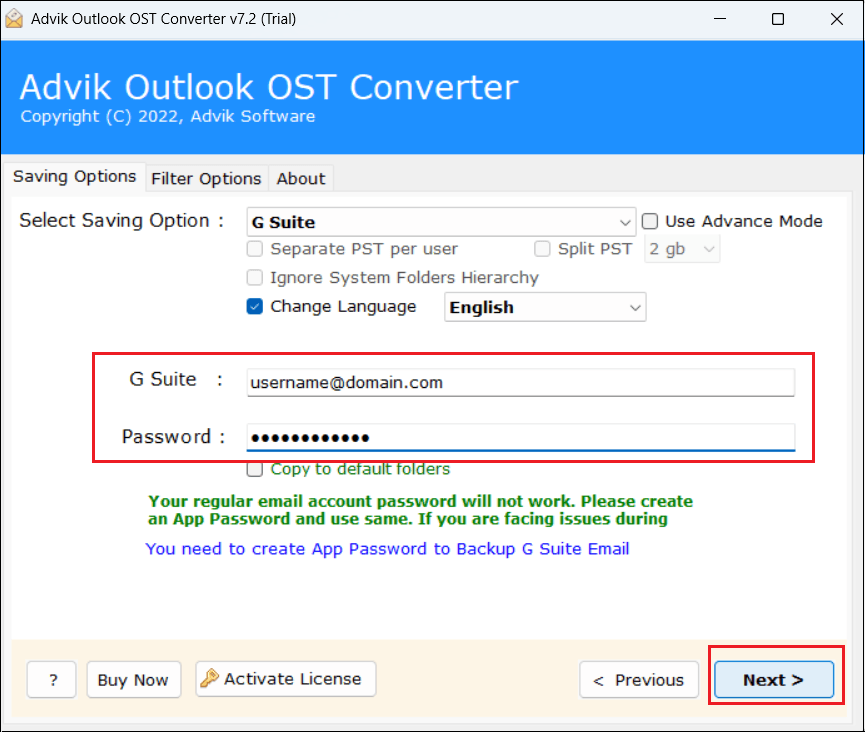
3. Select G Suite as a saving option.
4. Enter your Google Workspace account login details and click Next.
5. The software will start importing data from OST file to Google Workspace account.
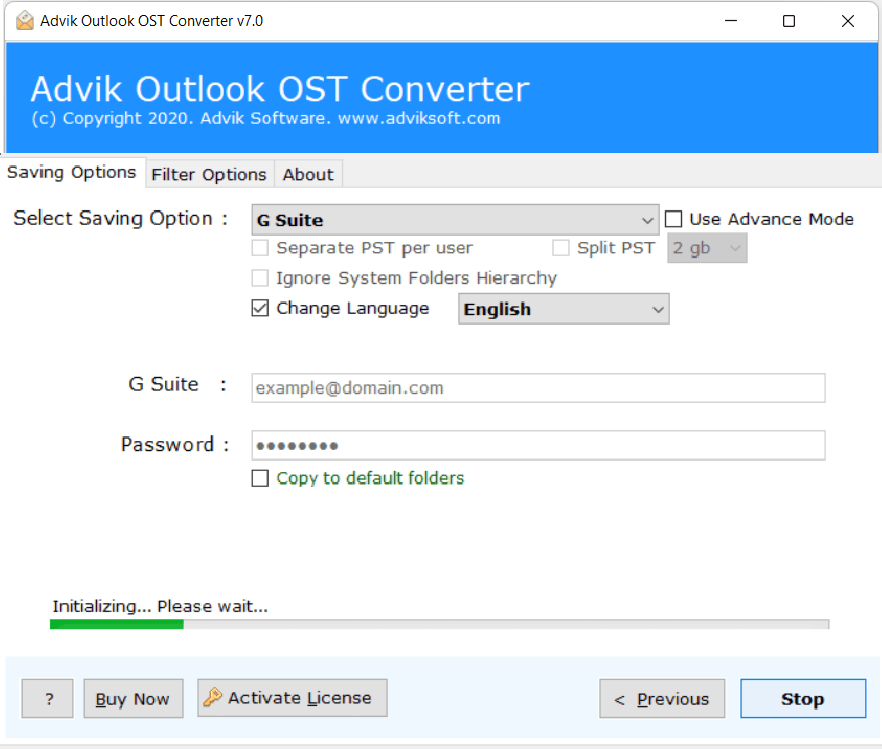
Now sit back and relax! The software will complete the importing process in a few seconds.
Key Features of OST to Google Workspace Import Tool
- Bulk Importing: The software has a dual mode that enables you to import single or multiple OST files in one go. There are no restrictions on the number of files to transfer.
- Multiple Saving Options: The tool offers 25+ saving options to export OST data into multiple formats. Also, it can directly import OST to Gmail, Yahoo, Office 365, Zoho Mail, and more.
- Advanced Filter Options: If you want to upload only some required data from OST file then this utility will help you. It provides filter options that enable you to import emails based on date range, to, from, subject, etc.
- Preserves Data Integrity: The tool maintains all email attributes and properties while importing. Also, it keeps the original structure of mailbox folders even after the process.
- No Size Limitations: With this tool, you can import large OST files without any restrictions. Also, it allows you to transfer inaccessible OST files with full accuracy.
Final Words
Importing OST file to Google Workspace is not a simple task if you don’t have the right approach. In this post, we have explained step-by-step how to import OST to Google Workspace. If your OST file is accessible, you can go with the manual method; otherwise, using a professional tool is the best choice. You can download the free demo version of the above-suggested tool to check its working procedure. If you are satisfied with its funcitionality then purchase its licensed edition.