How to Import OST to Outlook.com Account?
Jackson Strong | January 3rd, 2026 | Email Migration
It’s not surprising that emails have become an integral part of our lives, especially for day-to-day communication for various purposes. And, if your email data is stored in a file format that is not accessible or not opening, it’s a bit difficult situation. So, here today, we are going to address a similar query like this. OST is an Outlook offline cache data file, which is often not accessible if it gets disconnected from its Outlook profile. So, it forces users to transfer it to another email account to view its data. Here, we will guide you on how to import OST to Outlook.com (Hotmail) account in easy steps. So, go through this article completely to know the best ways to accomplish this task!
Talking about the methods, there is no such manual method that exists that can let you transfer OST files into your Hotmail account. It’s so because of the following reasons. Make sure to read all these to understand the challenges you may face while importing OST to Hotmail.
- OST is an orphan file
- Not connected with its Outlook profile
- Hotmail doesn’t support importing OST file directly
- OST files cannot be converted manually without Outlook
Due to these reasons, we suggest you use a professional solution. If you don’t want to face these situations, then proceed with the method below.
How to Import OST to Outlook.com (Hotmail) Account Directly?
By using Advik OST Converter solution, you can easily transfer complete email data from OST file to your Hotmail account. It supports all types of OST files, whether they are orphaned, inaccessible, or corrupted; you can use it without any issues. Also, it doesn’t require Outlook to carry out this process. Just upload your OST file to the software and provide Hotmail login credentials, and the rest of the work will be handled by the software itself.
Free download this software and check its working steps as shown below;

Steps to Transfer Outlook OST file to Outlook.com
Step 1. Run the software on your system.
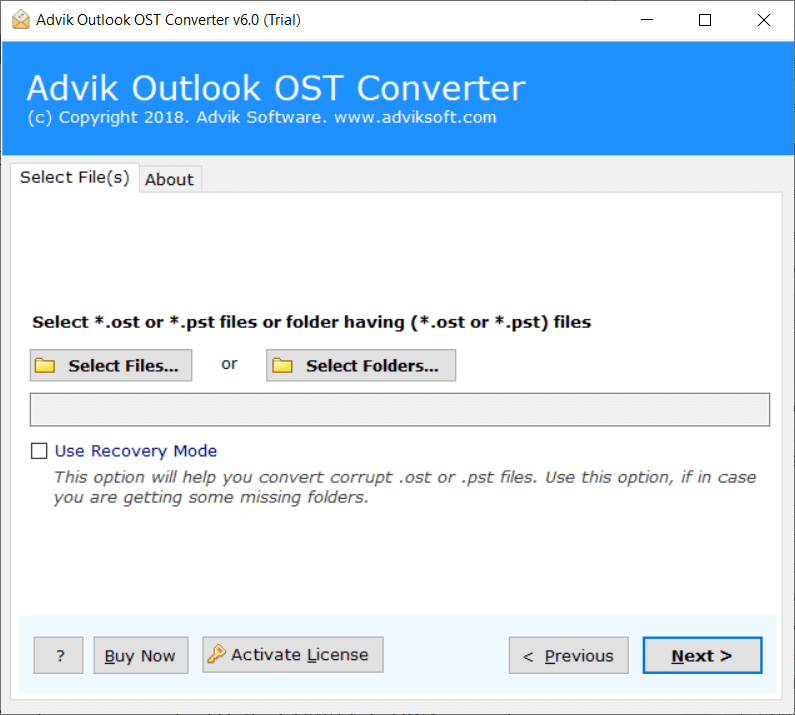
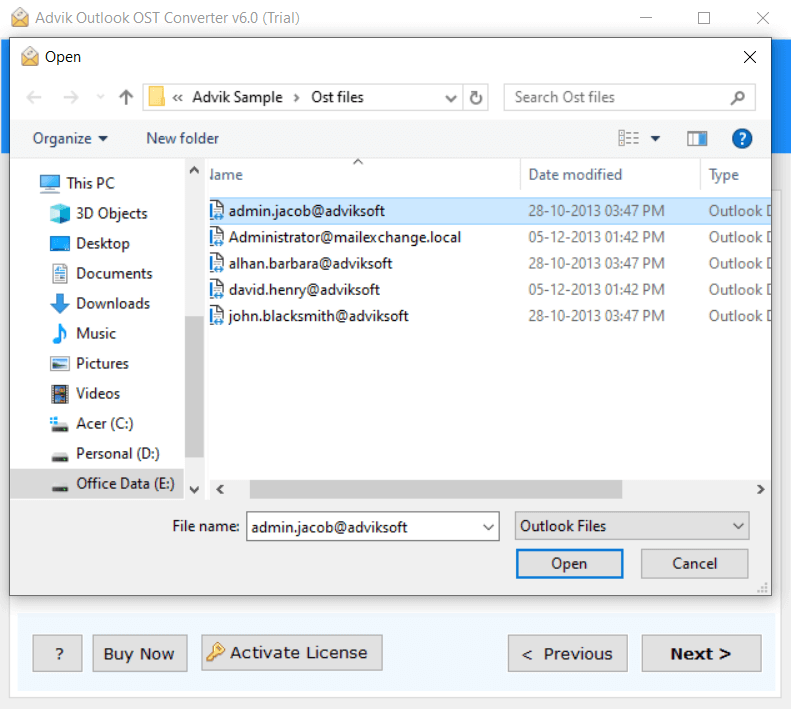
Step 2. Browse and add Outlook data file (.ost).
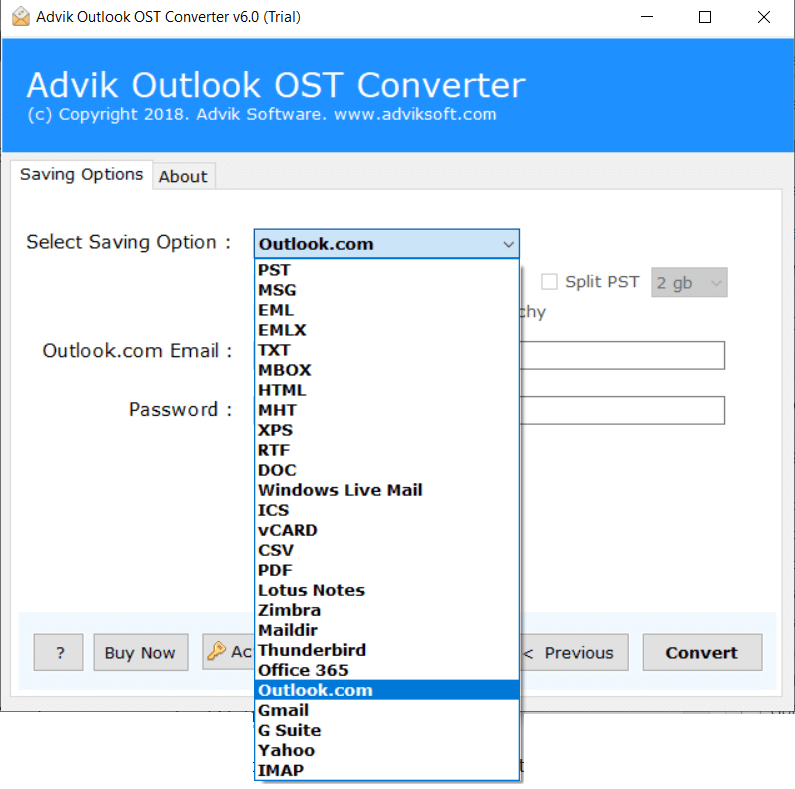
Step 3. Choose Outlook.com as saving option.
Step 4. Enter Outlook.com login credentials.
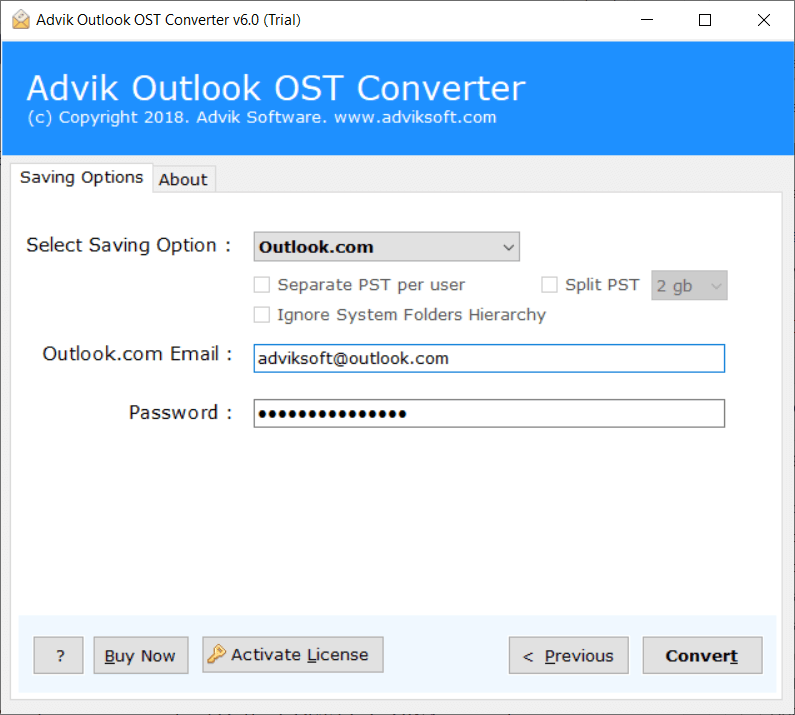
Step 5. Click Convert to start the migration process.
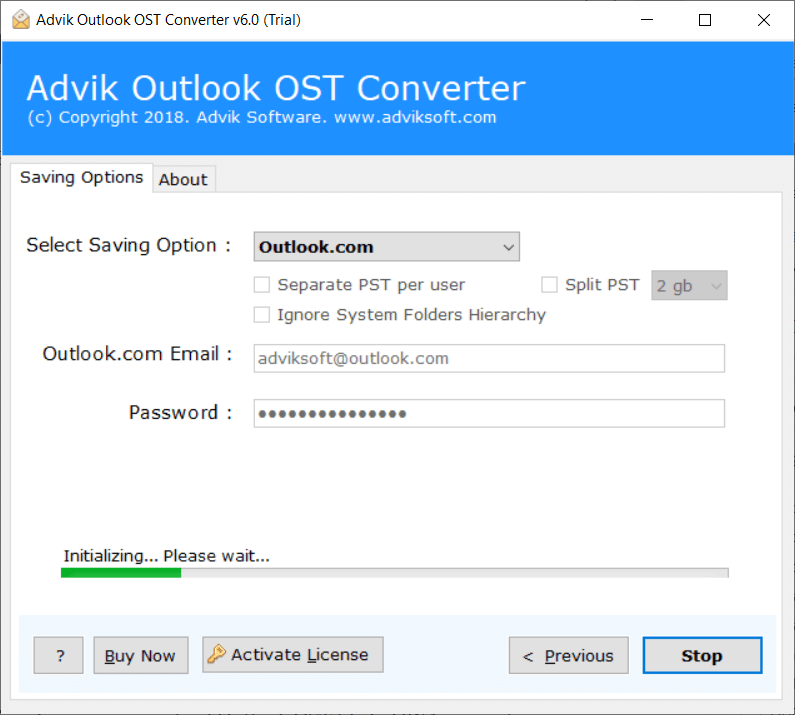
Done! Yes, no Outlook installation required, no manual tricks. This is how you can upload Outlook OST file to OWA account.
Watch How to Transfer OST Emails to Hotmail
Here, check out a video guide that will explain to you how to import OST to Hotmail in real time. Simply watch this tutorial and follow the same steps as shown in this video walkthrough.
Final Words
Transferring emails from OST file to Hotmail account is not an easy task until you have a professional method with you. If you have read this article, then you must have understood this. Due to the unavailability of any official method and a direct manual approach, we have chosen an automated solution. By following the steps mentioned in this guide, you can ensure that your important email data is transferred to your Outlook.com (Hotmail) account easily.
Thanks for reading!
