How to Import PST to Gmail Account?
Alora Eve | May 10th, 2026 | Data Backup, Outlook
A PST file is a proprietary data file used by Microsoft Outlook to store emails, contacts, calendar, and other mailbox items. However, the main drawback of this file format is that it can only be opened in MS Outlook. That’s why users prefer to import PST to Gmail account. However, many Outlook users struggle when trying to access PST data in Gmail account because Gmail does not support .pst files directly.
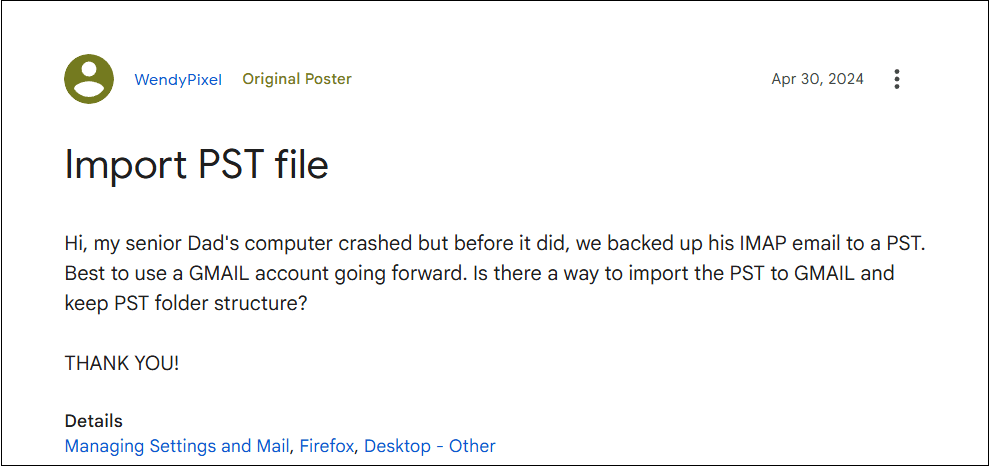
This article helps users understand how to successfully migrate their Outlook data file to a Google account using manual and automated methods. Here, we will explain these methods in detail, along with their pros and cons, to ensure the safety of users’ information. This guide lays out step-by-step methods to accomplish this task.
Table of Contents
Why Users Upload PST File to Gmail Account?
There are several reasons why import PST to Gmail. Some of them are:
- Remote Access: Data stored in PST files can be accessed only through MS Outlook. Migrating Outlook PST data to Gmail allows access to emails and other mailbox data on any device from anywhere, rather than relying on Outlook.
- Cloud Backup: PST files are stored locally, and they can be lost due to accidental deletion, hard drive failure, system crash, and many other reasons. If the user moves PST to Gmail, they can securely store their data in the cloud.
- Advanced Search: Sometimes finding old emails in a large PST file can be difficult. Gmail provides advanced search capabilities to quickly find out emails.
- Centralized Email Management: Transferring PST to Gmail makes it easier to manage old conversations without relying on Outlook.
- Easy Integration: With Gmail, users can easily integrate with other Google services like Google Drive, Calendars, Docs, Sheets, Photos, etc.
How to Import PST to Gmail Using GWMMO Tool?
Here, we will use the GWMMO tool for importing.
Note: Google Workspace Migration for Microsoft Outlook (GWMMO) is an in-built tool of Google that offers PST to Gmail migration feature.
1. Install and run the GWMMO Tool on your computer.
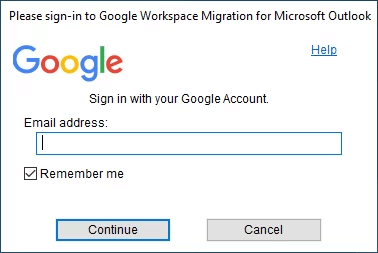
2. Enter your Gmail email address and click the Continue button.
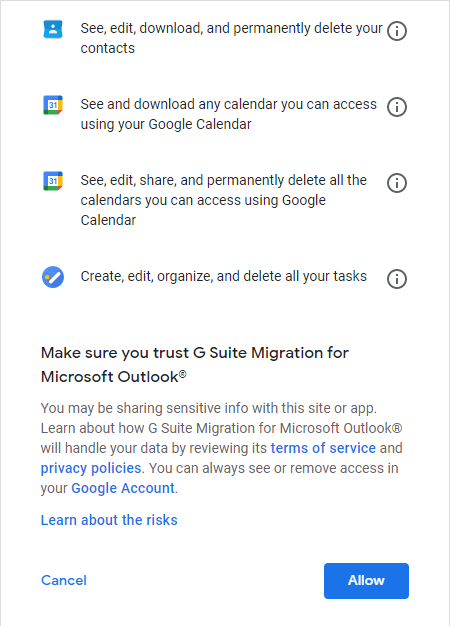
3. Now, press the Allow button to grant access to the tool to open your Gmail account.
4. Browse the PST file you want to upload and click Next.
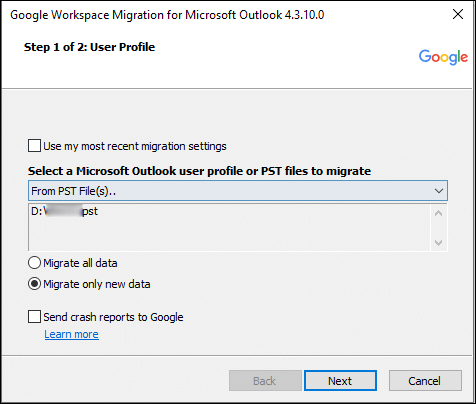
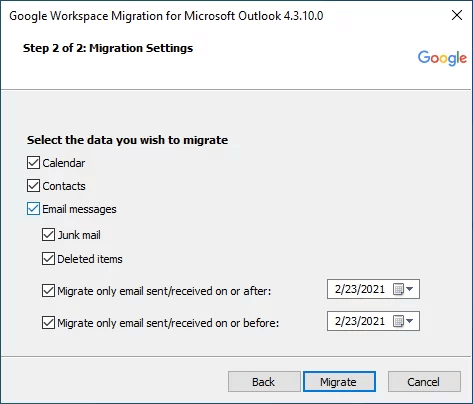
5. Choose the required data that you want to import and click Migrate.
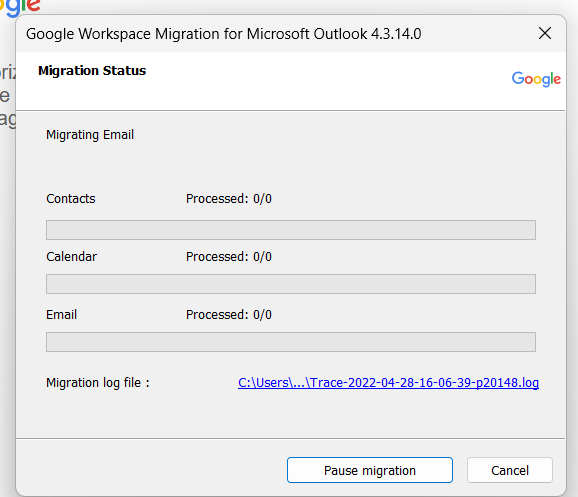
6. The tool will showing you the progress on your screen.
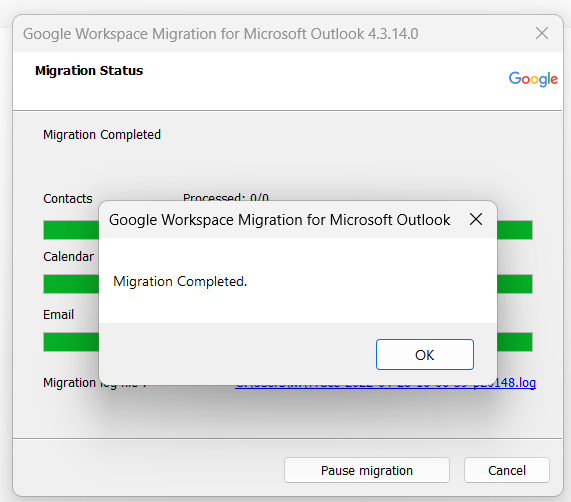
7. When it’s done, a message will pop up. Click OK.
Limitations that Should be Avoided
- The GWMMO Tool’s layout can be confusing, especially for users who aren’t very tech-savvy.
- You can only transfer PST files that you can edit into Gmail, not those that are read-only.
- You need to install the GWMMO Tool and the Outlook application to use this method.
- If the PST to Gmail migration process gets stopped, you have to start it over again.
- This method won’t move over things like journal entries, Outlook notes, tasks, or RSS feeds to your Gmail.
- If you’re trying to move missing data into your Gmail account, it might take a while to finish.
How to Migrate PST to Gmail Using MS Outlook?
This method requires an Outlook installation on your system. It works in 2 phases. First, you need to configure your Gmail account with Outlook and then add PST to Gmail folders in Outlook.
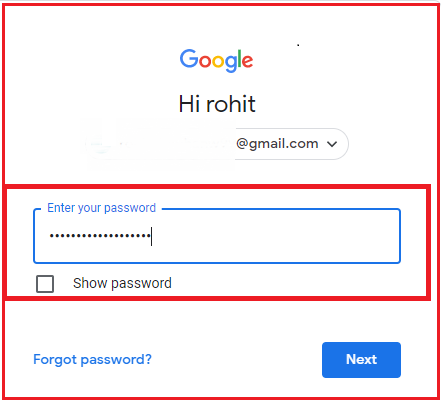
1. Sign in to Gmail account with your login credentials.
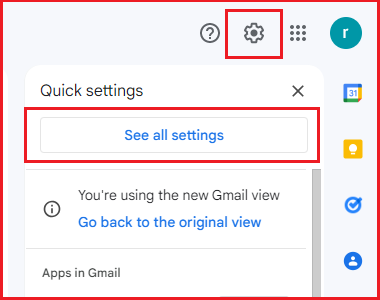
2. Go to the Gear icon and click on See All Settings.
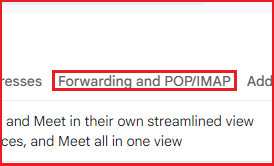
3. Click on Forwarding and POP/IMAP option.
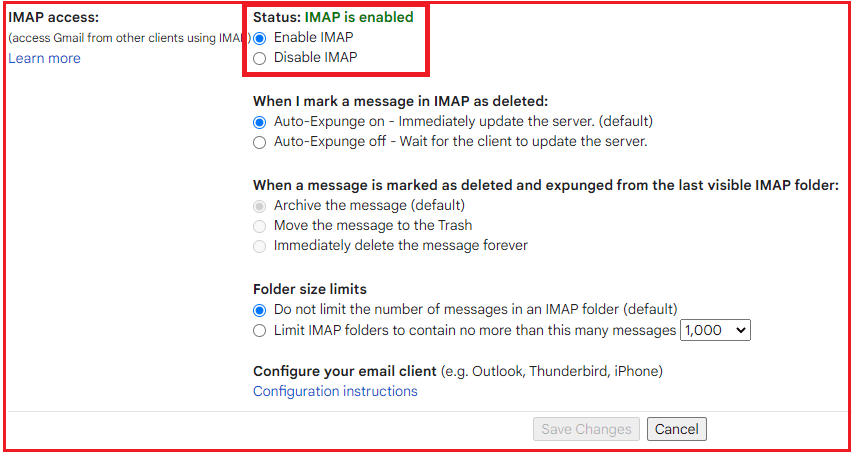
4. Select the Enable IMAP option and click Save Changes.
5. Now, open MS Outlook on your system.
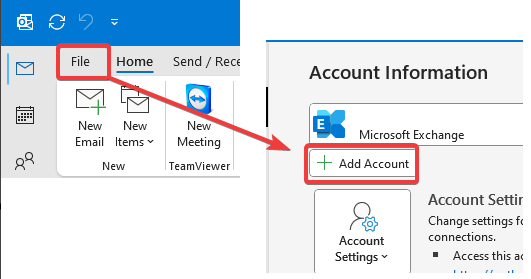
6. Go to File tab and click on Add Account.
7. Select manual setup or additional server types.
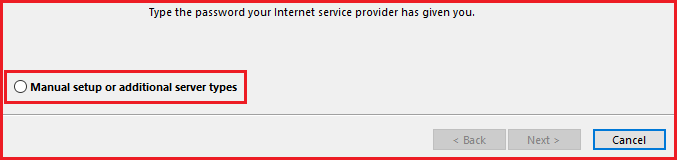
8. Choose POP or IMAP option.
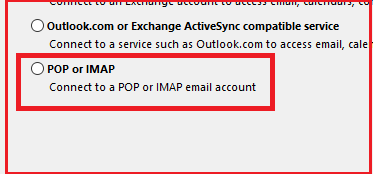
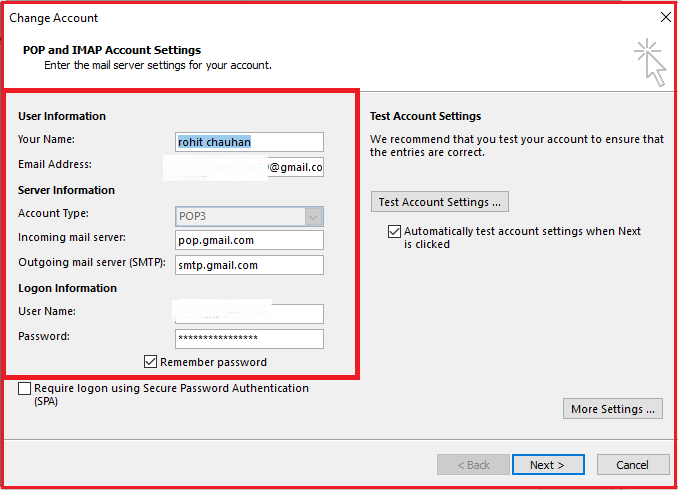
9. Enter your Gmail account details and More Settings.
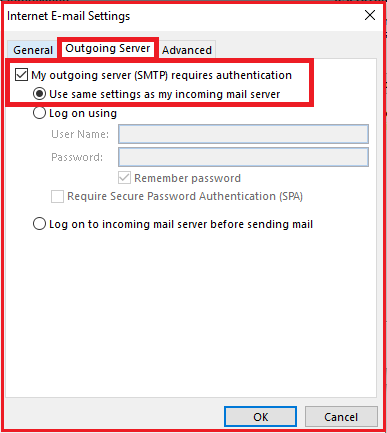
10. Click on Outgoing Server, mark the SMTP option, and use the same settings as my incoming server option.
11. Click on Advanced tab and enter Port Number for incoming and outgoing server and press OK.
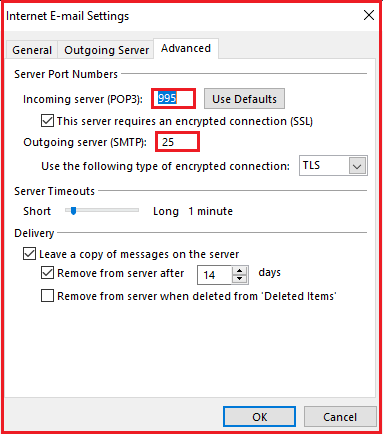
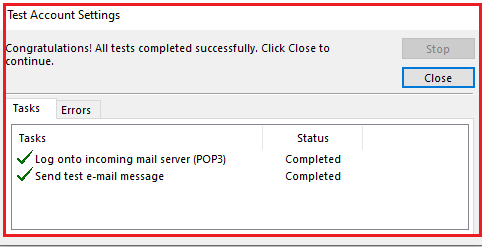
12. Now, it will test account settings if there is any error then it will show otherwise it will configure successfully.
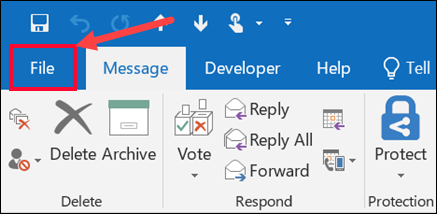
1. Again, click on File tab in Outlook.
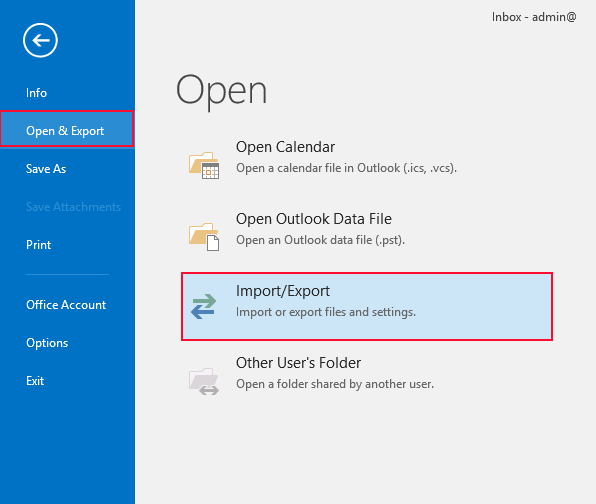
2. Click on Open & Import section and choose Import/Export.
3. Select Import from another program or file, and then click Next.
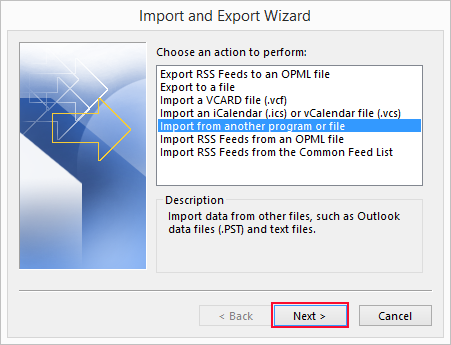
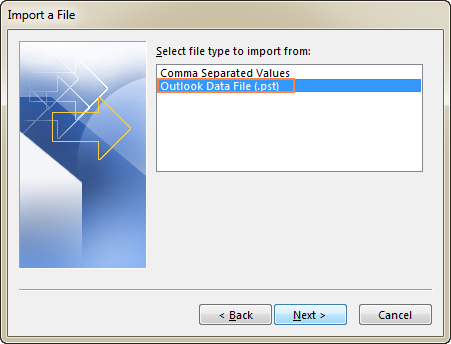
4. Choose Outlook Data File (.pst) and click Next.
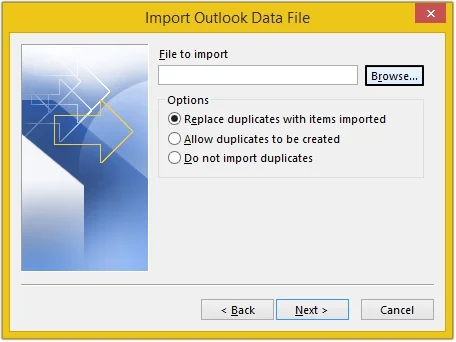
5. Click on Browse and choose .pst file from your system.
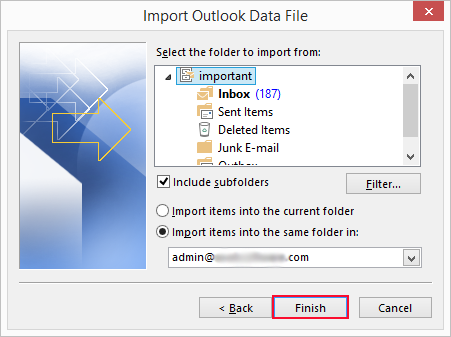
6. Select the configured Gmail account and click the Finish button.
Done!! That’s how you can import a PST to Gmail via Outlook settings.
Why Shouldn’t You Rely on Manual Methods?
- This method seems simple, but it consists of various lengthy steps.
- Configuring Gmail with Outlook isn’t always easy.
- Need to install Outlook to use this method.
How to Import PST File into Gmail Without Outlook?
The manual methods are helpful for importing but there are several limitations. To avoid every one of them, using the automated tool is an amazing choice. One such tool is the Advik PST File Converter. This little magical wizard is able to import PST to Gmail without Outlook. This standalone application can upload PST files in batches without facing any technical difficulties. Also, it will preserve and maintain the complete folder hierarchy of PST mailbox throughout the process. Thus, it is an ideal way to import emails from PST to Gmail in a few simple clicks.
Download this software and avail of its benefits right away.

Steps to Transfer Outlook PST to Gmail
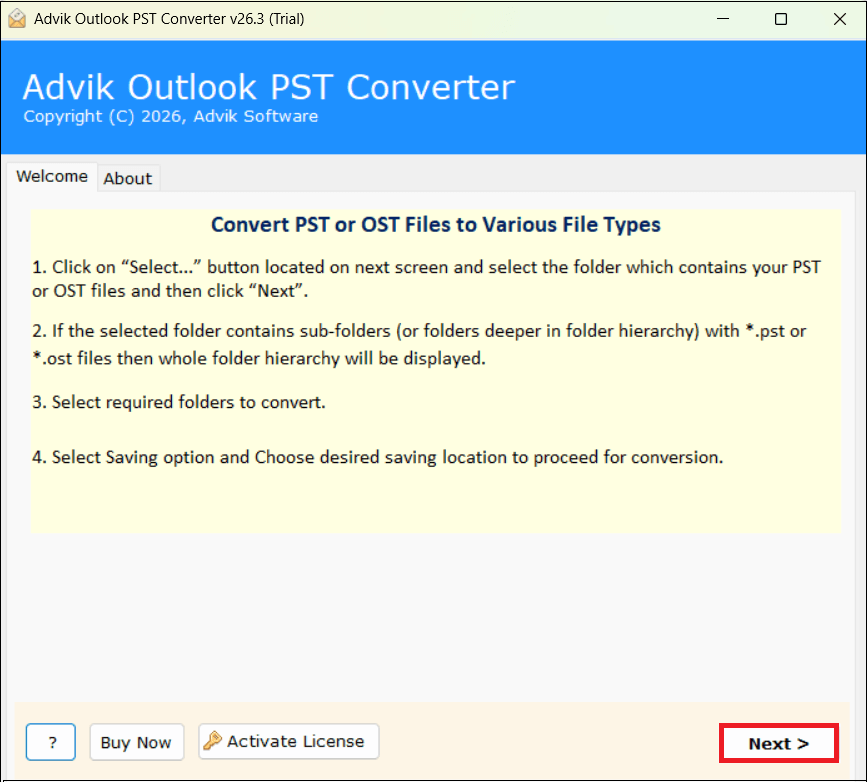
Step 1. Run the PST to Gmail Migration Tool on your system.
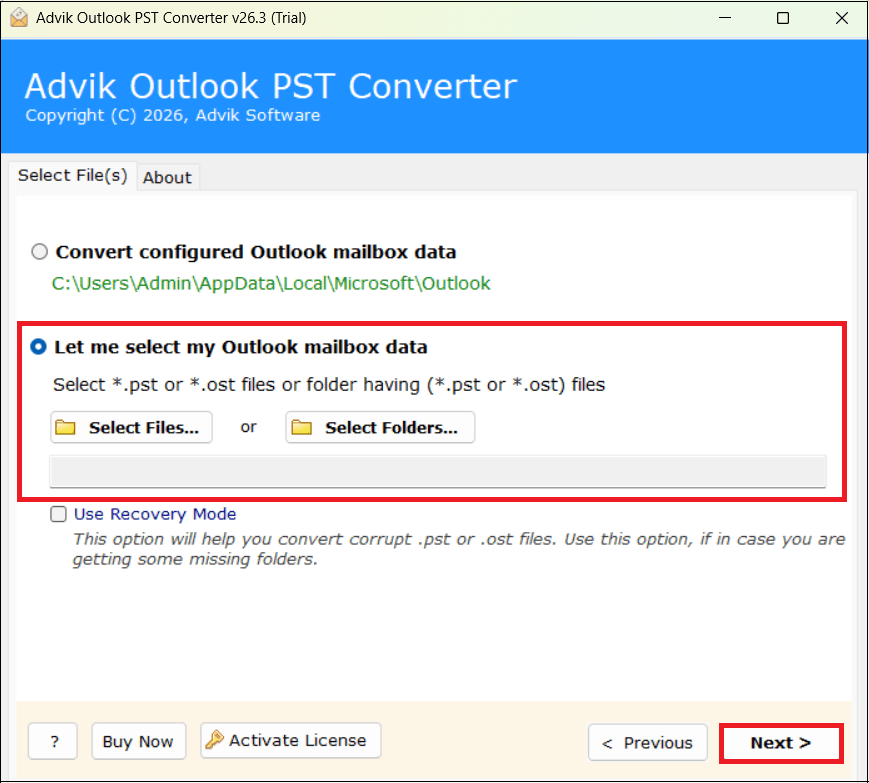
Step 2. Click on Select Files or Select Folder to add PST file to the software and press Next.
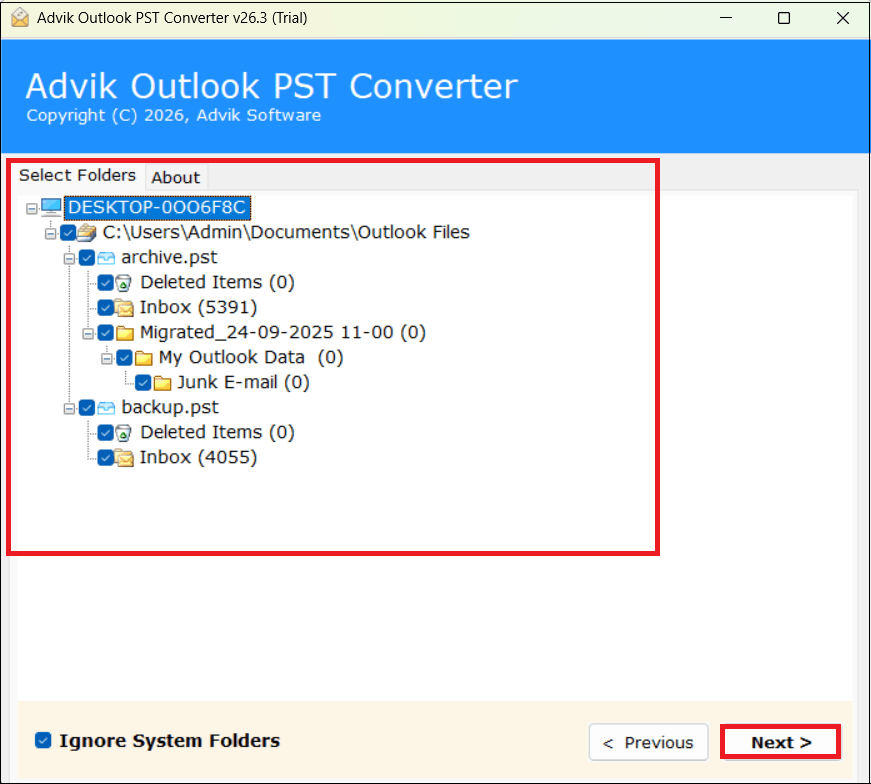
Step 3. Choose the mailbox folders that you want to import and click Next.
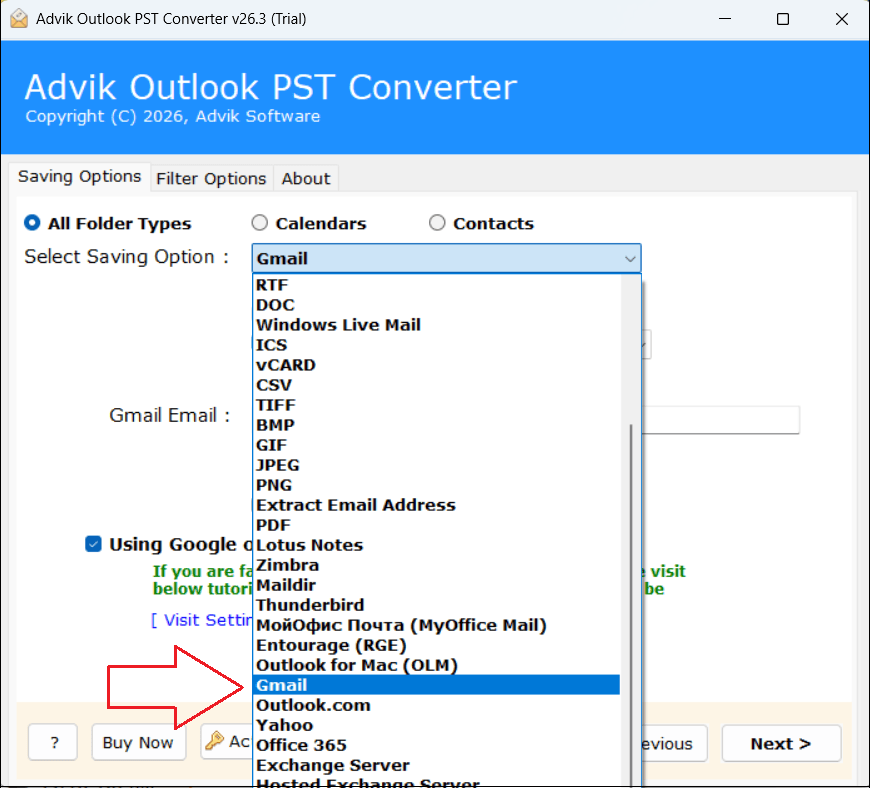
Step 4. Select Gmail as a saving option from the list.
Step 5. Enter your Gmail email address and app password and click the Next button.
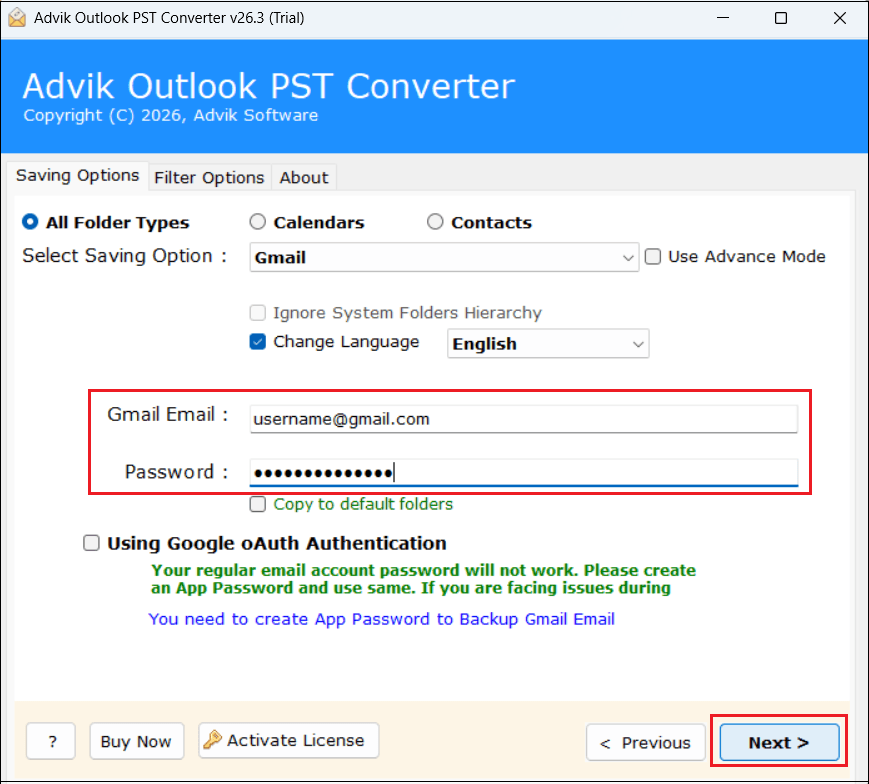
Step 6. Now, the tool will start importing PST files to Gmail account.
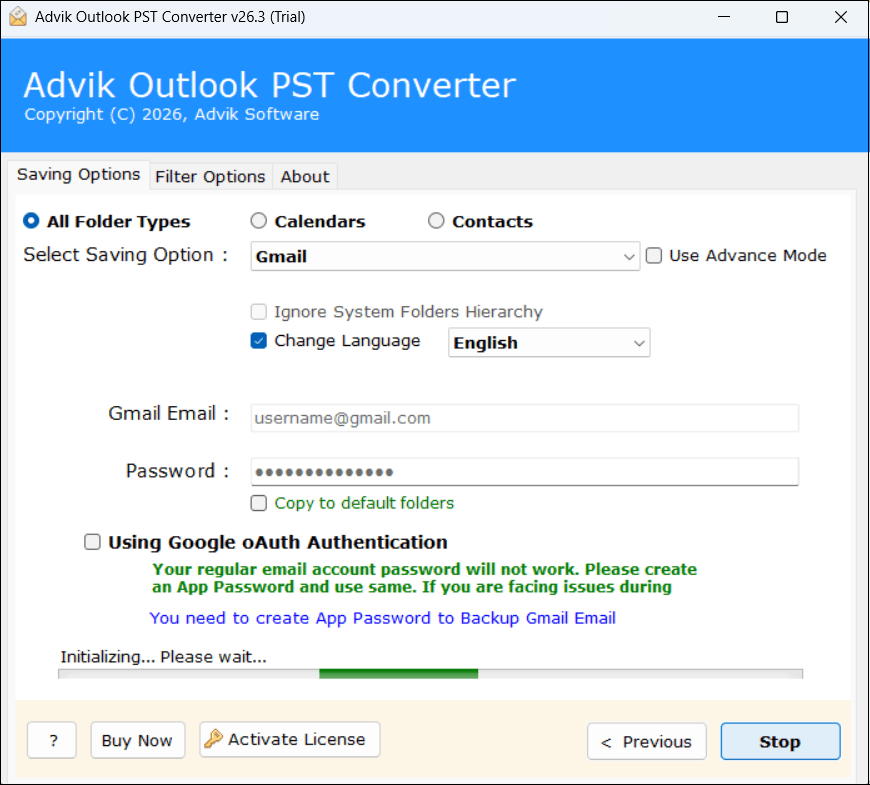
Once the process is complete, login to your Gmail account and check all the transferred PST files into it.
Now, let’s have a look at the video guide to understand the whole process more easily.
Watch How to Import PST to Gmail Without Outlook
Why Choose PST to Gmail Converter Instead of Manual Methods?
- Batch Import: This software offers two options: Select Files or Select Folder to add an Outlook data file to the software panel. By using these options, you can import one or more .pst files into Gmail account.
- Preserves Email Attributes: The software not only imports emails from PST files to Gmail but also preserves all email attributes and components, such as attachments, signatures, hyperlinks, Cc, Bcc, to, from, subject, etc.
- Maintains Folder Hierarchy: PST file has multiple folders to store data. When you transfer PST file to Gmail account, it keeps the original structure of mailbox folders and subfolders even after completing the process.
- Selective Data Importing: Once you add PST file to the software, it displays all the folders and subfolders. Here, you can choose and select the desired folders to migrate rather than importing the entire file.
- No File Size Limitations: There are no file size restrictions with this utility. It can easily transfer large data files without losing a single bit of data.
Final Words
Many users have data in PST files and want to access them in their personal Gmail accounts directly. In that case, they search for a solution to migrate PST to Gmail. In this article, we have explained the step-by-step procedure to import emails from PST to Gmail account. Here, we have outlined three ways to perform this import. Read all methods carefully, then decide which is most suitable for you.
Frequently Asked Questions (FAQs)
Q1. Can I open PST file in Gmail?
Ans. No, there is no option in Gmail to import PST file. However, you can try the 3 methods explained in this article to import PST in Gmail account.
Q2. How to import PST to Gmail without Outlook?
Ans. Using the GWMMO tool or the PST to Gmail Converter, you can easily import PST to Gmail without Outlook or any other application.
Q3. Can I transfer PST file n its original format?
Ans. Yes, the above-suggested PST to Gmail migration tool import .pst to Gmail without modifying their folder hierarchy and key elements.
Q4. Does this tool support both ANSI and Unicode PST file?
Ans. Yes, the software supports both types of .pst files without any compatibility issue.
Q5. Is it possible to migrate PST Contacts to Gmail Account?
Ans. Yes, the mentioned tool allows you to import PST contacts to Gmail along with complete mailbox folders.
Q6. Can I transfer the Outlook calendar to Gmail?
Ans. Definitely! The automated tool lets you import Outlook Calendar to Gmail easily. You just need to choose the required folders of your Outlook data file.
