How to Import PST to Google Workspace? – Full Guide
Jim Backus | May 20th, 2026 | Email Migration, Outlook
In today’s blog post, we will provide you with a detailed guide on how to import PST to Google Workspace using Manual and Professional ways. Here we’ll explain the process with step by step instructions with valuable tips and tricks to ensure a smooth migration. If you need to migrate Outlook PST files to Google Workspace then keep reading and get a satisfactory solution.
PST file is used by MS Outlook to store all mailbox items, including emails, contacts, calendar events, and tasks. However, it is compatible with Outlook only, which limits its accessibility. Several users want to upload PST to Google Workspace account, such as to avail of cloud benefits along with various productive applications.
Migrating data to cloud-based platforms has become a need in the present time. If your mailbox items are stored in PST file, importing them to Google Workspace is beneficial. It allows you to easily access your data anywhere, anytime, with any device.
There are two different methods that you can follow for email migration to G Suite from PST file. Read them one by one and choose which suits best to your needs.
Real Life Use Case to Import PST to Google Workspace
A few months ago, I switched from Microsoft Outlook to Google Workspace for remote accessibility. I had around 15 GB of PST file from my old account that needed to be migrated into Google Workspace. I first tried manual method but process became complex due to oversized PST file.
After testing several methods, I used Advik PST Converter tool. The software makes the process easy for me. With this program, I have been able to import this large Outlook PST file without losing any single bit of data.
How to Migrate PST to Google Workspace Free?
Follow the below steps to import PST file into Google Workspace (G Suite).
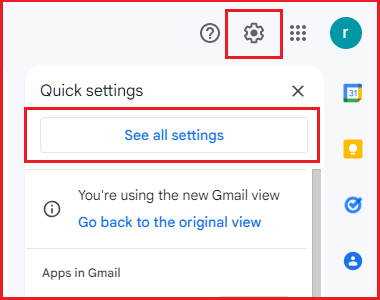
- Sign in to your Gmail account and go to Settings.
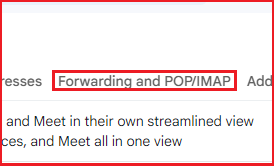
- Click on the Forwarding and POP/IMAP tab.
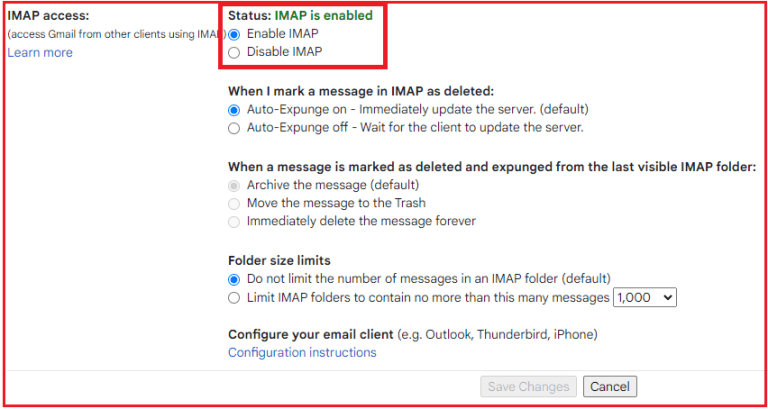
- In the IMAP Access section, check Enable IMAP and click on the Save Changes button.
- Now open https://myaccount.google.com/security and enable Less Secure Apps.
- Open Outlook and go to the File tab on Add Account
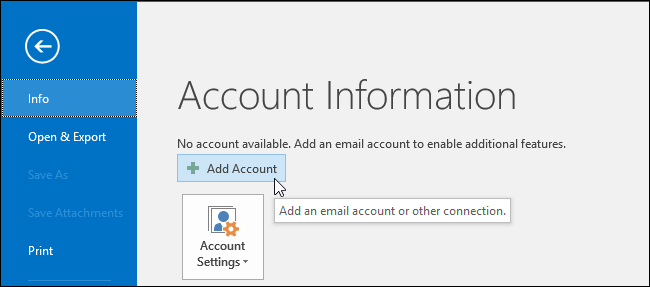
- Enter your G Suite email address and click Connect to proceed.
- Enter Google Workspace account details to set up with Outlook.
- Now, click Done to complete the rest process.
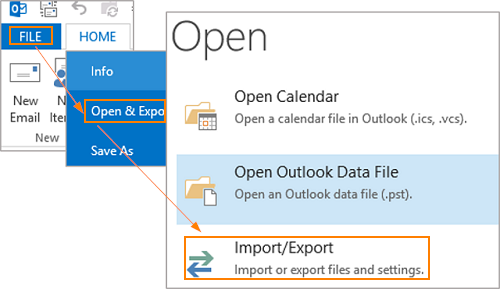
- Again go to File >> Open & Export >> Import/Export.
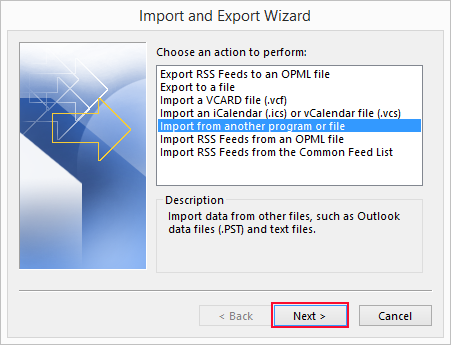
- Select Import from another program or file option and press Next.
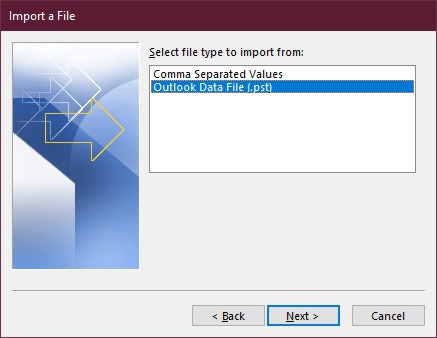
- Choose Outlook Data File(.pst) and click Next.
- Browse the Outlook data file and select it from your system.
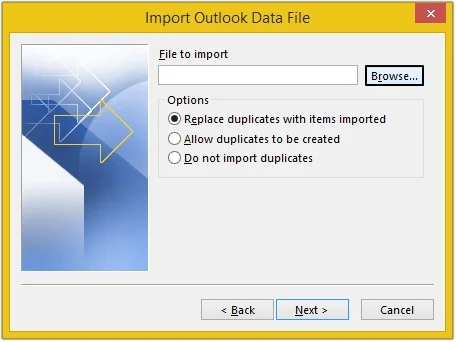
- Now, import that file under your Google Workspace mailbox folder.
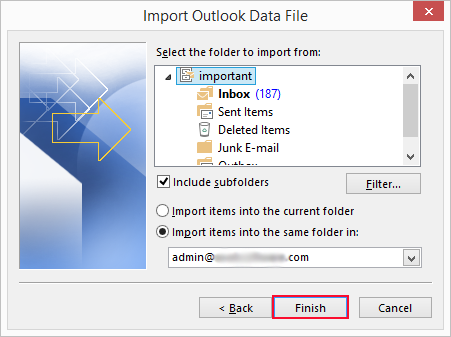
Here complete the PST to Google Workspace migration manually. However, you can import a single PST file at a time using this approach.
How to Import PST File to Google Workspace Without Outlook?
To overcome difficulties that can arise while the manual process is ongoing, make use of the Advik PST Converter. The tool has eased the process and can be completed in a few simple clicks.
This software will help you:
- Import PST files to G Suite in bulk.
- Supports .pst file created by MS Outlook 2019/16/13/11 versions.
- Maintains the mailbox folder hierarchy and metadata of emails during the process.
- Offers advanced filter options to import selected data items from PST file.
Download the software and try it for free.


Steps to Upload PST to Google Workspace
- Launch the software on your PC and click Select Files.
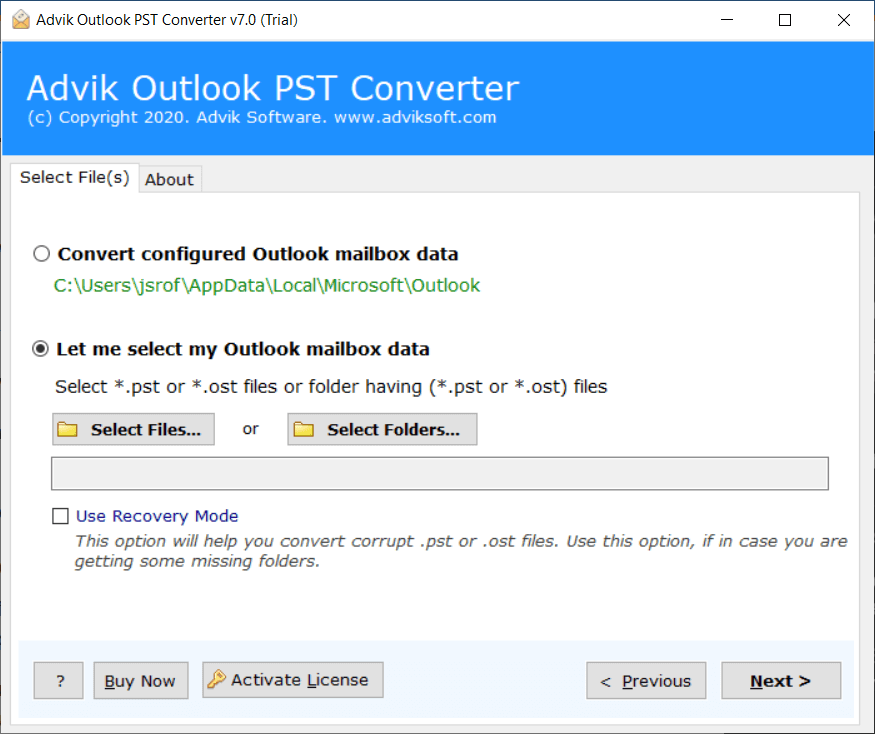
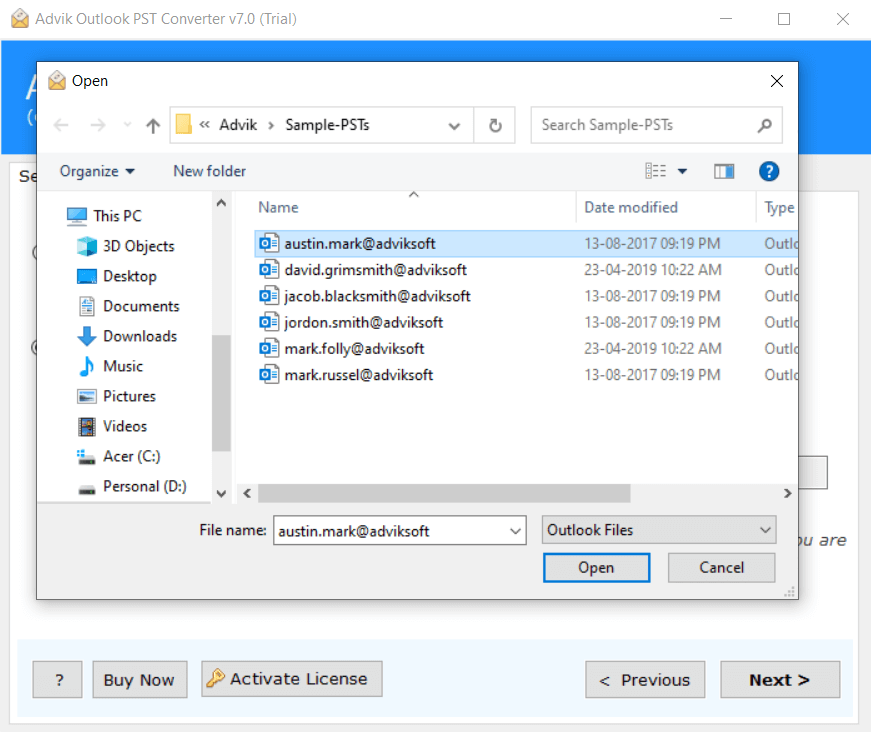
- Browse and locate Outlook .pst file into the software interface.
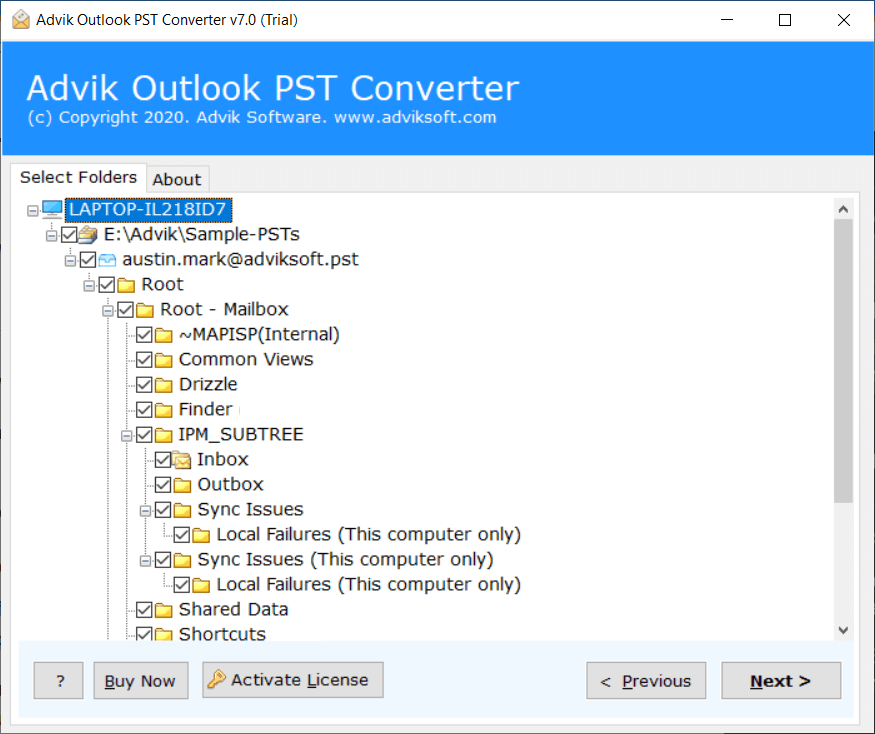
- Select mailbox folders to migrate to Google Workspace.
- Choose G Suite as a saving option from the list.
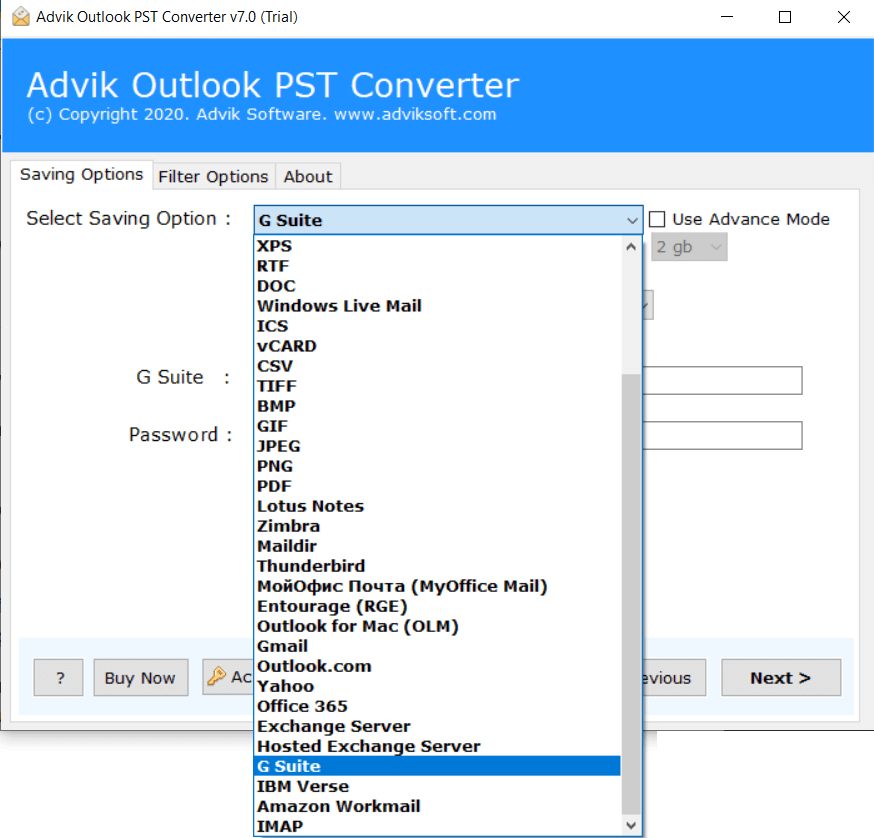
- Enter your G Suite login credentials and click Next.
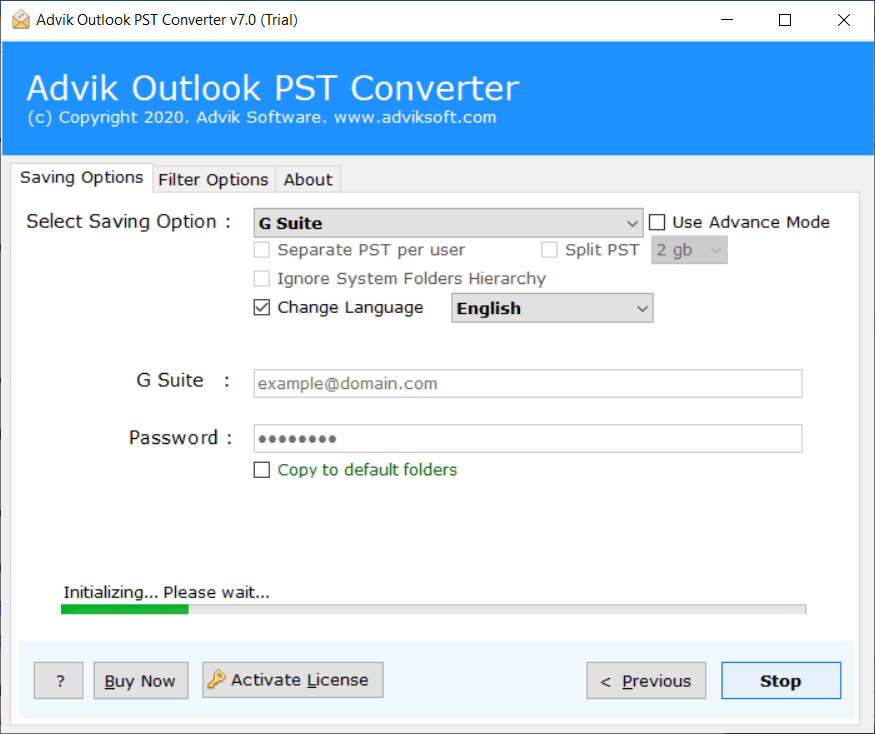
Now sit back and get relaxed. The software will start migrating emails from PST file into Google Workspace account. During the entire process, the software will preserve and hold email elements as well. Thus, no data loss will take place.
Watch How to Import PST to Google Workspace
Some Useful Features of Automated Solution
- Bulk Importing: The software comes with dual options to add single or multiple PST files into the software panel. Users can easily import PST to Google Workspace in bulk with this software.
- Maintain Folder Hierarchy: It also keeps the folder and sub-folder structure intact during migration. As a result, users can easily find out their data even after the process.
- Keep Email Components Intact: The software preserves all email components during the process like emails attachments, signatures, hyperlinks, to, from, cc, with a maintained folder structure.
- Import PST File with Complete Data: While uploading PST files to Google Workspace account, the software moves all data folders such as Inbox, Sent, Draft, Trash, and other folders.
- Import ANSI and Unicode PST File: The software supports both ANSI and Unicode PST files. So, users can transfer Outlook 2021, 2019, 2017, 2013, 2011, etc. PST files without showing any error message.
- Selective Migration: It offers various advanced filter options that allow users to transfer PST file based on date range, and subject, excluding folders, sender, and receiver.
Conclusion
In this post, we have described the two best techniques to import PST to Google Workspace. Both methods work perfectly. However, the manual method is lengthy and complicated. You might face a configuration issue or might lose the target of importing PST to Google Workspace. So, the professional solution is highly recommended to migrate PST to Google Workspace without facing any technical difficulties. Your data and other information will be the same as before. Now you can decide which one of the given solutions you want to use for migration.
Frequently Asked Questions
Q 1. Does Google Workspace import PST File?
Ans. There is no direct way to transfer emails from .pst file into Google Workspace account. However, by configuring your mail account with Outlook or using a third-party tool, you can transfer your data file.
Q 2. I have a 30 GB PST file. How long does it take to import?
Ans. The importing time depends on the internet speed, system performance and the method that you used. If you use Outlook it may take lot of time whereas the automated tool makes the process faster.
Q 3. Can I migrate PST to Google Workspace along with attachments?
Ans. Yes, the tool maintains all email attachments and other components during PST to Google Workspace migration.
Q 4. I have a PST file on my computer and Outlook is not installed on my device, can I import PST to Google Workspace?
Ans. Yes, the software is a standalone utility that does not require Outlook installation to perform the importing process.

Related Articles