How to Import PST to Outlook Web App?
Jim Backus | December 22nd, 2025 | Email Migration
This tutorial will guide you on how to import PST to Outlook Web App with complete mailbox folders. Here, we’ll show you three different methods- including manual and automated solutions to transfer emails from .pst file into Outlook.com account. All methods are explained in detail in the upcoming section. Read this blog till the end and import PST in Outlook Web Access without any hassle.
Outlook.com is a popular web-based email service by Microsoft. It comes with advanced features to send and receive email via an internet connection. Many users want to access PST email data to reduce their dependency on Outlook. Thus, they search for any web-accessible email account. To do this, what could be better than Microsoft’s email service i.e., Outlook Web Access. By importing PST files into Outlook Web App, you can easily access them anywhere and anytime.
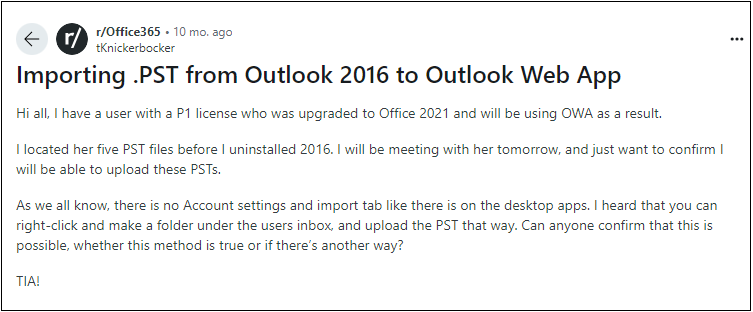
We have found this user query on the official site of Reddit. Here, this user is asking about a way to import PST file to Outlook Web App and didn’t have the right solution to do it.
Now the question arises – how can you import PST into Outlook Web Access? There is no direct way to import PST to Outlook Online account. However, there are three possible ways to do that. One is with the Outlook desktop client, another is by using Azure AzCopy Tool, and the third one is using automated software. Follow the complete article to get the solution you have been looking for.
Method 1. How to Import PST to Outlook Web App via Outlook?
1. Launch Outlook on your Windows machine.
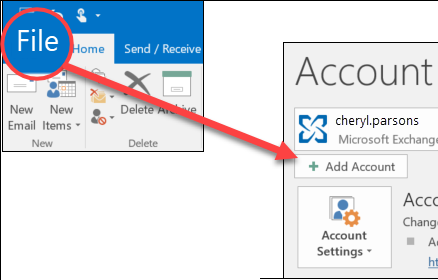
2. Next, Go to File atb and click Add account.
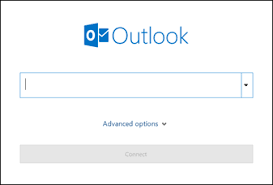
3. Set up your Outlook.com account.
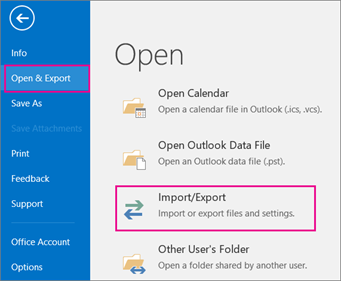
4. After complete setup, navigate to File >> open & Export >> Import/Export.
5. Now choose “Import from another program or file” from the menu.
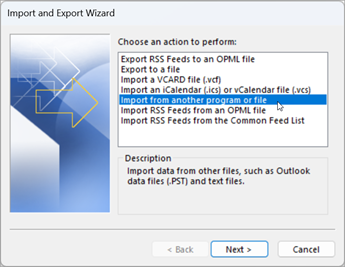
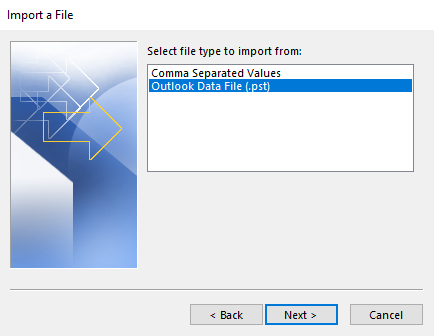
6. Select Outlook Data File (.pst) and press Next.
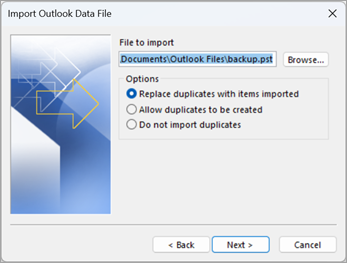
7. Choose PST file from your PC.
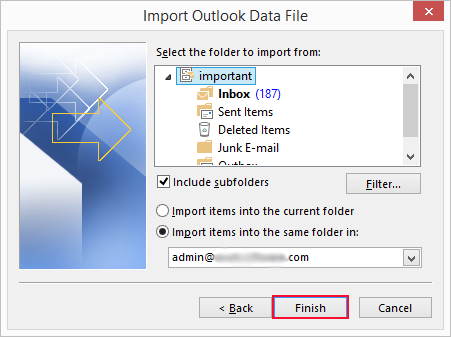
7. Choose Outlook.com mailbox folder and click the Finish button to start the import process.
Done! This is a free and manual way to import PST file to Outlook Online.
Method 2. How to Import PST Files into Outlook Web Application Using the Azure AzCopy Tool?
If your PST files are stored locally, then you can easily transfer PST file to Microsoft 365 mailbox using the Microsoft Azure AzCopy Tool, and then access it via Outlook Web Access. Follow the below given steps to import PST to Outlook Web App:
Steps 1. Download Azure AzCopy Tool and Copy SAS URL
- Visit protection.office.com and enter Microosft 365 credentials.
- Go to the Security & Compliance Center and select Data Governance and then click on Import.
- Click on New Import task and enter your name.
- Click on Show Network Upload SAS URL and then copy the link.
- Choose the Upload option and hit on Azure AzCopy to download the Azure AzCopy Tool.
- Now, run the Azure AzCopy Tool to import PST to Outlook Web App.
- Run the following command to open PST file in Outlook Web Access.
AzCopy.exe/Source:/Destination (URL path created from Show Network Upload SAS URL)/V: (verbose log file)/Y
Step 2. Create the PST Import Mapping File
Once the PST file is uploaded to Azure location, you need to move it to Outlook Web App. To do it, you need to create a CSV file with user mailboxes of PST files. This CSV file will be needed while creating the import job.
Step 3. Create PST Import Job
- After creating the CSV file, you’ll have to validate it.
- Check the options “I upload my files” and “I have access to the mapping file”.
- Select Mapping File option to add the created CSV file.
- Once you successfully validate the CSV file, start the analysis process.
- When the analysis is complete, a prompt screen will appear with different options like “Yes, I want to filter it before importing” and “No, I want to import everything”.
- Select the option as per your needs. When the process is complete, open Office 365 and view the PST file using Outlook Web Access.
However, the manual methods do not work, or you want a quick and fast solution for instant results, then go to the second solution.
How to Open PST File in Outlook Web Access Automatically?
Download and install the Advik Outlook PST Converter on your computer. This software will help you to import PST to Outlook Web App with complete mailbox folders and attachments. With this tool, you can upload PST files to Outlook.com account in bulk. Also, it offers advanced email filter options to transfer selected data items from PST file. All the mailbox folders and email attributes will remain preserved during the process.
Download a free trial and give it a try without any cost.


Steps to Import PST to Outlook.com
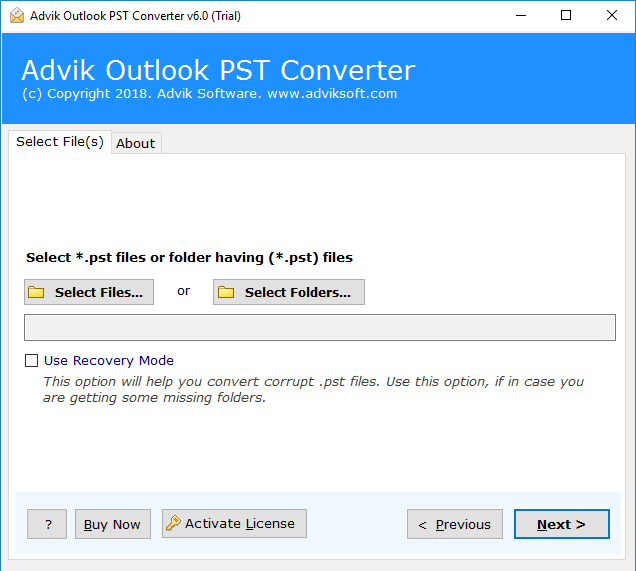
Step 1. Run the software and add the Outlook PST file.
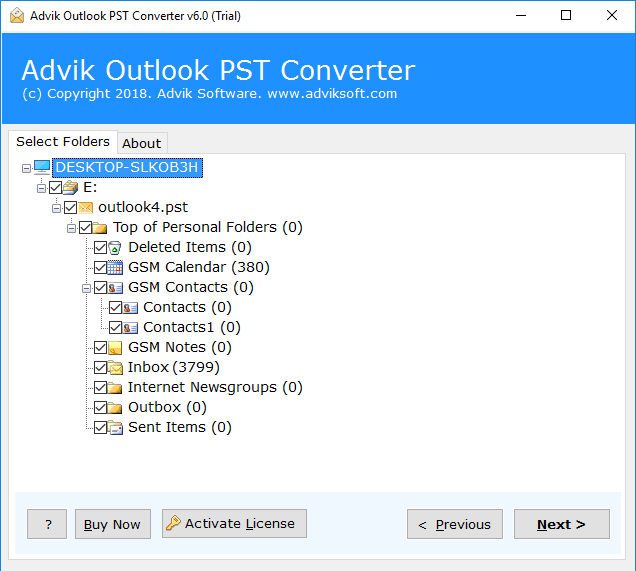
Step 2. Select mailbox folders and click Next.
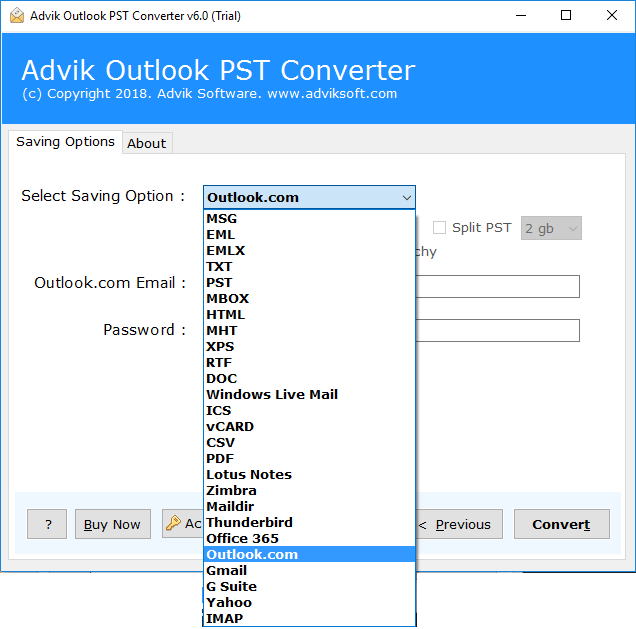
Step 3. Select Outlook.com from the list.
Step 4. Enter your Outlook.com login details & click the Convert button.
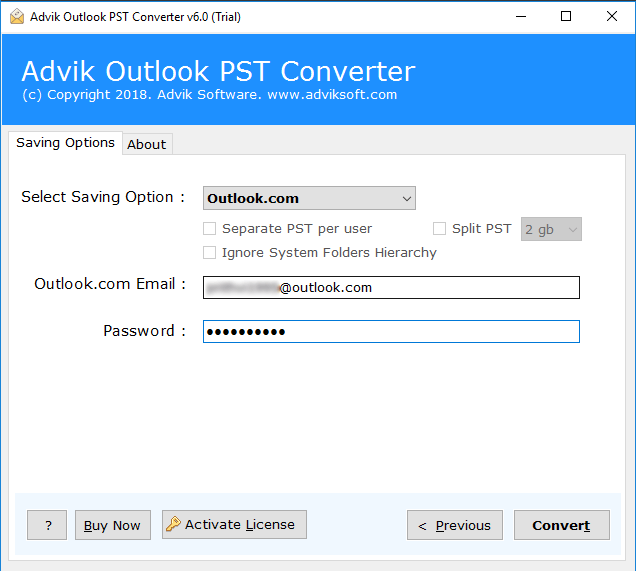
Now, the software will start transferring emails from PST file to Outlook.com account.
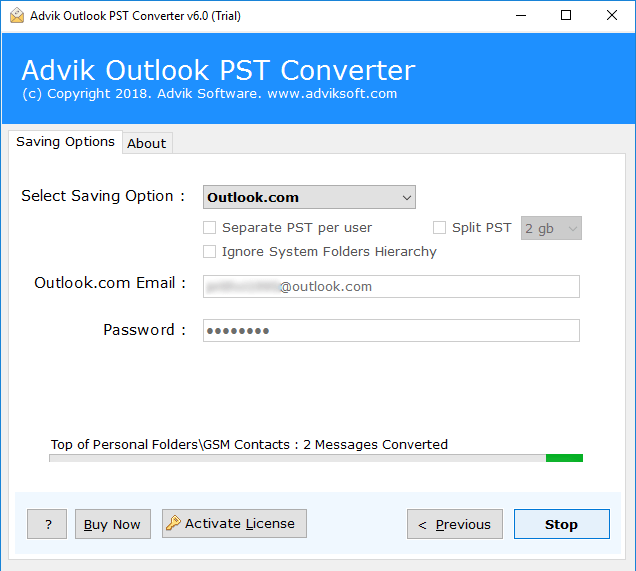
Once completed, log in to your Outlook web app account and check all the imported emails there.
Reasons to Choose Automated Tool Instead of a Manual Approach
There are many reasons to select PST to Outlook.com Import Tool. Some of them are as follows;
- Direct Importing: The software can import PST files into Outlook Online directly without any manual configuration.
- Maintain Folder Structure: This software maintains the folder and sub-folder structure of emails during the migration process of PST file to Outlook.com Account.
- Preserve Key Elements: All the key elements of emails such as “to”, “from”, “Cc”, “Bcc”, etc. remain intact during PST to OWA Migration.
- Retain Attachment Files: Attachments play a vital role in any email conversation. That is why this tool is designed to keep your attachment files intact during the process of migration.
- Dual Mode: The tool has a dual mode – Select Files or Select Folders to add PST file to Outlook Web App in bulk.
- Multiple Output Format: This software can transfer PST files into multiple output formats including all email and document file formats. Such as PST to CSV, MSG, EML, TXT, MBOX, DOC, PDF, vCard, etc.
- Cloud Migration: Apart from PST to Outlook Web Access import solution, this tool allows users to import PST to Gmail, G Suite, Office 365, Yahoo Mail, and any other email service that uses IMAP protocol.
- Free Demo Download: You can download the free version of Advik software for free to check the efficiency and the working of the tool.
- Dedicated Customer Support: In case you are stuck somewhere while using this tool, you can contact our customer support for further help.
Final Verdict
This blog shared two easy and effective ways to import PST to Outlook Web App. All methods are 100% workable. You can choose any method that is most suitable for you. However, the manual methods come with some limitations. So, experts recommend that you use a professional solution to import PST in OWA. You must try the free trial version of the automated tool before buying it.
Frequently Asked Questions
Q1: How to import PST file in Outlook Web App?
A: There are three different ways for importing .pst file into Outlook Web Access.
Q2: Can I transfer a large PST file to Outlook.com?
A: Yes, the tool supports large PST files without any size limitation.
Q3: Does this software allow importing both ANSI and Unicode PST files to Outlook Web App?
A: Yes, it can import both ANSI and Unicode PST files to your Outlook.com account.
Q4: Can this software import emails from a damaged PST file?
A: Yes, you can use recovery mode to migrate emails from a damaged PST file as well.
