How to Import Webmail to Thunderbird?
Jenny Lowrence | February 12th, 2026 | Email Migration
Many users relay on Webmail to access their emails through a browser but managing emails daily on a web interface can feel slow. So, they want to export emails from Webmail to Thunderbird for better control, offline access, and advanced email management. This article offers a clear, helpful tutorial to import webmail to Thunderbird.
In this write-up, users will get step-by-step procedure to easily transfer Webmail emails to Thunderbird, but first let’s explore a few reasons benind this purpose.
Why Migrate Webmail to Thunderbird?
Here are several advantages of importing Webmail emails to Thunderbird:
- Thunderbird allows accessing webmail emails even without an internet connection.
- It simplifies email management by allowing users to manage all their inboxes at one place.
- Thunderbird has Add-Ons to better manage Webmail data.
- Long-term local archival of Webmail data, including emails, attachments, and more.
How to Import Webmail to Thunderbird Manually?
Follow the below given steps to add Webmail account to Thunderbird;
1. Open the Thunderbird application on your system.
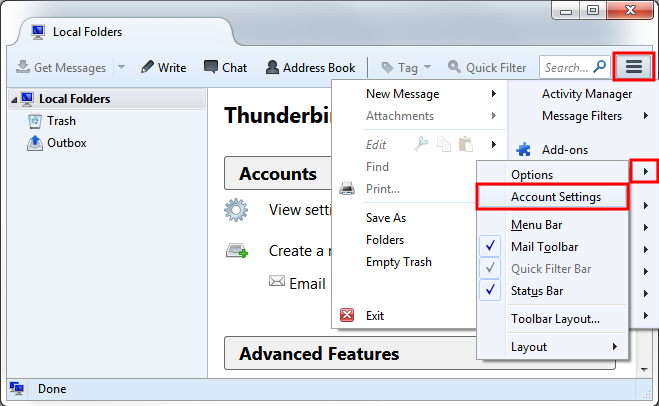
2. Click on three horizental line and select Account Settings.
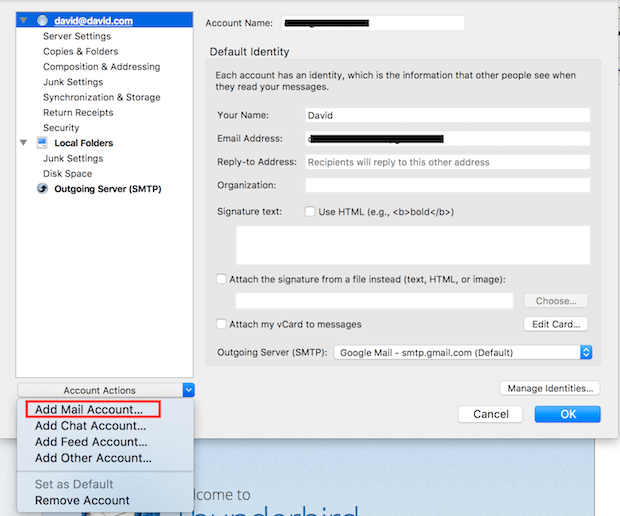
3. Click on Account Actions and choose Add a Mail Account.
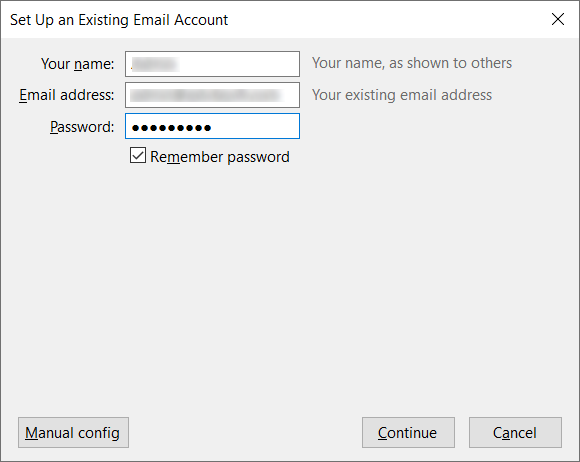
4. Enter your Webmail email address and click Connect.
5. Put the IMAP details of your Webmail account and click Done.
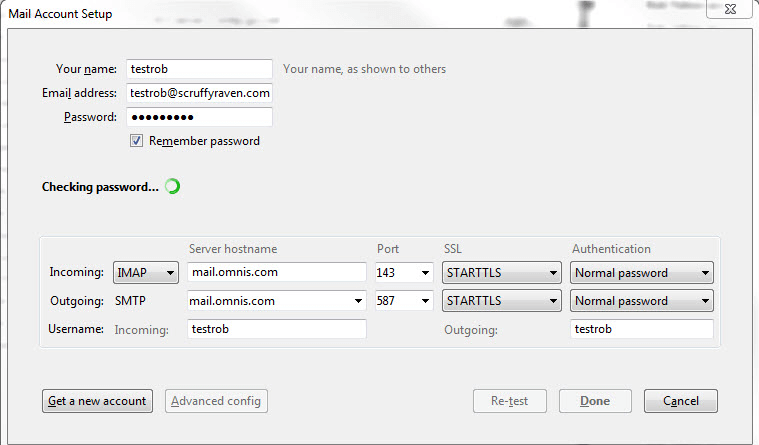
Now, your Webmail account has been successfully set up in Thunderbird, and your Webmail mailbox will be accessible in Thunderbird.
How to Transfer Emails from Webmail to Thunderbird Automatically?
Download and install the Advik Email Migration Tool on your system. The software can import Webmail to Thunderbird in just 5 simple clicks. To do it – Run the tool, enter your Webmail account credentials, choose mailbox folders, select Thunderbird from the saving option, and click Backup.
The tool allows you to migrate all or selected email folders as per your needs. It retains the structure of mailbox folders even after the process. Thus, no data loss will take place at any step.
So, what are you waiting for? Click on the free download button and give it a try.


Steps to Import Webmail Emails to Thunderbird
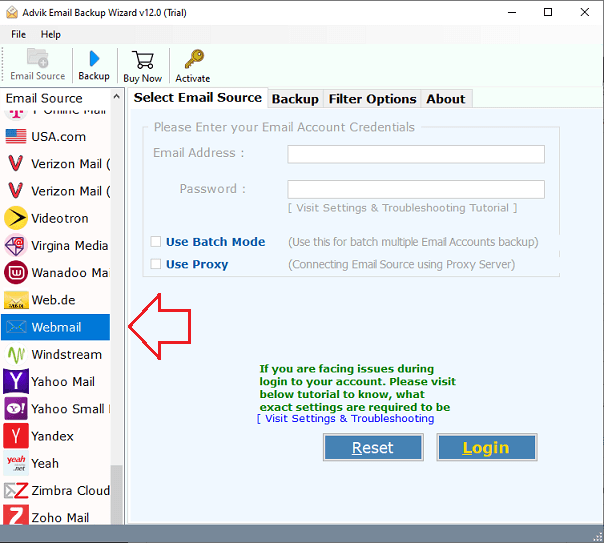
1. Run the tool and choose Webmail as the email source.
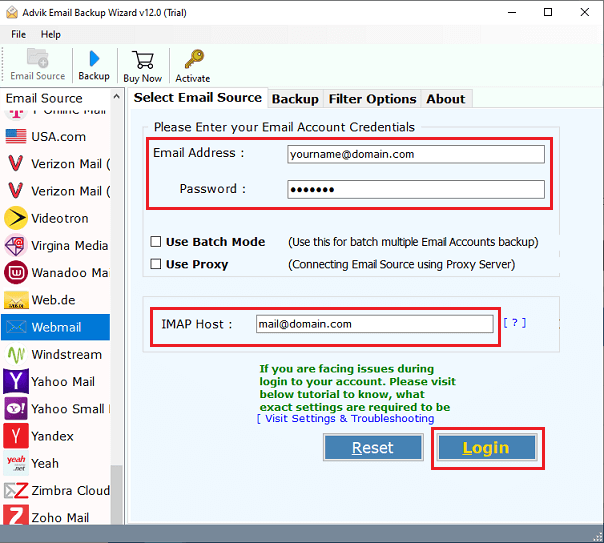
2. Enter your Webmail account login details and press Login to sign in.
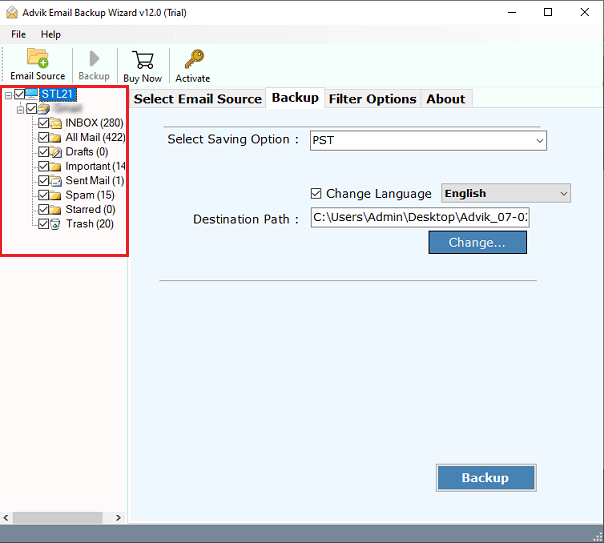
3. Next, select the mailbox folders that you want to import.
4. Choose Thunderbird as a saving option.
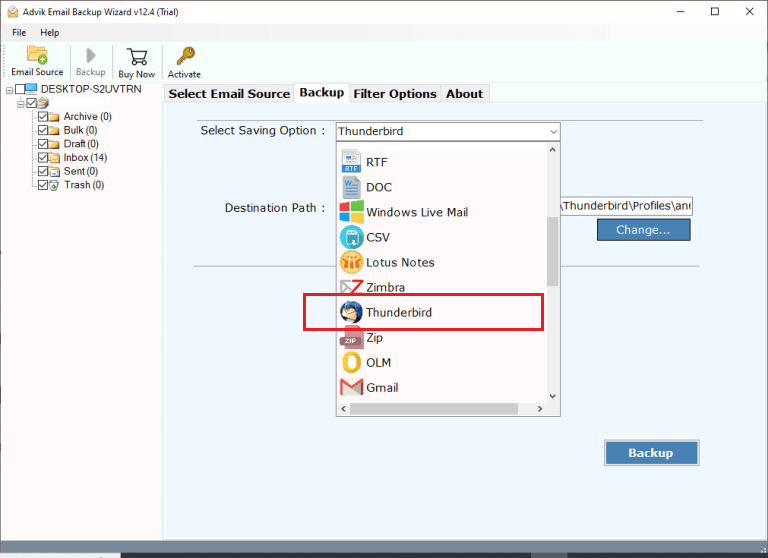
5. Click the Backup button to begin the importing process.
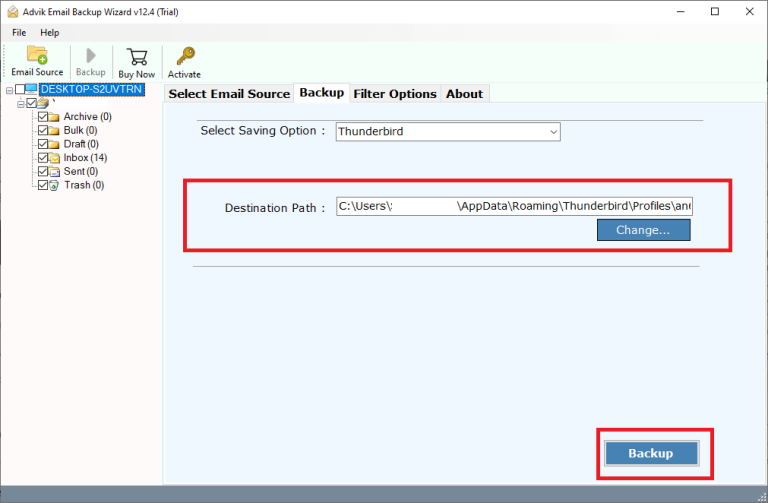
Done! This is how you can easily export Webmail emails to Thunderbird mailbox.
Benefits of using Automated Solution
- Ability to bulk import Webmail to Thunderbird without losing any crucial data.
- Advanced filter options to import only selected emails as per requirements.
- 100% safe and secure to use and trust for your sensitive Webmail emails.
- Preserves the original formatting of your email folders during the import.
- User-friendly interface and easy-to-understand features.
- Gives a free trial to check the working procedure and explore all the features.
- Compatible with all versions of both Mac and Windows operating systems.
Conclusion
In this article, we have mentioned the two best methods to import Webmail to Thunderbird. You can manually export Webmail emails to Thunderbird using IMAP configuration. However, if you face any issues with it then you can use the automated tool, which allows you to directly migrate Webmail to Thunderbird without any configuration.