How to Merge Email Accounts in Outlook? – Simple Tutorial
You may be wondering if it’s really possible to merge email accounts in Outlook easily. While it might not be as simple as you thought, it’s definitely doable. In this guide, we’ll show you how to combine multiple email accounts in Outlook step by step. We’ll cover both the manual method and an easier way to bring all your accounts together. No technical skills needed; just follow the steps and get the results you need.
Managing multiple email accounts can be a hassle, especially when switching between inboxes all day. If you’re using Microsoft Outlook, there’s good news. Outlook allows you to add and manage several email accounts in one place.
If you’re in a hurry and just need a quick overview, here’s how to merge multiple email accounts in Outlook quickly;
To merge email accounts in Outlook, go to File > Add Account, enter your email credentials, and repeat for each account. Use rules or search folders to organize emails from multiple accounts into one unified view. This way, you can manage work, personal, or other emails in a single Outlook interface without switching between profiles.
For a more detailed process, follow the methods explained below.
How to Combine Two Email Accounts in Outlook Free?
To merge two email accounts in Outlook, you can use the manual method. However, this method isn’t feasible if you want to combine more than two accounts.
- Open Outlook and go to File > Add Account.
- Enter Email Credentials for each account you want to merge.
- Repeat for each account you want to add to Outlook.
- Set up Search Folders to combine the emails from different accounts in a unified view.
- Use Rules to filter emails and organize them into one inbox or separate folders.
Completed now.
However, we noticed that merging multiple accounts manually is slow and tiring. If you have many accounts, this method can take a lot of time.
You also have to add each account one by one, which is not a good option for managing emails in bulk. To do it more easily, you can try the automatic solution.
How to Merge Multiple Email Accounts in Outlook Automatically?
Advik Outlook PST Converter is a useful tool that allows you to combine multiple email accounts in Outlook more efficiently. Instead of manually adding accounts one by one, this tool automatically detects and fetches mailbox folders from Outlook’s configured profiles. You can select multiple profiles or accounts, export them into a single PST file, and then import that PST file back into Outlook. This way, all your email accounts will be combined in one place.
It supports merging the inbox, sent items, drafts, and other custom folders without changing the folder structure. The tool also ensures attachments and email metadata are preserved during export. It works with all major versions of Microsoft Outlook and supports both POP and IMAP configured accounts.
Click on the free download button and check it’s working at no cost.

Steps to Merge Email Accounts in Outlook
Step 1. Launch the software and select the configured Outlook account data.
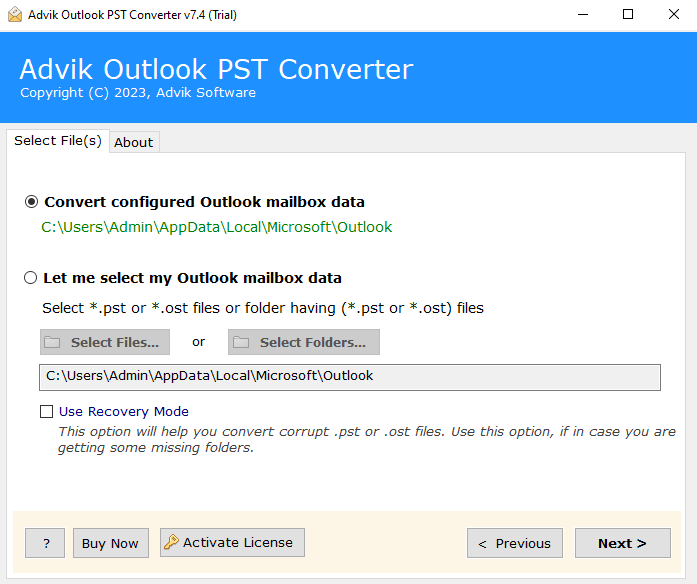
Step 2. Choose your required email accounts from the given preview.
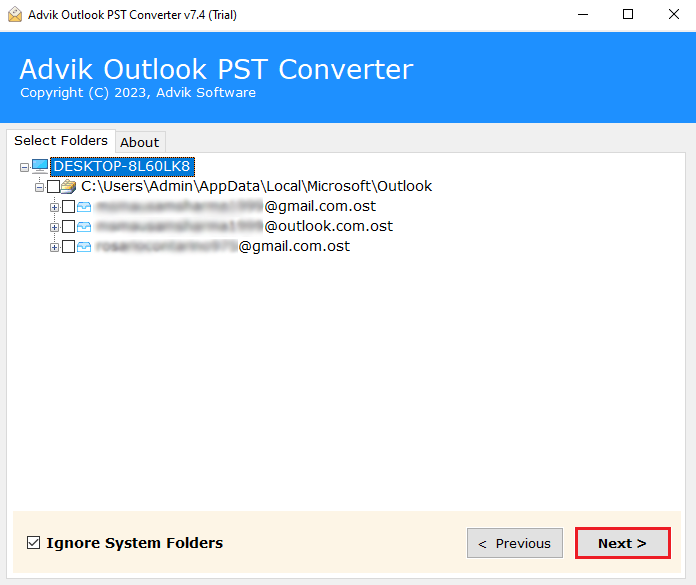
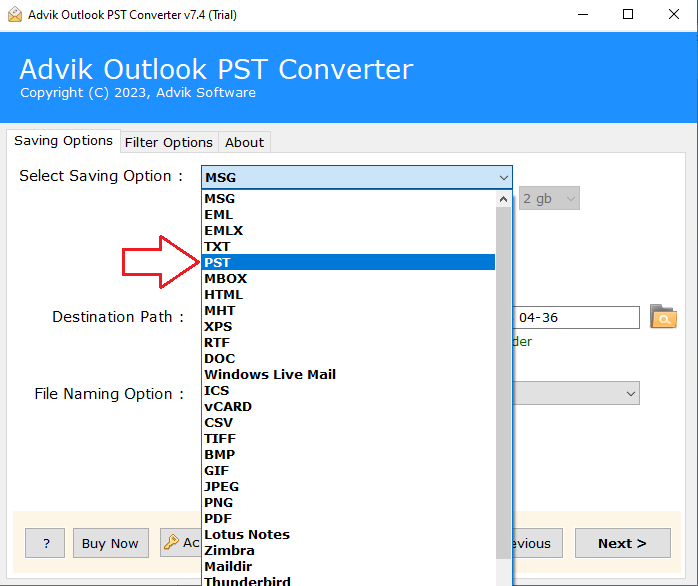
Step 3. Select PST as a saving option from the list.
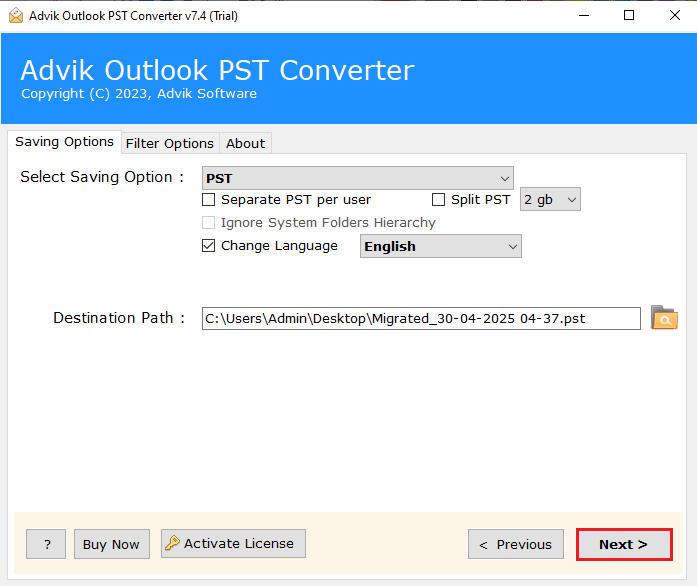
Step 4. Browse the destination path and click Next to start.
Step 5. Import the PST file back into Outlook to access merged emails.
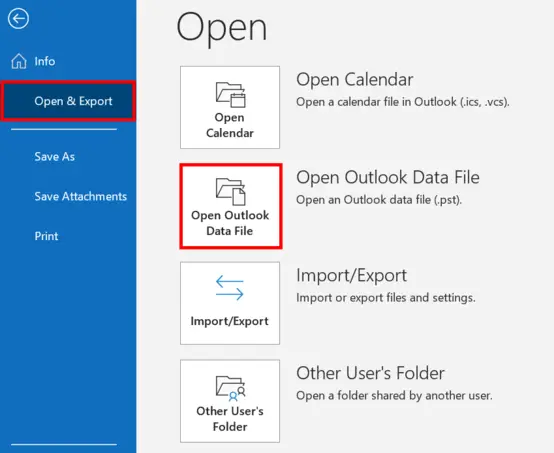
Done!! This is how you can easily join multiple email accounts in Outlook in just a few clicks.
Why Opt for an Automated Solution Instead of Manual Methods?
While manual methods can work, they have significant limitations, especially when you need to merge several accounts or maintain folder structures. Advik Software offers several advantages;
- Fetches Configured Outlook Profiles: The software directly connects to your Outlook profile, fetching all mailbox folders without needing additional setup.
- Multiple Folder Support: It not only combine Outlook mailboxes but also calendar events, contacts, tasks, and other important folders.
- Bulk Conversion: Quickly processes multiple accounts and their folders in one go.
- No Technical Skills Required: Simple interface that anyone can use without technical knowledge.
- No Need for Multiple Configurations: Manual methods require repeated configurations, but this tool does everything automatically.
- Preserves Folder Structure: Unlike manual methods, the software maintains your original folder hierarchy during the merge.
- Move Outlook Accounts: Also, it can easily move Outlook folders from one account to another IMAP account without any issue.
- Reliability: Automatically fetches data from Outlook profiles, reducing errors and manual work.
- Preserves Data: Ensures that all email details, attachments, and metadata are preserved during the merge.
Conclusion
So, that’s how you can merge email accounts in Outlook. We hope the steps were easy to follow. Since combining email accounts helps keep things organized, it’s important to choose the method that works best for you.
Outlook does allow you to add and view multiple accounts, but combining them manually can be slow and tricky if you have several email addresses. This is where using a tool like Advik Software can help. It simplifies the process by automatically fetching and combining all configured profiles into one PST file, which you can then import into Outlook easily.
Pick the method that suits your needs best: manual for a quick fix with a few accounts, or automated for larger-scale email merging.