How to Migrate SiteGround to Gmail Account?
Christopher Plummer | February 3rd, 2026 | Email Migration
Managing emails on hosting-based email platforms can sometimes feel limited, especially when users need better collaboration, smart features, and large storage. So, many users prefer to migrate SiteGround to Gmail for a more advanced and user-friendly experience. If you are also planning to transfer SiteGround emails to Gmail, then this post is for you.
Here, in this post, we have collected some easy-to-operate methods to help you transfer SiteGround emails to Gmail easily. You can go through these solutions first, and then choose the one you prefer most.
How to Migrate Email from SiteGround to Gmail for Free?
1. First of all, log in to your Gmail account or visit here.
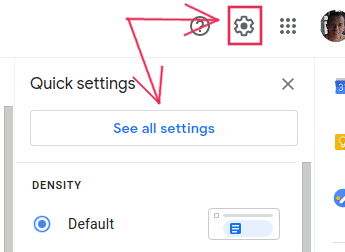
2. Then, tap on the gear icon on the top-right and click See all settings.
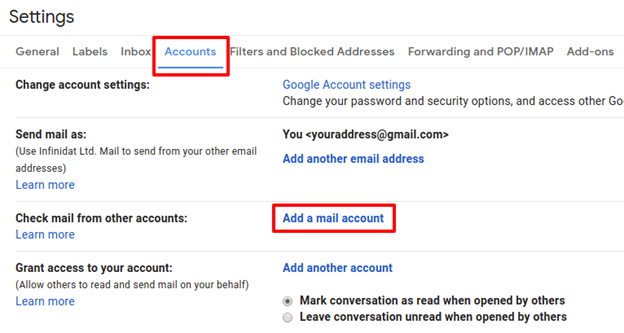
3. Now, choose the Accounts and Import tab >>Check mail from other accounts >>Add a mail account option.
4. Thereafter, enter the email address of your SiteGround email account.
5. Choose the Import emails from my other account(POP3) option and tap on the Next to proceed.
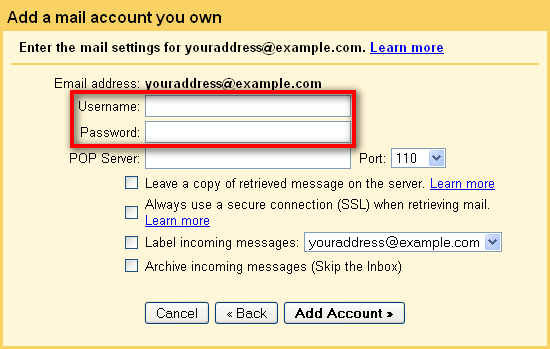
6. In the username box, re-enter your SiteGround email address and password of your account.
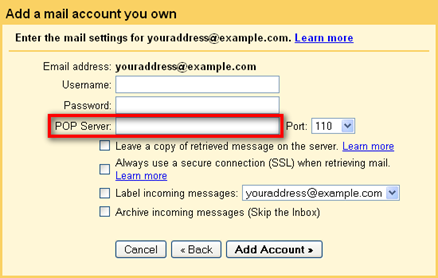
7. Now, in the POP Server, enter mail.yourdomain.com and Port as 110.
8. Lastly, tap on the Add Account to complete the process.

Now, go to your Gmail mailbox and you can check all of your SiteGround emails there.
How to Transfer All Emails from SiteGround to Gmail Automatically?
Try the Advik Email Migration Tool to migrate multiple emails from SiteGround to Gmail in a single attempt. It will easily transfer SiteGround emails to Gmail account along with attachments embedded in it. Also, it maintains the folder hierarchy of SiteGround mailbox folders throughout the process. Thus, no data loss will occur
Download the FREE Trial version to evaluate the performance with all its advanced features.


Steps to Migrate SiteGround to Gmail
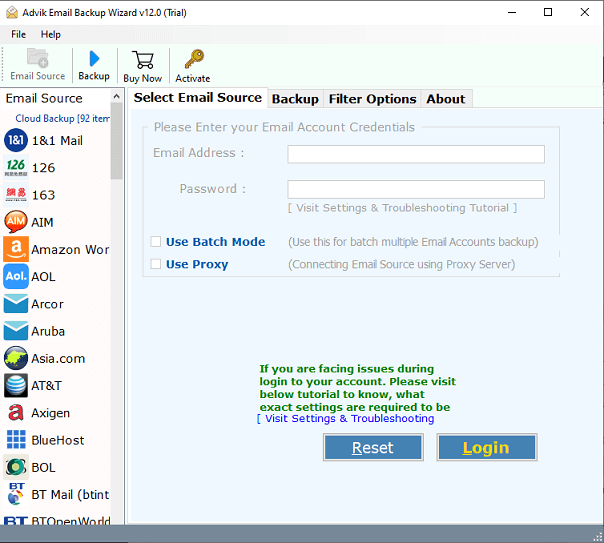
Step 1. Run software on your Windows Machine.
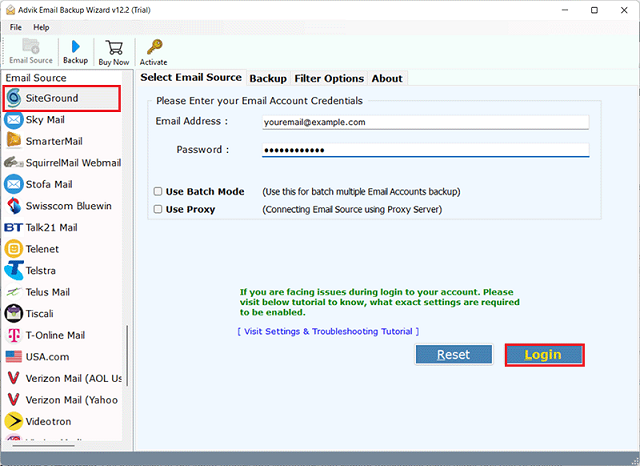
Step 2. Select SiteGround as an email source and log in.
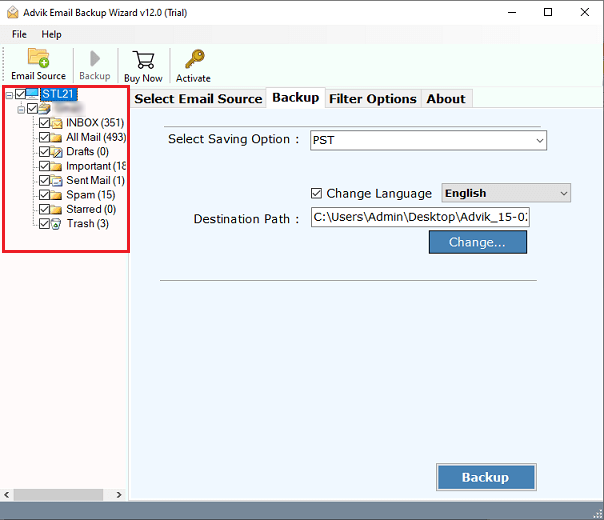
Step 3. Select folders that you want to transfer into your Gmail.
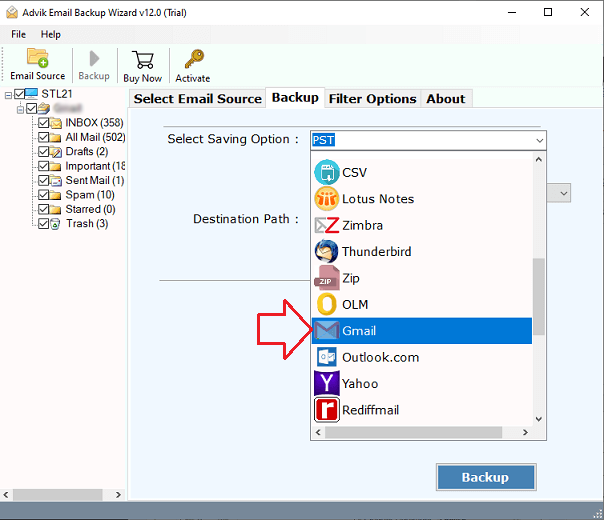
Step 4. Select Gmail from the drop-down list.
Step 5. Provide your Gmail account credentials & click the Backup.
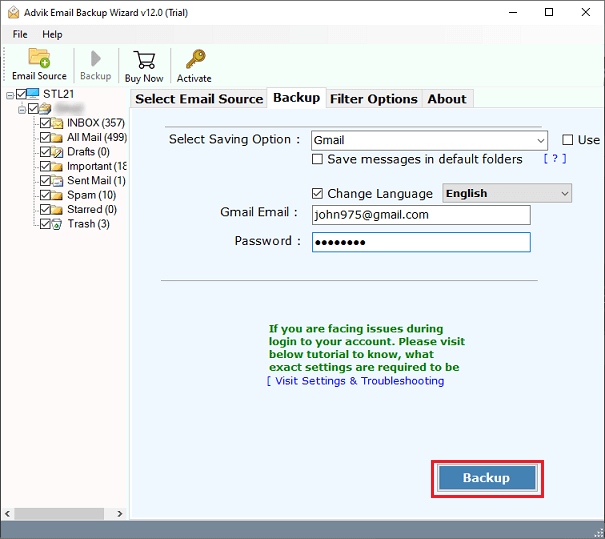
Once the process is completed, you will receive a confirmation message.
After that, log in to your Gmail account and access all of your SiteGround emails there.
Watch How to Transfer SiteGround Emails to Gmail
Benefits of Using an Automated Tool
- 100% Secure Interface: The tool provides a secure, cache-free interface for migrating SiteGround emails to Gmail without storing email data in the database.
- Batch Migration: Migrate multiple SiteGround email accounts to Gmail using a CSV file to load account information automatically.
- User-Friendly Interface: Designed with a simple and reliable layout for all users that ensures a hassle-free experience.
- Email Migration with Filters: Offers filter options to migrate specific emails by date range, subject, and more.
- Maintain Folder Structure: Preserve email directories, folder structures, and elements like attachments, addresses, and metadata during migration.
- Windows and Mac Support: Compatible with all Windows and Mac versions, including the latest editions like Windows 11 and Server 2019.
Conclusion
That’s all for how to migrate email from SiteGround to Gmail. However, if you find a manual solution comparatively easy and helpful, then you can go with that also. Whether you want to transfer all emails from SiteGround to Gmail or move data selectively, you can try an automated approach. Now, you can decide which method is best for you to migrate SiteGround to Gmail.