How to Migrate FastMail to Google Workspace?
Jenny Lowrence | January 21st, 2026 | Email Migration
Migrating from Fastmail to Google Workspace is a good choice for users who need better email management, collaboration tools, and storage. Fastmail is widely used by individuals and small businesesbut Google Workspace provides various advanced features for professional communication. Many professionals or individuals are looking for a way to migrate FastMail to Google Workspace. Therefore, in this post, we will explain the reliable methods to perform the Fastmail to Google Workspace migration easily. Continue reading this article till the end to accomplish this task without any hassle.
Why Migrate from FastMail to Google Workspace?
Here are some common reasons why users want to transfer Fastmail emails to Google Workspace:
- Built-in Collaboration Tools: Google Workspace offers a range of collaboration tools, such as Google Docs, Sheets, etc. to improve productivity.
- Enhanced Security: Google Workspace includes advanced security features, such as two-factor authentication, to protect data.
- Better Integration: It integrates with other Google services such as Google Drive, Calendar, and Meet.
- More Storage: Google Workspace provides unlimited storage for its Business and Enterprise plans.
How to Migrate FastMail to Google Workspace Manually?
1. Log in to your Fastmail account.
2. Enable IMAP option.
3. Now, Log in to Google Admin Console.
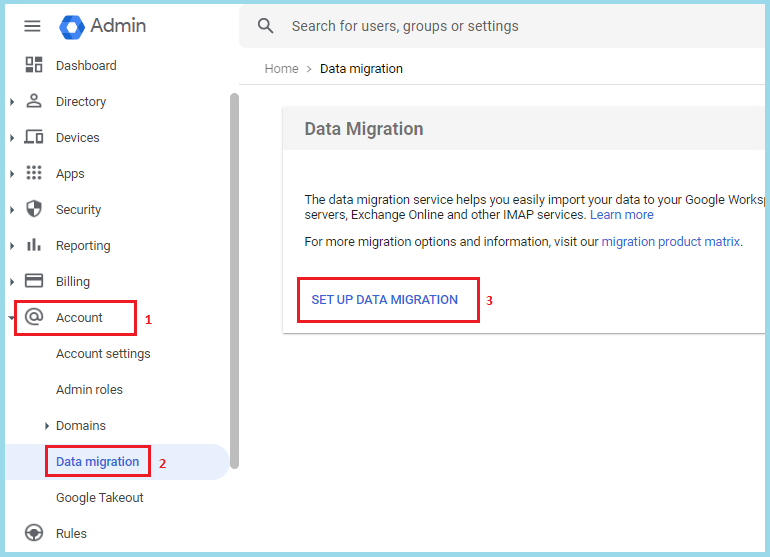
4. Click on Account >> Data Migration >> Set up Data Migration.
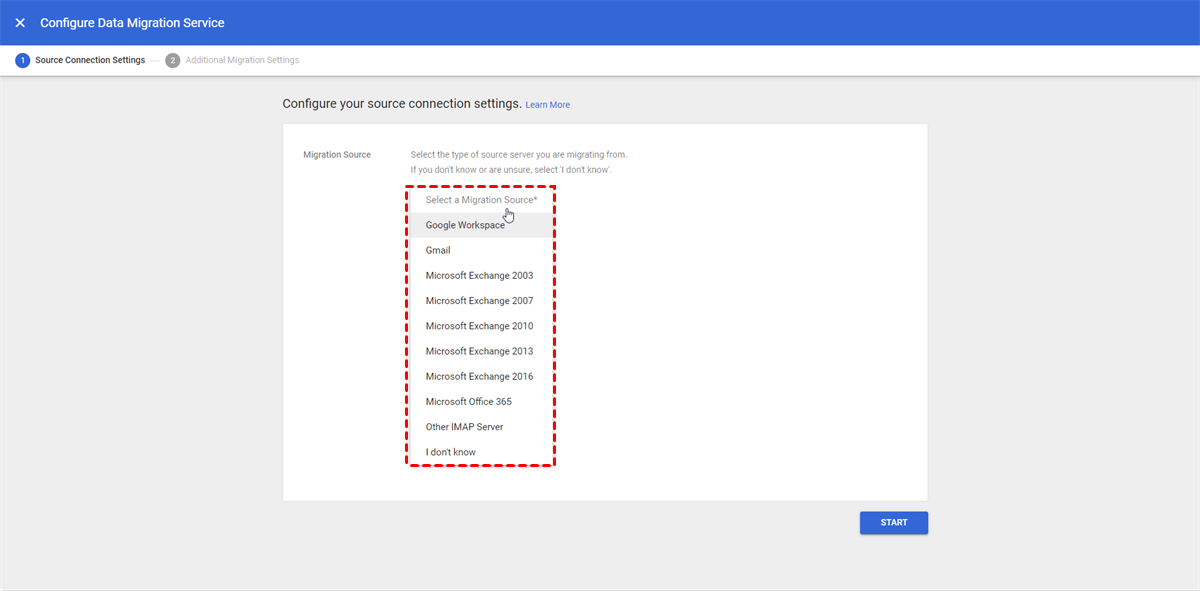
5. Select Other IMAP Server as Migration Source.
6. Enter Fastmail IMAP server details:
IMAP Server: imap.fastmail.com, Port: 993 (SSL)
7. Enter Fastmail login details.
8. Select Email as data type and start date for migration.
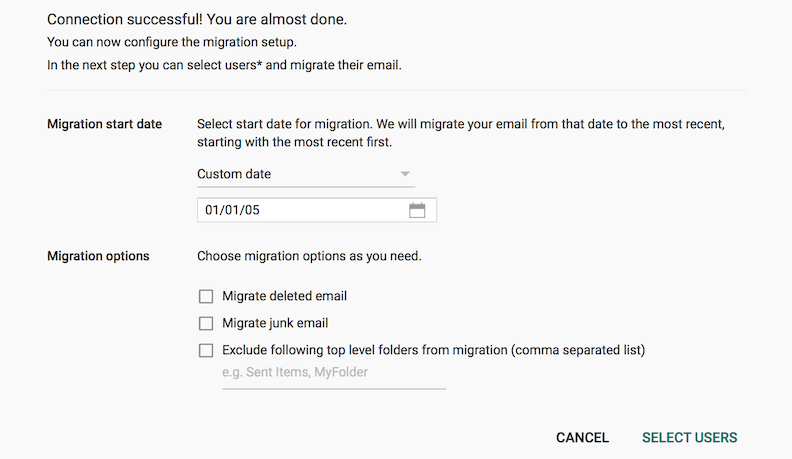
9. At last, click on the Start button to begin the transfer process.
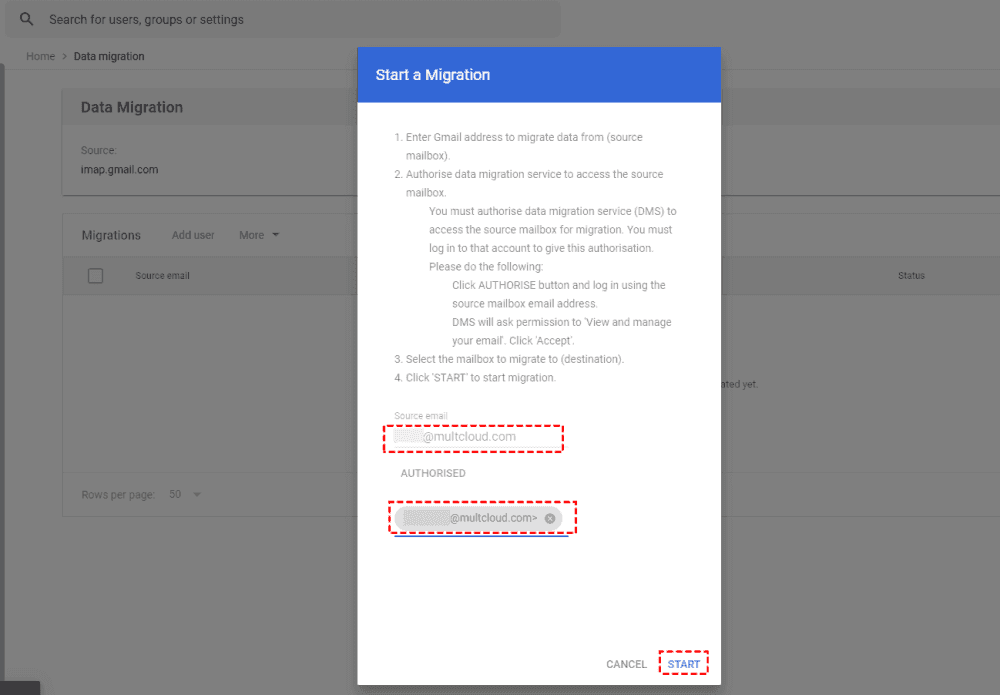
In this way, you can migrate email from FastMail to Google Workspace using Data Migration Service.
Why Manual Solution is Not Recommended?
Here are some limitations of the manual approach:
- To use this method, users must have a technical expert.
- This is a time-consuming process for large mailboxes.
- It does not provide direct migration of contacts and calendars.
- It does not maintain the folder hierarchy.
How to Transfer Emails from FastMail to Google Workspace Securely?
Checkout the Advik Email Migration Tool to migrate FastMail to Google Workspace easily. With this utility, you can move the entire mailbox, including emails, contacts, calendars, etc. in a single attempt. Also, it offers advanced filter options for selective email migration. The tool maintains all email properties and folder structure during the FastMail to Google Workspace migration.
Tap on the below link to download it for FREE.


Steps to Migrate FastMail Emails to Google Workspace
1. Run the tool on your system.
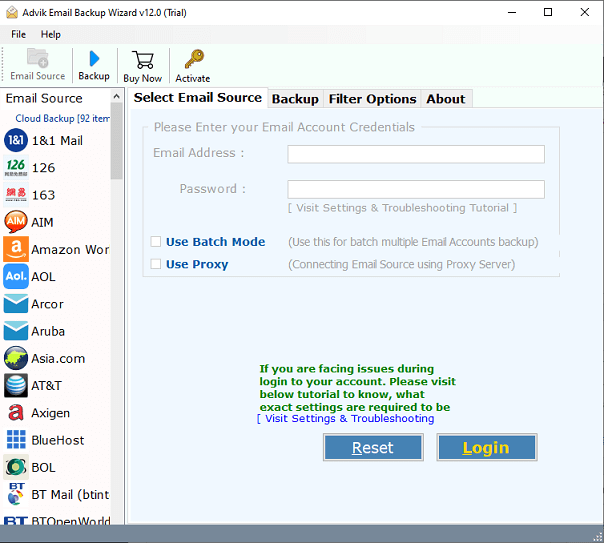
2. Choose FastMail and enter its login details to sign in.
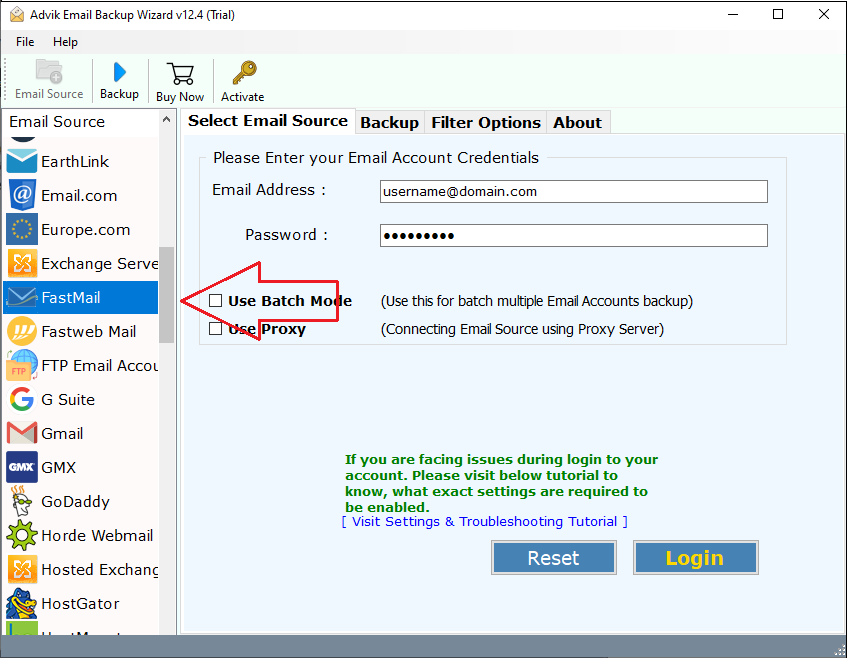
3. Select the required mailbox folders & subfolders.
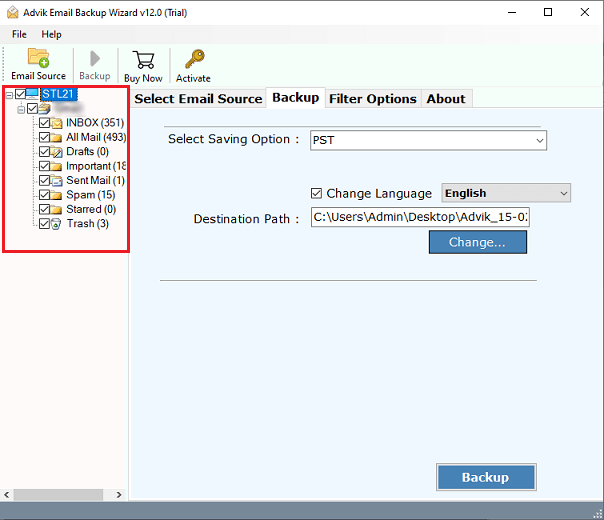
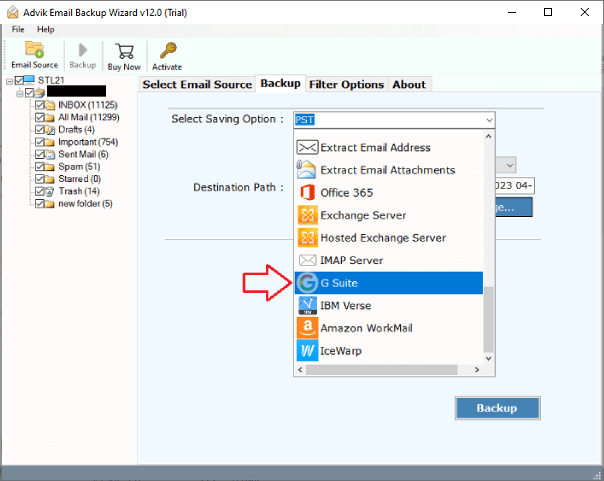
4. Choose G Suite as a saving option.
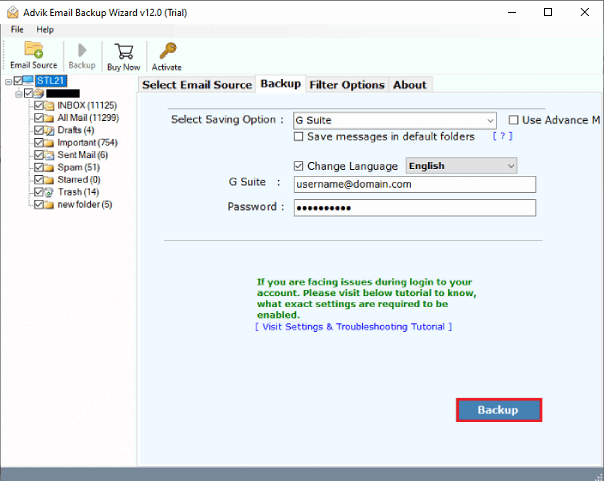
5. Enter your Google Workspace account login details and click the Backup button.
6. The software will start transferring emails from FastMail to Google Workspace mailbox.
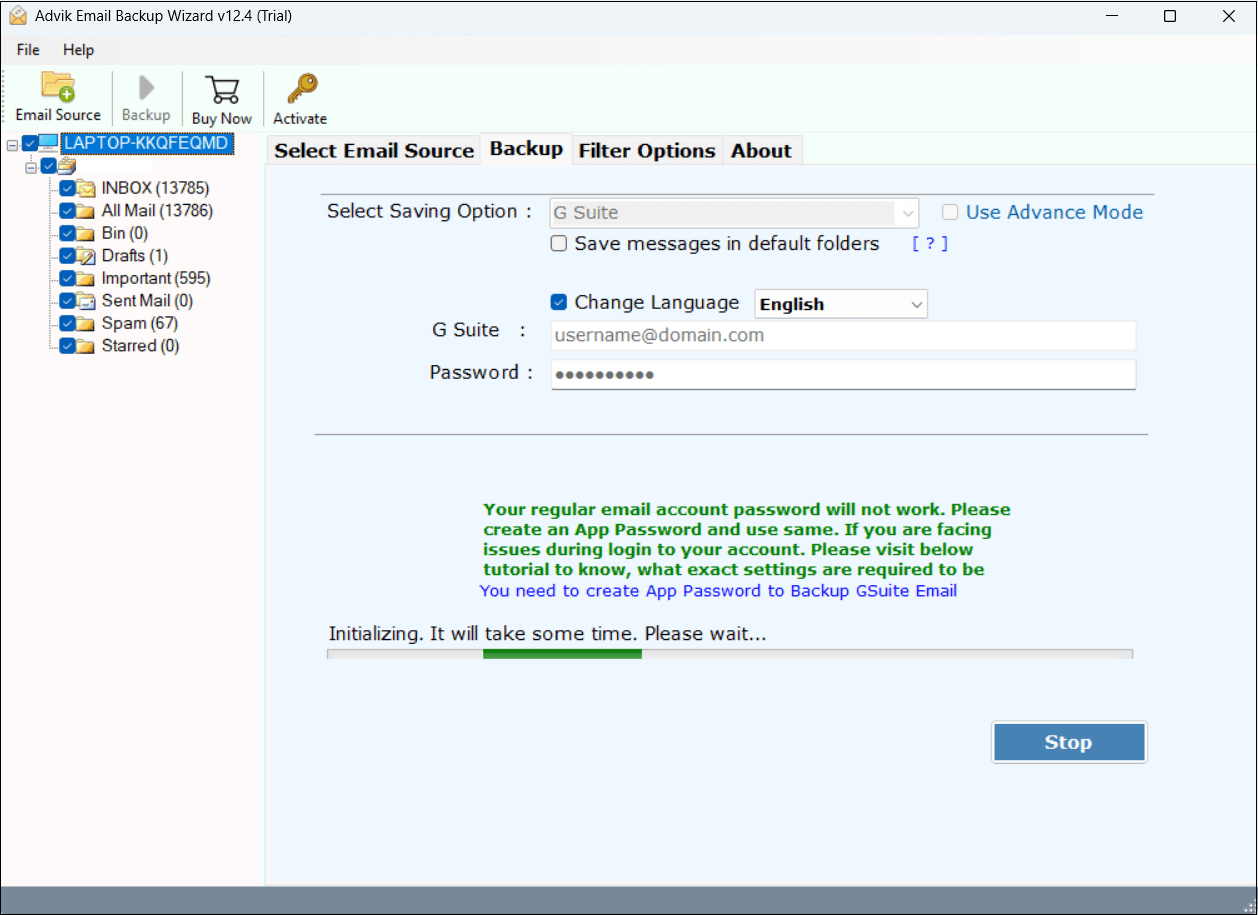
Now sit back and relax! The software will complete the migration process in just a few simple clicks.
Prominent Features of FastMail to Google Workspace Migration Tool
- Bulk Migration: The software can transfer all email folders from FastMail to Google Workspace at once. You do not need to repeat the steps to migrate the entire mailbox.
- Batch Mode: The tool has a batch mode feature. Using this feature, you can migrate emails from multiple FastMail accounts to Google Workspace in a single attempt.
- Maintains Folder Structure: Sometimes, users are concerned about the structure of email folders during the process. This utility keeps the original structure of FastMail mailbox folders even after the process.
- Preserves Email Properties: The software preserves all email attributes such as email headers, attachments, hyperlinks, signature, etc., during the FastMail to Google Workspace migration.
- Selective Email Migration: At times, users want to transfer only important emails. This utility provides various advanced email filter options to migrate emails based on date range, to, from, subject, etc.
- Easy to Use: The software is designed with a simple graphical user interface. Both technical or non-technical users can easily operate it without any external help.
- Wide Compatibility: This program is compatible with both Mac and Windows OS. Additionally, 24/7 customer support is available to resolve any issues that may arise during the email migration process.
Final Words
In this post, we have discussed how to migrate FastMail to Google Workspace. I hope that by following these methods, you can easily transfer FastMail emails to Google Workspace. However, the manual method is suitable if you need to migrate only a few emails. On the other hand, the automated tool can easily move large mailboxes quickly without any hassle.