How to Migrate IncrediMail to Office 365?
Jenny Lowrence | January 27th, 2026 | Email Migration
Learn how to migrate IncrediMail to Office 365. This ultimate guide provides the best way to transfer IncrediMail emails to Office 365 through easy steps.
IncrediMail was once a popular email client that was known for its visual appeal and animations. However, IncrediMail has been officially discontinued. So, many users are now looking for a secure, modern, and reliable alternative. Microsoft 365 is a top choice for email management. In this article, we will discuss the most effective wya to convert IncrediMail to Office 365. Before proceeding with the solution, let’s understand why we chose Office 365.
Why Migrate from IncrediMail to Office 365?
- Users can access Office 365 email anytime, anywhere via the cloud.
- Office 365 comes with multiple productivity applications that are helpful for growing business revenue.
- Microsoft 365 provides advanced security and compliance features to protect important data.
- Office 365 lets users use other Microsoft products like Word, Excel, PowerPoint, etc.
How to Transfer Emails from IncrediMail to Office 365?
Download and install the Advik Email Migration Tool on your system. The software can migrate IncrediMail to Office 365 in a few simple clicks. It can move all email folders from IncrediMail to Office 365 in a single attempt. Also, it offers advanced filter options to migrate selected emails. The tool maintains the IncrediMail mailbox folder hierarchy even after the migration. This is a secure and authentic program that preserves all email attributes while transferring.
Click on the below link to download it for FREE.


Steps to Migrate IncrediMail Emails to Office 365
1. Run the tool on your Mac and Windows PC.
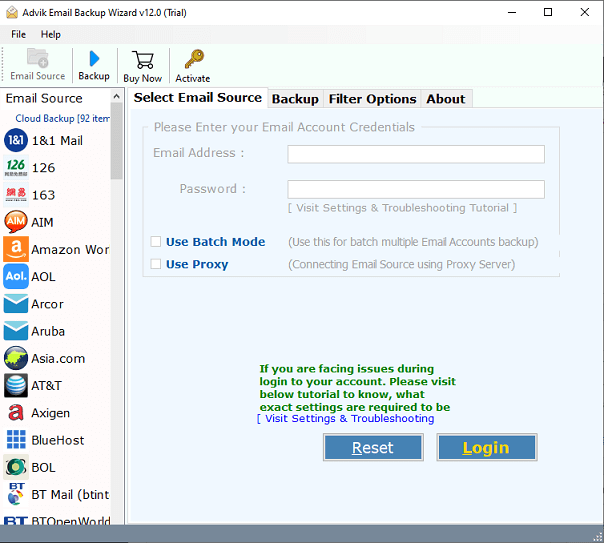
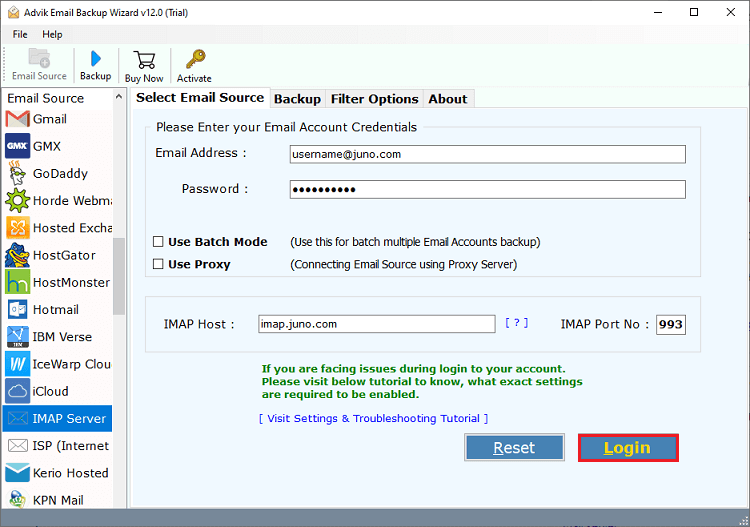
2. Choose the IMAP Server and enter your IncrediMail login details to sign in.
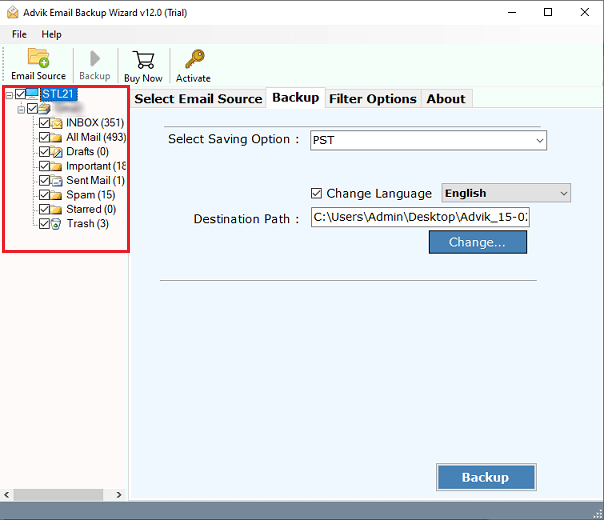
3. Select the required mailbox folders that you want to transfer.
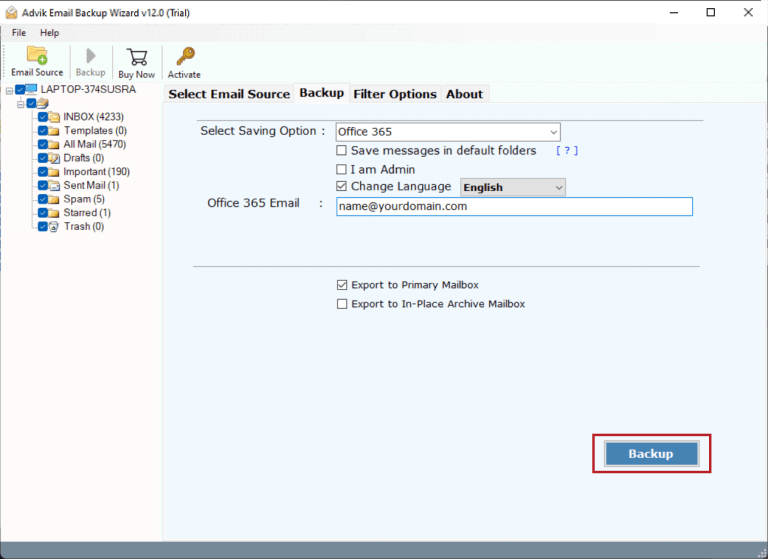
4. Select Office 365 as a saving option.
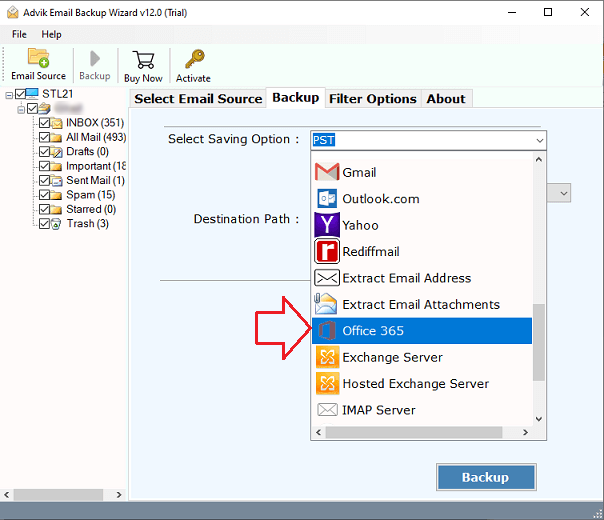
5. Enter your Office 365 email address and click Backup.
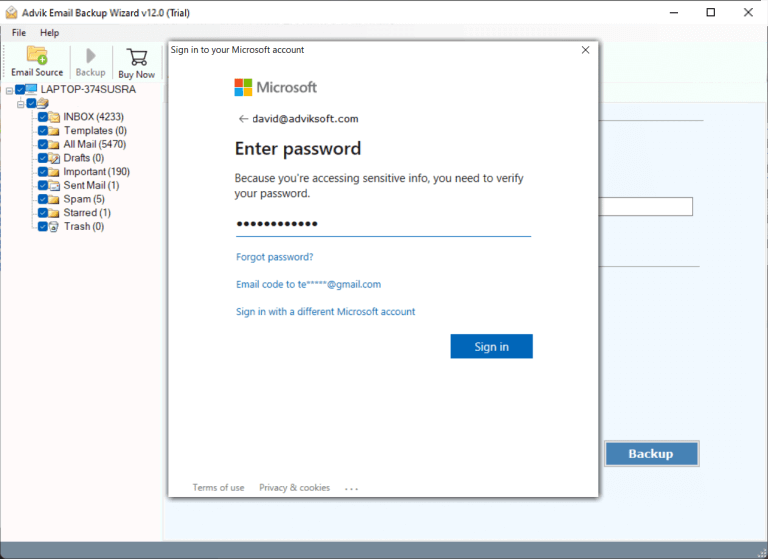
6. Type the password of Office 365 and click Sign in.
The software will start migrating Incredimail data to Office 365 account. Once the process is complete, you will get a pop-up message with a complete log report.
Prime Features of the IncrediMail to Office 365 Migration Tool
- Bulk Migration: The software can transfer all email folders from IncrediMail to Office 365. It saves your time and effort to migrate a large amount of data.
- Advanced Filtering Options: The software provides various advanced filter options, which make the migration more effective and customized to meet users’ needs. It allows users to selectively migrate emails according to parameters such as sender, date range, and subject.
- Preserves Data Integrity: This IncrediMail to Office 365 converter preserves all the email properties, data integrity, and attachments while transferring. Thus, no data loss take palce at any step.
- Maintains Folder Strcture: The software keeps the original structure of mailbox folders during the IncrediMail to Office 365 migration.
- Simple GUI: This application features a consistent, easy-to-use interface. Any user can easily operate it without facing any difficulty.
- Wide Compatibility: This utility is compatible with both Mac and Windows operating systems. It supports all the latest and old versions of both Mac and Windows operating systems.
Final Words
In this post, we have discussed how to migrate IncrediMail to Office 365 account. Although there is no manual solution to convert IncrediMail to Office 365. However, we have mentioned the most straightforward and simple solution. You can download the FREE trial version of this tool to check its working procedure.