How to Migrate ISP Email to Gmail Account?
Jenny Lowrence | March 12th, 2026 | Email Migration
If you want to migrate ISP email to Gmail account, this guide will help you. The write-up explains the complete procedure to transfer ISP emails to Gmail easily. So, read this article till the end and get the best solution to complete this task quickly and safely.
ISP (Internet Service Provider) is an organization that provides internet access services, such as Mailbox ISPs, Hosting ISPs, Virtual ISPs, etc. It often provides email addresses linked to their services. These accounts usually come with basic email functionality, such as sending and receiving emails, but they often have limited features as compared to other email platforms.
On the other hand, Gmail is the most widely used email service all over the world. It offers advanced features such as enhanced security, large storage capacity, and easy integration with other Google services.
Why Migrate ISP Emails to Gmail?
Here are several benefits of moving emails from ISP to Gmail:
- Easily access emails from any device.
- Advanced security features for data protection.
- Gmail’s labels, search tools, and filters make email management easier.
- Gmail provides more storage space for long-term email backup.
- It smoothly integrated with Google Calendar, Drive, Sheets, etc.
Since ISP does not offer any option to directly move emails to Gmail, users must use a professional solution to complete the migration.
How to Transfer Emails from ISP to Gmail Account?
Download and install the Advik Email Migration Tool on your system. The software can migrate ISP email to Gmail in a few simple clicks. With this utility, you can move ISP emails to Gmail in bulk. Additionally, it also allows you to choose specific emails or folders to transfer. The tool keeps the original structure of mailbox folders during the ISP to Gmail migration.
The tool is designed with a simple interface so both technical or non-technical users can easily operate it without any hassle.
Try the FREE version to explore how the software works.


Steps to Migrate ISP Email to Gmail
1. Run this software on your Windows/Mac PC.
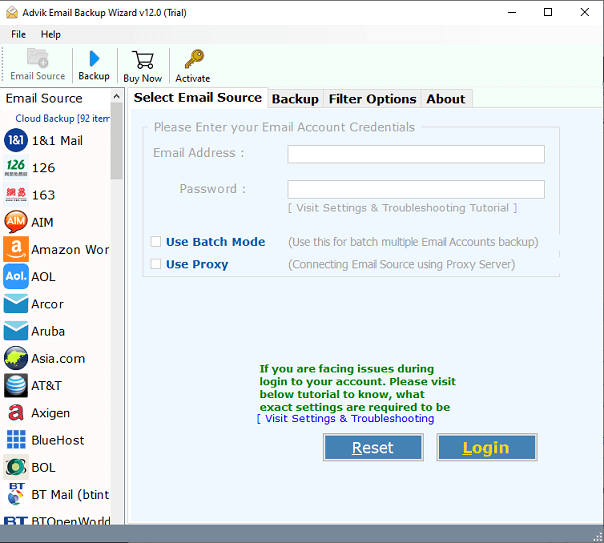
2. Choose IMAP Server from the Email source list.
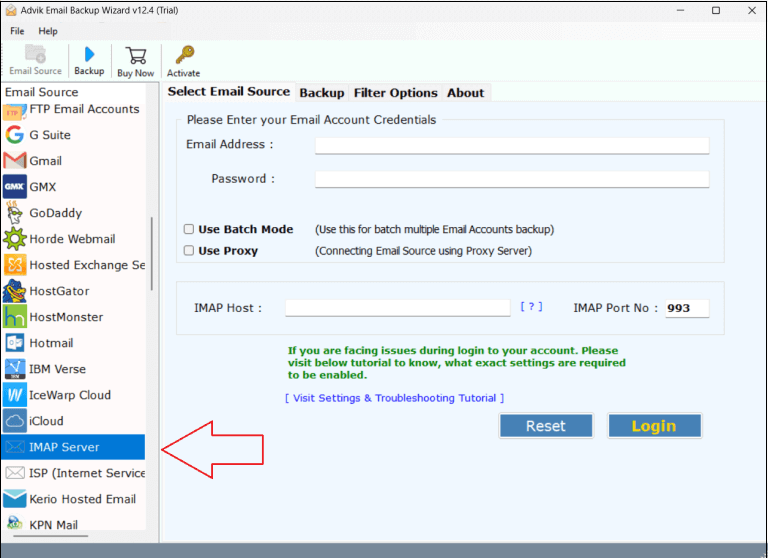
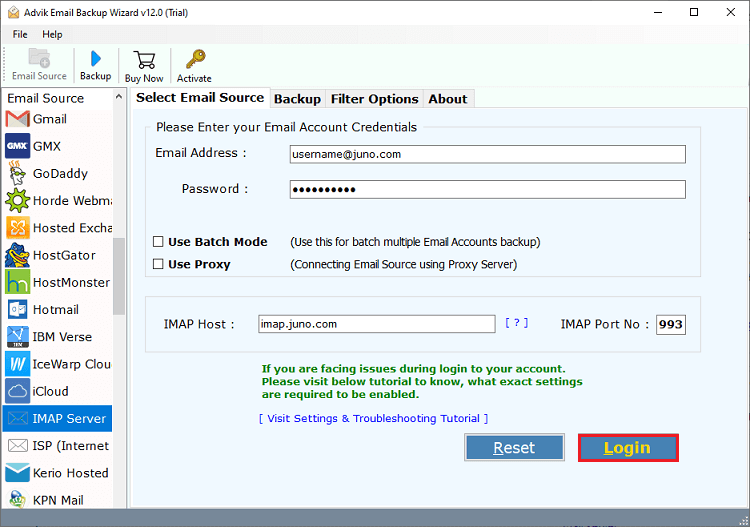
3. Enter ISP Email account login details to sign in.
4. Select the required mailbox folders.
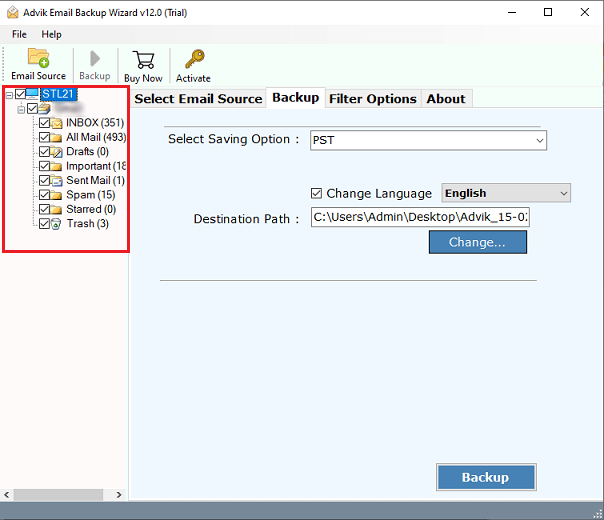
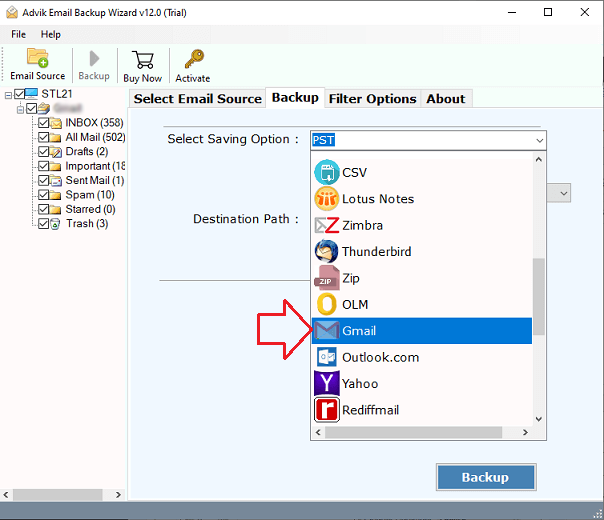
5. Choose Gmail as a saving option from the given list.
6. Enter your Gmail account login details and press Backup button.
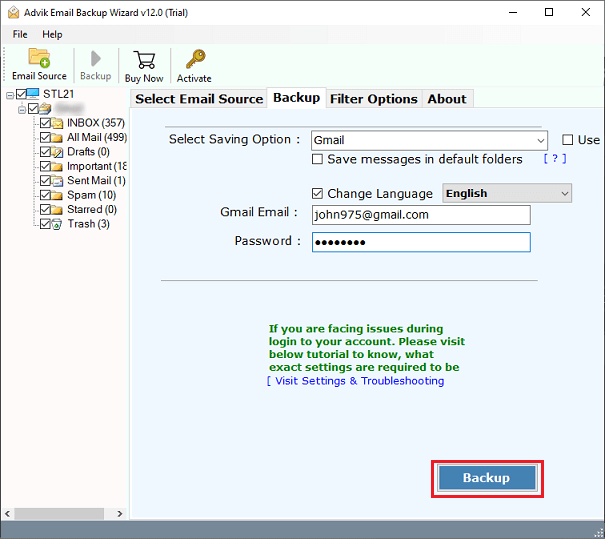
The software will start migrating ISP emails to your Gmail account. Once the process is complete, log in to your Gmail account and check the transferred emails here.
Prime Features of ISP to Gmail Migration Tool
- Migrate Emails in Bulk: The tool can transfer all email folders from ISP to Gmail account in a single attempt. You do not need to repeat the steps again and again to move emails from each folder one by one.
- Advanced Filter Options: It provides various advanced filter options, such as to, from, subject, cc, bcc, etc. Using these filters, you can migrate particular emails according to your requirements.
- Preserves Data Integrity: This is a safe and secure solution. It preserves all email attributes such as attachments, sender/receiver info, hyperlinks, etc. during the ISP to Gmail migration.
- Retain Folder Hierarchy: The software maintains the original structure of your ISP email folders so that your emails stay organized during the migration process.
- Batch Mode: The tool is able to migrate emails from multiple ISP email accounts to Gmail at once. Just enable the Batch mode option and upload the CSV file containing login details of multiple accounts.
- Wide Compatibility: You can run this application on both Mac and Windows machines. It supports all the latest and old versions of both operating systems.
Final Words
In this post, we have discussed how to migrate ISP email to Gmail account. However, due to a lack of manual solution, here we have mentioned a professional solution that enables you to directly transfer emails from ISP to Gmail mailbox. You can download the free version of this utility, which allows you to move 25 emails from each folder at no cost. If you are satisfied with its working procedure, then you can purchase its licensed edition.