How to Migrate JangoMail to Office 365?
Jenny Lowrence | January 16th, 2026 | Email Migration
The motive of this comprehensive write-up is to provide the most suitable and useful solution to migrate JangoMail to Office 365. Go through the full article to get step-by-step instructions to transfer JangoMail emails to Office 365 without any difficulty.
JangoMail is an email service designed to support basic business and personal email communication. As businesses’ needs grow, users often look for more advanced platforms like Microsoft Office 365.
Why Migrate JangoMail to Office 365?
Here are some common reasons why users choose Office 365 to migrate emails:
- JangoMail provides basic email services with limited features, while Office 365 offers business-class email services with advanced features.
- Office 365 is an all-in-one platform that offers Office suite applications and is better suited for use in businesses.
- It provides advanced security features to protect important data.
- Office 365 allows users to access their data worldwide with the help of an internet connection.
- Microsoft 365 supports Microsoft Teams for collaborative teamwork to increase productivity.
As you understand the benefits of migrating JangoMail email to Office 365. Let’s move ahead to know the best way to complete the migration process.
How to Transfer JangoMail Emails to Office 365?
Download and install the Advik Email Migration Tool on your system. The software can migrate JangoMail to Office 365 in just a few simple clicks. Run the tool, enter your JangoMail account details, choose mailbox folders, select Office 365 as the saving option, enter Office 365 details, and click the Backup button.
With this tool, you can move JangoMail emails to Microsoft 365 in bulk. Also, it offers advanced email filter options to transfer selected emails. The tool preserves the email attributes and mailbox folder hierarchy during the JangoMail to Office 365 migration.
Click on the below download button and try it for FREE.


Steps to Migrate JangoMail Emails to Office 365
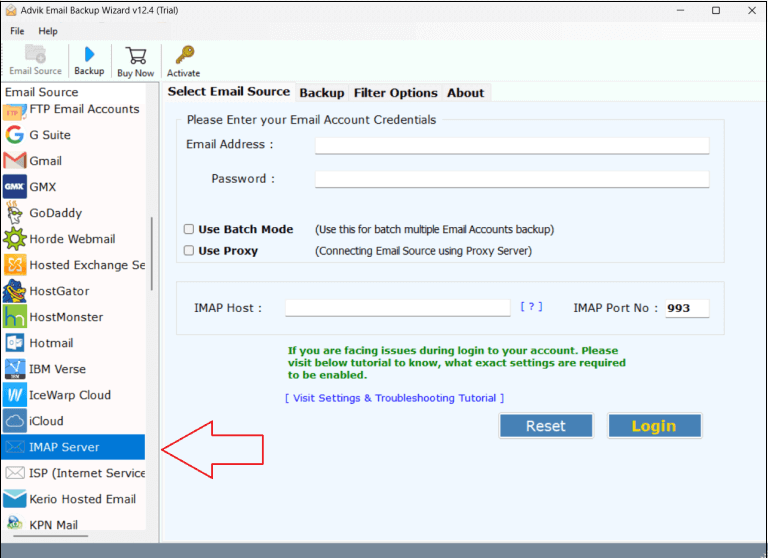
1. Run the tool and choose IMAP Server from Email Source list.
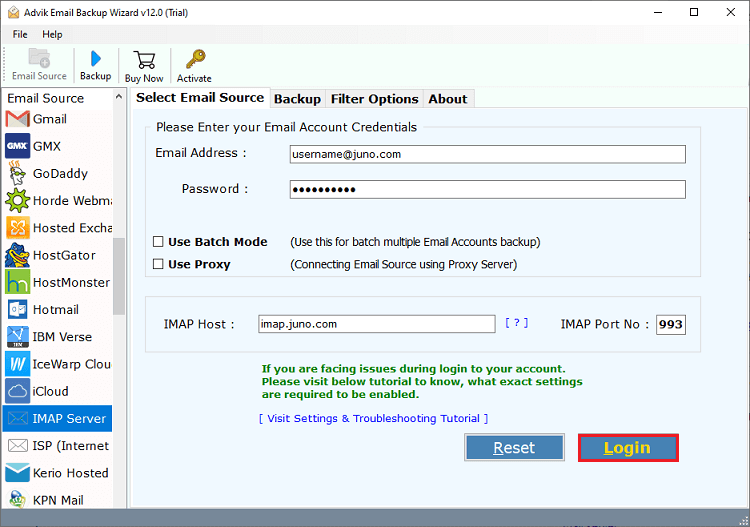
2. Enter your JangoMail account login details to sign in.
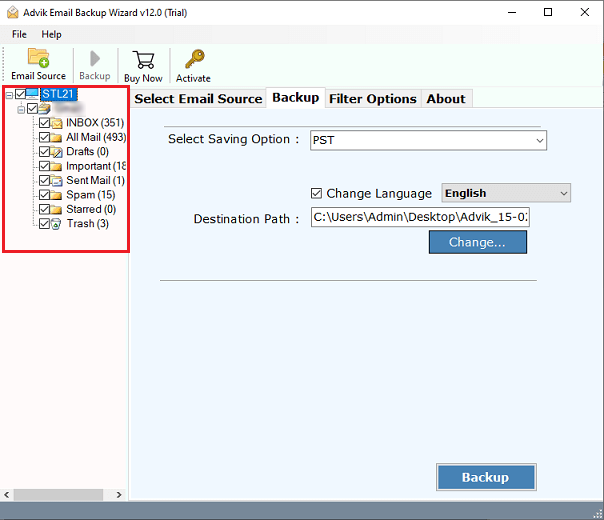
3. Choose the mailbox folders that you want to transfer.
4. Select Office 365 as a saving option.
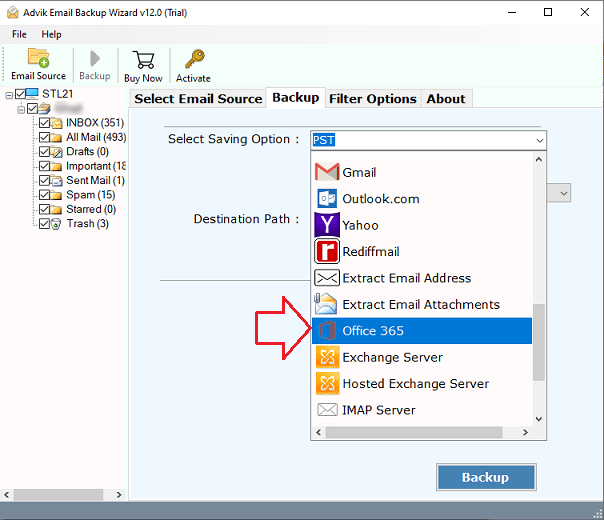
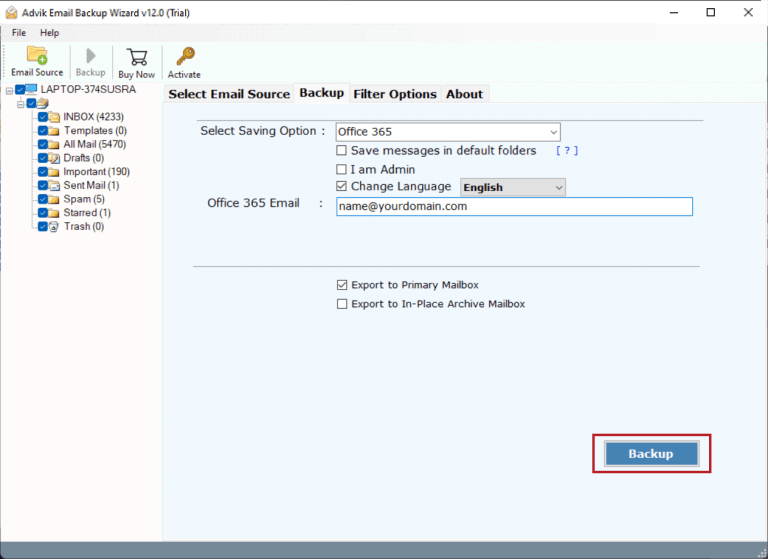
5. Enter Office 365 email address and click Backup.
6. Type password of Office 365 account and click Sign in.
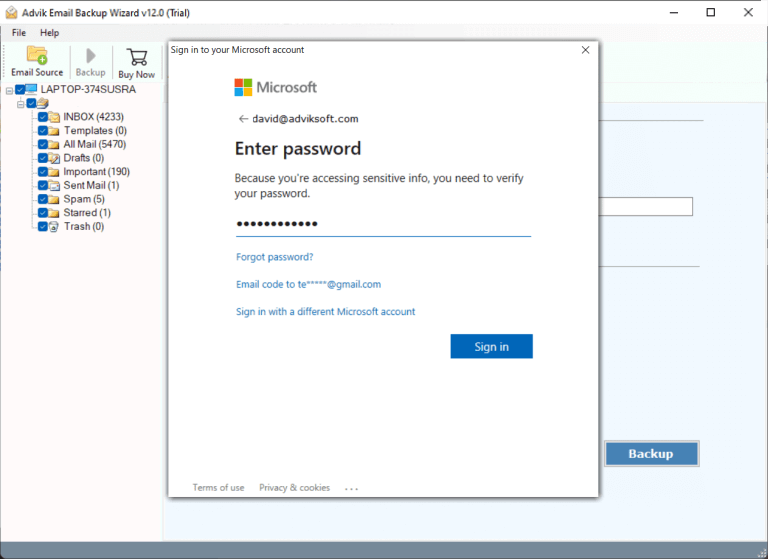
The software will start transferring emails from JangoMail to Office 365 mailbox. Once the process is complete, you will get a pop-up message with a complete log report.
Prominent Features of the JangoMail to Office 365 Migration Tool
- Directly move emails from JangoMail to Office 365.
- Allow to choose all or selected mailbox folders to transfer.
- Advanced email filter options to migrate only selected emails.
- Retains the original structure of mailbox folders and subfolders.
- Keep all key elements and attributes while moving emails.
- User-friendly interface for both technical and non-technical users.
- Compatible with both Mac and Windows operating systems.
Final Words
In this blog, we have discussed how to migrate JangoMail to Office 365 account. Anyone can use the above-suggested tool to transfer emails from JangoMail to Microsoft 365 . You can download its demo version to check its amazing features. If you face any issues during migration, contact our support team; they are available 24/7.