How to Migrate Office 365 to IMAP Server Account?
Jenny Lowrence | March 18th, 2026 | Email Migration
Are you searching for a simple method to migrate Office 365 to IMAP Server? If you have said yes, then search no more. Here we are going to discuss two different methods to transfer emails from Office 365 to IMAP account. Well, with no further ado, let’s get into this article.
Office 365 is one of the most widely used cloud-based email platforms by businesses and professionals to manage emails efficiently. It offers advanced features such as cloud-storage, collaboration tools, and enhanced security.
On the other hand, IMAP (Internet Message Access Protocol) is a standard email protocol that allows users to access their email from multiple devices while keeping messages stored on the mail server.
How to Migrate from Office 365 to IMAP Server Manually?
Microsoft 365 doesn’t provide a direct option to transfer emails to IMAP mailbox. However, you can do it using an email client like Outlook, Thunderbird, etc.
Follow the below given steps to perform Office 365 to IMAP migration via Outlook:
- Launch Outlook on your system.
- Go to File tab and click on Add Account.
- Enter Office 365 email address and click Connect.
- Type the password and other details of Office 365 and complete the configuration process.
- Now, repeat the steps to add IMAP account to Outlook.
- Once added, choose the Office 365 emails that you want to migrate.
- Drag and drop the emails into IMAP mailbox folder.
The process is complete! This is how you can move emails from Office 365 to IMAP Server.
Drawbacks of Manual Approach
- Outlook installation is required.
- Lengthy and complicated process.
- Takes lot of time if you need to migrate multiple emails.
- Mailbox folder hierarchy isn’t maintained.
How to Transfer Office 365 Emails to IMAP Server Automatically?
Check out the Advik Office 365 Migration Tool to migrate Office 365 to IMAP Server without any configuration. Just run the tool, enter Office 365 login details, choose IMAP as the saving option, enter IMAP Server details, and click Backup to begin processing. The software can migrate the entire Office 365 mailbox in one go. Also, it enables you to choose emails or folders for selective migration.
The tool preserves data integrity and mailbox folder structure during the O365 to IMAP Server migration. The tool is designed in such a way beginerss can easily use it without any technical knowledge.
Now, why are you waiting? Click on the below link and try it for FREE.


Steps to Migrate Office 365 to IMAP Server
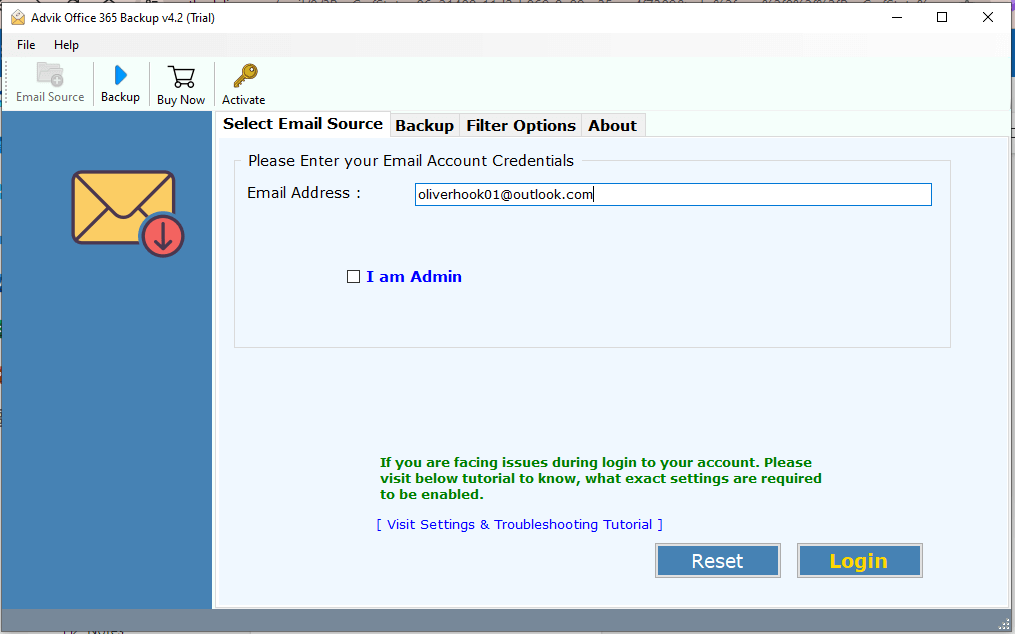
1. Run the tool and enter your Office 365 email address.
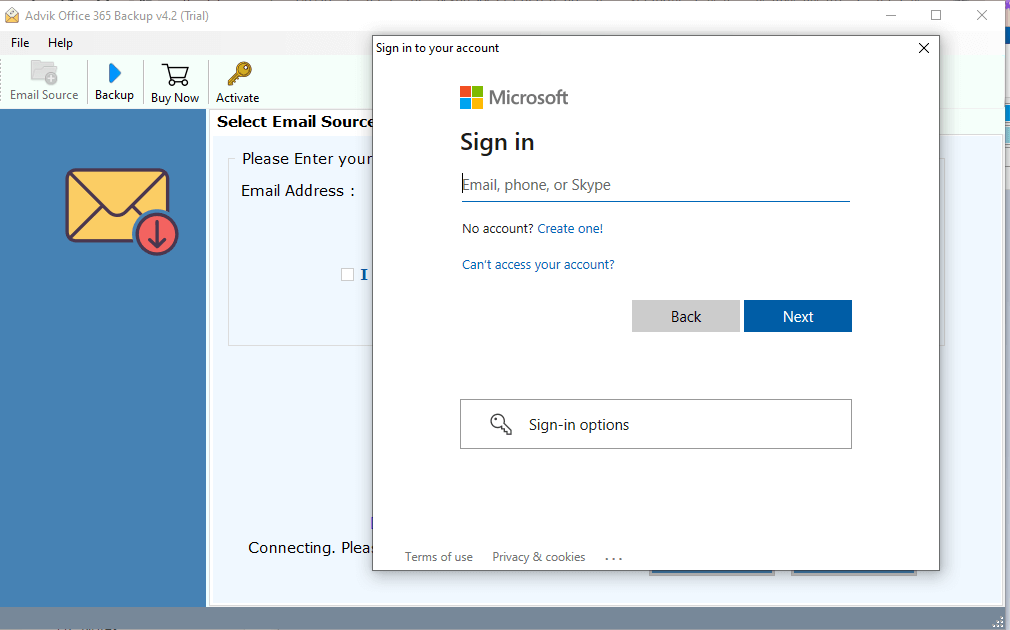
2. Enter the password of Office 365 account and press Login to sign in.
3. Choose the required mailbox folders to transfer.
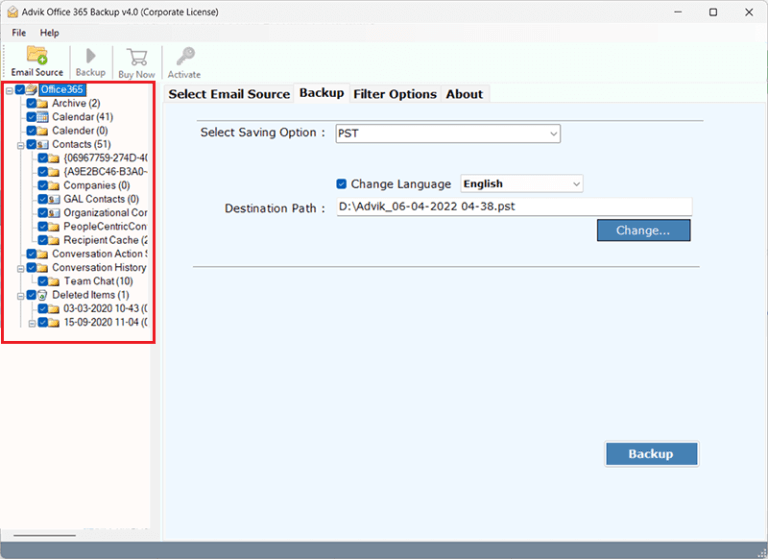
4. Select IMAP as a saving option.
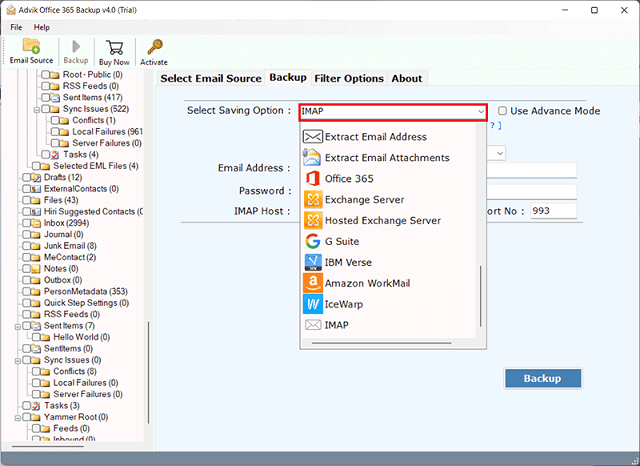
5. Enter your IMAP account login details and click Backup.
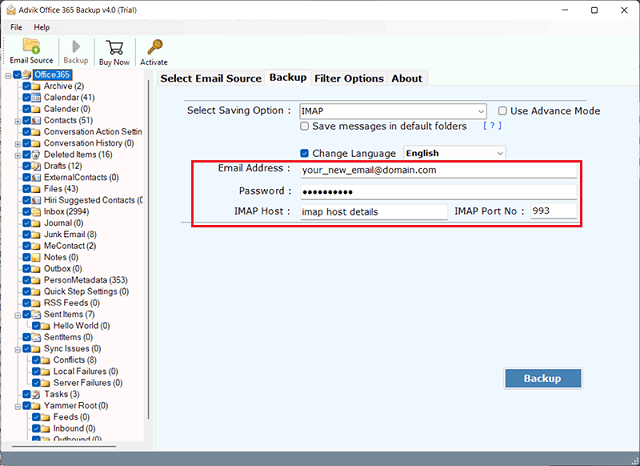
The software will start migrating emails from Office 365 to IMAP Server. Once the process is complete, log in to your IMAP account and check the transferred emails here.
Key Features of Office 365 to IMAP Server Migration Tool
Several advanced features of this utility make the process efficient.
- Standalone Utility: With this tool, you do not need to install Outlook or any other application to complete the migration process. Just enter the login details of both accounts to migrate emails.
- Bulk Migration: The software can transfer Office 365 mailbox including emails, contacts, attachments, etc., in a single attempt. You do not need to repeat the steps again and again to migrate Microsoft 365 mailbox data.
- Advanced Filter Options: Sometimes, users want to move only the required emails, then this utility will help them. It provides several email filters that enable users to migrate emails based on date range, to, from, subject, etc.
- 30+ Saving Options: The tool offers various saving options to export Office 365 emails into multiple formats. Also, you can directly transfer Office 365 to Gmail, Yahoo, Zoho, and many more.
- Retain Folder Structure: This utility preserves all email attributes such as attachments, hyperlinks, sender/receiver info, etc., while migrating. It keeps the original structure of mailbox folders even after the process.
- Simple GUI: This program is designed with advanced algorithms and a simplified user interface. Both technical or non-technical users can easily migrate emails from Microsoft 365 to IMAP Server without any technical knowledge.
- Windows Supportive: You can run this tool on any Windows-based system without any compatibility issues. It supports all the latest and old versions of Windows operating systems.
- 24/7 Customer Support: The best thing about this utility is that it provides 24/7 customer support to solve user queries. If you face any issues during the migration, you can contact our support team, who will solve your problem as soon as possible.
Final Words
Migrating from Office 365 to IMAP seems to be complex, but with the right approach, it becomes easy. Here, we have mentioned the two best methods to perform Office 365 to IMAP migration. While the manual method works well with small mailboxes, it is not ideal for large mailboxes.
To migrate Office 365 to IMAP server quickly, use the automated tool. It can transfer emails in bulk with full accuracy.