How to Migrate Qmail Emails to Office 365?
Jenny Lowrence | January 28th, 2026 | Email Migration
Qmail is a reliable mail server that facilitates an easy platform with accessibility to migrate emails from one destination to another with the help of server-client architecture. Many organizations use Qmail for email communication, but increasing demands for mobility, security, and collaboration make cloud migration essential. Microsoft Office 365 provides advanced email features, enterprise-grade security, and seamless integration with productivity tools. In this article, we’ll walk you through how to migrate Qmail emails to Office 365. Go through the full article to discover complete information for Qmail to Office 365 migration.
Why Migrate from Qmail to Office 365?
While Qmail is a secure email server but it lacks many advanced features businesses niw expect. Migrating Qmail to Office 365 provides:
- Cloiud based access from anywhere
- Built-in collaboration tools
- Advanced security features
- Shared calendars
- Improved scalability
How to Migrate Qmail Emails to Office 365 Manually?
You can manually transfer emails from Qmail to Office 365 using the email client. Follow these instructions to perform the Qmail to Microsoft 365 migration via Outlook:
- Launch Outlook and go to File >> Add Account.
- Enter Qmail email address and click Connect.
- Select IMAP as Account Type.
- Enter IMAP setting details: Incoming Server: mail.yourdomain.com, Port: 993, Encryption: SSL, Outgoing Server: mail.yourdomain.com, Port: 465, Encryption: SSL
- Enter the Qmail password and click Done.
- After successful configuration, the Qmail mailbox data are visible in Outlook.
- Now, add your Office 365 account to Outlook.
- Next, select Qmail emails and drag them to Office 365 folder.
Done! This is how you can migrate emails from Qmail to Office 365 account.
Drawbacks of Manual Solution
- Lengthy and time-consuming process.
- An email client must be installed on your system.
- Users must have technical knowledge to configure email accounts.
How to Transfer Emails from Qmail to Office 365 Automatically?
If you want a simple and direct solution, then check out the Advik Email Migration Tool. The software can directly migrate Qmail emails to Office 365 without any configuration. With this utility, you can move all or selected email folders as per your needs. The tool preserves all email properties or folder hierarchy during the Qmail to Office 365 migration.
Tap on the below link and download it for FREE.


Steps to Migrate Qmail to Office 365
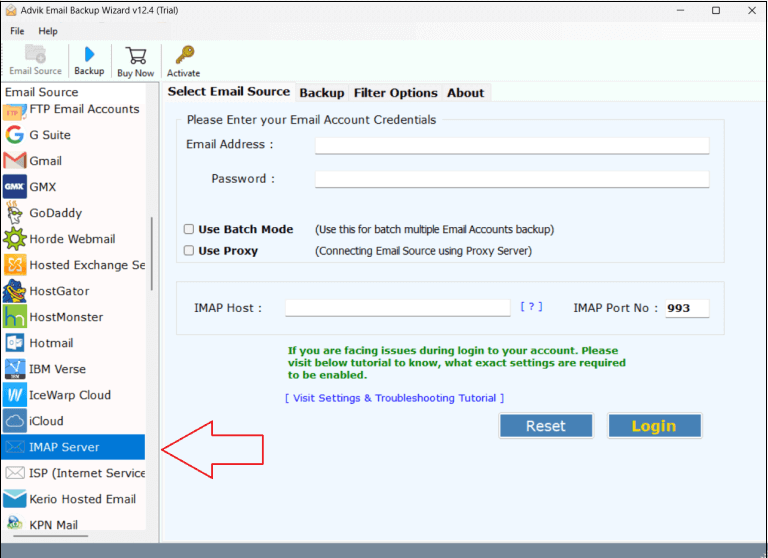
1. Run the tool and choose IMAP Server from the email source list.
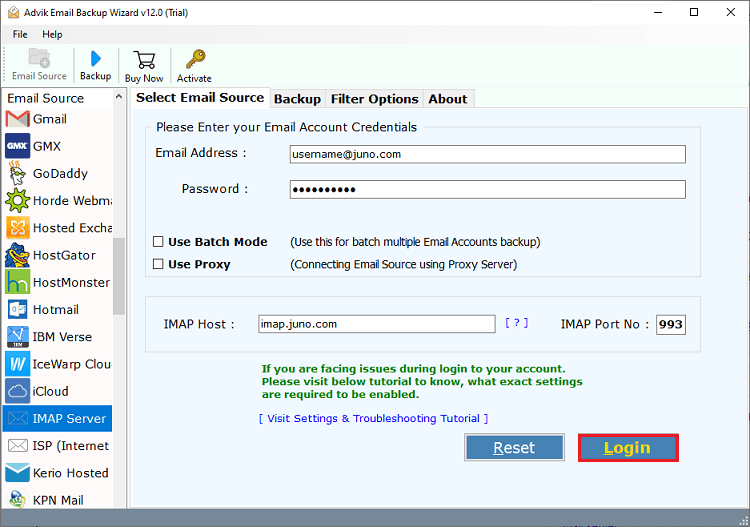
2. Enter Qmail login credentials and IMAP details to sign in.
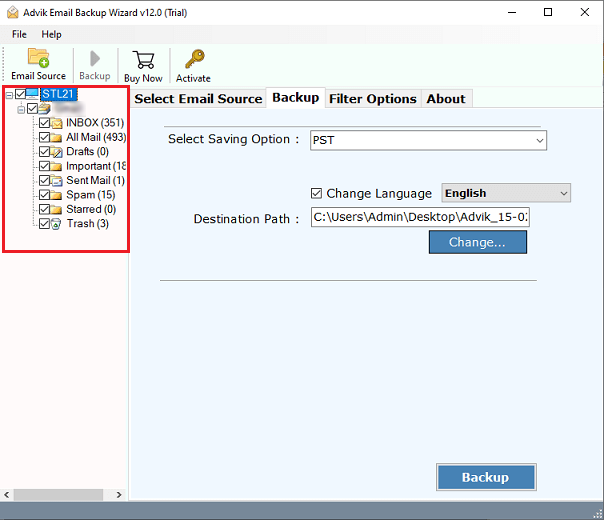
3. Choose the required mailbox folders & subfolders.
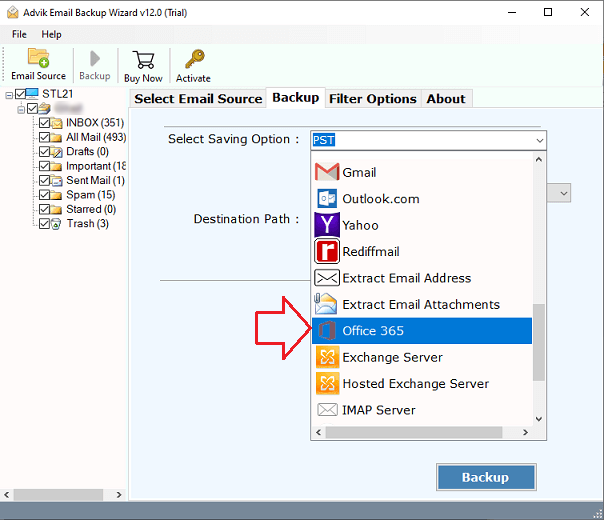
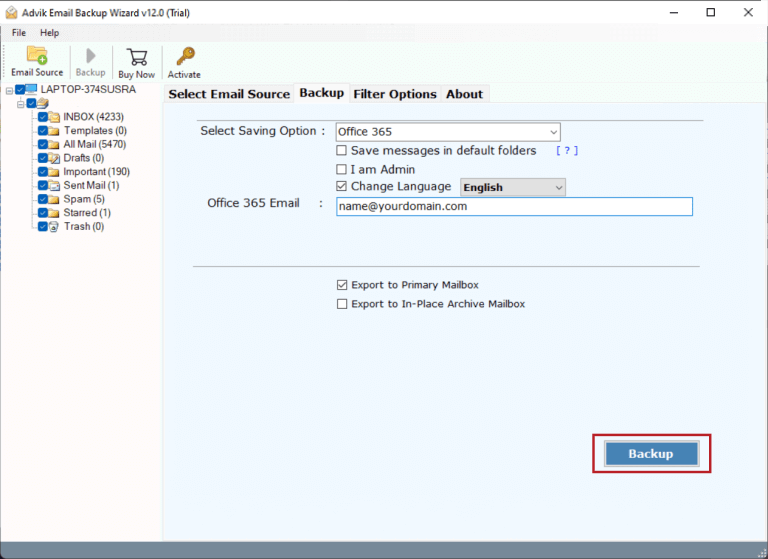
4. Select Office 365 as a saving option.
5. Enter Office 365 email address and press Backup.
6. Type password of Office 365 account and click Sign in to begin the migration process.
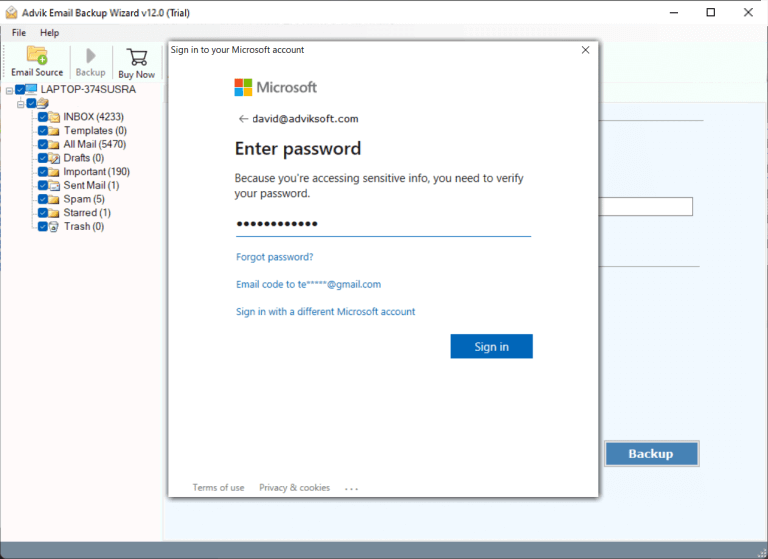
Now sit back and relax! The software will complete the process in a few seconds.
Benefits of Using Qmail to Office 365 Migration Tool
- Directly migrate Qmail to Microsoft 365 without any external help.
- Transfer the entire Qmail mailbox in a single attempt.
- Advanced filter options to move selected emails.
- Preserves all email attributes and folder strcture while migrating.
- Simplified user graphical interface for all types of users.
- 24/7 customer support to solve user issues while facing during migration.
- Widely compatible with both Mac and Windows operating systems.
Conclusion
In this post, we have discussed how to migrate Qmail to Office 365. Here, we have mentioned two different ways to transfer Qmail emails to Office 365. You can manually perform the Qmail to Office 365 migration but it takes a lot of time to complete the process. However, if you want a fast and secure solution, then choosing the automated solution is a smart choice. You can download the free demo version of the above-suggested tool to check its working procedure before purchasing its licensed version.