How to Migrate Thunderbird to Claws Mail?
Jenny Lowrence | March 20th, 2026 | Email Migration
Migrating data from one email client to another is not a simple task, especially when your inbox holds years of important communication. If you are planning to migrate Thunderbird to Claws Mail, this post is for you. In this blog, we’ll walk you through two simple methods to transfer Thunderbird to Claws Mail, including emails, contacts, and other mailbox data.
Mozilla Thunderbird is a widely used, open-source email client known for its flexibility, add-ons, and support for multiple accounts. On the other hand, Claws Mail is an email client designed to be fast, easy to use, and powerful. It is popular among users who prefer a simple interface and fast performance.
Let’s get started!
How to Migrate Thunderbird to Claws Mail for Free?
- Open the Thunderbird application on your system.
- Select the emails that you want to migrate.
- Right-click on the selected emails and choose Save As option.
- Choose the folder where you want to save and click on Save button.
- Now, open Claws Mail on your system.
- Create a new folder in Claws Mail and open it.
- Click on File >> Import Messages.
- Go to the above exported EML files.
- Choose all EML files and click on Open to import them.
Done! This is how you can move Thunderbird emails to Claws Mail but this is a lengthy and time-consuming process if you have a large number of emails to migrate.
How to Transfer Emails from Thunderbird to Claws Mail Automatically?
Now, try the Advik Thunderbird Converter to migrate Thunderbird to Claws Mail in just a few simple clicks. You just need to run the tool, choose your Thunderbird profile, select mailbox folders, choose IMAP as the saving option, enter Claws Mail configured email account details, and click convert to begin the migration process.
The software can move all email folders in a single attempt. Additionally, it offers advanced email filter options to migrate emails based on date range, to, from, subject, etc. It preserves data integrity and mailbox folder hierarchy during the migration.
To start the process, first download this tool and install it on your system. After follow the below discussed steps.


Steps to Migrate Thunderbird Emails to Claws Mail
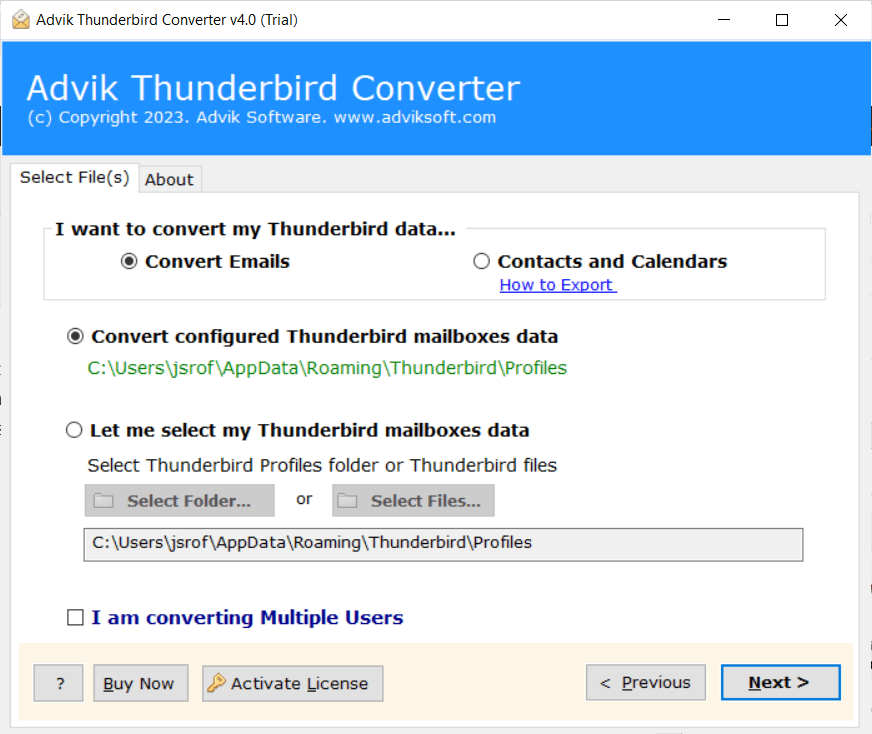
1. Run the tool on your system and choose your Thunderbird profile.
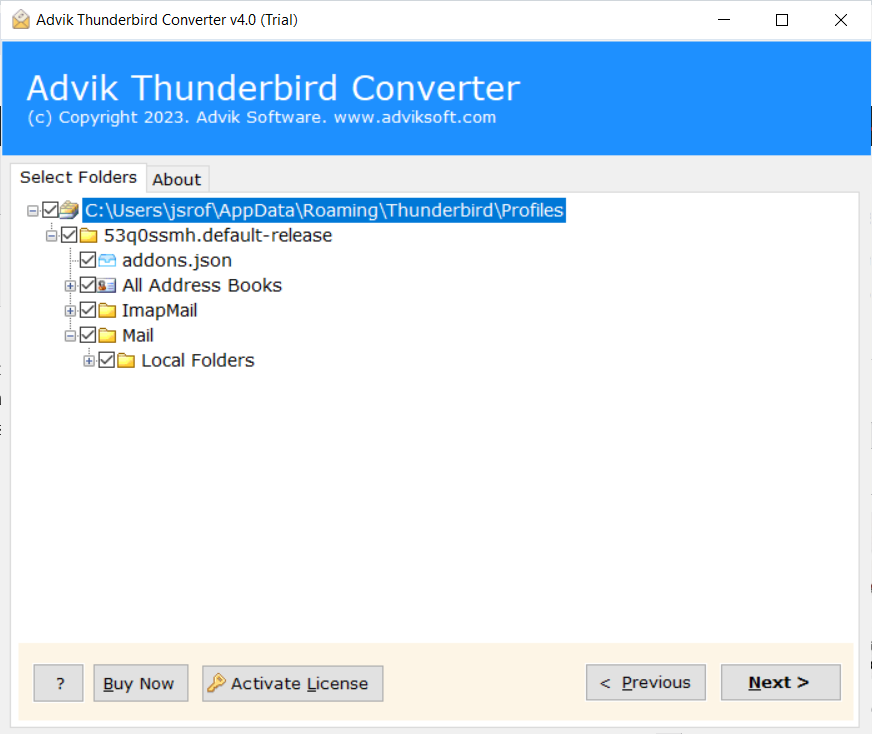
2. Select the required mailbox folders and press Next.
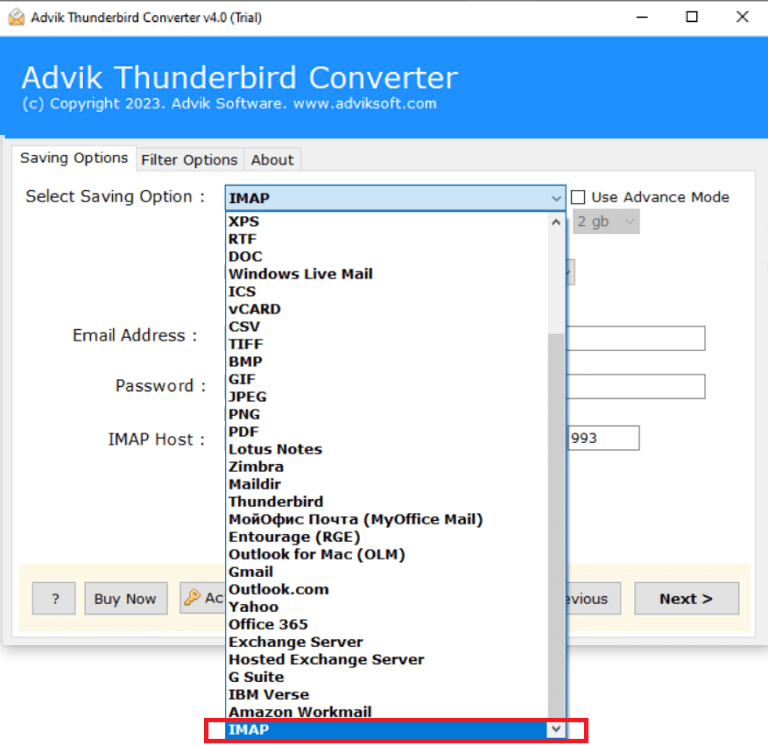
3. Choose IMAP as a saving option.
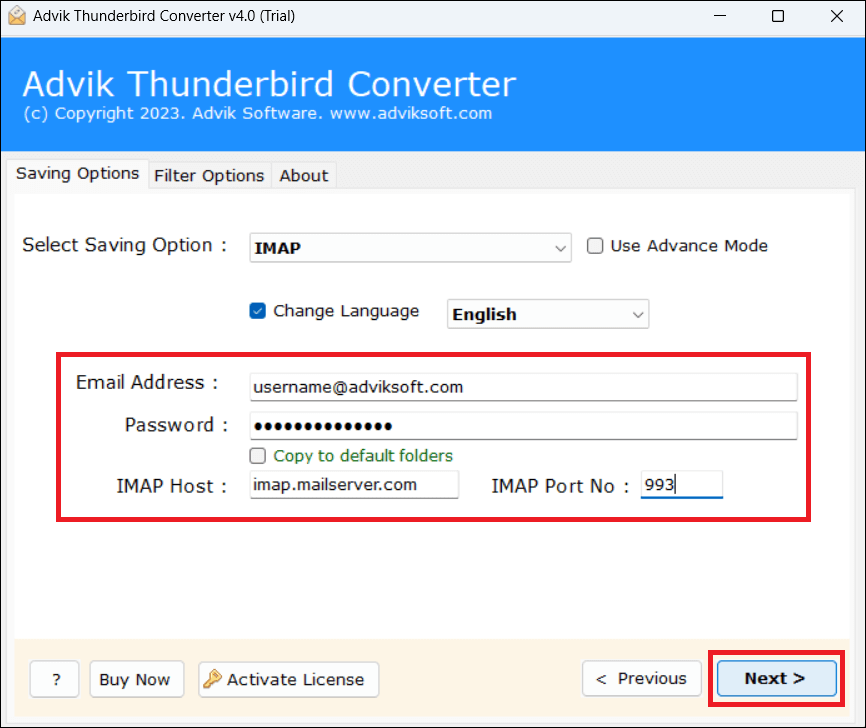
4. Enter Claws Mail configured email account login credentials and click Next button.
5. The software will start migrating Thunderbird emails to Claws Mail.
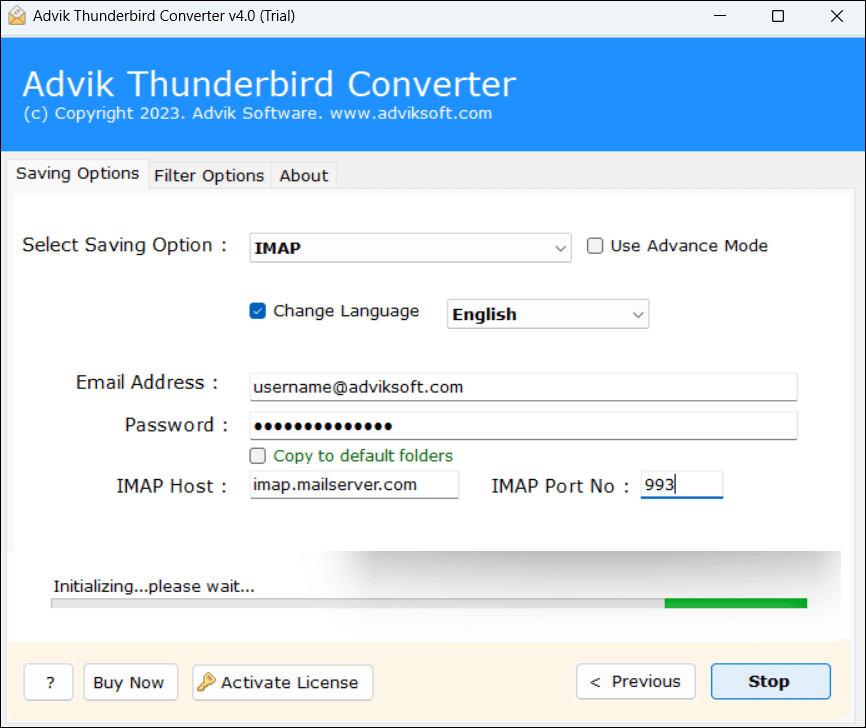
Once the process is complete, you will get a pop-up message with a complete log report.
Advantages of Using Automated Tool
- The software can directly transfer Thunderbird emails to Claws Mail.
- The tool can migrate all email folders of Thunderbird in a single attempt.
- It allows you to move specific emails or folders as per your requirements.
- It keeps all email attributes and mailbox folder structure during the process.
- Also, it can import Thunderbird to Gmail, Yahoo Mail, Office 365, and more.
- The interface of this utility is very simple and easy to use, helpful for all users.
- It is compatible with all versions of Thunderbird and Windows operating systems.
Final Words
In this post, we have discussed how to migrate Thunderbird to Claws Mail. Here, we have explained both manual and automated solutions to transfer Thunderbird emails to Claws Mail. With the manual approach, first, you need to export Thunderbird data and then import these files into Claws Mail. On the other hand, the automated tool can directly import Thunderbird emails to Claws Mail-configured email account via IMAP configuration.