How to Import PST to Thunderbird? Updated Guide
Jackson Strong | May 19th, 2026 | Mozilla Thunderbird
Switching from one email client to another is a common task. Nowadays, individuals prefer to work with a free email client such as Thunderbird for business organizations as well as other personal uses. However, the main problem occurs when users can not transfer their data from one email client to another. One such case is when users face issues to import PST to Thunderbird.
If you are also in a situation where you have PST files of your Outlook data and you want to access them through your Thunderbird account then start reading this write-up. This informative article explores complete detailed instructions to open PST file in Thunderbird. Here, we will figure out 2 easy and quick solutions to accomplish this task.
PST is a Microsoft Outlook application file extension store emails, contacts, calendars, notes, tasks and other mailbox data. On the other hand, Mozilla Thunderbird is an open-source, free and cross-platform email client.
Table of Contents
Reasons to Import PST to Thunderbird
Here are some common reasons why users want to open PST file in Thunderbird:
- Free and Open-Source: To avoid Outlook licensing costs and use Thunderbird’s free & open-source environment.
- Cross Platform Compatibility: Thunderbird is compatible with all major platforms, including Windows, Mac and Linux. So, users can use the same email client on all of their devices.
- Search Option: Thunderbird has a powerful search engine that can be used to find emails easily.
- Add-ons: It has a wide range of add-ons that can be used to customize the email experience.
Can Thunderbird Import PST Files?
Thunderbird cannot open PST files directly because it is a file format created by Microsoft Outlook. Thunderbird mainly supports MBOX, EML and Maildir. Outlook stores mailbox data in PST and OST. So, the difference of file formats makes it impossible to import directly.
However, you can use alternative methods to import Outlook data files. Here, we will discuss two manual and one professional approach to do it.
Method 1. How to Convert PST to Thunderbird Using Outlook?
Thunderbird has an inbuilt option to import from Outlook. But in this approach, first you need to move PST file into Outlook. After that, you can import emails from Outlook to Thunderbird.
Follow the steps below:
- Launch Outlook desktop client on your system and click on File.
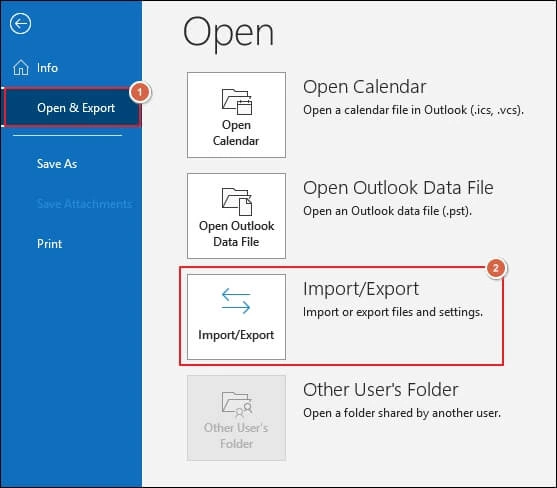
- Click Open & Export and choose Import/Export option.
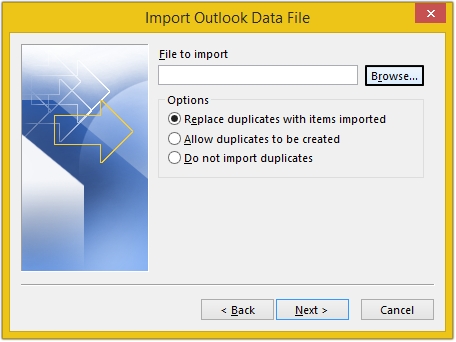
- Click on Browse and select .pst file from your system to import it.
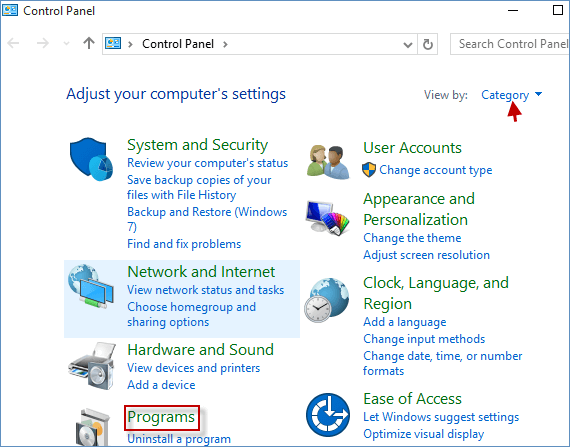
- Open the Control Panel and navigate to Programs.
- Click Default Programs >> Set your default programs.
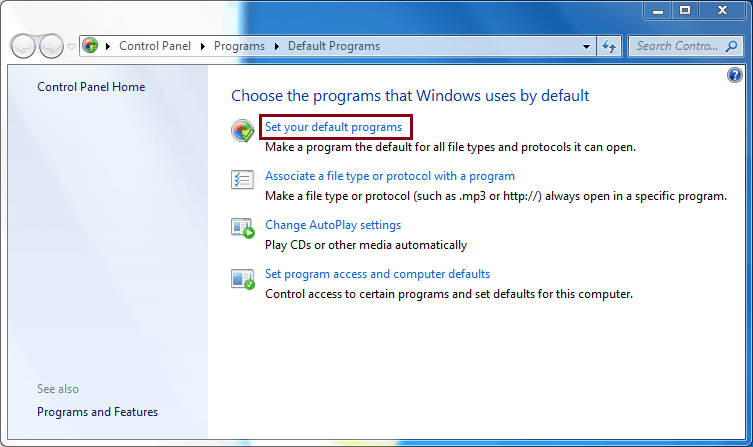
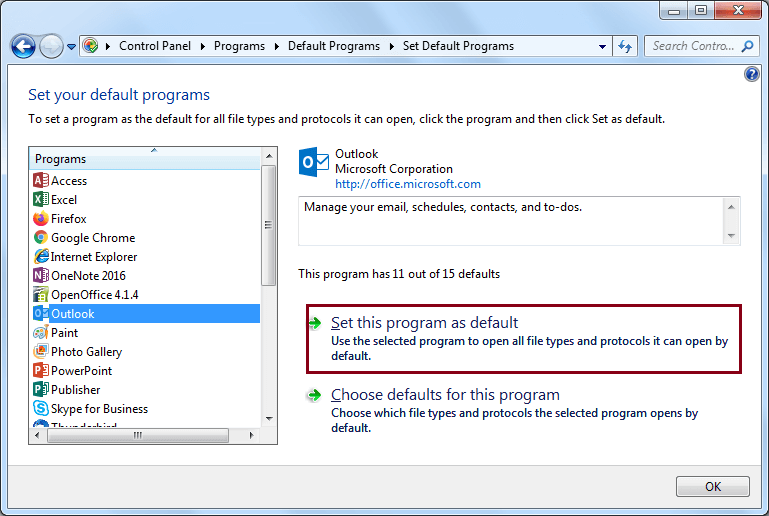
- Select Outlook and click Set this program as default, and then press OK.
- Now, open Thunderbird on your system.
- Go to Tools and choose Import option.
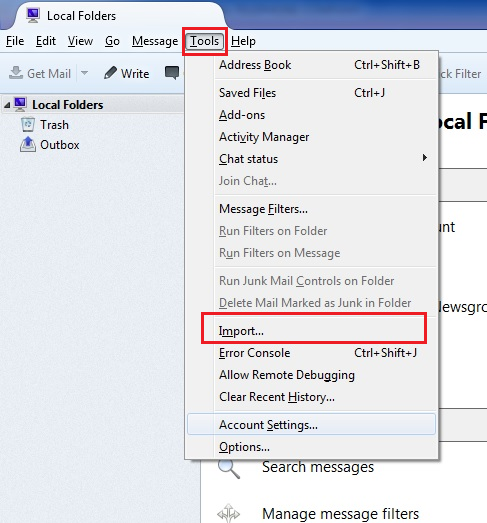
- Select Mail and click Next.
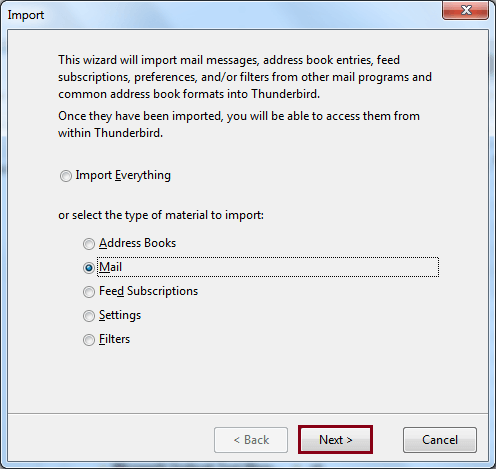
- Next, choose Outlook and press Next.
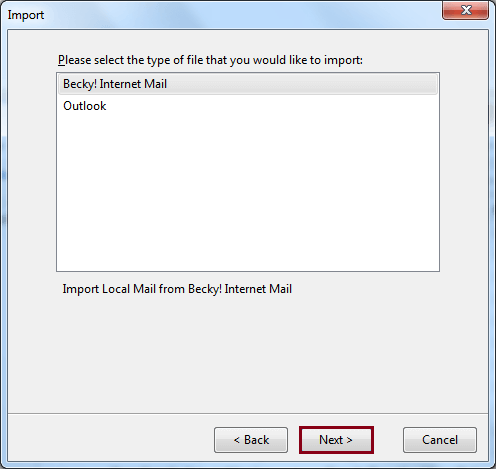
- Finally, click Finish to let Thunderbird import all your PST data.
In this way, you can import PST file into Thunderbird but it is not a single way to import. There is another way to do the same, which we have explained below.
Method 2. How to Open PST File in Thunderbird Using Gmail?
In this method, the users will be required to get help from Gmail. The complete process has been divided into several phases.
Phase 1. Enable IMAP in Gmail
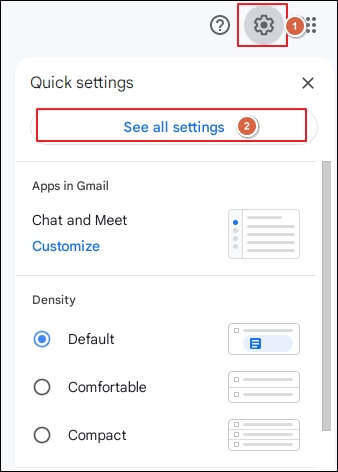
- Log in to your Gmail account and go to Settings.
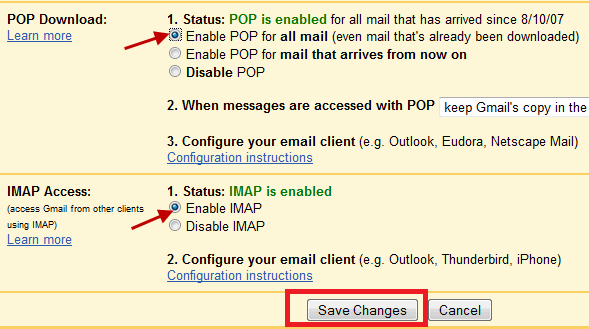
- Enable IMAP option and click Save Changes.
Phase 2. Connect Gmail Account to Outlook
- Launch Outlook application on your system.
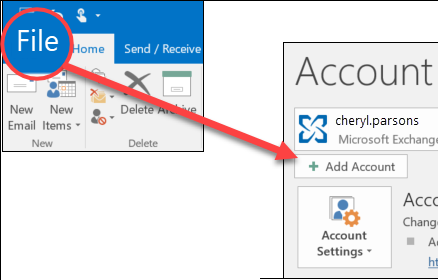
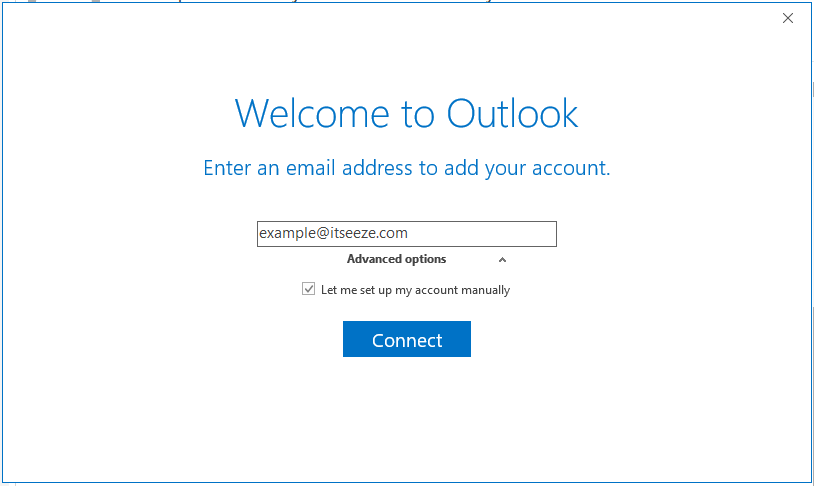
- Click on File tab and choose Add Account.
- Enter Gmail account login details and complete the configuration process.
Phase 3. Import PST to Gmail
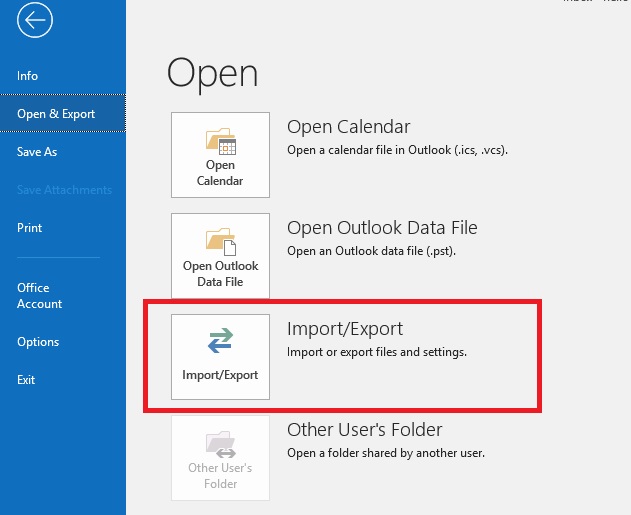
- Navigate to File >> Open & Export >> Import/Export.
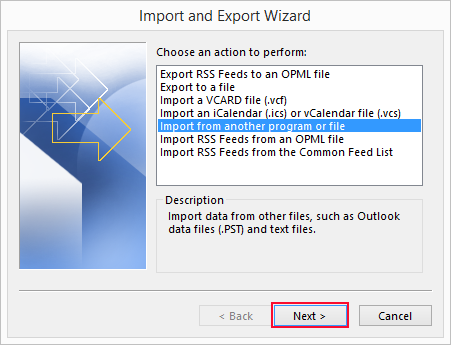
- Choose Import from another program or file and click Next.
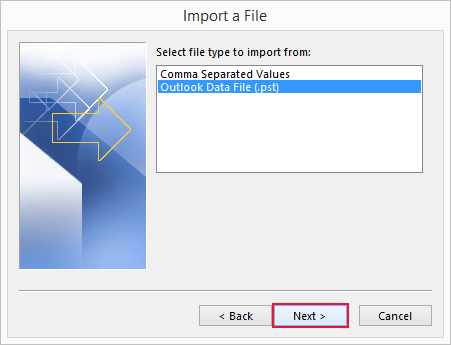
- Select Outlook Data File (.pst) and press Next.
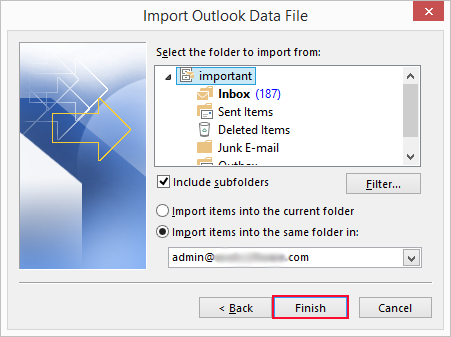
- Browse and choose PST file that you want to import.
- Select Gmail mailbox folder to upload and click Finish.
Phase 4. Add the Same Gmail Account to Thunderbird
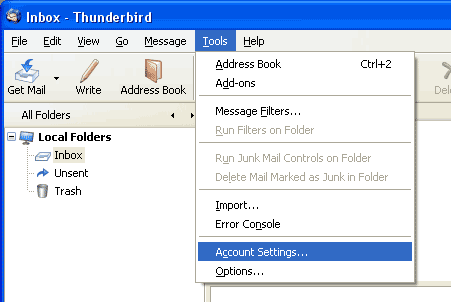
- Now, open Thunderbird and go to Tools >> Account Settings.
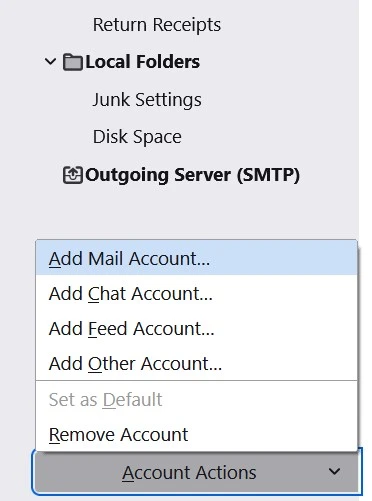
- Choose Account Actions and select Add Mail Account.
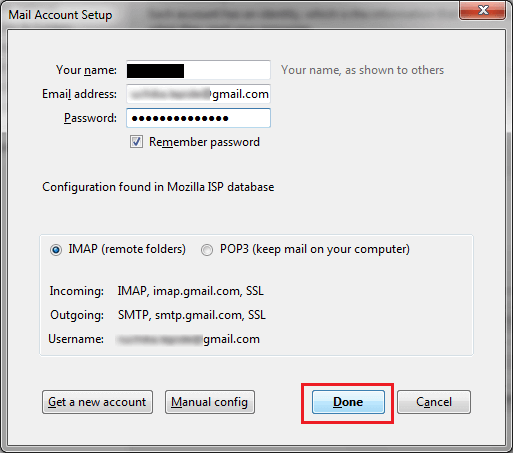
- Enter your Gmail account login details to set up with Thunderbird.
Phase 5. Move PST Data to Thunderbird Profile
- Now, look for the imported PST folder.
- Right-click on it and choose Move To >> Thunderbird accounts profile.
Limitations of Manual Approaches
- Outlook installation is mandatory.
- Time-consuming process.
- Does not maintain the folder structure.
How to Import Outlook PST to Thunderbird Professionally?
In the manual methods, most of the users will face some issues while importing data from PST file to Thunderbird. So the need for a better solution must be considered. To fill that gap, we are here introducing Advik PST Converter. The software is able to directly upload Outlook data file to Thunderbird without any external installation. The tool offers several advanced features such as bulk importing, preserving data integrity & folder hierarchy, advanced email filters, etc. to make the process simple and effective.
Click on the FREE download button and analyze its working process at no cost.


Steps to Import PST File in Thunderbird
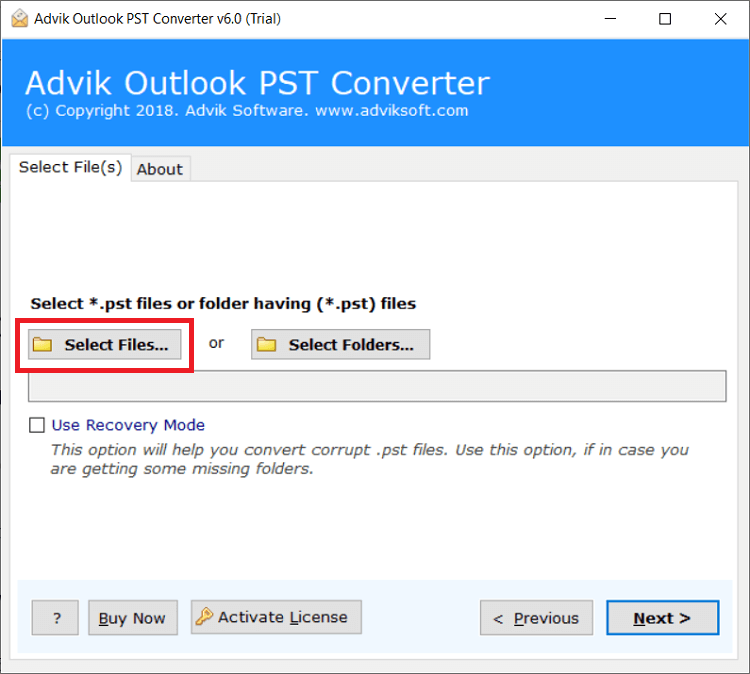
1. Run the tool and click on Select Files or Folders to add .pst file.
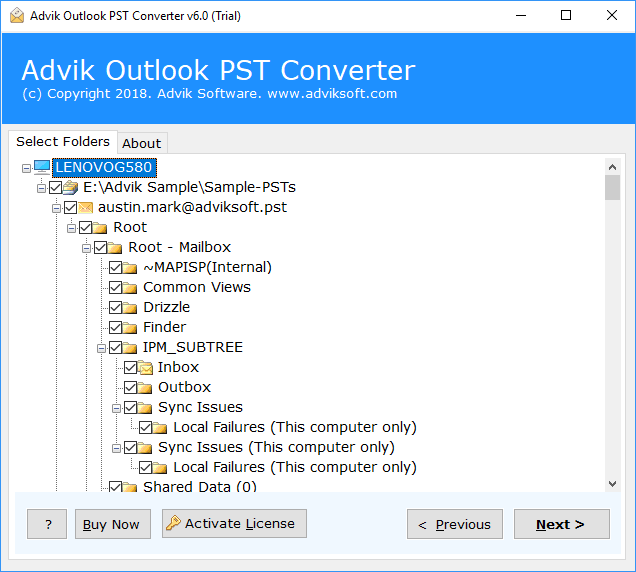
2. Choose the required mailbox folders and click Next.
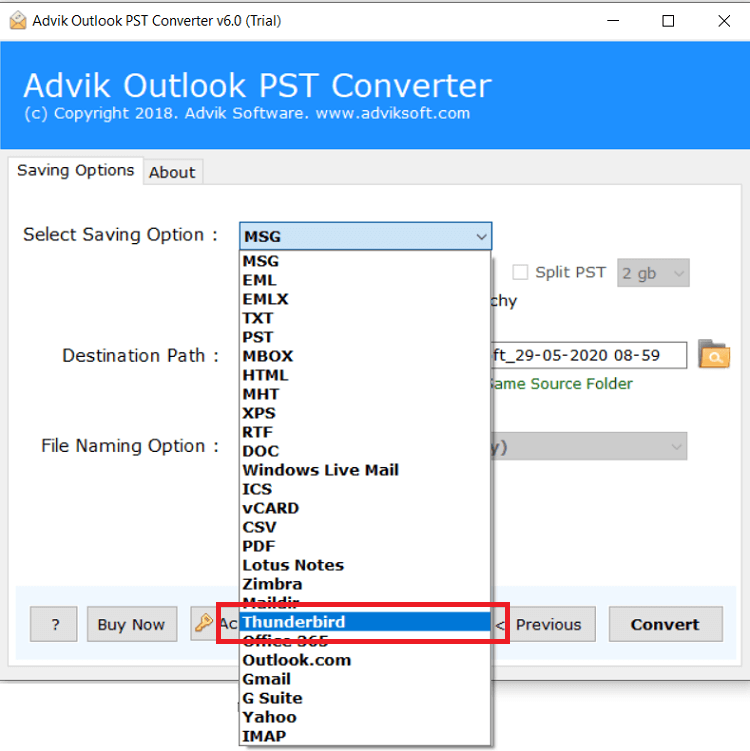
3. Select Thunderbird as a saving option.
4. Next, click the Convert button and analyze the importing process.
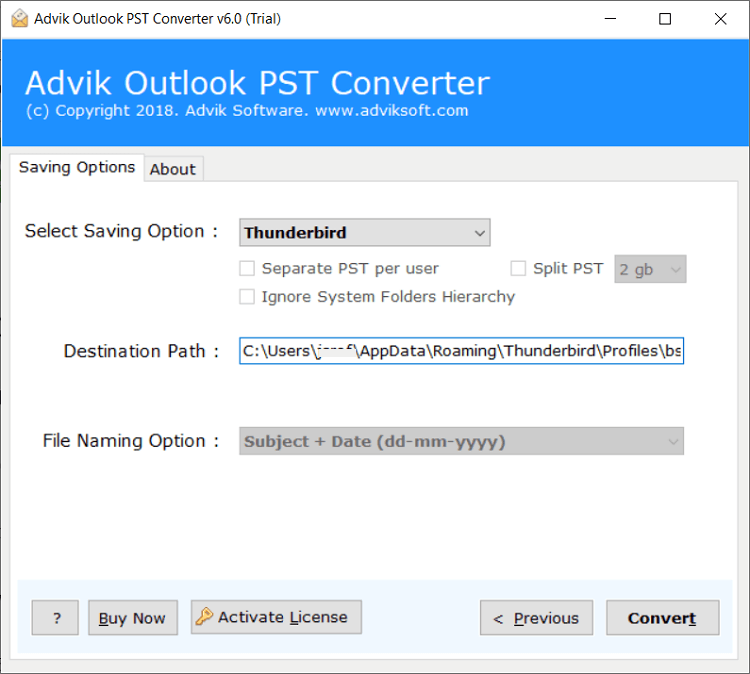
This is the complete step-by-step process for importing PST emails into Thunderbird. After completing the process, you can access your PST data in any version of Thunderbird.
Watch How to Import PST to Thunderbird Without Outlook?
Why Choose Automated Software?
The software will also help in other scenarios as well. Below are a few highlights of the software.
- Bulk Import PST Files: This tool has a dual mode, which allows you to import PST file in Thunderbird in bulk.
- Direct Importing: This is a standalone application. With this software, you can import .pst file into Thunderbird without Outlook.
- No Size Restrictions: The software can import PST file in Thunderbird without any size limit. You can easily open large PST files.
- User-Defined Location to Store Data: You can choose any location on your system to save the output files, or it will default to the desktop.
- 30+ Saving Options: The software supports various options to transfer or convert PST files. Such as that you can import PST to IMAP, Gmail, Outlook.com, O365, Zoho Mail, Yandex Mail, and many more.
- Easy-to-Use GUI: The software interface of this software is very simple and user-friendly. And it ensures 100% data accuracy as well.
- Supports All Windows OS: The PST to Thunderbird converter tool is compatible with all the latest versions and editions of Microsoft Windows, that is Windows 11, Windows 10, Windows 8.1, Windows XP, Windows Vista, etc.
Final Ending
In this post, we have discussed how to import PST to Thunderbird. After knowing the fact that Mozilla Thunderbird does not have the option to import PST files, we found a loophole. The manual tricks are 100% workable in the older version of Thunderbird. It may or may not work in the latest edition due to various technical changes. If they work, then it’s great. Otherwise, you can opt for the professional automated software. You will be able to save your manual efforts and time and get the results accurately.
Frequently Asked Questions
Q 1. Will this software work to import Outlook PST file to Thunderbird on Windows 11?
Ans. Yes, this application works on all Windows versions, including Windows 11.
Q 2. How can I test the software before purchasing it?
Ans. You can take a trial of the PST to Thunderbird converter free, which allows you to transfer 25 PST emails into a Thunderbird profile. If you are satisfied with its woking procedure then you can purchase the licensed edition.
Q3. Can Thunderbird open PST files directly?
Ans. No, Thunderbird can’t import PST files directly. You’ll need to use automated software or convert PST to MBOX which is a compatible format of Thunderbird.
Q4. Does it maintain attachments while importing PST files to Thunderbird?
Ans. Yes, this product maintains all email attachments and other components during the process.
Q5. Does it allow to move of large-sized PST files to Thunderbird application?
Ans. Yes, there is no size limitation and it is lab-tested software with large-size PST files so don’t worry.
Q6. Is Outlook installation mandatory?
Ans. If you use the manual method then Outlook installation is mandatory while the software works without Outlook.