How to Open RPMSG File Without Outlook? Supported Methods
If you need to open RPMSG file without Outlook then you can do it in four ways. First, sign in to Outlook on the Web, which reads rights-protected messages natively in any browser. Second, use the Read the message link that arrives with the encrypted email, which opens Microsoft’s Message Encryption portal and can verify you with a one-time passcode instead of a Microsoft account. Third, install the free Microsoft Purview Information Protection Viewer on Windows to open .rpmsg files saved to disk. Fourth, use a professional solution to export authorised messages to PDF, EML or MBOX without the Outlook desktop client.
Each method suits a different situation and one thing applies to all of them: RPMSG files are encrypted so you will need to sign in with an address the sender authorised. In this guide, we will walk through each method along with its requirements, limitations and when to choose it over the others. Read this post till the end and learn step-by-step instructions to read RPMSG files without Outlook.
Important Compatibility Note: Advik MSG Converter works only with unencrypted/unprotected RPMSG files. It does not decrypt Microsoft authentication or permissions required encrypted or rights-protected RPMSG files at this time. If your RPMSG file is secured, try to access/decrypt the message first using one of the Microsoft supported methods below.
What is an RPMSG File?
An RPMSG file is a restricted-permission message that has been encrypted using Microsoft’s Information Rights Management (IRM ) system, which is now part of Microsoft Purview Information Protection and backed by the Azure Rights Management Service.
When someone in a Microsoft 365 organisation sends protected email, Outlook wraps the original message. Its formatting and its attachments inside an encrypted container and sends that container as an attachment. Recipients usually see it arrive as a file named message.rpmsg.
The encryption does two things at once. It scrambles the content so it cannot be read in transit or at rest. It attaches a policy that controls what authorized recipients are allowed to forward, reply, copy, print and save it.
Why You Can not Just Double Click an RPMSG File
An RPMSG file is stored as a compound binary file. Open it in Notepad and you will see nothing but garbled characters. There is no hidden text layer to extract and no plain-text fallback because the entire payload is encrypted.
A more important thing is that decryption is not a local operation. When a rights-aware application opens an RPMSG file, it contacts Microsoft’s Rights Management Service which presents your credentials and asks whether your account is on the sender’s list of authorized recipients. Only if the service says yes then it hand back the key to decrypt the message.
No software (free, paid, online or offline) can open an RPMSG file for an account that was never granted access. The tool can help you view, export and archive protected messages you are entitled to read without installing Outlook application.
Methods to Open RPMSG File Without Outlook
Users can view RPMSG file without Outlook using web based options, Microsoft Purview Information Protection Viewer, and a professional converter tool. Here, we’ll provide four different methods to accomplish this task.
Method 1. Access RPMSG File in Outlook for Web
If the protected message was sent to Microsoft 365 or Outlook.com address you control then browser version of Outlook handles RPMSG file. This is the fastest and free method.
- Open outlook.office.com for work or school account and outlook.com for personal account.
- Sign in with the exact address the protected email was sent to.
- Find the email carrying the RPMSG attachment and open it.
- Outlook on the web will recognise it as a rights-protected message and open secure reading pane inline.
- If prompted, confirm your identity. The service verifies your permissions and then displays the decrypted message.
The message will open with the sender’s restrictions still in force. If they disabled forwarding those buttons will be greyed out.
You can open file if the message was addressed to a Microsoft-hosted mailbox you can sign into. If you are trying to open file forwarded to you by a third party who was not authorised to share it then this method will not work.
Method 2. Open RPMSG File in Gmail Using the Message Encryption Portal
Microsoft 365 Message Encryption is designed so that recipients outside Microsoft’s ecosystem can still read protected message.
- Open your Gmail account and locate the RPMSG file.
- Click on Read the Message link and open it.
- It will redirected to the Microsoft secure Office 365 Message Encryption portal in your browser.
- Choose one of the two options: Sign in with a Microsoft account or select Sign in with a one-time passcode.
- If you chose the passcode option then check your inbox for the code and enter it.
- The portal decrypts and displays the message in the browser.
The one time passcode route is useful because you do not need a Microsoft account at all.
Method 3. Microsoft Purview Information Protection Viewer
If you have an actual .rpmsg file saved to disk than a live email and you are on Windows, then Microsoft’s own free viewer will open it.
- Download and install the Microsoft Purview Information Protection client.
- Right click the .rpmsg file and choose to open it with the Information Protection Viewer.
- Sign in with the account authorized to read the message.
- The viewer decrypts and display the content.
This method works only if you are on Windows and have a saved .rpmsg file.
Method 4. Convert Decrypted RPMSG Files Without Outlook
One such tool is the Advik MSG Converter. It can process decrypted/unprotected RPMSG files and export their email content into PDF, TXT, DOC and other supported formats without Outlook desktop. However, it does not decrypt encrypted or rights protected RPMSG files.” If your RPMSG file is protected by MS authentication or permissions to view the contents, you must first open or decrypt the message by using an authorized Microsoft-supported procedure before you can convert it.
Download the FREE version of this utility and analyze its working procedure without any cost.

Step-by-Step Guide to View RPMSG File Without Outlook
1. Run the software on your Windows PC.
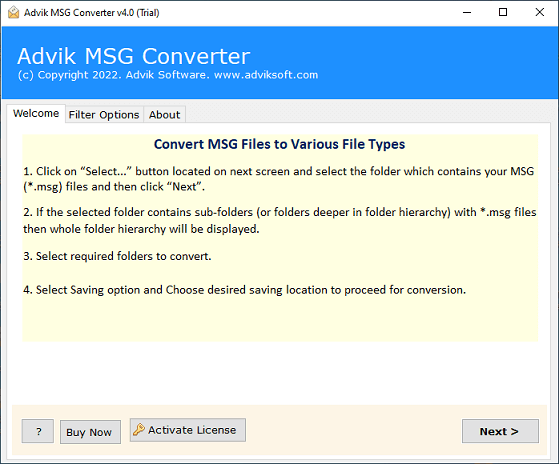
2. Add the decrypted RPMSG file into the software and click Next.
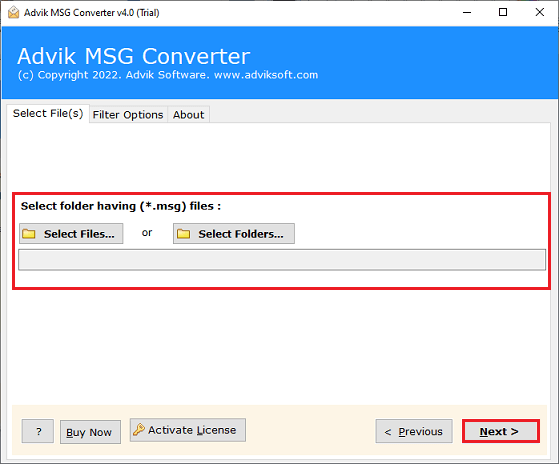
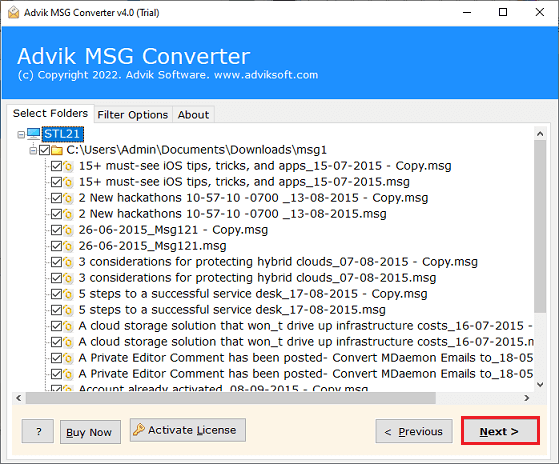
3. Choose the required RPMSG files and press Next.
4. Now, select a saving option from the given list.
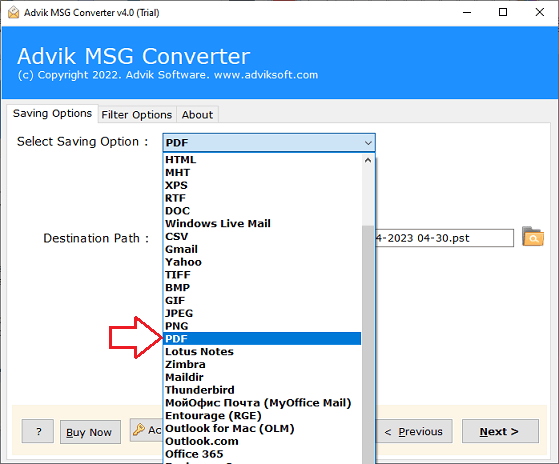
5. Browse the target location and click the Next button.
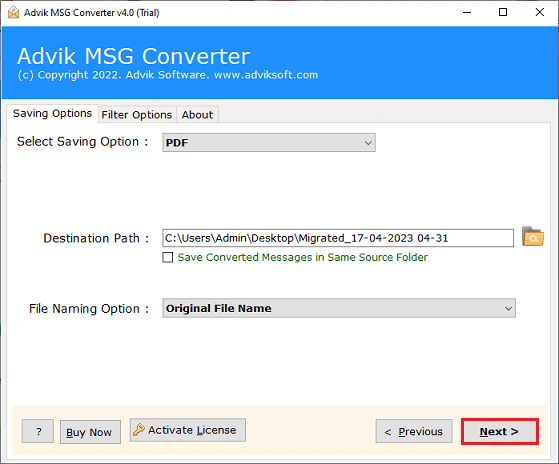
The software will start converting the decrypted RPMSG file into your desired format. Once the conversion is complete, you can open the exported file without Outlook.
Watch Video Tutorial
Why Choose Automated Tool Instead of Manual Approaches?
There are several adavantages of using this professional utility. Some of them are:
- Convert Decrypted RPMSG Files in Bulk: The software enables you to process multiple decrypted/unprotected RPMSG files at once. Using the Select Folder option, you can add multiple supported RPMSG files and export them together.
- Export Decrypted RPMSG into Multiple Formats: The tool provides various saving options for supported RPMSG files, such as that you can export decrypted RPMSG emails to formats such as MBOX, EML, CSV, HTML, and others.
- Preserve Data Integrity: This is a secure solution that retains the all email attributes and properties during the process. It maintains the email formatting while converting.
- Freedom to Choose Destination Path: This toolkit gives the freedom to choose a location to save the resultant file. In this way, you can easily access the file after the conversion.
- Simple GUI: This tool has an easy-to-use interface. Both technical and non-technical users can easily operate it without having any technical guidance.
- Windows Supportive: You can run this tool on any Windows-based system. It supports all the latest and old versions, including Win 11, 10, 8.1, 8, 7, and all editions below.
Which Method Should You Choose?
| Feature | Outlook on the Web | Message Encryption Portal | Purview Information Protection Viewer | Advik MSG Converter |
|---|---|---|---|---|
| Cost | Free | Free | Free | Paid (Free Trial Available) |
| Microsoft Account Required | Yes | No (one-time passcode option) | Yes | Yes |
| Outlook Installation Needed | No | No | No | No |
| Works on Mac | Yes | Yes | No (Windows Only) | No (Windows Only) |
| Best for | Reading one message quickly | Recipients outside Microsoft 365 | Saved .rpmsg files on disk | Bulk export, archiving, PDF copies |
| Handles encrypted/protected RPMSG directly | Yes, with authorization | Yes, with authorization | Yes, with authorization | No |
| Works with decrypted/unprotected RPMSG | Yes, with authorization | Yes, with authorization | Yes, with authorization | Yes |
Final Words
In this post we talked about a couple of ways to open RPMSG files without Outlook. These methods such as, Microsoft Message Encryption portal, Microsoft Purview, Outlook on the web can be used to open authorized protected messages. And, if you have decrypted/unprotected RPMSG files and need bulk conversion or portable copies, then the automated conversion option is good for you. Currently Advik MSG Converter does not decrypt encrypted or rights protected RPMSG files.
Frequently Asked Questions
Q1. Can I open decrypted RPMSG files without Outlook in bulk?
Ans. Yes. Advik MSG Converter can process supported decrypted/unprotected RPMSG files in bulk. However, it does not decrypt encrypted or rights-protected RPMSG files.
Q2. How do I convert a decrypted RPMSG file into an accessible format?
Ans. To edit RPMSG file without Outlook, the professional tool helps users to easily convert into 20+ formats.
Q3. Will the original data structure be preserved while converting RPMSG?
Ans. Yes, the software preserves the data structure and email fotmatting without any alteration.
Q4. Does Advik MSG Converter decrypt protected RPMSG files?
Ans. No. Advik MSG Converter currently supports decrypted/unprotected RPMSG files. It does not decrypt encrypted or rights-protected RPMSG files that require Microsoft authentication or permissions.
Q5. Why can’t Advik MSG Converter open my RPMSG file?
Ans. Your RPMSG file may be encrypted or rights-protected. Advik MSG Converter currently processes decrypted/unprotected RPMSG files but does not decrypt protected RPMSG files. If the message requires authentication or permission verification, first access it using an authorised Microsoft-supported method.