Optus Mail IMAP Settings: Complete Setup Guide
Jackson Strong | January 1st, 2026 | Data Backup
This article provides complete details on Optus Mail IMAP Settings for Outlook, Android & iPhone, etc. Many users face issues while configuring their Optus webmail account in various email clients and other applications. You will find complete details on Optus Mail IMAP settings, POP settings, or SMTP settings for your selected email application. So, let’s get started.
Before moving ahead to get complete details on Optusnet IMAP mail server settings, let’s understand what these are to have a better understanding of these terms.
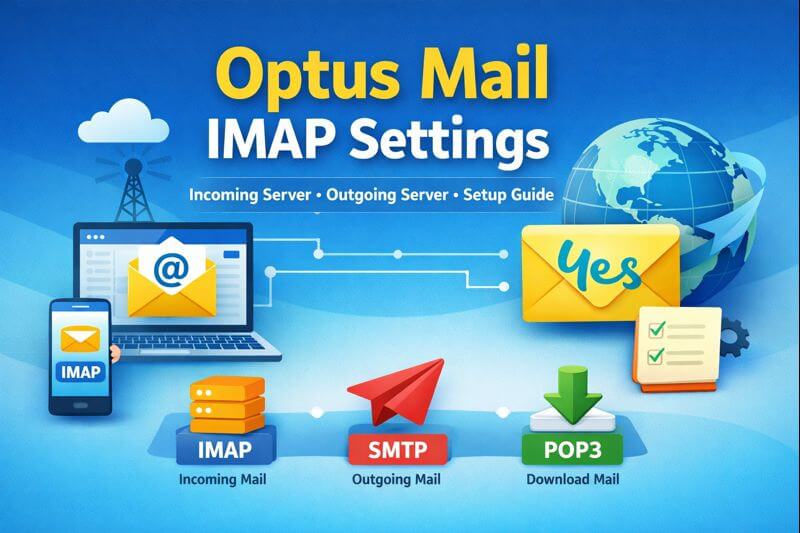
What are IMAP, SMTP, and POP Settings?
POP (Post Office Protocol) was used to receive emails previously. It downloads the emails on one device and usually removes that emails from the server. It is best suited for one who wants to access emails on only one device.
IMAP, which stands for Internet Message Access Protocol, that also used to receive emails while keeping the emails stored on the server and across all devices as well. It is best suited for users who want to access their emails on multiple devices.
SMTP is different from both POP and IMAP. It is used to send emails only. Whenever you send an email, the SMTP protocol decides which server will receive your emails. It works with both IMAP and POP servers.
Optus Mail IMAP Settings for Outlook, Android & iPhone
| Email Settings | Port Details |
|---|---|
| Optus IMAP Incoming mail server: imap.optusnet.com.au |
993, requires SSL 143, non-secure |
| Optus POP3 Incoming mail server: pop.optusnet.com.au |
995, requires SSL 110, non-secure |
| Optus SMTP Outgoing mail server: smtp.optusnet.com.au |
465, requires SSL 465, non-secure |
Now, you have understood all the Optus Mail IMAP settings and other POP and SMTP settings as well. Let’s show you how to use these settings to add Optusnet email to Outlook and any other email client or applications.
How to Set up OptusNet Email on Outlook App?
Follow the steps below to add your Optusnet mail account to Outlook email app easily.
- First, download and install Outlook app on your system.
- Then, click the File tab and choose the Add Account option.
- Enter your Optus email address and click Connect.
- Next, provide your password and sign in to your account.
Once completed, Outlook will begin syncing your Optus emails automatically.
What to Do If You Want to Backup Optus Emails?
We agree that IAP helps in syncing your emails locally from the server. However, it doesn’t allow you to create a local backup to use in case of any unfortunate event with your email account in the future. So, if you want to store Optus emails on your computer for safety or migration, a reliable and safe backup solution is needed.
Third-party tools like Advik Email Backup Wizard allow users to download Optusnet emails locally. It provides various file saving options like PST, PDF, or MBOX types. You can choose any of these popular file formats to store your emails offline on your system. It is a useful way for long-term email storage options.
Final Words
Following this article, you can easily configure your Optus email account in various email applications. We have covered Optus Mail IMAP settings along with SMTP and POP server settings. Read all these carefully before deciding which one to choose.
